1. Introduktion
Thank you for choosing the Delton Ergonomic Vertical Rechargeable Wireless Mouse S12. This manual provides detailed instructions for setting up, operating, and maintaining your new mouse. Designed for comfort and efficiency, this vertical mouse promotes a more natural hand and wrist posture, reducing strain during extended computer use.
Please read this manual thoroughly before use to ensure optimal performance and longevity of your device.
2. Pakkens indhold
Bekræft at alle varer er til stede i din pakke:
- Delton Ergonomic Vertical Wireless Mouse
- USB Dongle (2.4GHz receiver)
- USB opladningskabel
- Brugervejledning (dette dokument)
3. Produktet er slutview
The Delton S12 mouse features an ergonomic vertical design, six programmable buttons, and adjustable DPI settings for precise control. It connects wirelessly via a 2.4GHz USB dongle and is powered by a rechargeable battery.

Image: The Delton S12 Ergonomic Vertical Wireless Mouse, shown with its accompanying USB dongle.
3.1 Ergonomisk design
The vertical orientation of the mouse is designed to align your hand and wrist in a natural handshake position, which can help reduce muscle strain and discomfort often associated with traditional mice.

Image: A hand comfortably gripping the Delton vertical mouse, demonstrating the natural, ergonomic wrist position it promotes.
3.2 Trådløs forbindelse
The mouse connects wirelessly to your device via a 2.4GHz USB dongle, offering a stable connection up to 30 feet (10 meters). This provides flexibility and reduces cable clutter.

Image: The Delton vertical mouse wirelessly connected to a laptop, with the USB dongle inserted into the laptop's port.
3.3 genopladeligt batteri
Equipped with a built-in rechargeable Lithium-Ion battery, the mouse offers up to 30 days of daily use and 12 months of standby time on a single charge. It can also be used while charging.

Image: The Delton vertical mouse being charged via a USB cable, illustrating its rechargeable feature.
3.4 Six Buttons Functionality
The mouse features six responsive buttons for enhanced productivity:
- Venstre klik
- Højreklik
- Scroll Wheel (with click function)
- DPI-kontaktknap
- Frem-knap
- Baglæns knap

Image: A detailed diagram highlighting the location and function of the six buttons on the Delton vertical mouse.
3.5 Customizable DPI Levels
Adjust the mouse sensitivity with three DPI settings: 800, 1200, and 2400. An indicator light changes color to show the current DPI level.
- Blå: 800 DPI
- Rød: 1200 DPI
- Grøn: 2400 DPI
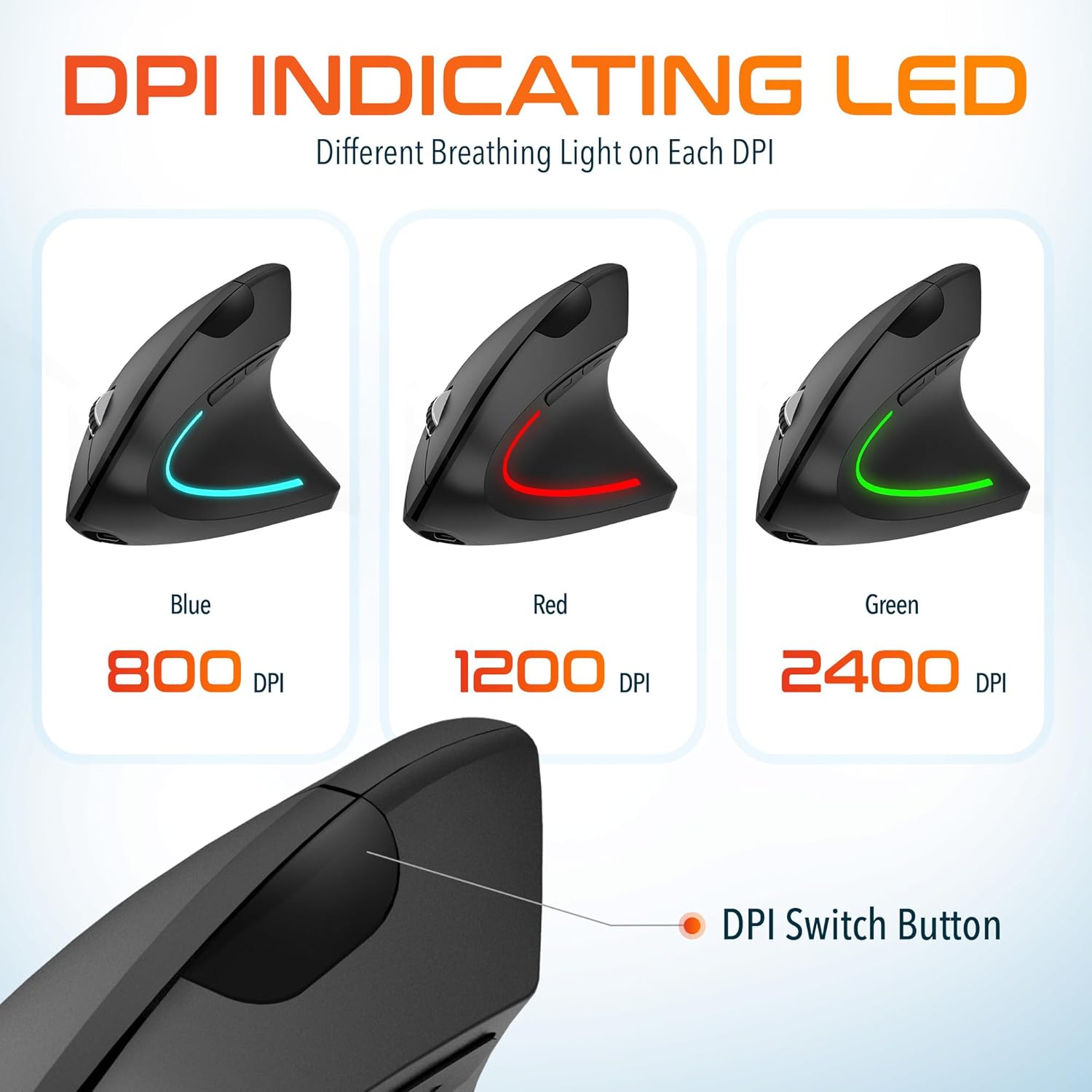
Image: The Delton vertical mouse displaying its LED indicator in blue (800 DPI), red (1200 DPI), and green (2400 DPI) to show current sensitivity settings.
4. Opsætningsvejledning
4.1 Opladning af musen
- Tilslut det medfølgende USB-opladerkabel til opladningsporten på forsiden af musen.
- Plug the other end of the USB cable into a USB power source (e.g., computer USB port, wall adapter, power bank).
- The LED indicator will illuminate during charging and turn off when fully charged. A full charge typically takes approximately 1 hour.
4.2 Connecting the USB Dongle
- Locate the USB dongle, usually stored in a compartment on the underside of the mouse.
- Insert the USB dongle into an available USB port on your computer (PC, Laptop, Mac, Chromebook).
- Systemet vil automatisk registrere og installere de nødvendige drivere. Denne proces kan tage et par øjeblikke.
4.3 Tænd/sluk
Find tænd/sluk-knappen på undersiden af musen. Skub knappen til 'ON'-positionen for at tænde musen. Skub den til 'OFF', når den ikke er i brug, for at spare på batteriet.
5. Betjeningsvejledning
5.1 DPI-justering
To change the mouse sensitivity (DPI), press the DPI switch button located on the top of the mouse, behind the scroll wheel. Each press cycles through the available DPI settings (800, 1200, 2400), indicated by the changing color of the LED light.
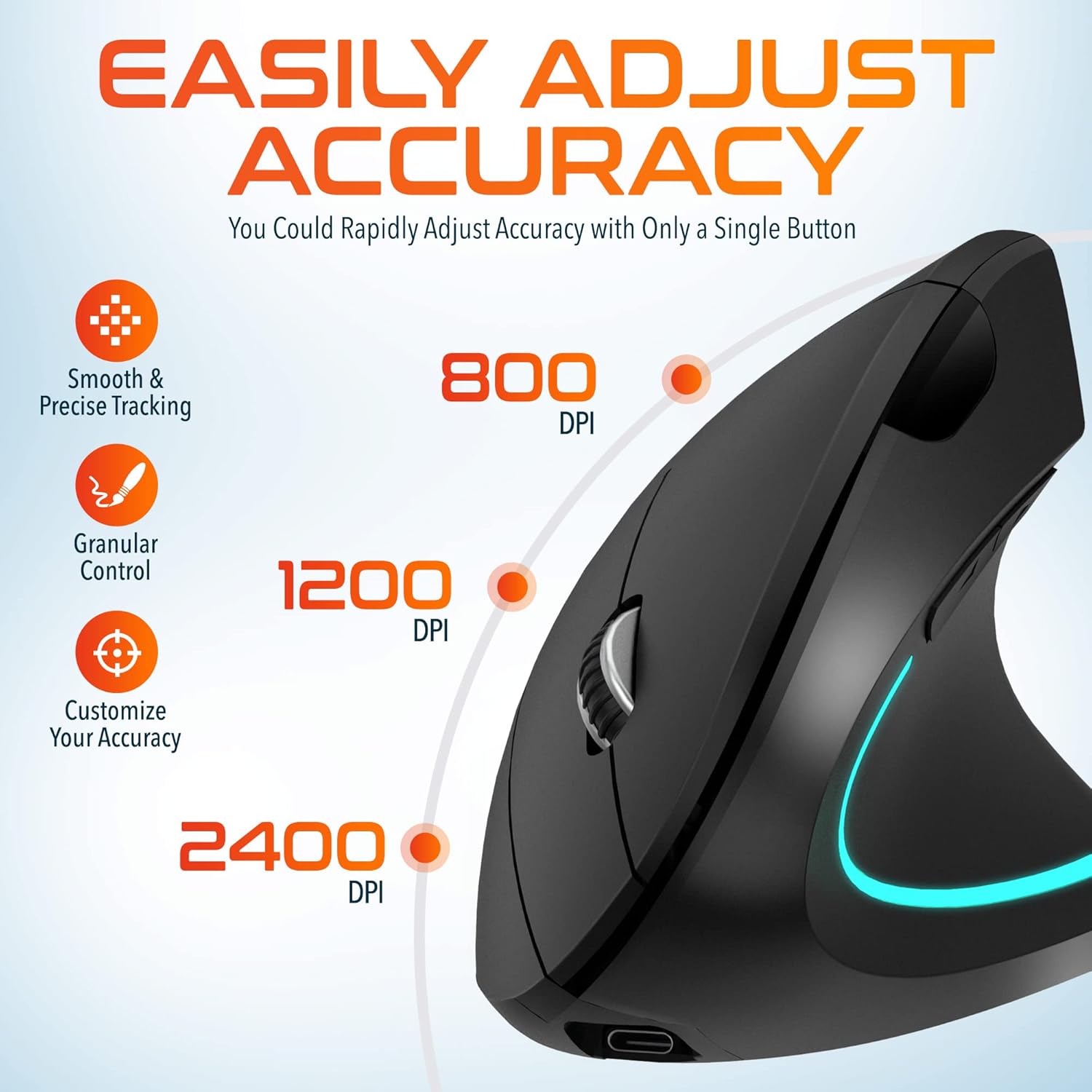
Image: A visual representation of the three adjustable DPI settings (800, 1200, 2400) and their corresponding cursor precision levels.
5.2 Knapfunktioner
- Venstre klik: Standard primær klikfunktion.
- Højreklik: Standard sekundær klikfunktion.
- Scrollhjul: Rul op eller ned gennem dokumenter og web pages. Pressing the scroll wheel acts as a middle click.
- Frem-knap: Navigerer fremad i web browsere eller file opdagelsesrejsende.
- Baglæns knap: Navigerer baglæns i web browsere eller file opdagelsesrejsende.

Billede: Et nærbillede view of the mouse's scroll wheel and the conveniently placed forward and backward shortcut keys.
6. Vedligeholdelse
- Rensning: Brug en blød, tør klud til at rengøre musen. Ved genstridigt snavs, tør letampRengør kluden med vand. Undgå at bruge skrappe kemikalier eller slibende materialer.
- Opbevaring: Når musen ikke er i brug i længere perioder, skal den opbevares et køligt og tørt sted. Sørg for, at tænd/sluk-knappen er i 'OFF'-positionen for at forlænge batteriets levetid.
- Batteripleje: Undgå at aflade batteriet helt for ofte. Oplad musen regelmæssigt for at opretholde batteriets tilstand.
7. Fejlfinding
| Problem | Mulig årsag | Løsning |
|---|---|---|
| Musen reagerer ikke | Low battery; USB dongle not connected; Mouse not powered on; Driver issue | Charge the mouse; Ensure dongle is securely plugged in; Turn on the mouse; Try a different USB port; Restart computer |
| Intermitterende forbindelse | Interference; Dongle too far from mouse; Low battery | Move mouse closer to dongle; Remove obstacles; Charge the mouse; Avoid using near other 2.4GHz devices |
| DPI ændrer sig ikke | DPI button not pressed correctly; Mouse unresponsive | Press the DPI button firmly; Check battery and connection |
| Musemarkøren er uregelmæssig | Dirty optical sensor; Uneven surface | Clean the optical sensor with a soft cloth; Use on a clean, flat mouse pad or surface |
8. Specifikationer
| Feature | Detalje |
|---|---|
| Modelnummer | S12 |
| Forbindelse | 2.4 GHz trådløs (USB-dongle) |
| DPI niveauer | 800/1200/2400 |
| Knapper | 6 (Venstre, Højre, Scrollhjul, DPI, Frem, Bagud) |
| Batteritype | Rechargeable Lithium Ion (included) |
| Wireless Range | Op til 30 fod (10 meter) |
| Produktdimensioner | 5 x 2.6 x 3.25 tommer |
| Varens vægt | 4.9 ounce |
| Kompatibilitet | PC, Laptop, Mac, Chromebook (Windows, macOS, iOS) |
9. Garanti og support
Delton products are designed for reliability and performance. For warranty information or technical support, please refer to the contact details provided with your purchase or visit the official Delton webwebsted. Behold din købskvittering som købsbevis i tilfælde af garantikrav.


