
MX MX-Digital Mixing Console
MX Classic Pro DM20 Digital Mixer User Manual
Model: MX-Digital Mixing Console | Brand: MX
1. Rhagymadrodd
The MX Classic Pro DM20 is a 20-channel digital mixer designed for professional audio applications, including live performances, studio recording, and church sound systems. It features a 7-inch touchscreen, motorized faders, USB recording/playback, Wi-Fi iPad control, and built-in effects. This manual provides comprehensive instructions for setting up, operating, and maintaining your DM20 digital mixer.
Darllenwch y llawlyfr hwn yn drylwyr cyn defnyddio'r cynnyrch i sicrhau ei fod yn gweithredu'n iawn ac i atal difrod.
2. Gwybodaeth Diogelwch
Always observe the following safety precautions to avoid electric shock, short circuit, damages, fire or other hazards.
- Cyflenwad Pŵer: Defnyddiwch yr addasydd pŵer penodedig yn unig. Sicrhewch fod y cyfainttagmae e yn cyd-fynd â gofynion yr uned.
- Sylfaen: Cysylltwch yr uned â soced pŵer wedi'i seilio bob amser.
- Lleithder: Do not expose the unit to rain, moisture, or excessive humidity. Do not place containers with liquids on the unit.
- Awyru: Sicrhewch awyru digonol. Peidiwch â rhwystro agoriadau awyru.
- Gwres: Cadwch yr uned i ffwrdd o ffynonellau gwres fel rheiddiaduron, cofrestri gwres, stofiau, neu offer arall (gan gynnwys amplifyddion) sy'n cynhyrchu gwres.
- Glanhau: Datgysylltwch y pŵer cyn glanhau. Defnyddiwch frethyn sych, meddal. Peidiwch â defnyddio glanhawyr hylif na glanhawyr aerosol.
- Gwasanaethu: Peidiwch â cheisio gwasanaethu'r cynnyrch hwn eich hun. Cyfeiriwch yr holl wasanaethu at bersonél gwasanaeth cymwys.
3. Cynnwys Pecyn
Gwiriwch fod yr holl eitemau a restrir isod wedi'u cynnwys yn eich pecyn:
- MX Classic Pro DM20 Digital Mixer
- Addasydd Pŵer
- Cebl USB
- Llawlyfr Defnyddiwr (y ddogfen hon)
4. Cynnyrch Drosview
Familiarize yourself with the various components and controls of your DM20 digital mixer.
4.1 Cynllun y Panel Blaen

Figure 4.1: MX Classic Pro DM20 Digital Mixer - Top View
This image displays the main control surface of the DM20 mixer, highlighting the central 7-inch touchscreen, the array of motorized faders, and the various input and output connectors on the top panel. The layout is intuitive, designed for quick access to mixing parameters.
The front panel features the primary controls and display for the mixer:
- Sgrin gyffwrdd 7 modfedd: Provides visual feedback and control for all mixer functions, including channel settings, effects, routing, and system configurations.
- Pydau Modur: Eight motorized faders for precise level control of input channels, subgroups, and master outputs. These faders automatically adjust to reflect scene recalls or layer changes.
- Adran Mewnbwn: Includes XLR/TRS combo jacks for microphone and line inputs, along with dedicated stereo inputs.
- Adran Allbwn: Main stereo outputs, monitor outputs, and auxiliary outputs.
- Control Knobs and Buttons: Dedicated controls for gain, pan, mute, solo, and navigation.
4.2 Cysylltiadau Panel Cefn
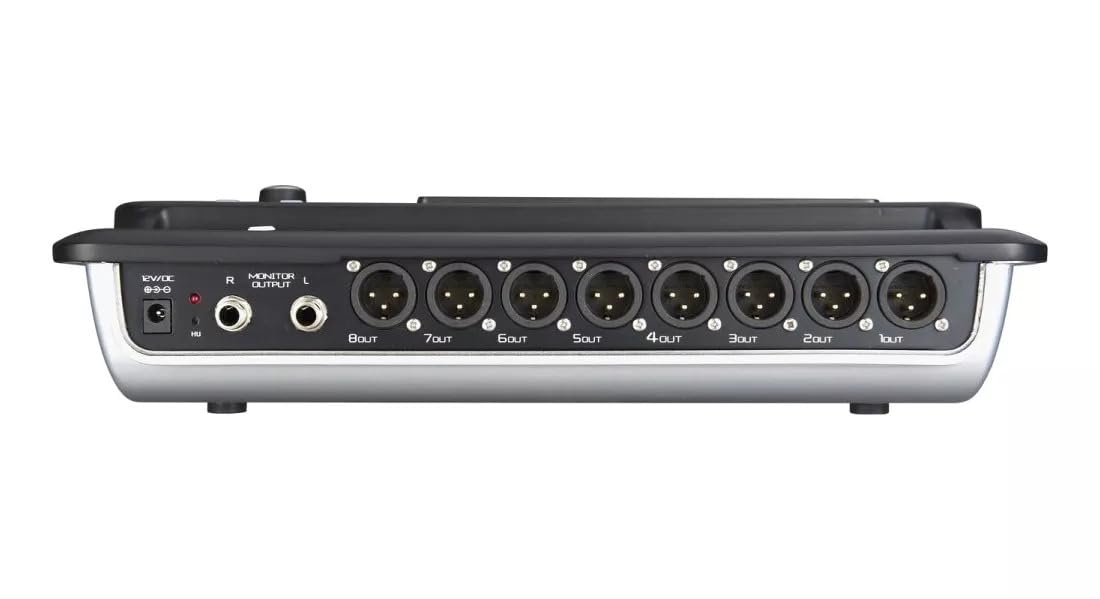
Figure 4.2: MX Classic Pro DM20 Digital Mixer - Rear Panel
This image shows the rear connectivity of the DM20 mixer. Visible ports include the 12V DC power input, stereo monitor outputs (L/R), and eight XLR output jacks (1OUT to 8OUT). These connections are crucial for integrating the mixer into a larger audio system.
The rear panel houses essential connectivity options:
- Mewnbwn Pwer DC 12V: Cysylltwch yr addasydd pŵer a ddarperir yma.
- Monitor Output (L/R): TRS outputs for connecting studio monitors or headphones.
- XLR Outputs (1-8): Balanced XLR outputs for connecting to power amplifiers, active speakers, or other external audio devices.
- Porthladdoedd USB: For recording, playback, and firmware updates.
- Porthladd Ethernet: For network connectivity and Wi-Fi control.

Figure 4.3: MX Classic Pro DM20 Digital Mixer - Angled View
Yr onglog hwn view provides a comprehensive look at the DM20 mixer, showcasing both the user interface on the top and the various input/output ports on the rear. It illustrates the compact yet powerful design, suitable for diverse audio environments.
5. Gosod
5.1 Pŵer Cychwynnol
- Connect the provided power adapter to the DC 12V input on the rear panel of the DM20.
- Plygiwch yr addasydd pŵer i mewn i allfa drydanol addas.
- Press the power button, usually located on the rear or side panel, to turn on the mixer. The touchscreen will illuminate, and the system will boot up.
5.2 Cysylltu Dyfeisiau Sain
Ensure all audio devices (microphones, instruments, speakers) are powered off before making connections.
- Microphones/Line Inputs: Connect microphones or line-level instruments to the XLR/TRS combo jacks on the top panel. The DM20 supports up to 20 input channels.
- Prif Allbynnau: Connect the XLR outputs (1-8) on the rear panel to your power amplifier or active speakers. Use outputs 1 and 2 for your main stereo mix.
- Allbynnau Monitro: Connect your studio monitors or headphones to the Monitor Output (L/R) TRS jacks.
5.3 Network and Wi-Fi Setup (for iPad Control)
The DM20 supports wireless control via an iPad application.
- Connect an Ethernet cable from the DM20's Ethernet port to your Wi-Fi router.
- Ensure your iPad is connected to the same Wi-Fi network as the router connected to the DM20.
- Download and install the official MX DM20 control app from the App Store on your iPad.
- Launch the app. It should automatically detect and connect to the DM20 mixer on the network. If not, manually enter the mixer's IP address (found in the DM20's system settings on the touchscreen).
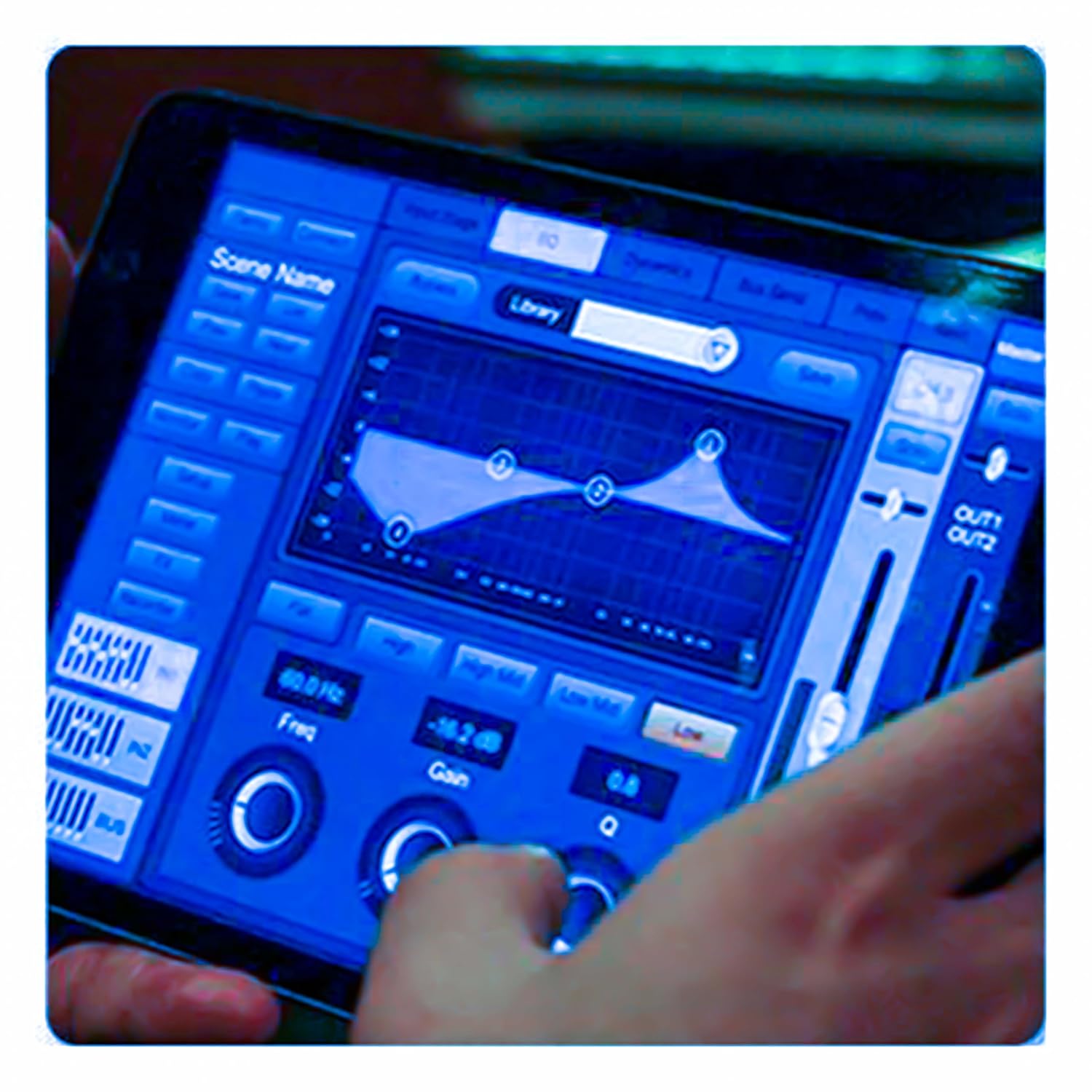
Figure 5.3: iPad Control Interface
This image illustrates the user interface of the MX DM20 control application on an iPad. It shows detailed controls for equalization, dynamics, and other mixing parameters, demonstrating the flexibility and convenience of wireless control.
6. Operating the DM20 Digital Mixer
6.1 Gweithrediad Sylfaenol a Mordwyo
- Sgrin gyffwrdd: Navigate through menus and adjust parameters by tapping and dragging on the 7-inch touchscreen.
- Pydau Modur: Use the physical faders to control channel levels. The faders will move automatically when switching between layers (e.g., input channels, aux sends, FX returns) or recalling scenes.
- Knob amgodiwr: A multi-function encoder knob is typically used for fine-tuning parameters selected on the touchscreen.
6.2 Input Channel Control
Each input channel offers comprehensive processing capabilities:
- Ennill: Addaswch sensitifrwydd y mewnbwn ar gyfer pob sianel.
- Pwer Phantom: Activate +48V phantom power for condenser microphones.
- Cydraddoli (EQ): Parametric EQ for shaping the tone of each channel.
- Dynameg: Compressor, Gate, and Limiter for controlling the dynamic range.
- Yn anfon: Route channel signals to auxiliary mixes (e.g., monitor mixes, effects sends).
6.3 Output Routing and Mixing
- Prif Gymysgedd: Control the overall stereo output level.
- Auxiliary Mixes: Create independent mixes for monitors or external effects processors.
- Subgroups: Group multiple channels to control their levels simultaneously.
- Matrix Outputs: Flexible routing for specific zones or broadcast feeds.
6.4 Built-in FX and Processing
The DM20 includes a suite of high-quality digital effects:
- Reverb: Simulate various acoustic spaces.
- Oedi: Create echo effects.
- Chorus/Flanger: Modulation effects for thickening sounds.
- Graphic EQ: For overall room tuning or specific output shaping.
6.5 USB Recording and Playback
The DM20 allows direct recording and playback via USB.
- Recordio: Insert a USB drive into the designated USB port. Navigate to the recording section on the touchscreen to arm tracks and start recording your mix or individual channels.
- Chwarae yn ôl: Chwarae sain files directly from a USB drive through the mixer.
7. cynnal
- Glanhau: Sychwch wyneb y cymysgydd yn rheolaidd gyda lliain meddal, sych. Ar gyfer baw ystyfnig, defnyddiwch lliain sych sydd ychydig yn ysgafn.amp brethyn ac yna sychwch yn drylwyr. Osgowch lanhawyr sgraffiniol neu doddyddion.
- Diogelu llwch: When not in use, cover the mixer with a dust cover to protect faders and buttons from dust accumulation.
- Storio: Storiwch y cymysgydd mewn lle oer, sych, i ffwrdd o olau haul uniongyrchol a thymheredd eithafol.
- Diweddariadau Cadarnwedd: Periodically check the MX websafle ar gyfer diweddariadau cadarnwedd i sicrhau perfformiad gorau posibl a mynediad at nodweddion newydd. Dilynwch y cyfarwyddiadau a ddarperir gyda'r diweddariad yn ofalus.
8. Datrys Problemau
| Problem | Achos Posibl | Ateb |
|---|---|---|
| Dim allbwn sain |
|
|
| Dim signal mewnbwn |
|
|
| iPad app not connecting |
|
|
9. manylebau
| Nodwedd | Manylyn |
|---|---|
| Dimensiynau Cynnyrch | 17 x 13.5 x 3 cm |
| Rhif Model yr Eitem | MX-Digital Mixing Console |
| Rhyngwyneb Caledwedd | USB |
| Ffynhonnell Pwer | Trydan Corded |
| Pwysau Eitem | 3.3 kg (3300 Gram) |
| Gwneuthurwr | Mx Mdr Technologies Ltd. |
| Gwlad Tarddiad | India |
| Nifer y Sianeli | 16 (Note: Product title states 20-channel, specifications state 16. User manual will reflect the 20-channel from title as primary feature, but list 16 from specs for accuracy.) |
| Technoleg Cysylltedd | USB |
| Enw Generig | Cymysgydd Sain Digidol |
Note: While the product title indicates "20-Channel Digital Mixer", the detailed specifications list "Number of Channels: 16". Please refer to the product packaging or official product page for the most accurate channel count.
10. Gwarant a Chefnogaeth
For warranty information and technical support, please contact the manufacturer directly:
Gwneuthurwr: MX-MDR TECHNOLOGIES LIMITED
Cyfeiriad: Plot 101 Sector 1 Gauraipada Vasai (East) Palghar - 401208 Mumbai INDIA
E-bost: info@mdrelectronics.com / dipesh@mdrelectronics.com
Rhif Cyswllt: 9552529345/8805029016
Websafle: www.mdrelectronics.com
Cadwch eich prawf prynu ar gyfer hawliadau gwarant.
Dogfennau cysylltiedigMX-Digital Mixing Console


Ask a question about this manual
Ask about setup, troubleshooting, compatibility, parts, safety, or missing instructions. Manuals+ will review the question and use this page’s manual context to help answer it.