1. Konec produktuview
The UPERFECT Delta 18.5-inch 100Hz Touchscreen Dual Portable Monitor (Model 185J11) is designed to expand your workspace with two independent displays. It features a 100Hz refresh rate, touchscreen functionality, and versatile connectivity for various devices.
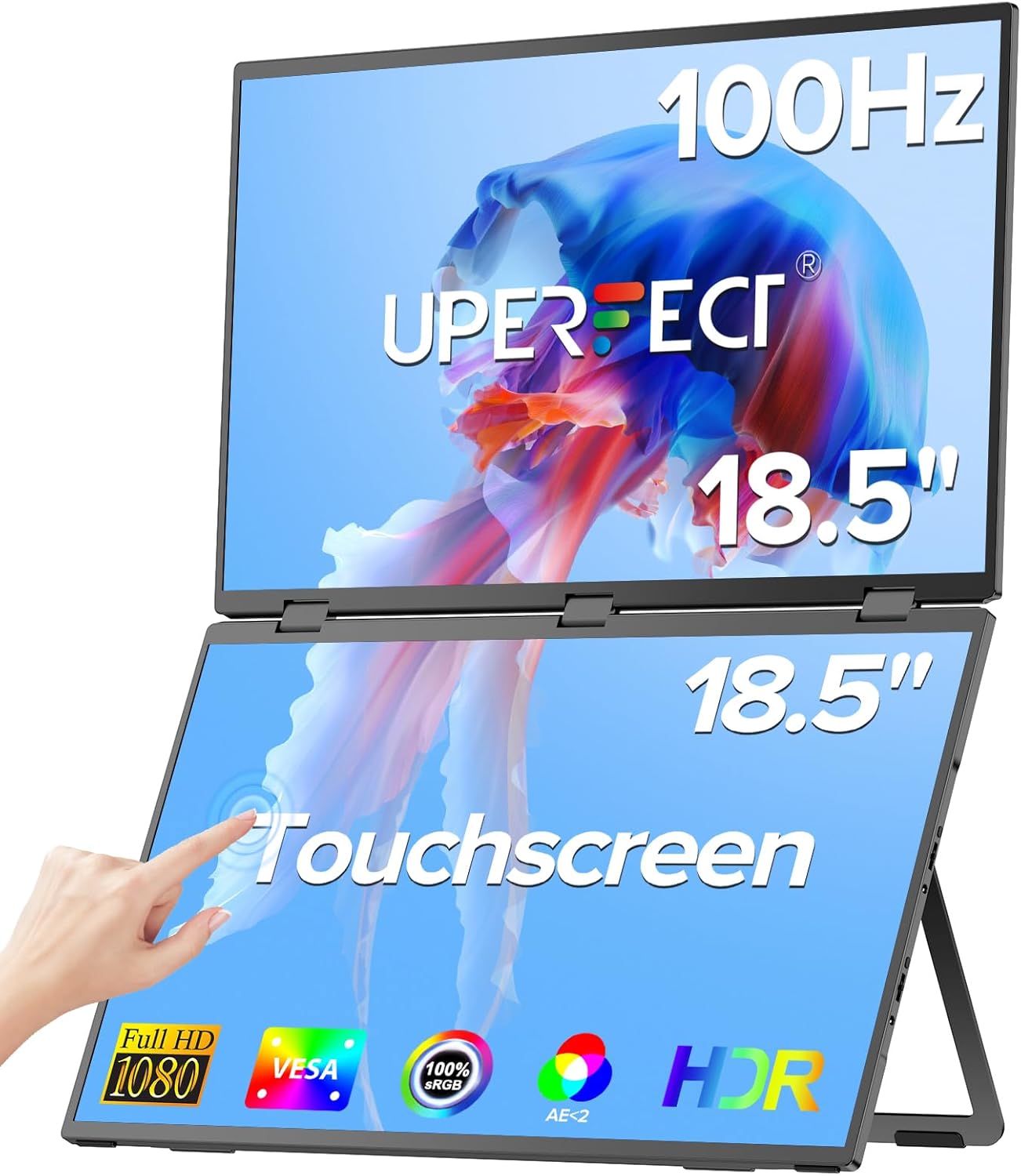
Image: UPERFECT Delta 18.5-inch Dual Portable Monitor.
2. Obsah balení
Ověřte, zda jsou v balení přítomny všechny položky:
- UPERFECT Delta 18.5-inch Dual Portable Monitor
- USB-C to USB-C Cable (x2)
- Mini kabel HDMI na HDMI
- Napájecí adaptér
- Uživatelská příručka
3. Pokyny k nastavení
3.1 Initial Setup and Power Connection
The UPERFECT Delta monitor is designed for plug-and-play functionality, requiring no driver installation for basic operation. For optimal performance, always connect the power supply before use.
- Unfold the Monitor: Carefully unfold the monitor to your desired viewing angle. The integrated stand allows for various positions.
- Připojte napájení: Connect the provided power adapter to the monitor's power input port and a wall outlet.
- Připojit k zařízení: Use the appropriate cable (USB-C or HDMI) to connect the monitor to your laptop, PC, phone, or game console. Ensure your device's USB-C port supports full-featured Type-C (video, audio, and power delivery).

Image: Built-in Adjustable Stand. The monitor features an adjustable stand for ergonomic positioning.
3.2 Montáž VESA
The monitor supports VESA mounting (75x75 mm, M5*4 mm screws) for attachment to a wall mount or monitor arm. This allows for space-saving configurations.

Image: VESA Mountable. The monitor can be mounted using a VESA-compatible arm or stand.
3.3 Connection Modes and Display Configuration
The monitor offers various connection and display modes depending on your operating system and desired setup.
3.3.1 Windows (Full Feature Type-C USB 3.1 or later)
- With External Power: Connect a 60/90/110W USB-C power supply to the bottom USB-C port of the monitor. Use one of the provided USB-C (Thunderbolt) cables to connect the top USB-C port of the monitor to your computer. Your PC should be powered by the monitor.
- Without External Power: Use one of the provided USB-C (Thunderbolt) cables to connect the bottom USB-C port of the monitor to your computer. If power is insufficient, connect a second USB-C cable to the bottom port from another PC USB port or the provided power adapter.
After connecting, allow up to 20 seconds for the screens to stabilize. In Windows Display Settings, select "Extend display" for independent screens, not "Duplicate display."

Image: Windows Display Modes (USB-C). Illustrates different display configurations for Windows via USB-C.
3.3.2 Windows (HDMI)
Connect the monitor via HDMI for video and a USB-C cable for power and touch functionality. Configure display settings in Windows for extended or duplicated modes.

Image: Windows Display Modes (HDMI). Illustrates different display configurations for Windows via HDMI.
3.3.3 MacOS (HDMI)
For three independent screens on MacOS, use a USB-C cable for the bottom monitor (display #1 + power) and an HDMI cable for the top monitor (display #2). Configure the monitor in "Expansion" or "StandAlone" mode via the OSD menu.

Image: MacOS Display Modes (HDMI). Illustrates different display configurations for MacOS via HDMI.
3.3.4 MacOS (Thunderbolt 3 or later)
With a single USB-C cable, MacOS may only mirror the display across both external screens in "Expansion" mode. To utilize the full display area as one large screen, use "Sequence" mode (simulates a single 1920x2160 screen). For independent displays, a combination of USB-C and HDMI may be required.

Image: MacOS Display Modes (Thunderbolt 3). Illustrates different display configurations for MacOS via Thunderbolt 3.
3.3.5 Other Devices
- Samsung (Dex Mode): Connect via USB-C. The monitor supports Samsung Dex Mode for a desktop-like experience.
- iPhone 15 Series (Type-C): Connect via USB-C for display output.
- Herní konzole: Connect via HDMI.
- Two Devices: The monitor can connect to two separate devices simultaneously, allowing for independent use of each screen.

Image: Device Compatibility. Shows various devices connected to the UPERFECT Delta monitor.
3.4 Video Demonstration: Setup and Usage
Video: UPERFECT Delta Monitor Overview. This video demonstrates the monitor's features, including its folding design, 1080p resolution, 60Hz refresh rate, IPS technology, 100% sRGB color gamut, and various usage scenarios like horizontal and vertical display, screen sharing, and setting up two separate devices. It also highlights the VESA mount compatibility.
Video: Portable Setup Demonstration. This video illustrates the portability of the UPERFECT Delta monitor, showing a user setting up a multi-monitor workstation outdoors with ease.
4. Návod k obsluze
4.1 Fyzické kontroly
The monitor features two sets of controls (a button and a scroll wheel) on the right side of the bottom screen. The top set controls the upper screen, and the bottom set controls the lower screen. The scroll wheels are clickable to confirm selections.
- Top Control Group (for Upper Screen):
- Krátký stisk tlačítka: Výběr vstupu.
- Dlouhé stisknutí tlačítka: Inverts the image, useful for presentation mode.
- Short press scroll wheel: Displays the screen customization menu.
- Scroll wheel up/down: Adjusts the brightness of the upper screen.
- Bottom Control Group (for Lower Screen):
- Krátký stisk tlačítka: Input selection and dual-screen display mode.
- Dlouhé stisknutí tlačítka: Powers off both screens.
- Short press scroll wheel: Displays the screen customization menu.
- Scroll wheel up/down: Adjusts the brightness of the lower screen.
4.2 On-Screen Display (OSD) Menu Settings
To access the OSD menu, short press the scroll wheel. Use the scroll wheel to navigate and click to select. Use the button above the scroll wheel to go back or exit the menu.
- Nabídka obrázků:
- Jas: Adjusts screen brightness. (Recommended: 30-40)
- Kontrast: Adjusts screen contrast. (Recommended: 80)
- Černý ekvalizér: Adjusts dark area visibility. (Recommended: 60)
- Herní režim: Selects display preset for gaming. (Recommended: Standard)
- Color Effect Menu:
- Nasycení: Adjusts color intensity. (Recommended: 50)
- Hue: Adjusts color tint. (Recommended: 45)
- Ostrost: Enhances image detail. (Recommended: On)
- DispRotate: Screen rotation setting. (Recommended: Off for bottom screen, Auto for top screen)
- Temperature Menu:
- sRGB: Selects sRGB color profile for accurate color reproduction.
Note: Settings for the upper and lower screens are independent. Adjust each screen's settings separately for optimal display quality.
4.3 Funkce dotykové obrazovky
The monitor features 10-point multi-touch for responsive and intuitive interaction. Touch functionality allows direct interaction with the display without external input devices.

Image: Drawing Tablet Functionality. The touchscreen can be used like a drawing tablet.
4.4 Režimy zobrazení
The monitor supports multiple display modes to suit various tasks:
- Režim klonování: Both screens display the same content.
- DPMST Mode (DisplayPort Multi-Stream Transport): The two screens can be used independently to display different content.
- Režim propojení: The two screens are combined into one overall screen, effectively creating a single larger display.

Image: Multiple Display Modes. Visual representation of Clone, DPMST, and Link modes.
4.5 Ergonomics and Portability
The monitor features a 360° folding screen design and a built-in 180° gravity sensing system for automatic screen orientation adjustment, providing flexibility for various work environments and face-to-face meetings.

Image: 360° Folding Screen Design. The monitor can be folded to various angles for versatile use.

Image: 180° Gravity Sensing System. The screen automatically adjusts its orientation when rotated.
5. Údržba
To ensure the longevity and optimal performance of your UPERFECT Delta monitor, follow these maintenance guidelines:
- Čištění obrazovky: Použijte měkký hadřík, který nepouští vlákna dampened with water or a screen-specific cleaning solution. For stubborn marks, isopropyl alcohol can be used. Avoid harsh chemicals or abrasive materials.
- Čištění Casing: Otřete c monitoruasinměkkým, suchým hadříkem.
- Skladování: When not in use, fold the monitor and store it in a protective sleeve or bag to prevent scratches and damage.
- Vyhněte se extrémním podmínkám: Do not expose the monitor to extreme temperatures, humidity, or direct sunlight for prolonged periods.
6. Řešení problémů
If you encounter issues with your UPERFECT Delta monitor, refer to the following common problems and solutions:
6.1 No Display or Intermittent Signal
- Zkontrolujte připojení: Ensure all cables (power, USB-C, HDMI) are securely connected to both the monitor and your device.
- Napájení: Verify that the monitor is receiving adequate power. Always connect the external power adapter for stable operation, especially when using both screens or high brightness.
- USB-C Port Compatibility: Confirm that your device's USB-C port is a full-featured Type-C port that supports video output (DisplayPort Alternate Mode) and power delivery.
- Allow Stabilization Time: After connecting, allow up to 20 seconds for the monitor to detect inputs and stabilize the display. Screens may turn on and off multiple times during this process.
- Try Different Ports/Cables: Test with different USB-C or HDMI ports on your device, and if possible, try different cables to rule out faulty connections.
6.2 Display Quality Issues (e.g., Color Differences, Flickering)
- Independent Screen Settings: Remember that the OSD settings for the upper and lower screens are independent. Adjust the "Picture" and "Color Effect" settings for each screen separately to match them.
- Napájení: Insufficient power can cause flickering or reduced display quality. Ensure the monitor is connected to its power adapter.
- Grafická karta: If your computer's integrated graphics card does not support a sufficiently high resolution for an extended display (e.g., 1920x2160 for Link Mode), you may need an external graphics adapter.
6.3 MacOS Multi-Screen Issues
- Jeden kabel USB-C: With a single USB-C cable, MacOS may only allow mirroring across both external screens or using "Sequence" mode to combine them into one large display.
- Independent Displays: To achieve three independent displays (laptop + two external), a combination of USB-C and HDMI connections may be necessary. Connect one monitor via USB-C and the other via HDMI.
6.4 Unresponsive Touchscreen
- USB připojení: Ensure the USB-C cable is properly connected, as touch functionality often relies on the USB data connection.
- Podpora operačního systému: Verify that your operating system supports touchscreen input.
7. Specifikace
| Funkce | Specifikace |
|---|---|
| Značka | SKVĚLÉ |
| Číslo modelu | 185J11 |
| Velikost obrazovky | 18.5 palce |
| Typ zobrazení | IPS |
| Rezoluce | 1920 × 1080 (FHD 1080p) |
| Poměr stran | 16:9 |
| Obnovovací frekvence | 100 Hz |
| Doba odezvy | 1 milisekunda |
| Kontrastní poměr | 1200:1 |
| Speciální funkce | USB Hub, Portable, Touchscreen, Ultra-wide Screen |
| Hardwarové rozhraní | Mini HDMI, USB Type C |
| Počet portů HDMI | 1 |
| Počet portů USB 3.0 | 1 |
| Kompatibilita zařízení | Game Console, Laptop, Tablet |
| Rozměry položky (D x Š x V) | 42.5 x 26 x 2 centimetrů |
| Hmotnost produktu | 2.7 kg |
8. Záruka a podpora
UPERFECT is committed to customer satisfaction. The product comes with lifetime support. For any inquiries or assistance, please contact UPERFECT customer service. Support is available 24/7.


