
1. Product Overview
The MageGee Captain72 is a 65% wired mechanical gaming keyboard featuring advanced Hall Effect magnetic switches. Designed for high-performance gaming, it offers rapid trigger response, adjustable actuation points, and a durable CNC aluminum frame with a gasket-mounted structure for a premium typing experience. The keyboard also includes customizable RGB backlighting and hot-swappable switches.

Image 1.1: Top-down view of the MageGee Captain72 keyboard, showcasing its compact 65% layout and keycap colors.
Key Features:
- Ultra-Low Latency Magnetic Switches: Utilizes the Hall effect for precise and fast key commands without physical contact, ensuring smooth operation.
- Rapid Trigger Functionality: Achieves super-fast response with a minimum trigger distance of 0.1 mm, allowing for quick key presses and lifts.
- Adjustable Actuation Point: Customize the trigger distance for each key from 0.1 mm to 4 mm with 0.1 mm accuracy. Includes three preset key travel modes (Comfort, Sensitive, Game).
- Gasket-Mounted Structure: Features gaskets and multiple sound-absorbing pads for reduced vibrations, suppressed hollow sounds, and a soft, even typing feel.
- Hot-Swappable Switches: Magnetic switches are individually removable and replaceable without soldering, allowing for personalization. Compatible only with OUTEMU magnetic switches.
- South-Facing RGB Backlit: Offers various pre-programmed backlight modes and color choices, with adjustable speed and brightness.
- CNC Aluminum Case & Double-Shot PBT Keycaps: Durable aluminum top cover and abrasion/oil-resistant PBT keycaps for longevity and a premium feel.

Image 1.2: Close-up view illustrating the aluminum alloy top enclosure of the Captain72 keyboard, highlighting its robust construction.

Image 1.3: Exploded diagram showing the internal gasket-mounted structure of the keyboard, including PBT keycaps, aluminum top enclosure, magnetic switches, PC positioning plate, IXPE foam pad, PORON foam, PCB board, silicone pad, and bottom cover.
2. Package Contents
Please check the box for the following items:
- MageGee Captain72 Rapid Trigger Keyboard
- Type-C USB Cable
- User Manual
- User Guide
- Keycap Puller
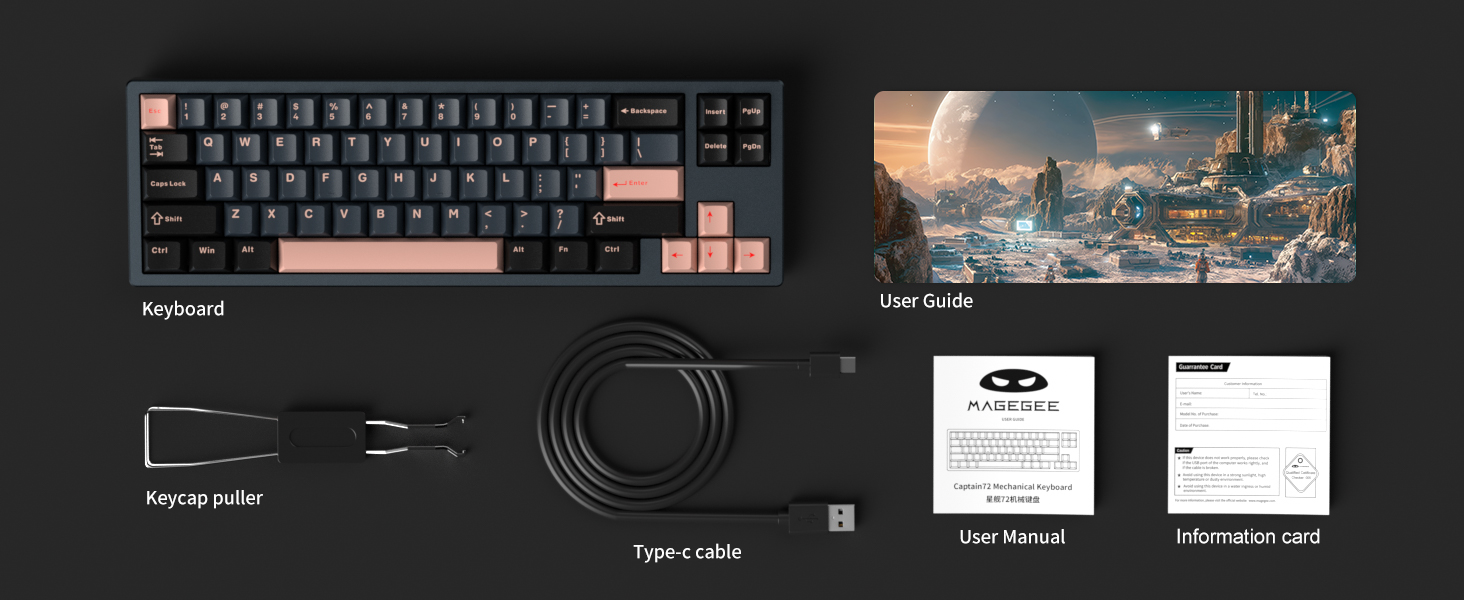
Image 2.1: An illustration of the package contents, including the keyboard, keycap puller, Type-C cable, user manual, user guide, and an information card.
3. Technical Specifications
| Feature | Specification |
|---|---|
| Model Number | Captain72 |
| Connectivity Technology | USB-C (Wired) |
| Keyboard Description | Hall Effect Magnetic Switches, Mechanical |
| Compatible Devices | Laptop, PC (Windows, Mac OS) |
| Special Features | Backlit, Gasket Mount, Hot-Swappable, Hotkeys and Media Keys, Programmable Keys |
| Color | Royal Blue |
| Keyboard Backlighting | RGB (South-facing LEDs) |
| Material | Aluminum (Top Cover), Plastic (Bottom Cover), PBT (Keycaps) |
| Item Weight | 2.28 pounds |
| Package Dimensions | 14.96 x 5.98 x 2.56 inches |
Magnetic Switch Specifications (Fairy Rabbit Magnetic Switch):
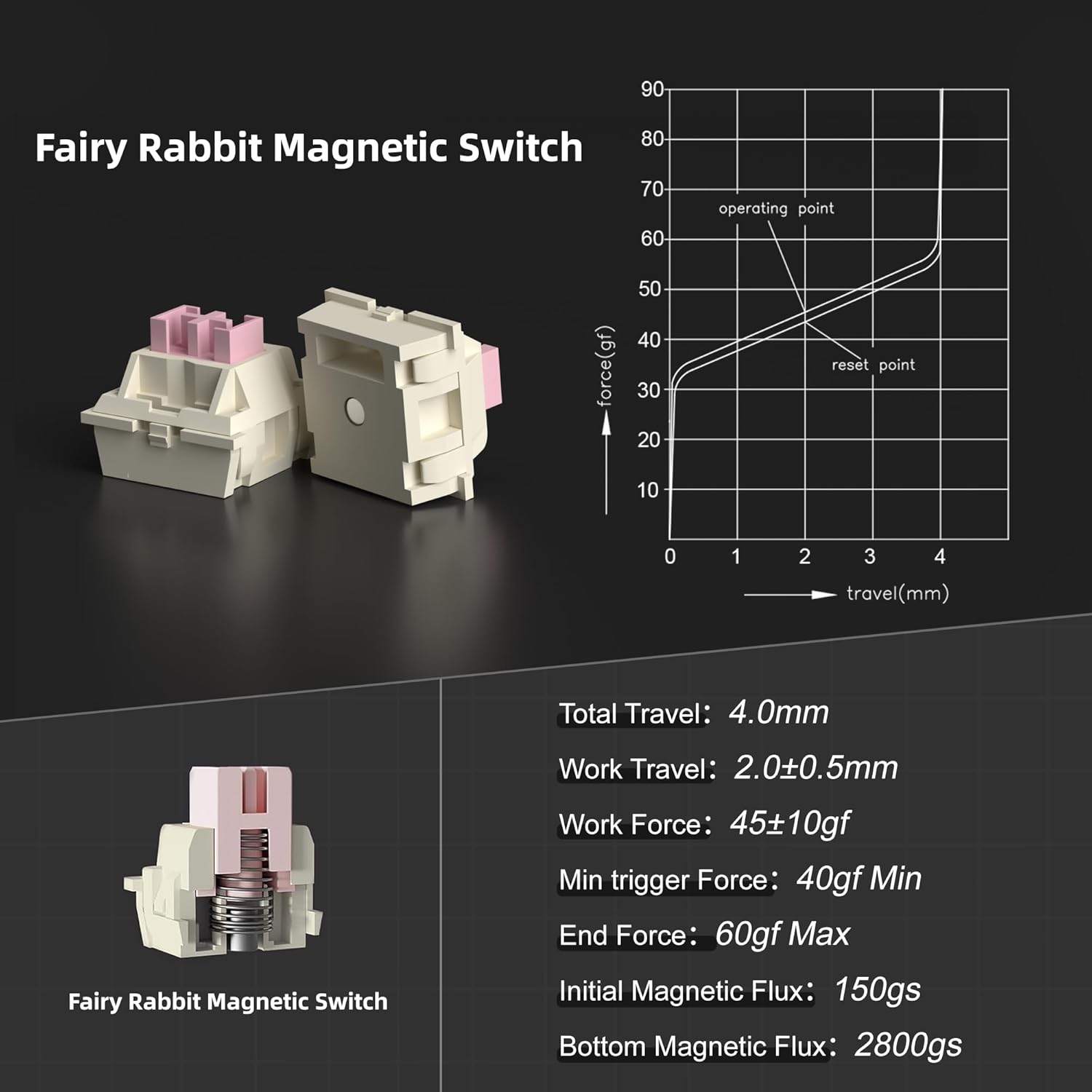
Image 3.1: Detailed specifications for the Fairy Rabbit Magnetic Switch, including force-travel graph, total travel (4.0mm), work travel (2.0±0.5mm), work force (45±10gf), minimum trigger force (40gf Min), end force (60gf Max), initial magnetic flux (150gs), and bottom magnetic flux (2800gs).
4. Setup Guide
Follow these steps to set up your MageGee Captain72 keyboard:
- Unpack the Keyboard: Carefully remove the keyboard and all accessories from the packaging.
- Connect the USB-C Cable: Insert one end of the provided Type-C USB cable into the USB-C port on the keyboard.
- Connect to Computer: Plug the other end of the USB-C cable into an available USB port on your computer (Laptop or PC).
- Driver Installation (Optional but Recommended): For full customization and advanced features, download and install the MageGee proprietary driver from the official MageGee website. Note: The Captain72 driver only supports Windows systems.
- System Compatibility: The keyboard is compatible with both Windows and Mac OS systems.
5. Operating the Keyboard
Rapid Trigger and Adjustable Actuation:
The Captain72 keyboard features magnetic switches that allow for dynamic active/reset points, enabling rapid trigger functionality. This means keys can be pressed and reset quickly without needing to lift the key completely, providing a competitive edge in fast-paced applications.

Image 5.1: Diagram explaining the rapid trigger mechanism, showing the fastest trigger point at 0.1mm and adjustable trigger travel from 0.1mm to 4.0mm for magnetic gaming keyboards, contrasting with fixed active/reset points of regular gaming keyboards.
The trigger distance can be adjusted for each individual key from 0.1 mm to 4 mm with an accuracy of 0.1 mm. The keyboard also comes with three preset key travel modes:
- Comfort Mode: General typing and casual use.
- Sensitive Mode: Increased responsiveness for faster input.
- Game Mode: Optimized for gaming with the fastest possible response.
These modes can be switched using a dedicated button or through the software.
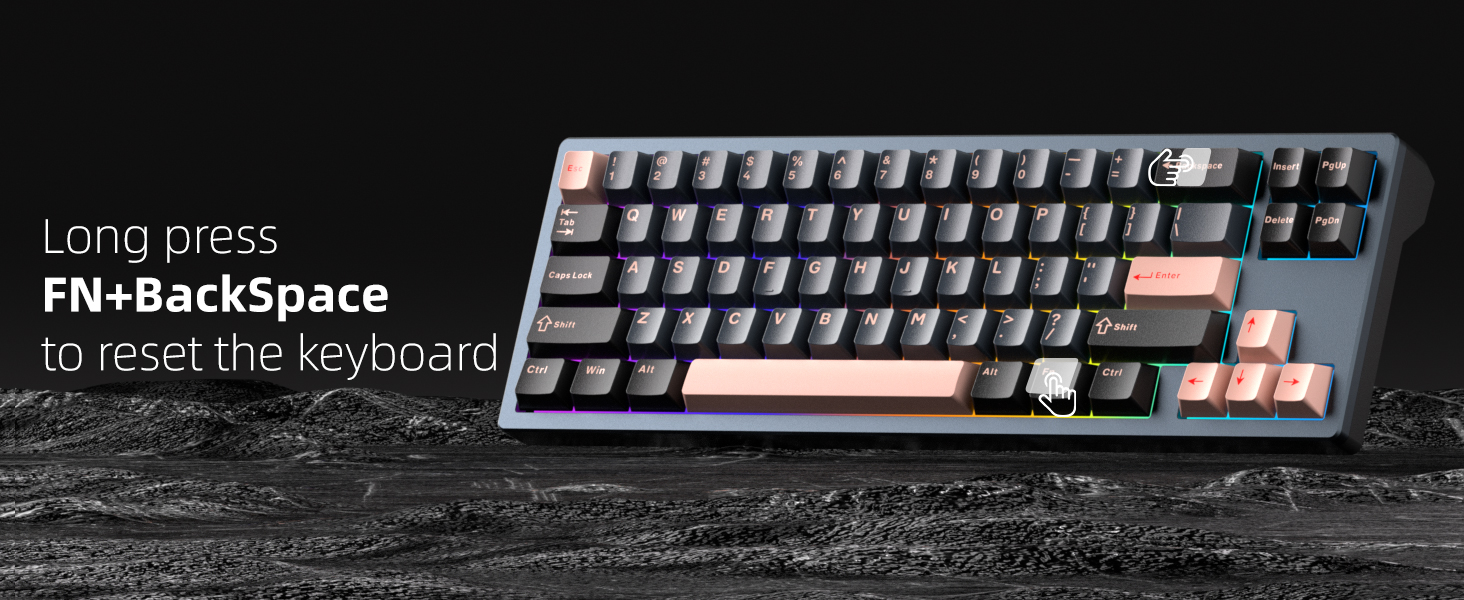
Image 5.2: Close-up of the keyboard's side, showing a physical switch for 'One Key Switch Mode', indicated by three icons (smiley face, star, game controller) representing different profiles or modes.
RGB Backlighting:
The Captain72 features south-facing RGB LEDs, providing vibrant and visible illumination. You can cycle through various pre-programmed backlight modes and color choices directly from the keyboard.

Image 5.3: The Captain72 keyboard illuminated with colorful RGB backlighting, showcasing the south-facing LEDs.
Use function key combinations (e.g., Fn + specific keys) to change the speed and brightness of the lighting effects. Refer to the included User Guide for specific key combinations.
6. Software & Customization
The MageGee Captain72 Hall Effect Keyboard comes with a proprietary driver software that allows for extensive customization. This software is essential for unlocking the full potential of your keyboard.
Software Features:
- RGB Settings: Customize backlight modes, colors, and effects.
- Key Remapping: Reassign functions to individual keys.
- Macro Recording & Editing: Create and manage complex macros for gaming or productivity.
- Key Trigger Range: Precisely set the actuation point for each key.
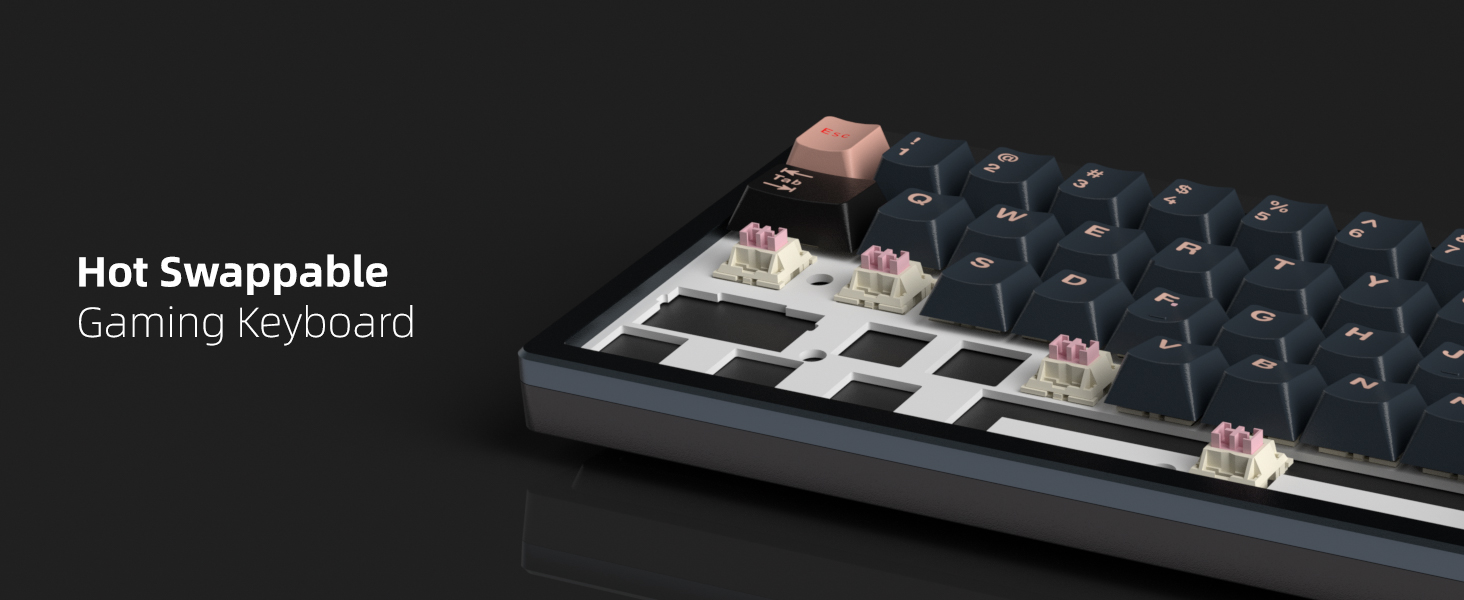
Image 6.1: Screenshot of the MageGee Driver software interface, showing options for key settings, advanced settings, macro customization, and lighting controls.
Note: The Captain72 driver only supports Windows operating systems. To restore default settings, click the 'Reset' button located at the bottom right corner of the driver interface.
7. Maintenance
Proper maintenance ensures the longevity and optimal performance of your keyboard.
- Cleaning: Regularly clean the keyboard with a soft, dry cloth. For dust and debris between keycaps, use compressed air.
- Keycap Removal: Use the provided keycap puller to carefully remove keycaps for deeper cleaning or switch replacement. Pull straight up to avoid damaging the switch.
- Switch Replacement: The keyboard is hot-swappable with OUTEMU magnetic switches. If a switch needs replacement, gently pull it out using a switch puller (not included, but compatible with standard switch pullers) and insert a new compatible switch, ensuring pins align correctly.
- Avoid Liquids: Do not expose the keyboard to liquids. In case of spills, immediately disconnect the keyboard and allow it to dry completely before reconnecting.
Image 7.1: Illustration demonstrating the hot-swappable nature of the keyboard, showing a keycap and switch removed to reveal the socket.
8. Troubleshooting
If you encounter issues with your MageGee Captain72 keyboard, try the following solutions:
- Keyboard Not Responding:
- Ensure the USB-C cable is securely connected to both the keyboard and your computer.
- Try connecting the keyboard to a different USB port on your computer.
- Test the keyboard on another computer to rule out system-specific issues.
- Keys Not Registering or Double-Typing:
- Check if any debris is lodged under the keycap or around the switch.
- If using the software, ensure the actuation point for the affected key is set appropriately and not too sensitive.
- Consider replacing the magnetic switch if the issue persists and is isolated to a single key (requires compatible OUTEMU magnetic switch).
- RGB Lighting Issues:
- Ensure the keyboard is properly connected and receiving power.
- Use the function key combinations to cycle through lighting modes and adjust brightness.
- Check the RGB settings within the MageGee driver software.
- Software Not Detecting Keyboard:
- Ensure the software is the correct version for the Captain72 model.
- Verify that your operating system is Windows, as the driver only supports Windows.
- Temporarily disable any antivirus or firewall software that might be blocking the driver.
- Resetting the Keyboard:
If you experience persistent issues or wish to revert all settings to factory defaults, you can perform a hardware reset:
Image 8.1: Visual instruction to reset the keyboard by long pressing the FN + BackSpace keys simultaneously.
Long press the FN key and the BackSpace key simultaneously for a few seconds until the keyboard lights indicate a reset.
9. Warranty and Support
MageGee products are designed and manufactured to the highest quality standards. For warranty information, technical support, or service inquiries, please refer to the official MageGee website or contact their customer support directly. Keep your purchase receipt as proof of purchase for any warranty claims.
For additional assistance, you may visit the MageGee Store on Amazon: MageGee Store
