
T-Wolf G530
T-Wolf G530 Wired Gaming Mouse User Manual
Model: G530 | Brand: T-Wolf
Introduction
Thank you for purchasing the T-Wolf G530 Wired Gaming Mouse. This manual provides detailed instructions on how to set up, operate, and maintain your new gaming mouse. Please read this manual carefully before use to ensure optimal performance and longevity of your device.

Image: The T-Wolf G530 Wired Gaming Mouse in silver, showcasing its ergonomic design and blue LED accents.
Product Overview
The T-Wolf G530 is a high-performance wired gaming mouse designed for precision and comfort. It features 7 programmable buttons, adjustable DPI settings, and dynamic backlight colors to enhance your gaming experience. Its ergonomic design ensures comfortable use during extended gaming sessions.
Key Features:
- 7 Programmable Buttons: Customize your controls for various games and applications.
- Adjustable DPI: Cycle through 1200, 2400, 3200, and 6400 DPI settings for precise tracking.
- 4-Color Backlight: Enjoy dynamic lighting effects that change with DPI settings.
- Ergonomic Design: Comfortable hand-shaped design suitable for various hand sizes.
- Symmetrical DIY Counterweight: Independent weights allow customization for improved stability and accuracy.
- Durable Micro-Motions: Designed for millions of quick clicks, ensuring longevity.
- USB Connectivity: Simple plug-and-play setup.

Image: The T-Wolf G530 mouse highlighting its competitive gaming features and backlight.

Image: A view of the T-Wolf G530 mouse emphasizing its double-wing hand rest and scientific structure for comfort.
Setup Guide
Setting up your T-Wolf G530 mouse is straightforward. Follow these steps to get started:
- Unpack the Mouse: Carefully remove the mouse from its packaging. Ensure all components are present (1x T-Wolf G530 Gaming Mouse).
- Connect to Computer: Plug the USB connector of the mouse into an available USB port on your laptop or personal computer.
- Driver Installation: The mouse is plug-and-play. Your operating system (Windows 7, Linux, etc.) will automatically detect and install the necessary drivers. This process usually takes a few seconds.
- Test Functionality: Once installed, move the mouse to check cursor movement. Click the left and right buttons to ensure they are responsive.
Adjusting Weights (Optional):
The T-Wolf G530 features a symmetrical DIY counterweight system, allowing you to customize the mouse's weight for optimal feel and precision. Locate the weight compartments, typically on the underside or within the mouse body, and add or remove weights as desired.

Image: The T-Wolf G530 mouse illustrating its customizable weight system with weights being added.
Operating Instructions
DPI Adjustment:
The mouse features a dedicated DPI button, usually located behind the scroll wheel. Press this button to cycle through the available DPI settings:
- 1200 DPI: Standard speed for general use.
- 2400 DPI: Increased sensitivity for faster cursor movement.
- 3200 DPI: Higher sensitivity for quick reactions in gaming.
- 6400 DPI: Maximum sensitivity for competitive gaming and rapid movements.
The backlight colors will change synchronously with the DPI setting, providing a visual indicator of your current sensitivity.
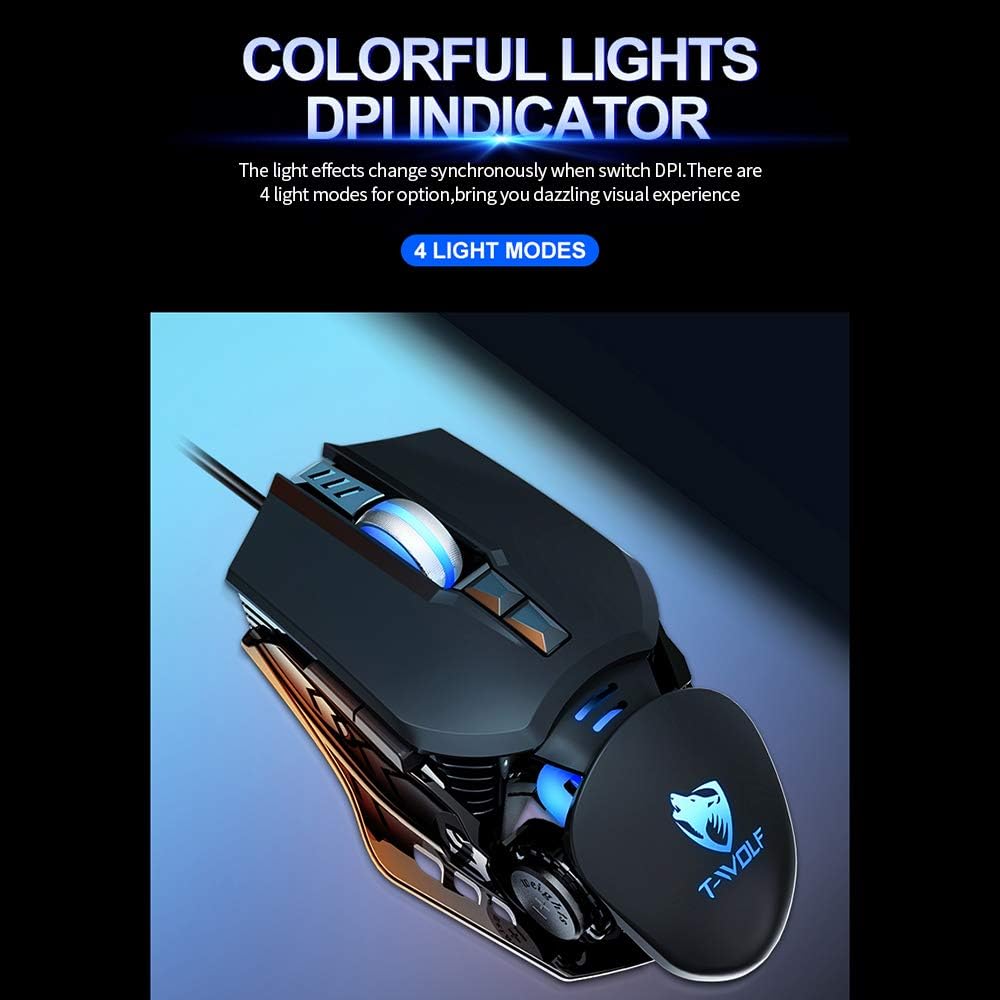
Image: The T-Wolf G530 mouse displaying its colorful LED lights, which indicate the current DPI setting.

Image: The T-Wolf G530 mouse highlighting its 6400 DPI tracking capability for precise positioning.
Button Functions:
The T-Wolf G530 mouse features 7 buttons. The standard functions are:
- Left Click: Primary action.
- Right Click: Secondary action/context menu.
- Scroll Wheel (Click): Middle click, often used for opening links in new tabs.
- Scroll Wheel (Scroll Up/Down): Navigates content vertically.
- DPI Button: Cycles through DPI settings.
- Forward Button: Navigates forward in web browsers or file explorers.
- Backward Button: Navigates backward in web browsers or file explorers.
For advanced customization, you may use third-party software (not included) to remap these buttons according to your preferences for specific games or applications.

Image: A diagram illustrating how both large and small hands can comfortably use the mouse buttons.
Maintenance and Care
To ensure the longevity and optimal performance of your T-Wolf G530 gaming mouse, follow these maintenance guidelines:
- Cleaning:
- Use a soft, dry, lint-free cloth to wipe the surface of the mouse.
- For stubborn dirt, slightly dampen the cloth with water or a mild cleaning solution. Avoid harsh chemicals.
- Do not spray cleaning solutions directly onto the mouse.
- Regularly clean the optical sensor on the underside of the mouse with a cotton swab to prevent tracking issues.
- Storage: Store the mouse in a cool, dry place away from direct sunlight and extreme temperatures.
- Cable Care: Avoid bending or twisting the USB cable excessively, as this can damage the internal wires.
- Avoid Liquids: Keep the mouse away from liquids to prevent internal damage.
- Handle with Care: Do not drop or subject the mouse to strong impacts.
Troubleshooting
If you encounter issues with your T-Wolf G530 mouse, refer to the following common problems and solutions:
| Problem | Possible Cause | Solution |
|---|---|---|
| Mouse not responding | Loose USB connection, faulty USB port, driver issue. |
|
| Cursor movement is erratic or jumpy | Dirty optical sensor, unsuitable mouse pad surface. |
|
| Buttons not working | Software conflict, physical damage. |
|
| Backlight not working | Power issue, internal fault. |
|
Specifications
| Feature | Detail |
|---|---|
| Brand | T-Wolf |
| Model | G530 |
| Color | Silver (also available in Black/Pink) |
| Connectivity Technology | Wired USB |
| Number of Buttons | 7 |
| DPI Settings | 1200 / 2400 / 3200 / 6400 |
| Backlight | 4-color backlight |
| Movement Detection Technology | Optical |
| Cable Length | 1.5 meters |
| Product Size | 13 x 8 x 3.5 cm (5.1 x 3.1 x 1.4 inches) |
| Product Weight | 160 grams (5.6 ounces) |
| Recommended Uses | Gaming |
| Compatible Devices | Personal Computer (Laptop, Desktop) |
| Operating Systems | Linux, Windows 7 (and likely newer Windows versions) |
| Special Feature | Ergonomic Design, Adjustable Weights |
| Hand Orientation | Right |
Warranty and Support
For warranty information and technical support, please refer to the documentation provided with your purchase or contact the retailer where you purchased the T-Wolf G530 mouse. Keep your proof of purchase for warranty claims.
Related documentsG530


Ask a question about this manual
Ask about setup, troubleshooting, compatibility, parts, safety, or missing instructions. Manuals+ will review the question and use this page’s manual context to help answer it.