
1. Introduction
This manual provides essential information for setting up, operating, and maintaining your HP 24mh FHD Computer Monitor. Please read these instructions carefully before using your monitor to ensure optimal performance and safety.
The HP 24mh FHD Monitor features a 23.8-inch IPS display with 1080p resolution, built-in speakers, and versatile connectivity options including HDMI and DisplayPort. Its ergonomic design allows for height and tilt adjustments, enhancing your viewing experience.
2. Product Overview
The HP 24mh monitor is designed for clear visuals and ergonomic comfort. It features an IPS panel for wide viewing angles and vibrant colors, a micro-edge bezel for an expansive screen, and integrated speakers.
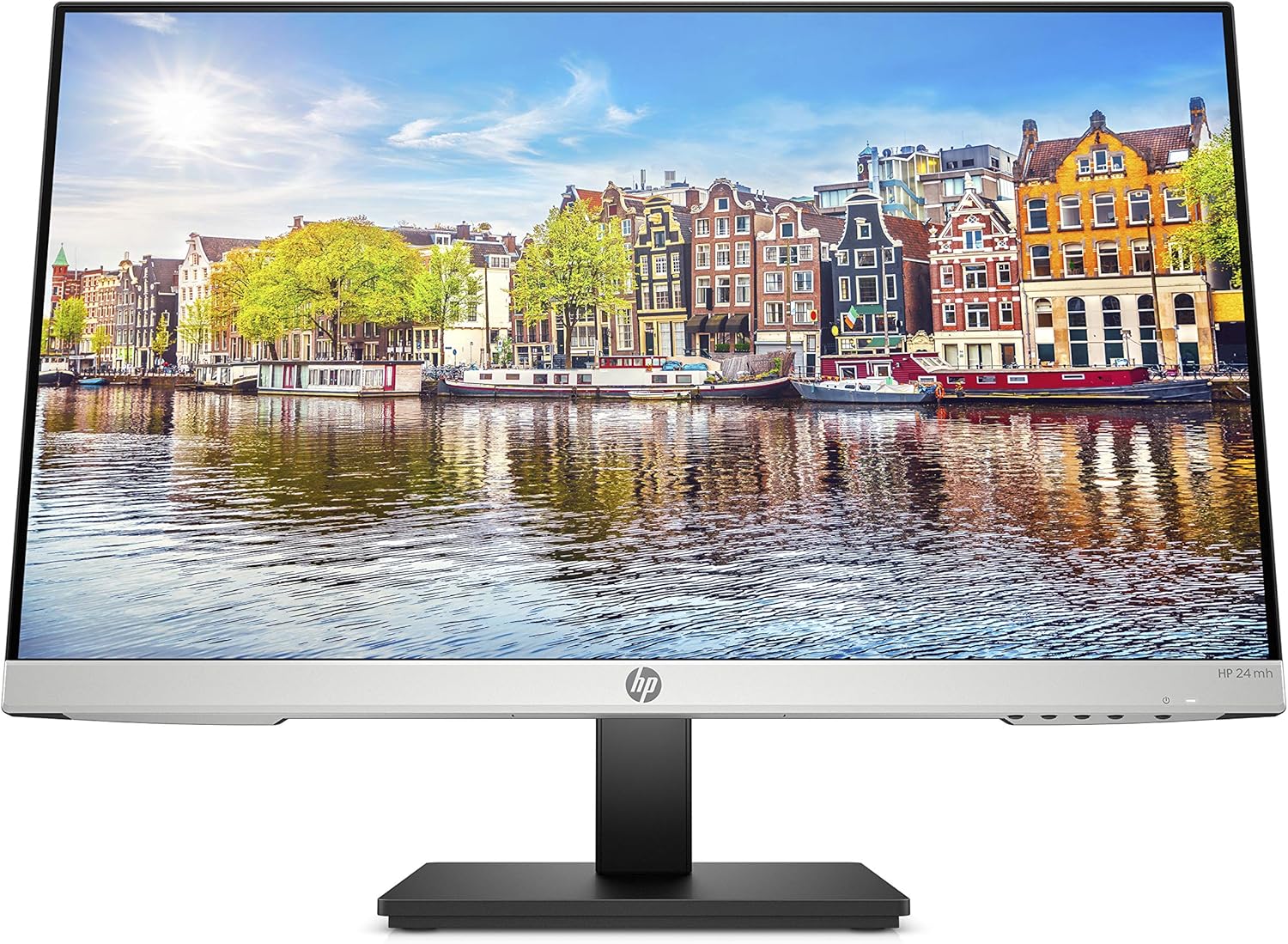
Image: Front view of the HP 24mh FHD Monitor, showcasing its slim design and clear display.

Image: Key features of the HP 24mh monitor, including its ultraslim design, IPS panel, 178° viewing angle, and connectivity options.
3. What's in the Box
Verify that all components are present in the packaging:
- HP 24mh 23.8-inch Display
- AC Power Cord (6.2ft)
- HDMI Cable (5.9ft)
- Audio Cable
- Quick Start Guide
- Product Notice
- Warranty Information
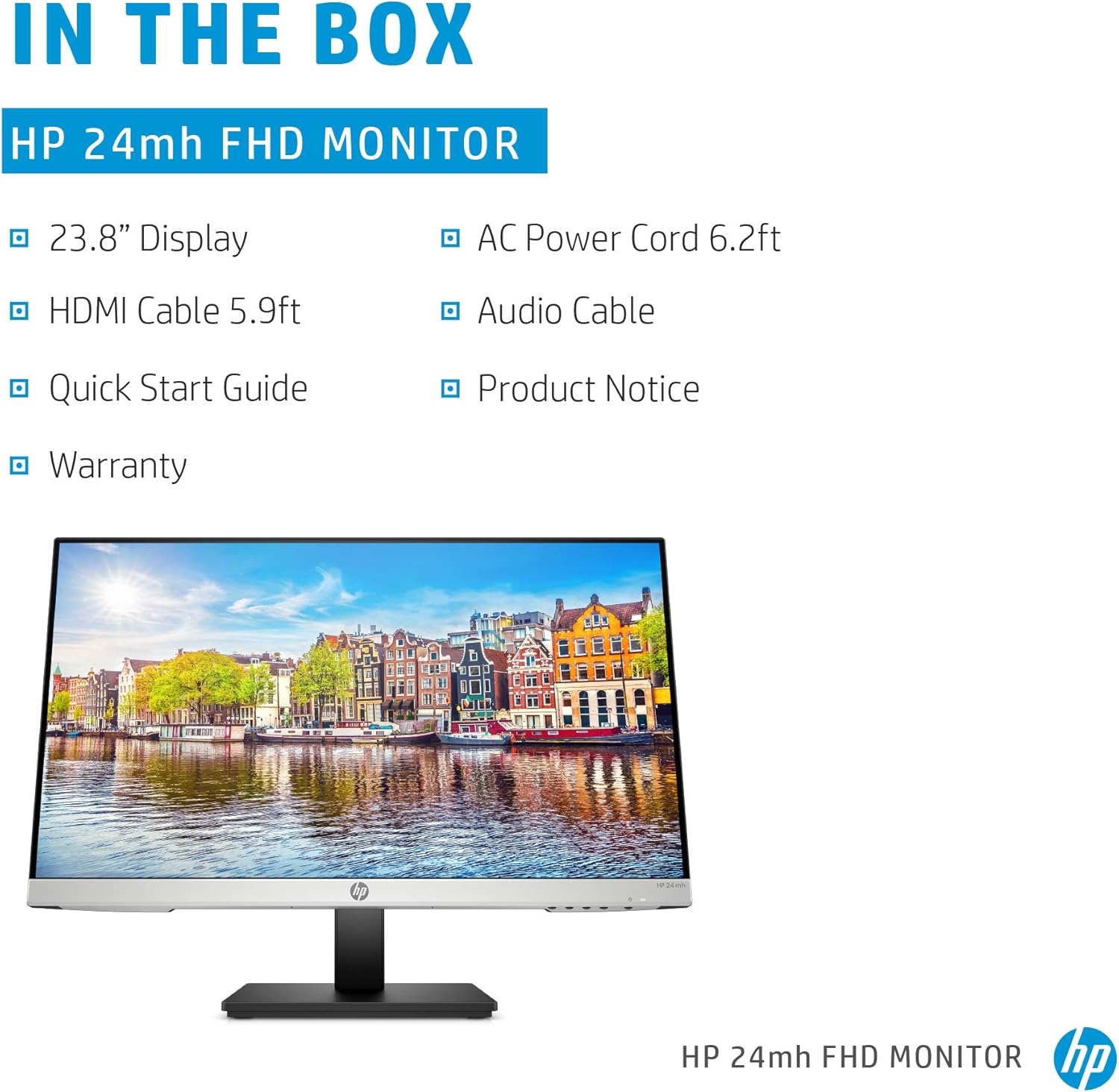
Image: Contents of the HP 24mh FHD Monitor packaging.
4. Setup Instructions
4.1. Unpacking
- Carefully remove the monitor and all components from the packaging.
- Place the monitor face down on a soft, clean surface to prevent scratches.
4.2. Assembling the Stand
- Attach the stand base to the stand neck, ensuring it clicks securely into place.
- Align the stand assembly with the mounting slot on the back of the monitor.
- Gently push the stand into the slot until it locks.
4.3. Connecting the Monitor
The HP 24mh monitor supports HDMI, DisplayPort, and VGA connections.
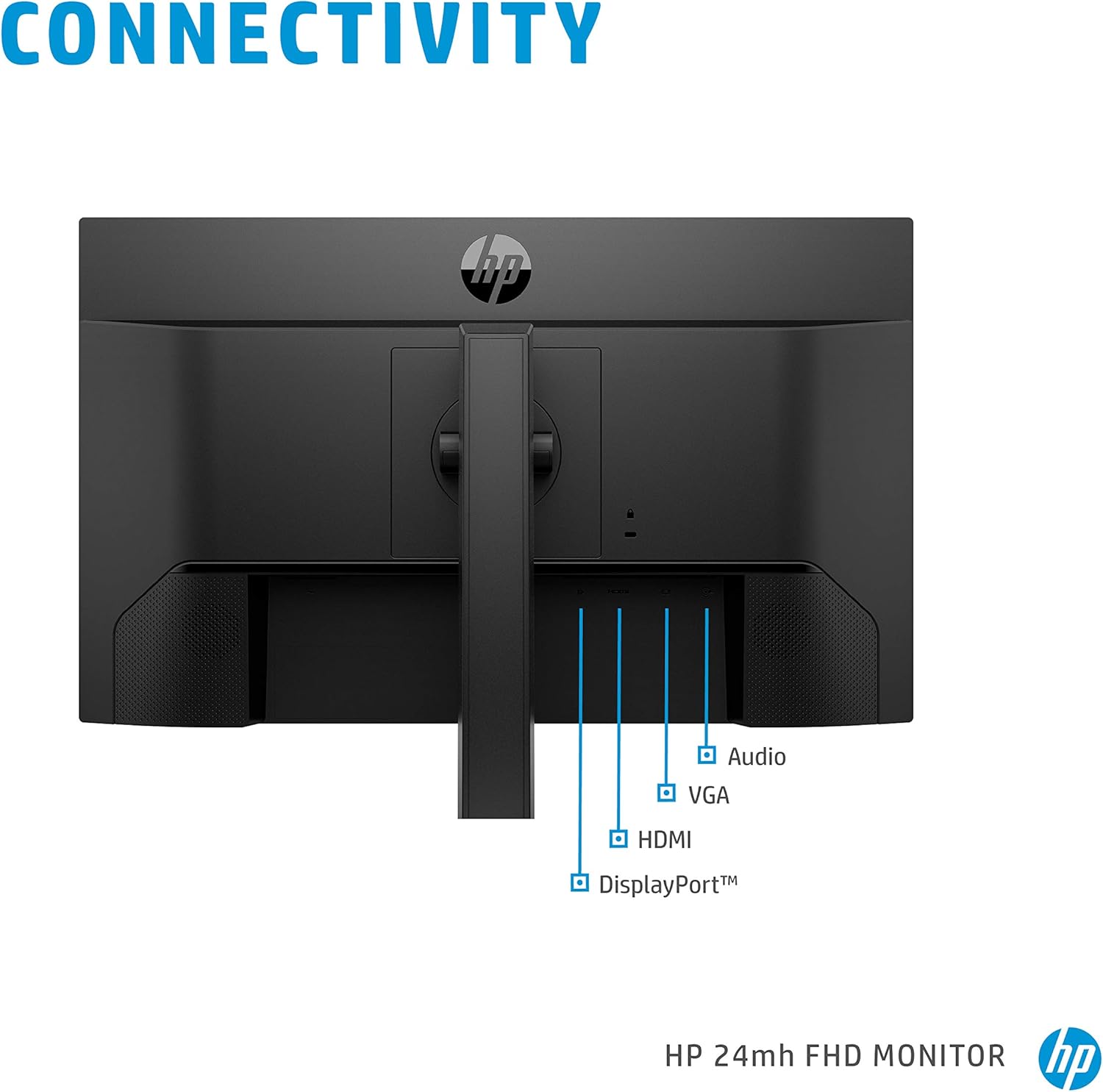
Image: Rear view of the monitor highlighting the Audio, VGA, HDMI, and DisplayPort connections.
- Video Connection: Connect one end of the provided HDMI cable to the HDMI port on your computer and the other end to the HDMI port on the monitor. Alternatively, use a DisplayPort cable for DisplayPort connections or a VGA cable for VGA connections.
- Audio Connection (Optional for VGA): If using VGA, connect the audio cable from your computer's audio output to the monitor's audio input port. For HDMI and DisplayPort, audio is transmitted digitally through the video cable.
- Power Connection: Connect the AC power cord to the monitor's power input, then plug the other end into a wall outlet.
4.4. Powering On
- Press the power button on the monitor.
- Turn on your computer. The monitor should automatically detect the input signal.
5. Operating the Monitor
5.1. Adjusting Display Settings
Access the On-Screen Display (OSD) menu using the buttons on the monitor to adjust various settings:
- Resolution: The native resolution is 1920 x 1080 (FHD). Ensure your computer's display settings match this for the best image quality.
- Refresh Rate: The monitor supports a 75 Hz refresh rate. You may need to manually select this in your operating system's display settings for smoother motion.
- Response Time: For optimal VSYNC performance, set the Response Time to Level 3 within the monitor's 'Image' menu.
- Low Blue Light Mode: Activate this mode to reduce blue light emissions, shifting colors to a warmer spectrum for reduced eye strain during extended use.
5.2. Ergonomic Adjustments
The monitor stand allows for comfortable viewing adjustments:
- Height Adjustment: The display can be adjusted vertically by 100mm to suit your eye level.
- Tilt Adjustment: Tilt the screen from 5° forward to 23° backward for your preferred viewing angle.
- VESA Mounting: The monitor is VESA compatible, allowing it to be mounted on a wall or an alternative stand (mounting hardware sold separately).
5.3. Audio Settings
The monitor includes two built-in 2W speakers.
- Volume Control: The monitor has its own internal volume control, which is often set to 50% by default. To achieve maximum volume, navigate to the 'Management' tab in the monitor's OSD menu, select 'Audio', and increase the volume from 50 to 100. After this adjustment, you can control the volume using your computer's operating system.
6. Maintenance
Proper care ensures the longevity of your monitor:
- Cleaning the Screen: Use a soft, lint-free cloth lightly dampened with water or a screen-cleaning solution. Do not spray liquid directly onto the screen.
- Cleaning the Casing: Wipe the monitor casing with a soft, dry cloth. Avoid abrasive cleaners.
- Ventilation: Ensure the monitor's ventilation openings are not blocked to prevent overheating.
- Power Off: Always turn off the monitor when not in use for extended periods.
7. Troubleshooting
If you encounter issues with your monitor, refer to the following common solutions:
- No Image on Screen:
- Ensure the power cable is securely connected to both the monitor and the power outlet.
- Verify that the video cable (HDMI, DisplayPort, or VGA) is firmly connected to both the monitor and your computer.
- Check if the correct input source is selected in the monitor's OSD menu.
- Confirm your computer is powered on and not in sleep mode.
- Poor Image Quality:
- Adjust the resolution on your computer to the monitor's native resolution (1920 x 1080).
- Check the video cable for damage or loose connections.
- Adjust brightness, contrast, and other image settings via the OSD menu.
- No Sound from Speakers:
- Ensure the monitor's internal volume is set to an audible level (refer to Section 5.3).
- Check your computer's audio output settings and volume levels.
- If using VGA, confirm the audio cable is connected.
- Screen Flickering or Turning Off Briefly:
- This can sometimes occur due to voltage fluctuations in the power supply. Ensure the monitor is plugged into a stable power source. Using a surge protector or an uninterruptible power supply (UPS) may help mitigate this issue.
- Test with a different power outlet or power strip.
8. Specifications
Key technical specifications for the HP 24mh FHD Monitor:
| Feature | Specification |
|---|---|
| Screen Size | 23.8 Inches |
| Panel Type | IPS |
| Resolution | 1920 x 1080 (FHD 1080p) |
| Aspect Ratio | 16:9 |
| Refresh Rate | 75 Hz |
| Image Brightness | 250 cd/m² |
| Viewing Angles | 178° Horizontal / 178° Vertical |
| Connectivity | 1x HDMI, 1x DisplayPort, 1x VGA, Audio In |
| Built-in Speakers | 2x 2W |
| Ergonomics | Height Adjustment (100mm), Tilt (-5° to +23°) |
| VESA Mounting | Yes |
| Item Weight | 9.94 pounds |
| Voltage | 240 Volts (AC) |

Image: Dimensions of the HP 24mh FHD Monitor.
9. Warranty and Support
Your HP 24mh FHD Computer Monitor is backed by HP's standard 1-year limited warranty. This warranty covers defects in materials and workmanship under normal use.
For detailed warranty information, technical support, or service inquiries, please visit the official HP support website or contact HP customer service.
Online Support: www.hp.com/support
HP Store: Visit the HP Store on Amazon


