1. Úvod
This manual provides detailed instructions for the setup, operation, and maintenance of your M-Audio Keystation 49es USB MIDI Controller Keyboard. The Keystation 49es is a 49-note velocity-sensitive USB MIDI controller designed for music production and performance, offering essential controls for interacting with virtual instruments and digital audio workstations (DAWs).
Please read this manual thoroughly to ensure proper use and to maximize the potential of your device.
2. Vlastnosti produktu
The M-Audio Keystation 49es offers a range of features designed for intuitive music creation:
- 49-note velocity-sensitive synth-action keyboard: Provides a responsive playing experience for dynamic musical expression.
- USB 2.0 and USB 1.1 compatible: Zajišťuje širokou kompatibilitu s různými počítačovými systémy.
- USB-powered operation: Eliminates the need for an external power supply when connected to a computer.
- Kolečka Pitch Bend a Modulation: Dedicated controls for expressive performance.
- Assignable Volume Slider: For real-time control over instrument volume or other MIDI parameters.
- Tlačítka pro posun v oktávě nahoru/dolů: Extend the keyboard's range across multiple octaves.
- Includes Ignite Music Creation Software: Bundled software to help you start creating music immediately.

Obrázek: Shora dolů view of the M-Audio Keystation 49es, showcasing the 49 keys, pitch bend and modulation wheels, volume slider, and octave buttons on the left panel.
3. Nastavení
3.1 Vybalení
Carefully remove the Keystation 49es from its packaging. Ensure all components are present:
- M-Audio Keystation 49es MIDI Controller
- USB kabel
- Ignite Music Creation Software (download or disc, depending on package)
- Uživatelská příručka (tento dokument)
3.2 Připojení k počítači
- Locate the USB port on the back of your Keystation 49es.
- Connect one end of the supplied USB cable to the Keystation 49es.
- Připojte druhý konec kabelu USB k volnému portu USB v počítači.
- The Keystation 49es is USB-powered and will receive power directly from your computer.

Obrázek: Zadní view of the M-Audio Keystation 49es, highlighting the USB port for computer connection and power, along with other potential ports like MIDI Out and a sustain pedal input.
3.3 Instalace ovladače
The Keystation 49es is a class-compliant USB MIDI device. This means that for most modern operating systems (Windows XP SP2 and later, macOS 10.4.11 and later), no additional drivers are required. Your computer should automatically recognize the device upon connection.
- For older operating systems or if automatic recognition fails, please visit the M-Audio support webstránky pro stahování konkrétních ovladačů.
- Ensure your operating system is up to date for optimal compatibility.
3.4 Konfigurace softwaru
Once connected, open your preferred Digital Audio Workstation (DAW) or music software (e.g., Ignite, GarageBand, FL Studio, Logic Pro X). Navigate to the software's MIDI or controller settings and select "Keystation 49es" as your MIDI input device. Refer to your software's documentation for specific instructions on configuring MIDI devices.
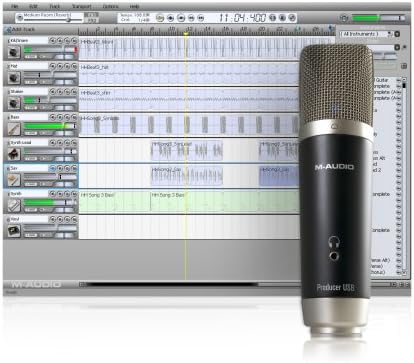
Image: A visual representation of music creation software, similar to the included Ignite Music Creation Software, demonstrating a multi-track recording environment. A microphone is also depicted, symbolizing audio input capabilities within such software.
4. Návod k obsluze
4.1 Základní přehrávání
After successful setup and software configuration, you can begin playing virtual instruments or controlling your DAW. The 49 keys respond to velocity, meaning the harder you press, the louder or more intense the sound will be, depending on the instrument's settings.
4.2 Ovládací prvky Overview

Obrázek: Nahoře view of the M-Audio Keystation 49es, providing a clear look at the control panel on the left, including the pitch bend and modulation wheels, volume slider, and octave buttons.
- Keys (1): 49 velocity-sensitive keys for playing notes.
- Pitch Bend Wheel (2): Allows for real-time pitch modulation of notes.
- Modulation Wheel (3): Typically used for vibrato, tremolo, or other assignable effects.
- Volume Slider (4): Controls the MIDI volume output or can be assigned to other parameters.
- Octave Up/Down Buttons (5): Shift the entire keyboard's range up or down by octaves.
- Edit Mode Button (6): Activates a mode for assigning MIDI functions to keys or controls. Refer to the full M-Audio Keystation 49es manual for detailed instructions on advanced MIDI assignments.
4.3 Pokročilé funkce
The Keystation 49es allows for customization of its controls. The volume slider and modulation wheel can be assigned to control various MIDI parameters within your software. Consult the comprehensive M-Audio Keystation 49es manual (available on the M-Audio website) for detailed instructions on how to enter 'Edit Mode' and assign specific MIDI Control Change (CC) messages to these controls.
5. Údržba
5.1 Čištění
To clean your Keystation 49es, use a soft, dry, lint-free cloth. For stubborn dirt, a slightly damp cloth with mild soap can be used, followed by a dry cloth. Avoid abrasive cleaners, solvents, or waxes, as these can damage the finish and electronic components.
5.2 Skladování
When not in use, store the Keystation 49es in a clean, dry environment away from direct sunlight, extreme temperatures, and excessive humidity. Protect it from dust by covering it with a cloth or placing it in a protective case.
5.3 Obecná péče
- Nepokládejte na klávesnici těžké předměty.
- Nevystavujte zařízení kapalinám.
- Handle the USB cable carefully to prevent damage to the connectors.
6. Řešení problémů
If you encounter issues with your Keystation 49es, refer to the following common problems and solutions:
| Problém | Možná příčina | Řešení |
|---|---|---|
| Zařízení nebylo rozpoznáno počítačem/DAW | Loose USB connection, incorrect drivers, software not configured. | Ensure USB cable is securely connected. Try a different USB port. Verify that the Keystation 49es is selected as a MIDI input device in your DAW's preferences. Check M-Audio's website for specific driver updates if needed for your operating system. |
| No sound from virtual instruments | MIDI routing incorrect, instrument not loaded, volume too low. | Confirm that a virtual instrument is loaded and active in your DAW. Check MIDI routing to ensure the Keystation 49es is sending data to the correct track. Increase the volume slider on the Keystation and within your software. |
| Keys not responding or inconsistent velocity | Dust/debris under keys, software velocity curve settings. | Gently clean around the keys. Check your DAW's velocity curve settings for the MIDI input; adjust if necessary. |
| Operating System Compatibility Issues | Outdated OS, specific OS versions not fully supported. | Ensure your operating system meets the minimum requirements. Check the M-Audio support website for known compatibility issues or specific driver versions for your OS. Consider updating your OS if possible. |
If these steps do not resolve your issue, please contact M-Audio customer support for further assistance.
7. Specifikace
- Model: Keystation 49es
- Počet klíčů: 49
- Typ klíče: Velocity-sensitive, Synth-action
- Konektivita: USB (typ B)
- Hardwarové rozhraní: USB
- Moc: Napájení ze sběrnice USB
- Rozměry (D x Š x V): 34.6 x 10.8 x 13.2 palce (87.9 x 27.4 x 33.5 cm)
- Hmotnost položky: 6.6 libry (3 kg)
- Barva: Stříbro
- Kompatibilní zařízení: Klávesnice
- Hudební styl: Elektronický
- Úroveň znalostí: Začátečník
- Datum první dostupnosti: 19. srpna 2004
8. Záruka a podpora
8.1 Informace o záruce
The M-Audio Keystation 49es comes with a limited manufacturer's warranty. Please refer to the warranty card included with your product or visit the official M-Audio website for the most current and detailed warranty terms and conditions applicable to your region.
8.2 Technická podpora
For technical assistance, driver downloads, or additional product information, please visit the official M-Audio support webmísto:
You may also find FAQs and community forums that can provide helpful solutions.


