1. Introduction
This user manual provides comprehensive instructions for the installation, operation, and maintenance of your HDWR videoCAR-L300 Dash Cam. Please read this manual thoroughly before using the device to ensure proper functionality and to maximize its lifespan. Keep this manual for future reference.
2. Product Overview
The HDWR videoCAR-L300 is a versatile dash camera designed to enhance your driving safety and record your journeys. It functions as both a front and rear recording device, integrated into a rearview mirror with a touchscreen display.
Key Features:
- Full HD Video Recording: The front camera records in Full HD (1920x1080) resolution, providing clear and detailed video footage.
- Rear Camera Functionality: The rear camera offers VGA (640x480) recording resolution and can also serve as a reverse camera for parking assistance.
- Integrated 4.7-inch Touchscreen Display: The wide mirror, approximately 30 cm, features a built-in 4.7-inch touchscreen for easy operation and increased rear visibility.
- 120-Degree Wide-Angle Lens: The front camera's lens offers a 120-degree viewing angle, capturing a broad area in front of your vehicle.
- Automatic Operation: Features include automatic camera start and stop, motion detection, and adjustable sensitivity.
- G-Sensor for Impact Detection: Automatically protects recordings from being overwritten in the event of sudden braking or a collision.
- MicroSD Card Support: Supports microSD memory cards up to 32GB for storing recorded video and audio files.

Figure 2.1: Front view of the HDWR videoCAR-L300 Dash Cam, showing the mirror display with a car image.
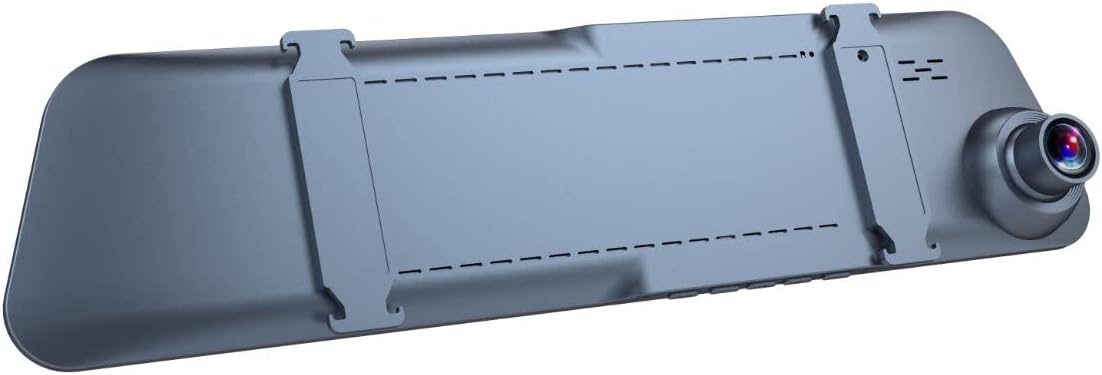
Figure 2.2: Rear view of the HDWR videoCAR-L300 Dash Cam, highlighting the mounting clips for installation.
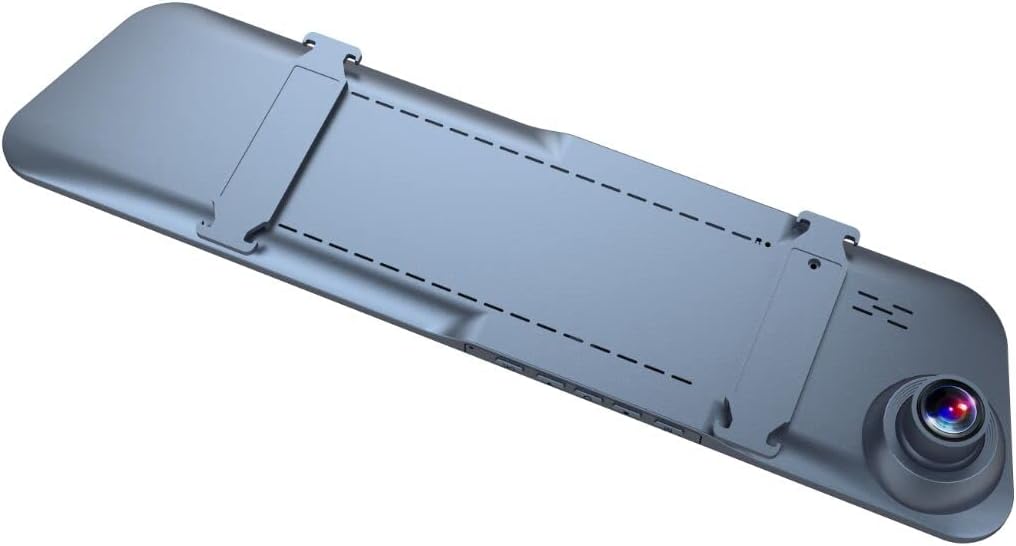
Figure 2.3: Angled rear view of the HDWR videoCAR-L300 Dash Cam, showing the camera lens and mounting clips.

Figure 2.4: Exploded view illustrating the various perspectives of the HDWR videoCAR-L300 Dash Cam.
3. Setup and Installation
3.1 What's in the Box
Before beginning installation, please ensure all components are present:
- HDWR videoCAR-L300 Dash Cam Unit
- Charging Cable
- Installation Tool
- User Manual (this document)
3.2 Installation Steps (Windshield Mount)
The videoCAR-L300 is designed for windshield mounting, typically over your existing rearview mirror.
- Prepare the Device: Gently unbox the dash cam and ensure the protective film is removed from the screen and lens.
- Mounting: Securely attach the dash cam to your vehicle's rearview mirror using the integrated clips. Ensure it is firmly in place and does not obstruct your view.
- Connect Power: Use the provided charging cable to connect the dash cam to your vehicle's 12V power outlet (cigarette lighter socket). Route the cable neatly to avoid interference with driving.
- Install Rear Camera (Optional): If using the rear camera, connect it to the main unit and route its cable to the rear of the vehicle. Mount the rear camera in a suitable location, typically near the license plate or inside the rear window, ensuring a clear view.
- Insert MicroSD Card: Insert a compatible microSD card (up to 32GB, not included) into the designated slot on the dash cam. Ensure it is inserted correctly until it clicks into place.
- Initial Power On: Start your vehicle. The dash cam should automatically power on. If not, press the power button.
- Adjust Angle: Adjust the angle of the front camera lens to ensure it captures the road ahead clearly. Use the live view on the touchscreen display for precise alignment.

Figure 3.1: The dash cam installed on the vehicle's rearview mirror, showing its integration into the car's interior.
4. Operating Instructions
4.1 Power On/Off
- Automatic Operation: The device is designed to automatically power on and begin recording when your vehicle's ignition is turned on, and power is supplied. It will automatically power off when the ignition is turned off.
- Manual Operation: To manually power on or off, press and hold the power button located on the device.
4.2 Touchscreen Navigation
The 4.7-inch touchscreen display allows for intuitive navigation through menus and settings.
- Main Interface: Displays live view from the front and/or rear cameras.
- Accessing Menus: Tap the screen to reveal menu icons. Swipe left/right or up/down to navigate through options.
- Selecting Options: Tap an icon or option to select it.

Figure 4.1: The dash cam's screen showing a live road view, indicating active recording.
4.3 Recording Modes
- Loop Recording: The dash cam continuously records video in segments (e.g., 1, 3, or 5 minutes). When the memory card is full, the oldest unlocked files are automatically overwritten.
- G-Sensor (Emergency Recording): In the event of sudden braking or a collision, the built-in G-Sensor detects the impact and automatically locks the current video segment, preventing it from being overwritten by loop recording.
- Motion Detection: When enabled, the camera will automatically start recording if it detects movement in front of the vehicle while parked. This feature requires continuous power supply.
4.4 Playback
To review recorded footage:
- From the main screen, tap to access the menu.
- Select the "Playback" or "Gallery" option.
- Browse through the recorded video and audio files. Locked files (from G-Sensor events) will typically be in a separate folder.
- Tap a file to play it back on the screen.
4.5 Settings Adjustment
Access the settings menu to customize various parameters:
- Video Resolution: Adjust recording quality (e.g., Full HD, VGA).
- Loop Recording Duration: Set the length of video segments.
- G-Sensor Sensitivity: Adjust the sensitivity of the impact detection.
- Motion Detection: Enable or disable this feature.
- Date/Time Stamp: Ensure the correct date and time are set for accurate recording timestamps.
- Audio Recording: Enable or disable microphone recording.
- Screen Saver: Set the display to turn off after a period of inactivity to avoid distraction while driving.
5. Maintenance
Regular maintenance ensures optimal performance and longevity of your dash cam.
- Cleaning the Lens: Use a soft, lint-free cloth to gently wipe the camera lenses. Avoid abrasive materials or harsh chemicals that could scratch the lens.
- Cleaning the Screen: Wipe the touchscreen display with a soft, dry cloth. For stubborn smudges, slightly dampen the cloth with water.
- MicroSD Card Maintenance: Format the microSD card regularly (e.g., once a month) within the camera's settings to prevent data corruption and ensure smooth recording. Back up any important footage before formatting.
- Temperature: Avoid exposing the device to extreme temperatures (very hot or very cold) for extended periods, as this can affect battery life and component performance.
- Secure Mounting: Periodically check that the dash cam is securely mounted to prevent vibrations from affecting video quality or causing the device to fall.
6. Troubleshooting
If you encounter issues with your HDWR videoCAR-L300, refer to the following common problems and solutions:
| Problem | Possible Cause | Solution |
|---|---|---|
| Device does not power on. | No power supply; loose cable connection; faulty power adapter. | Check the charging cable connection to the device and the vehicle's power outlet. Ensure the vehicle's ignition is on. Try a different power outlet or cable if available. |
| Recording stops or freezes. | Full or corrupted microSD card; slow microSD card; G-Sensor triggered too often. | Format the microSD card (back up data first). Use a high-speed (Class 10 or U1/U3) microSD card. Adjust G-Sensor sensitivity in settings. |
| Video footage is blurry or unclear. | Dirty lens; protective film still on lens; improper camera angle. | Clean the camera lens with a soft cloth. Remove any protective film. Adjust the camera angle to ensure a clear view of the road. |
| Screen is unresponsive. | Temporary software glitch. | Perform a soft reset by pressing and holding the power button until the device restarts. If unresponsive, disconnect power and reconnect. |
| Rear camera not working. | Loose connection; faulty cable or camera. | Check the connection of the rear camera cable to the main unit. Ensure the cable is not damaged. |
If the problem persists after trying these solutions, please contact HDWR customer support for further assistance.
7. Specifications
| Feature | Detail |
|---|---|
| Brand | HDWR |
| Model Name | videoCAR |
| Item Model Number | L300 |
| Product Dimensions | 3.5D x 29.7W x 7H cm; 180 grams |
| Screen Size | 4.7 inches |
| Video Resolution (Front) | Full HD (1920x1080p) |
| Video Resolution (Rear) | VGA (640x480) |
| Viewing Angle | 120 Degrees |
| Flash Memory Type | microSD (up to 32GB) |
| Connectivity Technology | AUX |
| Special Features | Motion Sensor, G-Sensor |
| Control Method | Touch |
| Mounting Type | Windshield Mount |
| Batteries Included | No |
| Compatible Devices | Smartphone |
8. Warranty and Support
For warranty information and technical support, please refer to the official HDWR website or contact their customer service directly. Details regarding warranty periods and service procedures are typically provided with your purchase documentation or on the manufacturer's website.
For further assistance, please visit: www.hdwr.eu


