1. Introducció
Thank you for choosing the VENTION Wireless HDMI Dongle Transmitter and Receiver, combined with the VENTION 4K HDMI Switch. This manual provides detailed instructions for the setup, operation, and maintenance of your devices, ensuring optimal performance and a seamless audio-visual experience. Please read this manual thoroughly before use and retain it for future reference.
2. Contingut del paquet
Si us plau, comproveu que tots els articles siguin presents i en bon estat en desempaquetar-los:
- 1x VENTION Wireless HDMI Transmitter (TX)
- 1x VENTION Wireless HDMI Receiver (RX)
- 1x VENTION 4K HDMI Switch (2 In 1 Out)
- 1x USB-C Power Cable (for RX and HDMI Switch)
- 1x Manual d'usuari (aquest document)
3. Producte acabatview
3.1 VENTION Wireless HDMI Dongle (TX & RX)
The VENTION Wireless HDMI Dongle system allows for wireless transmission of HDMI signals up to 131 feet (40 meters) in open environments. It operates on a 5GHz frequency for stable and low-latency transmission, supporting resolutions up to 1080P@60Hz. The system is plug-and-play, requiring no software installation or network configuration.

Image: The VENTION Wireless HDMI Dongle (Transmitter and Receiver) alongside the VENTION 4K HDMI Switch. The dongles are sleek, black, and rectangular with an HDMI connector on one end and a VENTION logo. The HDMI switch is a compact gray box with multiple HDMI ports and a central button.
3.2 VENTION 4K HDMI Switch (2 In 1 Out)
The VENTION 4K HDMI Switch allows you to connect two HDMI source devices to a single HDMI display. It supports resolutions up to 4K@120Hz, enabling easy switching between sources without needing to swap cables.

Image: A VENTION 4K HDMI Switch connected to a gaming console and a laptop, with its output connected to a large television displaying a racing game. This illustrates the 2-in-1-out functionality, allowing users to switch between two input sources on one screen.
4. Instruccions de configuració
4.1 Wireless HDMI Dongle Setup
- Connecteu el receptor (RX): Plug the VENTION Wireless HDMI Receiver (RX) into an available HDMI input port on your display device (e.g., HDTV, projector, monitor).
- Power the Receiver (RX): Connect the provided USB-C power cable to the RX unit and plug the other end into a USB power source (e.g., a USB port on your display, a USB wall adapter). The RX requires external power for operation.
- Connecteu el transmissor (TX): Plug the VENTION Wireless HDMI Transmitter (TX) into the HDMI output port of your source device (e.g., PC, laptop, set-top box, camera).
- Power the Transmitter (TX): The TX unit typically draws power directly from the HDMI port. If your source device's HDMI port does not provide sufficient power, connect the USB-C power cable to the TX unit and a USB power source.
- Maridatge: The TX and RX units are pre-paired. Once both are powered on and connected, they should automatically establish a connection and display your source device's content on the connected display.

Image: A diagram illustrating the connection process for the VENTION Wireless HDMI Dongle. The top section shows various source devices (PC, DV, Set-top, Laptop) connecting to the Transmitter (TX). The bottom section shows the Receiver (RX) connecting to display devices (Monitor, Projector, TV).
4.2 HDMI Switch Setup (2 In 1 Out)
- Connecteu els dispositius d'entrada: Connect your two HDMI source devices (e.g., gaming console, laptop, TV box) to the 'Input 1' and 'Input 2' ports on the VENTION 4K HDMI Switch.
- Connectar la sortida de la pantalla: Connect an HDMI cable from the 'Output' port of the HDMI Switch to an HDMI input port on your display device (e.g., TV, monitor, projector).
- Power the HDMI Switch: Connect the provided USB-C power cable to the HDMI Switch and plug the other end into a USB power source. This ensures stable operation, especially for 4K signals.

Image: A close-up of the VENTION 4K HDMI Switch with a USB-C power cable connected, illustrating the power supply requirement for stable operation. The switch is shown with HDMI cables connected to its input and output ports.
5. Instruccions de funcionament
5.1 Wireless HDMI Dongle Operation
- Connexió automàtica: Once both TX and RX units are powered and connected, they will automatically establish a wireless link. The LED indicator on both units will show a steady light when connected.
- One-Touch Disconnect/Reconnect: Some models may feature a button on the TX unit for quick disconnection and reconnection. Pressing this button can refresh the connection if needed.
- Multiple Transmitters to One Receiver: The system supports connecting up to 8 transmitters to a single receiver. To switch between different source devices, simply activate the desired transmitter. The receiver will automatically detect and display the active signal.
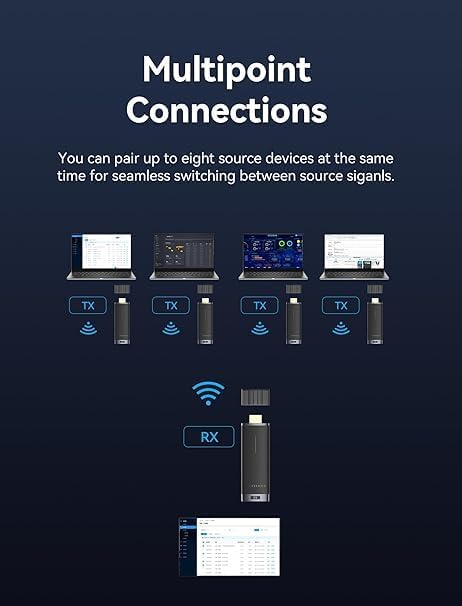
Image: A diagram illustrating the 'Multipoint Connections' feature, showing four laptops each connected to a VENTION Wireless HDMI Transmitter (TX), all wirelessly transmitting to a single VENTION Wireless HDMI Receiver (RX) which is connected to a display. This demonstrates the ability to switch between multiple source devices.
5.2 HDMI Switch Operation
- Entrades de commutació: Use the button on the VENTION 4K HDMI Switch to toggle between 'Input 1' and 'Input 2'. The active input will be indicated by an LED light on the switch.
- Canvi automàtic: Some HDMI switches may feature automatic input detection, switching to the newly active source. However, manual switching is always available.
6. Solució De Problemes
Si teniu problemes, consulteu les solucions habituals següents:
- Sense senyal/Pantalla negra:
- Assegureu-vos que tots els cables HDMI estiguin connectats correctament.
- Verify that both the Wireless HDMI Receiver (RX) and the HDMI Switch are properly powered via their respective USB-C cables.
- Check if the Wireless HDMI Transmitter (TX) is receiving sufficient power from the source device's HDMI port. If not, connect a USB-C power cable to the TX.
- Confirm that your display is set to the correct HDMI input channel.
- For the HDMI Switch, press the switch button to cycle through inputs.
- Try restarting both the source device and the display.
- Intermittent Signal/Poor Quality (Wireless Dongle):
- Reduïu la distància entre les unitats TX i RX.
- Remove any obstructions (walls, furniture, large electronic devices) between the TX and RX units. Walls and floors significantly reduce the effective range (e.g., 131ft in open space, 32ft through walls).
- Ensure there are no strong 5GHz Wi-Fi signals or other wireless devices operating nearby that could cause interference.
- Verify that both TX and RX units are adequately powered.
- Sense àudio:
- Comproveu la configuració d'àudio al dispositiu i a la pantalla font.
- Ensure HDMI cables support audio transmission.
- Problemes de compatibilitat:
- The VENTION Wireless HDMI Dongle and Switch are broadly compatible with most HDMI devices. If an issue persists, try connecting the source directly to the display to rule out other device problems.
7. Especificacions
| Característica | Especificació |
|---|---|
| Freqüència de transmissió sense fil | 5 GHz |
| Interval de transmissió sense fil | Up to 131ft (40m) in open environments; 32ft (10m) through walls/floors |
| Wireless Video Resolution Support | Up to 1920x1080@60Hz (1080P) |
| HDMI Switch Resolution Support | Fins a 4K@120Hz |
| Latència | Minimal (approx. 0.1s) |
| Entrada de potència | USB-C (5V/2A recommended for RX and Switch) |
| Compatibilitat | HDMI 1.4/2.0 (depending on device), HDCP compliant |
8. Informació de seguretat
- No exposeu els dispositius a l'aigua, la humitat ni a temperatures extremes.
- Avoid dropping or subjecting the devices to severe impact.
- Do not attempt to disassemble or repair the devices yourself. This will void the warranty.
- Use only the provided or certified USB-C power cables to prevent damage.
- Keep the devices away from strong electromagnetic fields.
9. Manteniment
- Netegeu els dispositius amb un drap suau i sec. No utilitzeu netejadors líquids ni aerosols.
- Guardeu els dispositius en un lloc fresc i sec quan no els feu servir.
- Ensure proper ventilation around the devices during operation to prevent overheating.
10. Garantia i Suport
VENTION products come with a standard manufacturer's warranty. For specific warranty terms and conditions, please refer to the warranty card included with your purchase or visit the official VENTION website. For technical support, troubleshooting assistance, or any product-related inquiries, please contact VENTION customer service through the contact information provided on their official weblloc web o la vostra plataforma de compra.


