1. Introducció
This manual provides detailed instructions for the setup, operation, and maintenance of your KOORUI 27E6QCA 27-inch Curved QHD 180Hz Gaming Monitor. Please read this manual thoroughly before using the product to ensure proper functionality and to prevent damage.
2. Contingut del paquet
Verifiqueu que tots els elements que s'enumeren a continuació siguin presents al paquet del producte:
- 1 x KOORUI 27E6QCA Monitor
- 1 x cable d'alimentació
- 1 cable DisplayPort (DP)
- 1 x Manual d'usuari
- 1 x adaptador de corrent
- 1 x suport de monitor
- 1 x base de monitor

Imatge: Frontal view of the KOORUI 27E6QCA Curved Gaming Monitor, showcasing its 27-inch curved display and sleek design.
3. Producte acabatview
The KOORUI 27E6QCA is a 27-inch curved gaming monitor designed for an immersive visual experience. Key features include:
- Visualització: 27-inch VA Panel with 1500R curvature.
- Resolució: QHD (2560x1440) for clear and detailed images.
- Freqüència d'actualització: 180Hz for smooth motion.
- Temps de resposta: 1ms (MPRT) to minimize motion blur.
- Gamma de colors: 85% DCI-P3 for rich and accurate colors.
- Sincronització adaptativa: Compatible with Adaptive Sync technology to reduce screen tearing and stuttering.
- Protecció ocular: Features like blue light filter and flicker-free technology for reduced eye strain.
- Connectivitat: Multiple HDMI and DisplayPort inputs.
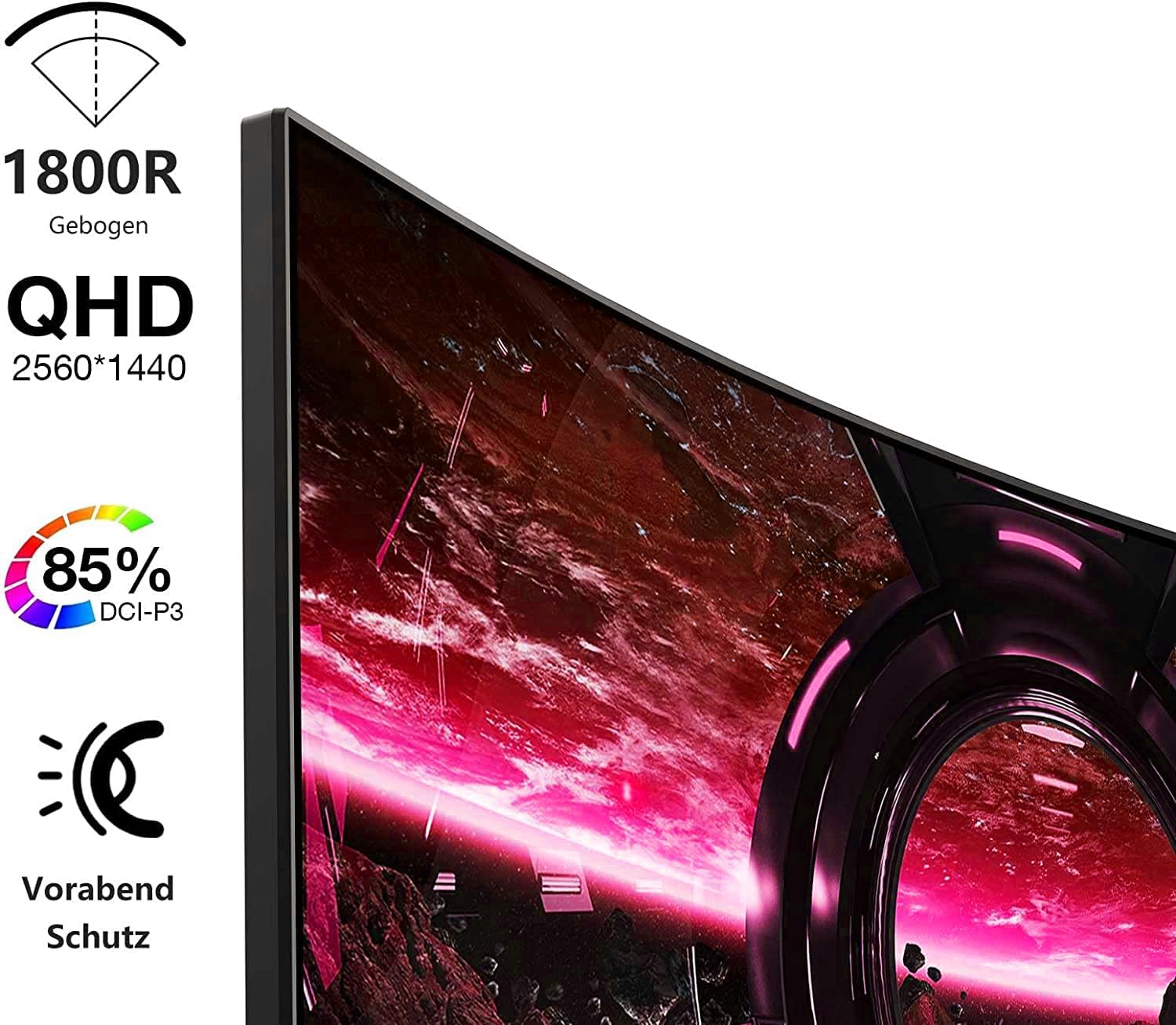
Image: Visual representation of the monitor's key features, including its 1500R curvature, QHD resolution (2560x1440), 85% DCI-P3 color coverage, and eye protection technology.
4. Instruccions de configuració
4.1 Muntatge del suport
- Carefully remove the monitor, stand, and base from the packaging.
- Attach the stand to the base, ensuring it clicks securely into place or is fastened with the provided screw.
- Attach the assembled stand to the back of the monitor. Ensure the connection is firm.

Imatge: Part posterior view of the KOORUI 27E6QCA monitor, showing the attachment point for the stand and the overall back panel design.
4.2 Connexió a un dispositiu
The monitor supports HDMI and DisplayPort connections. Use the appropriate cable for your device.
- DisplayPort (DP): Connect one end of the DP cable to the DisplayPort output on your computer's graphics card and the other end to the DisplayPort input on the monitor. This connection is recommended for achieving the full 180Hz refresh rate and QHD resolution.
- HDMI: Connect one end of an HDMI cable (version 1.4 or higher recommended) to the HDMI output on your device and the other end to one of the HDMI inputs on the monitor.
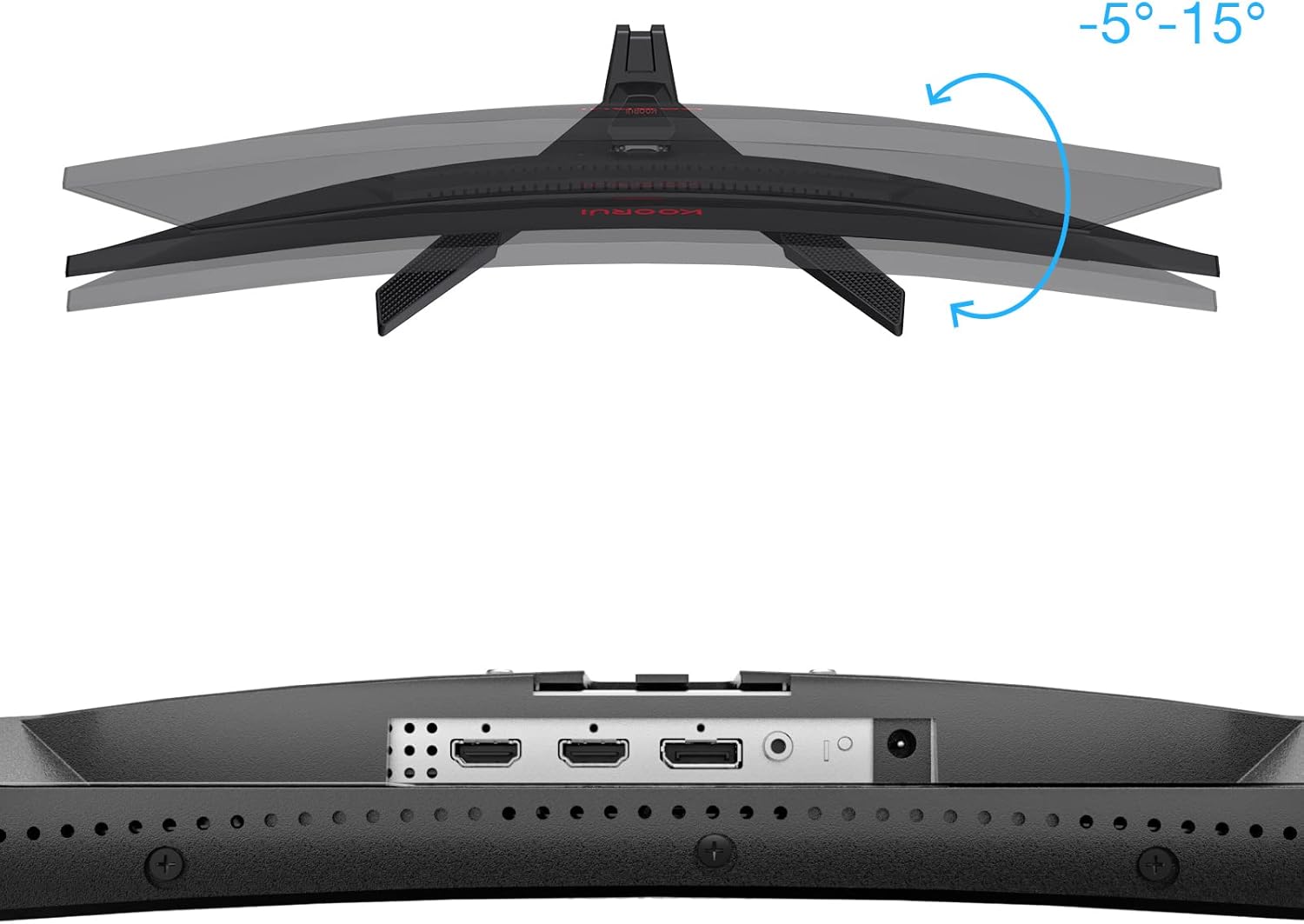
Imatge: Primer pla view of the monitor's rear ports, including HDMI and DisplayPort inputs, along with an illustration of the monitor's tilt adjustment range (-5° to 15°).

Image: Diagram illustrating the monitor's compatibility with various devices such as PS5, Xbox, Laptops, and Nintendo Switch via its multiple connection interfaces.
4.3 Connexió d'alimentació
- Connecteu l'adaptador de corrent a l'entrada d'alimentació del monitor.
- Plug the power cable into the power adapter, then plug the other end of the power cable into a wall outlet.
5. Instruccions de funcionament
5.1 Encès/Apagat
- Encès: Short press the multi-function joystick button located on the back of the monitor.
- Apagar: Long press the multi-function joystick button for a few seconds.
5.2 Navegació de menús
The monitor features a single multi-function joystick button for navigating the On-Screen Display (OSD) menu.
- Access OSD: Short press the joystick button when the monitor is on.
- Navega: Push the joystick left/right/up/down to move through menu options.
- Confirmeu: Press the joystick button to confirm a selection.
- Tornada: Push the joystick up to go back to the previous menu or exit the OSD.

Image: Diagram illustrating the functions of the multi-function joystick button on the rear of the monitor: long press for power off, short press for power on, push left for minus, push right for plus, push up for return, and press for confirm.
5.3 Configuració de la pantalla
Adjust various display settings through the OSD menu:
- Brillantor/Contrast: Ajusta la luminància i la distinció de la imatge.
- Configuració de color: Modify color temperature, gamma, and saturation.
- Mode d'imatge: Select from preset modes (e.g., Standard, Game, Movie, Text).
- Configuració del joc:
- Sincronització adaptativa: Enable this feature to synchronize the monitor's refresh rate with your graphics card, reducing screen tearing and stuttering. Ensure your graphics card supports Adaptive Sync.
- Temps de resposta (sobremarxa): Adjust for faster pixel response, reducing ghosting.
- Modes de joc: Specific modes like RTS, FPS, Reticle, and Timer are available to optimize visuals for different game genres.
- Font d'entrada: Manually select between HDMI and DisplayPort inputs.
For optimal gaming performance, ensure your operating system's display settings are configured to the monitor's native resolution (2560x1440) and highest refresh rate (180Hz).
6. Manteniment
Proper maintenance ensures the longevity and performance of your monitor.
- Neteja de la pantalla:
- Apagueu sempre el monitor i desendolleu el cable d'alimentació abans de netejar-lo.
- Utilitzeu un drap suau i sense pelusa lleugerament dampnetejat amb aigua o amb un netejador de pantalles especialitzat.
- No ruixeu el netejador directament sobre la pantalla.
- Eviteu utilitzar netejadors abrasius, alcohol o solucions a base d'amoníac.
- Neteja de la Casing: Feu servir un drap suau i sec per netejar el monitor casing.
- Ventilació: Assegureu-vos que les obertures de ventilació del monitor no estiguin bloquejades per evitar el sobreescalfament.
7. Solució De Problemes
Si teniu problemes amb el monitor, consulteu els passos habituals següents per a la resolució de problemes:
7.1 Sense poder
- Assegureu-vos que el cable d'alimentació estigui connectat correctament al monitor i a la presa de corrent.
- Comproveu que la presa de corrent funcioni connectant un altre dispositiu.
- Comproveu si l'adaptador d'alimentació està connectat correctament.
7.2 Sense senyal / Pantalla en blanc
- Confirmeu que el cable de vídeo (DP o HDMI) estigui connectat correctament tant al monitor com a l'ordinador/dispositiu.
- Assegureu-vos que la font d'entrada correcta estigui seleccionada al menú OSD del monitor.
- Check if your computer/device is powered on and not in sleep mode.
- Prova un cable o port de vídeo diferent si està disponible.
7.3 Image Flickering or Tearing
- Enable Adaptive Sync in the monitor's OSD menu and ensure it is enabled in your graphics card settings.
- Verify that your graphics drivers are up to date.
- Check the refresh rate setting in your operating system's display settings. It should be set to 180Hz.
7.4 Ghosting or Motion Blur
- Adjust the "Response Time" or "Overdrive" setting in the OSD menu. Experiment with different levels to find the optimal balance.
- Ensure Adaptive Sync is enabled.
7.5 Resolució o freqüència d'actualització incorrecta
- Go to your operating system's display settings and set the resolution to 2560x1440 and the refresh rate to 180Hz.
- Ensure you are using a DisplayPort cable or an HDMI cable that supports these specifications.
8. Especificacions
| Característica | Especificació |
|---|---|
| Marca | KOORUI |
| Número de model | 27E6QCA |
| Mida de la pantalla | 27 polzades |
| Tipus de panell | VA |
| Curvatura | 1500R |
| Resolució | QHD (2560 x 1440 Pixels) |
| Relació d'aspecte | 16:9 |
| Freqüència d'actualització | 180 Hz |
| Temps de resposta | 1 millisecond (MPRT) |
| Gamma de colors | 85% DCI-P3 |
| Relació de contrast | 2000:1 |
| Connectivitat | HDMI (x1), DisplayPort (x1) |
| Ajust d'inclinació | -5° a 15° |
| Consum d'energia | 78 watts |
| Dimensions (L x A x A) | 61.2 x 45.2 x 18.5 cm |
| Pes | 5.1 quilos |
| Característiques especials | Blue Light Filter, Curved, Flicker-Free, Adaptive Sync |

Image: Diagram showing the approximate dimensions of the KOORUI 27E6QCA monitor, including height (40cm), width (50cm), and depth (30cm).
9. Garantia i Suport
For warranty information and technical support, please refer to the warranty card included in your product package or visit the official KOORUI weblloc web. Conserveu el rebut de compra com a comprovant de compra per a reclamacions de garantia.


