Introducció
This manual provides essential information for setting up, operating, maintaining, and troubleshooting your Microsoft Surface Pro 3. The Surface Pro 3 is a versatile device designed to function as both a tablet and a laptop, powered by the Windows 10 operating system.
It features a 12-inch high-resolution screen, ample internal storage, dual HD cameras, and robust connectivity options, including a full-size USB 3.0 port. Its integrated kickstand allows for comfortable viewing in various positions, and the magnesium frame ensures a lightweight and durable design.
Informació de seguretat
- No exposeu el dispositiu a temperatures extremes, llum solar directa ni humitat elevada.
- Eviteu deixar caure el dispositiu ni sotmetre'l a impactes forts.
- Use only Microsoft-approved power adapters and accessories.
- Keep the device away from liquids. In case of liquid contact, power off immediately and seek professional assistance.
- No intenteu desmuntar ni reparar el dispositiu vosaltres mateixos. Això podria anul·lar la garantia i causar danys.
- Assegureu-vos que la ventilació sigui adequada quan utilitzeu el dispositiu per evitar el sobreescalfament.
Configuració
1. Unboxing i Inspecció Inicial
Carefully remove the Surface Pro 3 and all accessories from the packaging. Inspect the device for any visible damage. Retain the packaging for future transport or service needs.
2. Engegada i configuració inicial
- Connect the power supply to the Surface Pro 3 and a power outlet.
- Press the power button located on the top edge of the device.
- Follow the on-screen prompts to complete the Windows 10 initial setup, including language selection, network connection, and user account creation.
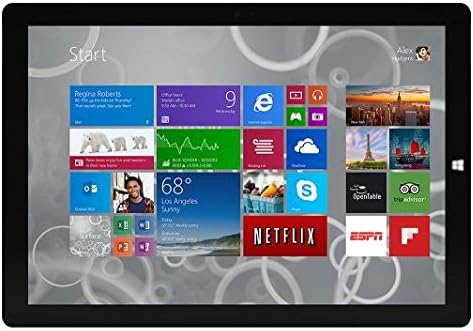
Figure 1: Windows 10 Start Screen during initial setup.
This image shows the Microsoft Surface Pro 3 screen displaying the Windows 10 Start menu, characterized by a grid of live tiles representing various applications and services. This is typically seen during the initial setup or when navigating the operating system.
3. Attaching Accessories (Sold Separately)
The Surface Pro 3 is compatible with various accessories, such as the Surface Type Cover keyboard and the Surface Pen, which are sold separately.
- Surface Type Cover: Align the magnetic connector of the Type Cover with the bottom edge of the Surface Pro 3 until it clicks into place.
- Llapis Surface: The Surface Pen can be magnetically attached to the side of the Surface Pro 3 for storage. For initial pairing, follow the instructions provided with the pen.
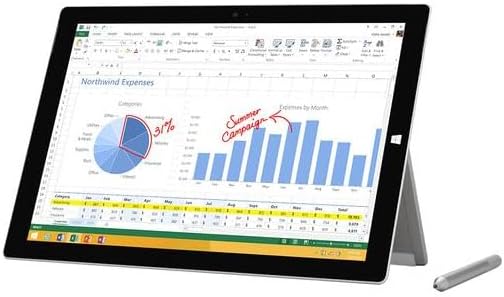
Figure 2: Surface Pro 3 with optional Surface Pen.
This image illustrates the Microsoft Surface Pro 3 in use, displaying an Excel spreadsheet on its screen. A Surface Pen is positioned next to the device, highlighting its compatibility for precise input and navigation.
4. Expanding Storage with a MicroSD Card
You can expand the internal storage of your Surface Pro 3 using a microSD card (sold separately).
- Locate the microSD card slot on the side of the Surface Pro 3, typically behind the kickstand.
- Introduïu la targeta microSD a la ranura fins que encaixi al seu lloc.
- The device will automatically detect the card. You may need to format it if it's a new card or if prompted by the system.

Figure 3: MicroSD card slot.
This close-up image shows the microSD card slot on the side of the Microsoft Surface Pro 3, with a microSD card partially inserted, demonstrating how to expand the device's storage.
Instruccions de funcionament
1. Navigating Windows 10
- Menú d'inici: Feu clic a la icona de Windows a la cantonada inferior esquerra per accedir a les aplicacions, la configuració i les opcions d'energia.
- Pantalla tàctil: Use gestures for navigation, zooming, and scrolling.
- Edge Browser: Utilize the pre-installed Edge browser for web browsing, which includes features for marking up web pàgines.

Figure 4: Using the Surface Pro 3 for productivity.
This image depicts the Microsoft Surface Pro 3 in an active use scenario, showcasing a note-taking application open on its screen. The display features handwritten notes, diagrams, and sketches, illustrating the device's capability for creative and productive tasks.
2. Using the Integrated Kickstand
The multi-position kickstand allows you to adjust the viewing angle for optimal comfort, whether you are typing, watching videos, or drawing.
- Gently pull the kickstand out from the back of the device.
- Adjust it to your desired angle. The kickstand offers a wide range of positions for versatility.
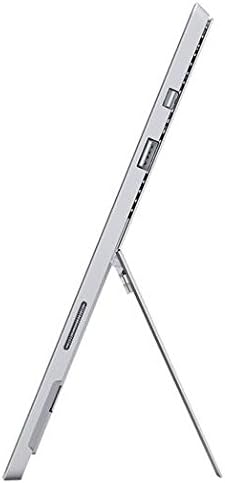
Figure 5: Adjustable kickstand.
Aquesta imatge ofereix un costat view of the Microsoft Surface Pro 3, clearly showing its integrated kickstand extended to support the device at an angle, demonstrating its versatile viewcapacitats d'ingrés.
3. Funcionalitat de la càmera
The Surface Pro 3 is equipped with 5.0MP front and rear cameras.
- Open the Camera application from the Start Menu.
- Switch between front and rear cameras as needed for photos or video calls.

Figure 6: Front camera.
This close-up image focuses on the front-facing camera and associated sensors located at the top edge of the Microsoft Surface Pro 3 screen.
4. Connectivitat
The full-size USB 3.0 port allows for connecting various peripherals and transferring data.
- Insert USB devices (e.g., flash drives, external hard drives, printers) into the USB 3.0 port.
- The device also supports Wi-Fi (802.11a/b/g/n/ac) for wireless internet connectivity.
Manteniment
1. Cleaning Your Surface Pro 3
- Utilitzeu un drap suau i sense pelusa dampnetejat amb aigua o un netejador de pantalles dissenyat específicament per a electrònica.
- Eviteu utilitzar productes químics agressius, netejadors abrasius o aerosols.
- Netegeu suaument la pantalla i les superfícies exteriors.
2. Actualitzacions de programari
Comproveu i instal·leu regularment si hi ha actualitzacions de Windows per assegurar-vos que el vostre dispositiu tingui els pegats de seguretat i les millores de rendiment més recents.
- Vés a Configuració > Actualització i seguretat > Actualització de Windows.
- Click "Check for updates" and install any available updates.
3. Gestió de l'emmagatzematge
To maintain optimal performance, manage your device's storage space.
- Elimina regularment els innecessaris files i aplicacions.
- Utilize cloud storage services or external drives for large files.
- Consider using the Disk Cleanup tool in Windows to remove temporary files.
Resolució de problemes
Aquesta secció tracta problemes comuns que podeu trobar amb el vostre Surface Pro 3.
El dispositiu no s'encén
- Assegureu-vos que la font d'alimentació estigui connectada correctament tant al dispositiu com a una presa de corrent que funcioni.
- Proveu una presa de corrent diferent.
- Mantingueu premut el botó d'engegada durant 10-15 segons per realitzar un apagat forçat i, a continuació, premeu-lo de nou per reiniciar.
Problemes de connectivitat Wi-Fi
- Comproveu si el Wi-Fi està habilitat a la configuració de Windows.
- Reinicieu el vostre encaminador Wi-Fi.
- Oblida't de la xarxa i torna a connectar-te, introduint de nou la contrasenya.
- Executeu el Solucionador de problemes de xarxa de Windows.
Rendiment lent
- Tanca les aplicacions innecessàries que s'executen en segon pla.
- Comproveu i instal·leu les actualitzacions pendents de Windows.
- Assegureu-vos que teniu prou espai d'emmagatzematge lliure.
- Executeu una anàlisi de virus.
For more detailed troubleshooting or issues not covered here, please refer to the official Microsoft Support weblloc o contacteu amb el servei d'atenció al client.
Especificacions
| Característica | Detall |
|---|---|
| Model | Microsoft Surface 1631 Pro 3 |
| Sistema operatiu | Windows 10 |
| Mida de la pantalla | 12 polzades |
| Resolució de pantalla | 2160 x 1440 |
| Processador | Intel Core i3 1.5 GHz |
| RAM | 4 GB |
| Emmagatzematge intern | 128 GB d'emmagatzematge flaix |
| Coprocessador gràfic | Gràfics Intel HD |
| Càmeres | 5.0MP frontal i posterior |
| Tipus sense fil | 802.11b, 802.11a, 802.11g |
| Ports | Full-size USB 3.0 |
| Pes de l'article | 1.8 lliures |
| Dimensions del producte | 11.5 x 0.36 x 7.93 polzades |
| Color | Plata |
Garantia i Suport
Your Microsoft Surface Pro 3 comes with a standard manufacturer's warranty. For detailed warranty terms and conditions, please refer to the documentation included with your purchase or visit the official Microsoft support weblloc.
For technical assistance, troubleshooting guides, driver downloads, and service requests, please visit the Assistència tècnica de Microsoft Surface pàgina.


