1. Introducció
Welcome to your new OMEGA OWLR151U 150 Mbps Wi-Fi Router. This device is designed to provide a reliable and efficient wireless network for your home or small office. It integrates the functions of a router, wireless access point, 4-port switch, and firewall into a single unit. This manual will guide you through the installation, configuration, and maintenance of your router to ensure optimal performance.
2. Producte acabatview
The OMEGA OWLR151U router supports the IEEE 802.11n wireless standard, offering wireless speeds of up to 150 Mbps on the 2.4 GHz frequency band. It features one WAN port for internet connection and four LAN ports for wired devices, along with a fixed 5 dBi antenna for enhanced signal coverage. The integrated firewall provides basic network security.

Figura 2.1: Davant view of the OMEGA OWLR151U Wi-Fi Router, showing its compact design and single antenna.
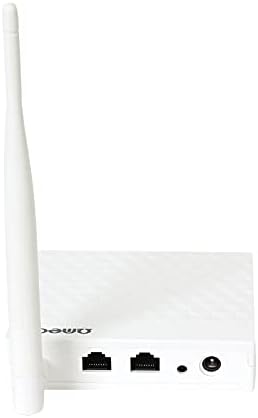
Figura 2.2: posterior view of the OMEGA OWLR151U Wi-Fi Router, highlighting the WAN port, LAN ports, and power input.
3. Configuració
3.1 Contingut del paquet
- OMEGA OWLR151U Wi-Fi Router
- Adaptador d'alimentació
- Cable Ethernet
- Guia d'instal·lació ràpida (si s'inclou)
3.2 Connexió de maquinari
- Connexió d'alimentació: Connect the provided power adapter to the router's power port and then plug it into an electrical outlet. Ensure the power LED on the router illuminates.
- Connexió WAN: Connect an Ethernet cable from your modem (or internet service provider's wall jack) to the WAN port del router.
- Connexió LAN (opcional): To connect a computer or other wired device, use an Ethernet cable to connect it to one of the LAN ports on the router.
3.3 Configuració inicial
- Accés a la interfície del router: Obre a web browser (e.g., Chrome, Firefox) on a computer or device connected to the router (either via Wi-Fi or Ethernet).
- Enter IP Address: In the browser's address bar, type the router's default IP address (commonly
192.168.1.1or192.168.0.1). Refer to the label on the bottom of your router for the exact IP address and login credentials. - Inici de sessió: Introduïu el nom d'usuari i la contrasenya predeterminats (per exemple,
admin/adminoradmin/password). - Segueix l'Auxiliar de configuració: Once logged in, you will typically be guided through a Quick Setup Wizard. Follow the on-screen instructions to configure your internet connection and Wi-Fi settings (SSID and password).
- Desa la configuració: Després de configurar-ho, deseu els paràmetres i reinicieu el router si se us demana.
4. Funcionament
4.1 Connexió de dispositius
- Connexió Wi-Fi: On your wireless device (smartphone, tablet, laptop), search for available Wi-Fi networks. Select the SSID (network name) you configured during setup and enter the Wi-Fi password.
- Connexió Ethernet: For wired devices, simply connect an Ethernet cable from the device to any of the router's available LAN ports.
4.2 Accés a la configuració del router
To modify advanced settings, such as port forwarding, parental controls, or security options, access the router's web interface using the IP address and login credentials as described in Section 3.3.
5. Manteniment
5.1 actualitzacions de microprogramari
Consulteu periòdicament la informació oficial del fabricant website for available firmware updates. Firmware updates can improve performance, add new features, and enhance security. Follow the instructions provided by the manufacturer for the update process.
5.2 Restabliment de fàbrica
If you encounter persistent issues or forget your login credentials, you can perform a factory reset. With the router powered on, use a paperclip or a thin object to press and hold the reset button (usually a small pinhole on the back or bottom) for approximately 5-10 seconds. The router will restart with its factory default settings.
5.3 Neteja
Use a soft, dry cloth to clean the exterior of the router. Do not use liquid cleaners, aerosols, or solvents, as these can damage the device.
6. Solució De Problemes
6.1 Sense accés a Internet
- Comproveu les connexions: Ensure all cables (power, WAN, LAN) are securely connected.
- Reinicieu els dispositius: Apagueu el mòdem i l'encaminador, espereu 30 segons i, a continuació, engegueu primer el mòdem. Un cop el mòdem estigui completament en línia, engegueu l'encaminador.
- Verify WAN Settings: Inicieu sessió al router web interface and check the WAN settings to ensure your internet connection type (e.g., DHCP, PPPoE) is correctly configured.
6.2 Wi-Fi Not Visible or Cannot Connect
- Wi-Fi activat: Confirm that the wireless function is enabled in the router's web interfície.
- Contrasenya correcta: Double-check that you are entering the correct Wi-Fi password (case-sensitive).
- Interferència de canal: In the router settings, try changing the Wi-Fi channel to a less congested one (e.g., 1, 6, or 11).
6.3 Velocitat de connexió lenta
- Col·locació del router: Position the router in a central location, away from obstructions and other electronic devices that may cause interference.
- Firmware: Assegureu-vos que el firmware del vostre encaminador estigui actualitzat.
- Dispositius connectats: Too many devices connected simultaneously can reduce speed. Consider limiting usage or upgrading your internet plan.
7. Especificacions
- Model: OWLR151U
- Estàndard sense fil: IEEE 802.11n, compatible with 802.11 b/g
- Velocitat sense fil: Fins a 150 Mbps
- Banda de freqüència: 2.4 GHz
- Port WAN: 1 x 10/100 Mbps
- Ports LAN: 4 x 10/100 Mbps
- Antena: 1 x 5 dBi fixed antenna
- Protocols de seguretat: WEP (Note: WEP is an older security protocol. For enhanced network security, consider using WPA2 or WPA3 if supported by your devices and network.)
- Característiques especials: Integrated Router, Wireless Access Point, 4-Port Switch, Firewall
- Dispositius compatibles: Personal Computer, Tablet, Smart Television
- Sistema operatiu: RouterOS (as specified by manufacturer)
8. Informació de la garantia
Information regarding the product warranty for the OMEGA OWLR151U Wi-Fi Router is not available in the provided details. Please refer to your purchase documentation, the product packaging, or contact the retailer where you purchased the device for specific warranty terms and conditions.
9. Suport
For technical assistance, troubleshooting beyond the scope of this manual, or further inquiries, please refer to the contact information provided with your purchase. Specific support contact details for Omega products are not available in the provided information. You may also visit the official Omega product support weblloc si està disponible.


