
1. Introduction
This manual provides detailed instructions for setting up, operating, and maintaining your MINISFORUM M1 Pro-285H AI Mini PC. Please read this manual thoroughly before using the device to ensure proper functionality and to prevent damage.
The MINISFORUM M1 Pro-285H is a high-performance AI Mini PC equipped with an Intel Core Ultra 9 Processor 285H, designed for demanding tasks, content creation, light gaming, and multimedia editing. It features advanced connectivity and expansion options to enhance your computing experience.
2. Product Overview
The M1 Pro-285H features a compact and sleek design, crafted from durable aluminum alloy. It integrates powerful components within a small footprint.
2.1. Components and Features
- Processor: Intel Core Ultra 9 Processor 285H (16 Cores, 16 Threads, up to 5.4GHz) with integrated Intel Arc Graphics.
- Memory: DDR5-5600GHz SODIMM, expandable up to 128 GB (supports up to 6400 MT/s).
- Storage: Dual M.2 2280 PCIe 4.0 slots, each supporting up to 4TB capacity. Supports RAID 0 and RAID 1 configurations.
- Display Output: Supports up to 4 displays via HDMI 2.1 (4K@60Hz), DP 1.4 (up to 8K@60Hz or 4K@144Hz), and dual USB4 ports (up to 8K@60Hz).
- Connectivity: Wi-Fi 7, Bluetooth 5.4, 2.5G Ethernet port.
- Ports: USB4 (40Gbps, 15W output, 65-100W input), USB 3.2 Gen2 Type-A, 3.5mm Audio Jack, OCuLink.
- Cooling: Efficient heat dissipation system with phase change material, dual pure copper heat pipes, and dual large-diameter silent fans.
2.2. Physical Layout and Ports

Image: Diagram showing the front and rear ports of the MINISFORUM M1 Pro-285H Mini PC. The front includes a power button, two USB3.2 Gen2 Type-A ports, one USB4 port, a 3.5mm audio jack, and a Clear CMOS pinhole. The rear includes a DC 19V power input, a 2.5G LAN port, a DP 1.4 port, an OCuLink port, an HDMI 2.1 port, and another USB4 port.
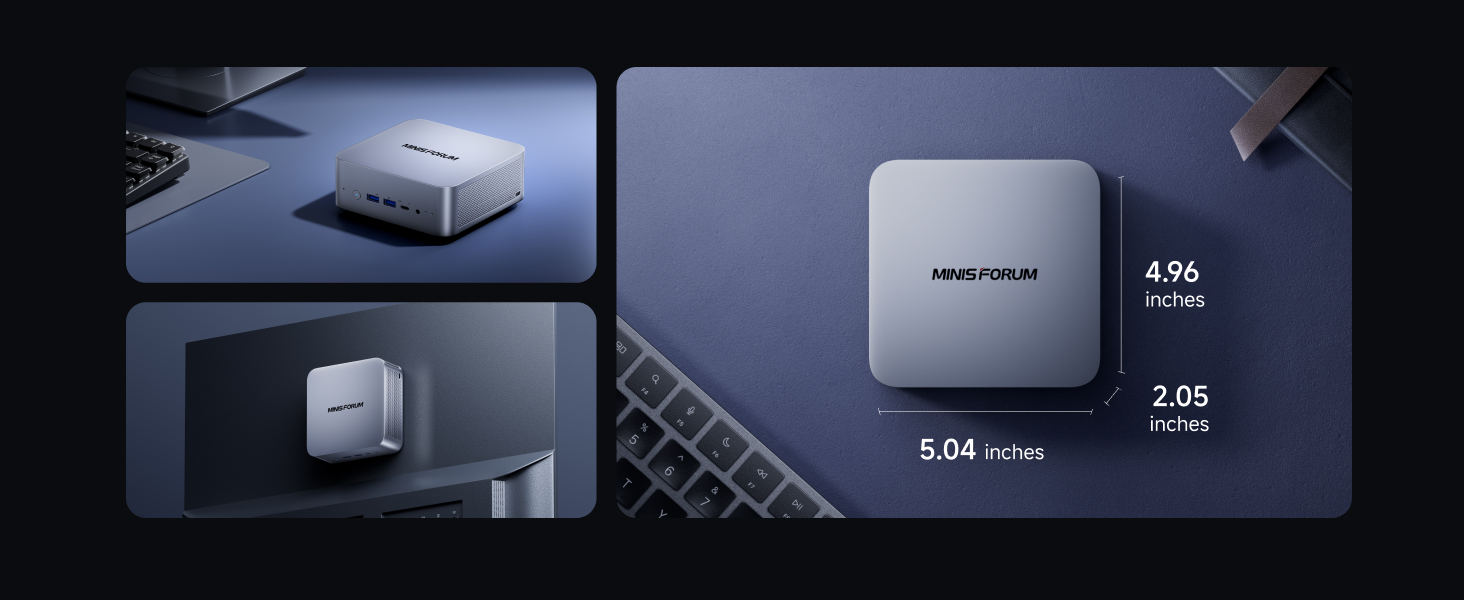
Image: The MINISFORUM M1 Pro-285H Mini PC shown from a top-down perspective, highlighting its compact dimensions of approximately 5.04 inches by 4.96 inches by 2.05 inches. Additional views show the device mounted behind a monitor and placed on a desk.
3. Setup Guide
3.1. Connecting Peripherals
- Connect Display: Connect your monitor(s) to the HDMI 2.1, DP 1.4, or USB4 ports using appropriate cables. The device supports up to four 4K displays simultaneously.
- Connect Keyboard and Mouse: Plug your USB keyboard and mouse into the available USB 3.2 Gen2 Type-A ports.
- Connect Network: For wired internet, connect an Ethernet cable to the 2.5G LAN port. For wireless, ensure Wi-Fi 7 is enabled in the operating system.
- Connect Audio: If using external speakers or headphones, connect them to the 3.5mm audio jack.
- Power Connection: Connect the power adapter to the DC 19V input port on the rear of the Mini PC, then plug the adapter into a power outlet.
3.2. Initial Boot
- Press the power button on the front of the device.
- The system will boot up. Follow the on-screen instructions to complete the operating system setup (if applicable).
4. Operating Instructions
4.1. Multi-Display Configuration

Image: A user working at a desk with four monitors connected to the MINISFORUM M1 Pro-285H Mini PC, demonstrating its quad 4K display capability for efficient multitasking. The image highlights the DP 1.4, USB4 x2, and HDMI 2.1 ports.
The M1 Pro-285H supports connecting up to four 4K displays simultaneously. To configure your displays:
- Connect your monitors to the available HDMI, DisplayPort, and USB4 ports.
- Access your operating system's display settings to arrange and extend your desktop across multiple screens.
4.2. OCuLink GPU Expansion

Image: A close-up view of the OCuLink port on the MINISFORUM M1 Pro-285H, with a glowing blue OCuLink cable connected, illustrating the eGPU expansion capability for faster performance. Note: OCuLink requires one M.2 2280 PCIe4.0 SSD slot.
The OCuLink port allows for external GPU expansion, providing enhanced graphics performance for demanding applications and gaming. To use OCuLink:
- Connect a compatible external GPU enclosure to the OCuLink port.
- Ensure the external GPU is properly powered and configured according to its manufacturer's instructions.
- Note: OCuLink is not hot-swappable and utilizes one M.2 2280 PCIe4.0 SSD slot.
4.3. Storage Expansion (RAID)

Image: A detailed view of the two M.2 2280 PCIe 4.0 SSD slots on the MINISFORUM M1 Pro-285H motherboard, indicating support for high-speed storage expansion.
The Mini PC supports dual M.2 2280 PCIe 4.0 SSDs, allowing for significant storage expansion and RAID configurations:
- RAID 0: Combines two drives into a single logical unit for increased performance.
- RAID 1: Mirrors data across two drives for data redundancy and protection.
- Consult your operating system or BIOS settings for instructions on configuring RAID.
4.4. USB4 Functionality

Image: A visual representation of the USB4 port on the MINISFORUM M1 Pro-285H, emphasizing its high-speed data transfer capabilities of 40Gbps, up to 8K video output, and 15W (5V 3A) power output (PD 3.0).
The dual USB4 ports offer versatile connectivity:
- High-Speed Data Transfer: Up to 40Gbps for rapid file transfers.
- Video Output: Supports up to 8K@60Hz display output.
- Power Delivery: Provides 15W output and supports 65-100W input for dynamic power supply to compatible devices.
5. Maintenance
5.1. Cleaning
- Regularly clean the exterior of the Mini PC with a soft, dry cloth.
- Use compressed air to clear dust from ventilation openings to maintain optimal airflow.
- Do not use liquid cleaners or solvents directly on the device.
5.2. Software Updates
- Keep your operating system and drivers updated to ensure system stability and performance.
- Check the MINISFORUM official website for the latest BIOS and driver updates.
5.3. Cooling System

Image: An exploded view of the MINISFORUM M1 Pro-285H's internal cooling system, showing the dual copper heatpipes and dual fans. Performance metrics indicate a standby temperature of 47°C, full-load temperature below 86°C, and noise levels below 45dB.
The M1 Pro-285H features an advanced cooling system. To ensure its effectiveness:
- Ensure the Mini PC is placed in a well-ventilated area.
- Avoid blocking the air vents.
6. Troubleshooting
6.1. No Power
- Check if the power adapter is securely connected to both the Mini PC and the power outlet.
- Verify that the power outlet is functional.
- Try a different power outlet or adapter if available.
6.2. No Display Output
- Ensure the monitor is powered on and the correct input source is selected.
- Check all display cables (HDMI, DP, USB4) for secure connections.
- Try connecting to a different display port or monitor to isolate the issue.
6.3. Network Connectivity Issues
- For wired connections, ensure the Ethernet cable is properly connected and your router is functioning.
- For Wi-Fi, check if Wi-Fi is enabled in your operating system and if you are connected to the correct network.
- Restart your router and the Mini PC.
6.4. System Performance Issues
- Ensure the Mini PC has adequate ventilation and is not overheating.
- Close unnecessary applications running in the background.
- Check for and install any available system or driver updates.
7. Specifications
| Feature | Detail |
|---|---|
| Processor | Intel Core Ultra 9 Processor 285H (16 Cores, 16 Threads, up to 5.4GHz) |
| Graphics Coprocessor | Intel Arc Graphics |
| RAM | 32 GB DDR5 (Expandable up to 128 GB DDR5-6400MHz) |
| Hard Drive | 1 TB SSD (Dual M.2 2280 PCIe 4.0 slots, supports RAID 0/1) |
| Max Screen Resolution | 7680x4320 (8K) |
| Wireless Type | Wi-Fi 7 (802.11ax), Bluetooth 5.4 |
| Ethernet | 2.5G LAN |
| USB Ports | 2x USB 3.0 (USB 3.2 Gen2 Type-A), 2x USB4 (40Gbps, 15W output, 65-100W input) |
| Video Output | 1x HDMI 2.1, 1x DP 1.4, 2x USB4 (supports Quad 4K display) |
| Other Ports | OCuLink, 3.5mm Audio Jack, DC 19V Power Input |
| Operating System | OS (Pre-installed Copilot for AI productivity) |
| Item Weight | 2.94 pounds |
| Dimensions | 7.09 x 6.3 x 4.49 inches (Package) |
8. Official Product Video
Video: Official product video showcasing the MINISFORUM M1 Pro-285H AI Mini PC, highlighting its features and design, including internal components, connectivity, and cooling system.
9. Warranty and Support
For warranty information, technical support, and service inquiries, please refer to the official MINISFORUM website or contact their customer service directly. Keep your purchase receipt for warranty claims.
MINISFORUM Official Website: www.minisforum.com


