Uvod
This manual provides essential information for setting up, operating, and maintaining your Amazon Fire TV 4-Series 50-inch 4K UHD Smart TV. The Fire TV 4-Series brings vivid 4K Ultra HD, HDR 10, HLG, and Dolby Digital Plus support, offering a clearer and more vibrant picture than 1080p Full HD. Enjoy access to over 1.5 million movies and TV episodes from various streaming services, along with live TV, video games, and music. The integrated Fire TV platform continuously updates with new Alexa skills, features, smart home capabilities, and voice functionality.

Slika: Front view of the Amazon Fire TV 4-Series 50-inch 4K UHD Smart TV, showcasing njegov tanki okvir i ekran.
Šta je u kutiji
Pažljivo raspakujte kutiju i provjerite da li su sve komponente prisutne:
- Fire TV 4-Series 50-inch Television
- Poboljšani Alexa glasovni daljinski upravljač
- Kabl za napajanje
- 2 AAA baterije (za daljinski upravljač)
- 4 vijka (za pričvršćivanje postolja)
- TV stalak (2 noge)
- Vodič za brzi početak

Image: All components included in the Amazon Fire TV 4-Series package, laid out for inspection.
Setup
1. Attaching the TV Stand or Wall Mounting
The TV is designed to be lightweight for easier handling. For the 50-inch model, one person can typically unbox it, but for larger sizes, two people are recommended. The TV stand legs attach easily to the bottom of the television.
- Pažljivo postavite televizor ekranom prema dolje na meku, čistu površinu kako biste spriječili ogrebotine.
- Poravnajte svaku nogu postolja s odgovarajućim utorima na donjoj strani televizora.
- Pričvrstite svaku nogu priloženim vijcima.
Alternatively, for wall mounting, the TV supports a VESA Wall Mount Standard of 300 mm x 300 mm. Ensure you use a compatible wall mount (sold separately) and follow its installation instructions carefully.

Image: Visual guide to the TV components and stand assembly.
2. Povezivanje perifernih uređaja
Connect your external devices such as cable boxes, gaming consoles, or sound systems to the appropriate ports on the back and side of the TV. The TV features 3 HDMI 2.0 ports and 1 HDMI 2.1 port with eARC, 1 USB port, 1 Ethernet port, and a Digital Optical Audio Port.

Slika: Detaljna view portova za povezivanje na televizoru.
3. Početno uključivanje i podešavanje mreže
- Uključite kabel za napajanje u televizor, a zatim u zidnu utičnicu.
- Insert the two AAA batteries into the Alexa Voice Remote Enhanced.
- Pritisnite dugme za napajanje na daljinskom upravljaču da biste uključili TV.
- Follow the on-screen prompts to select your language and connect to your Wi-Fi network. You can also use an Ethernet cable for a wired connection.
- The TV may download and install software updates. This process can take 10-15 minutes. Allow it to complete without interruption.
- Sign in with your Amazon account. If you do not have one, you will be prompted to create one.
- Configure any desired parental controls or additional channel subscriptions.
Upravljanje TV-om
Osnovna navigacija
Use the Alexa Voice Remote Enhanced to navigate the Fire TV interface. The remote features a directional pad for menu navigation, a select button, and dedicated buttons for Home, Back, Menu, and various streaming services.
Using Alexa Voice Remote Enhanced
The included Alexa Voice Remote Enhanced allows you to control your TV and access content using voice commands. Press and hold the Alexa button on the remote, then speak your command. You can ask Alexa to:
- Find and launch movies, TV shows, and apps.
- Kontrola reprodukcije (reprodukcija, pauza, premotavanje naprijed, premotavanje unazad).
- Adjust TV settings like volume and input source.
- Check weather, sports scores, and other information.
- Kontrolirajte kompatibilne pametne kućne uređaje.
The remote can also control certain functions, such as power and volume, on a wide range of compatible IR-enabled devices, soundbars, and A/V receivers. Note that certain functions may not be available on all IR-enabled devices.
Pristup sadržaju
The Fire TV interface provides access to a vast library of streaming content. Subscription fees may apply for certain services.

Slika: pramples of streaming services available on Fire TV.
Povezivanje
The Amazon Fire TV 4-Series offers various connectivity options for your home entertainment system:
- HDMI portovi: 3 HDMI 2.0 ports and 1 HDMI 2.1 port with eARC for high-definition audio and video connections.
- Ethernet: 1 Ethernet port for a stable wired internet connection.
- USB: 1 USB port za povezivanje eksterne memorije ili drugih USB uređaja.
- Digitalni optički audio izlaz: Za povezivanje sa soundbarovima ili audio prijemnicima.
- Bežična povezanost: Supports Wi-Fi for wireless internet access.
- Bluetooth: Bluetooth 5.0 for connecting compatible accessories like headphones.
Specifikacije
| Feature | Specifikacija |
|---|---|
| Rezolucija | 3840 x 2160 (4K UHD) |
| Visoki dinamički raspon (HDR) | HDR 10, HLG |
| Tip pozadinskog osvetljenja | Direct LED |
| Refresh Rate | 60 Hz |
| Veličina ekrana | 50 inches (49.5 inches viewsposoban) |
| HDMI portovi | 3 HDMI 2.0 + 1 HDMI 2.1 sa eARC-om |
| Ethernet port | 1 |
| USB port | 1 |
| Audio podrška | Dolby Digital Plus s prolazom Dolby-kodiranog zvuka |
| Audio snaga | 8W + 8W |
| Operativni sistem | Fire TV operativni sistem |
| Veličina proizvoda (bez postolja) | 44.2” x 25.6” x 3.5” |
| Težina (bez postolja) | 20.6 lb |
| VESA standard za montažu na zid | 300 mm x 300 mm |
| SKU broj | 4K50N400A |
| Povezivanje | Wi-Fi or Ethernet, Bluetooth 5.0 |
| Alexa Voice Remote Enhanced Compatibility | Fire TV 2-Series, Fire TV 4-Series, Fire TV Omni Series, Fire TV Omni QLED Series, Fire TV Cube (3rd Gen) |
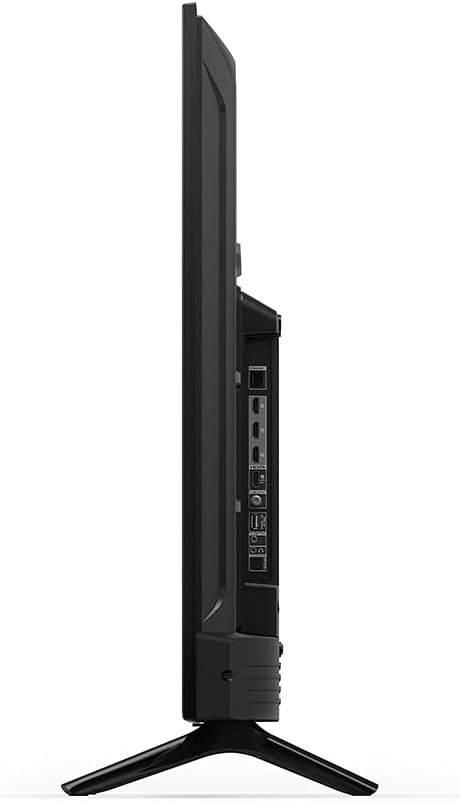
Slika: Bočni profesionalacfile of the TV, highlighting its slimness.
Slika: Stražnja strana view of the TV, illustrating the VESA mounting pattern.
Održavanje
Čišćenje TV-a
- Uvijek isključite TV iz struje prije čišćenja.
- Koristite meku, suhu krpu koja ne ostavlja dlačice da nježno obrišete ekran i kućište.
- Za tvrdokorne tragove na ekranu, lagano očistiteampOperite krpu vodom ili sredstvom za čišćenje ekrana posebno namijenjenim za elektroniku. Ne prskajte tekućinu direktno na ekran.
- Izbjegavajte upotrebu abrazivnih sredstava za čišćenje, voskova ili rastvarača jer mogu oštetiti završnu obradu.
Ažuriranja softvera
Your Fire TV will periodically receive software security updates to improve performance and add new features. Ensure your TV is connected to the internet to receive these updates automatically. You can also check for updates manually through the TV's settings menu.
Rješavanje problema
If you encounter issues with your Fire TV, refer to the following common solutions:
- Nema napajanja: Provjerite je li kabel za napajanje sigurno priključen i na TV i na ispravnu električnu utičnicu. Pokušajte s drugom utičnicom.
- Nema slike/zvuka: Verify that the correct input source is selected. Check all cable connections (HDMI, audio) are secure. Restart the TV by unplugging it for 30 seconds and plugging it back in.
- Daljinski ne reaguje: Replace the AAA batteries in the Alexa Voice Remote Enhanced. Ensure there are no obstructions between the remote and the TV. Re-pair the remote if necessary (hold Home button for 10 seconds).
- Problemi s mrežnom vezom: Check your Wi-Fi router and modem. Restart your network equipment. Ensure the TV is within range of your Wi-Fi signal or that the Ethernet cable is properly connected.
- Alexa ne odgovara: Ensure the remote batteries are fresh. Press and hold the Alexa button firmly when speaking. Check your internet connection.
For more detailed troubleshooting or persistent issues, refer to the online support resources for Fire TV.
Garancija i podrška
Informacije o garanciji
Your Amazon Fire TV 4-Series 50-inch includes a 1-year limited warranty and service. Optional 3-Year and 4-Year Extended Warranties are available for U.S. customers and can be purchased separately. Use of Fire TV is subject to the terms found on the official Amazon website.
Korisnička podrška
For additional support, frequently asked questions, or to manage your device, please visit the official Amazon Fire TV support pages online. You can find information specific to your device by visiting the 'Manage Your Content and Devices' section on Amazon.