1. Въведение
This manual provides essential information for setting up, operating, maintaining, and troubleshooting your new HP OmniDesk Desktop PC M02-0224. Please read this manual thoroughly before using your computer to ensure proper functionality and to maximize its lifespan. This desktop is designed for seamless performance and enhanced productivity, suitable for both business and student use.
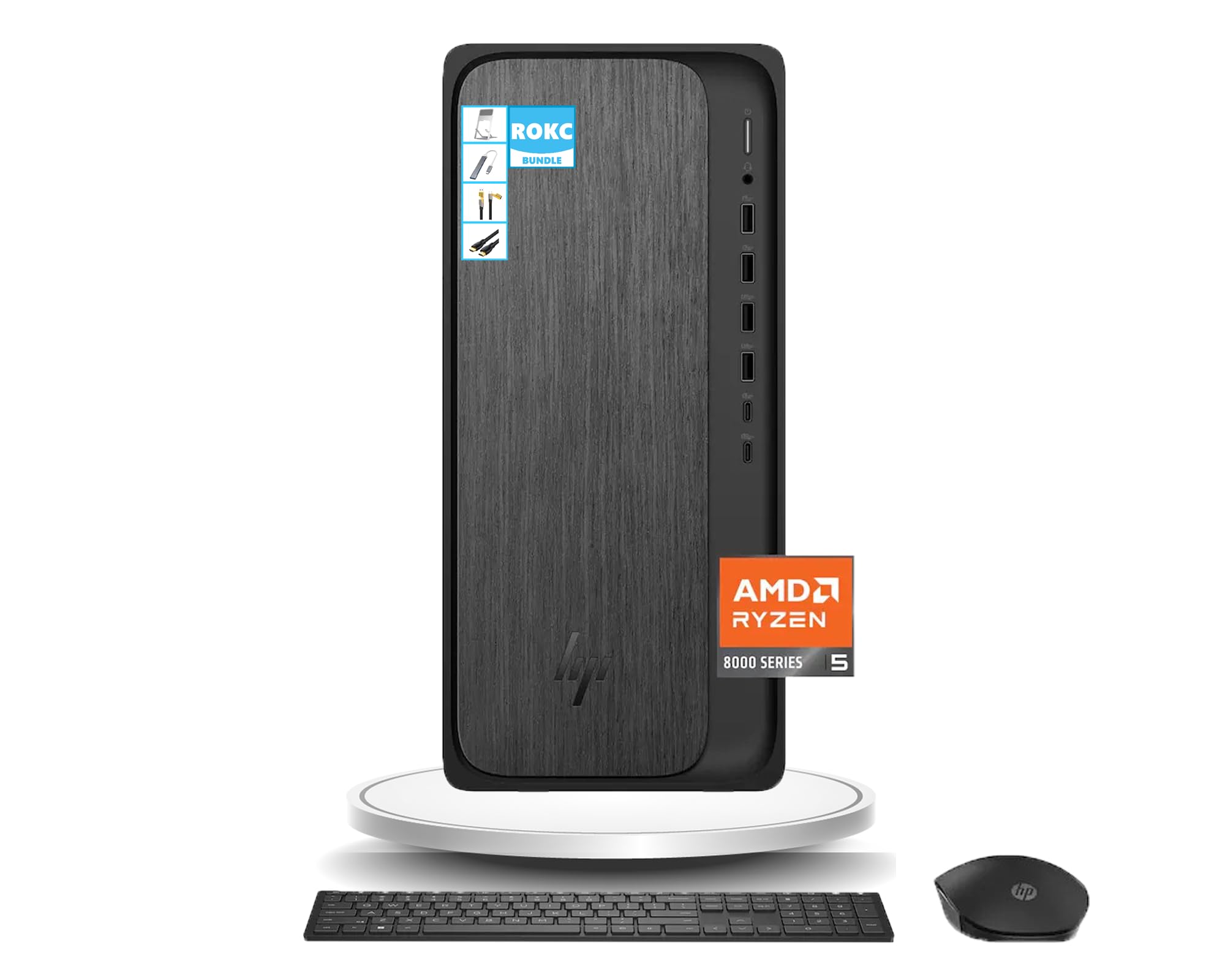
Figure 1: HP OmniDesk Desktop PC M02-0224
The HP OmniDesk Desktop PC M02-0224 is equipped with an AMD Ryzen 5 8500G processor, 16GB DDR5 RAM, and a 1TB SSD, providing robust performance for various tasks. Integrated AMD Radeon 740M Graphics ensure smooth visual experiences. Connectivity options include Wi-Fi 6, Bluetooth, and a comprehensive selection of USB, HDMI, and DisplayPort connections.
2. Какво има в кутията
Внимателно разопаковайте всички компоненти и се уверете, че са налични следните елементи:
- HP OmniDesk Desktop PC M02-0224
- Безжична клавиатура HP Black
- Безжична мишка HP Black
- 280W 80 Plus Platinum Certified Power Supply
- Инструкции за настройка
- ROKC Multifunctional Folding Universal Holder
- ROKC 65W Mecha 4-IN-1 Data Cable
- ROKC USB/Type-C 4-IN-1 HUB
- ROKC HDMI Cable

Figure 2: Main components included in the box.

Figure 3: ROKC Exclusive Accessories Bundle.
3. Инструкции за настройка
- Разположение: Place the HP OmniDesk Desktop PC on a stable, flat surface with adequate ventilation. Ensure no vents are blocked.
- Свързване на монитор: Connect your monitor to the desktop using the provided HDMI cable or a DisplayPort cable (not included). The desktop supports 1 x HDMI and 1 x DisplayPort.
- Свържете периферни устройства: Connect the wireless keyboard and mouse using their respective USB receivers to any available USB-A ports. Connect any other desired peripherals (e.g., printer, external storage) to the appropriate ports.
- Захранване: Connect the power supply cable to the desktop's power input and then to a grounded electrical outlet.
- Мрежова връзка: For wired internet, connect an Ethernet cable to the RJ-45 port. For wireless internet, the desktop features built-in Wi-Fi 6.
- Включване: Press the power button on the front of the desktop. The system will boot up, and Windows 11 will guide you through the initial setup process.
4. Инструкции за работа
4.1 Включване/изключване
- За включване: Натиснете бутона за захранване, разположен на предния панел.
- За изключване: Щракнете върху бутона „Старт“ в Windows 11, след което изберете „Захранване“ > „Изключване“.
- За рестартиране: Щракнете върху бутона Старт, след което изберете Захранване > Рестартиране.
- За сън: Щракнете върху бутона „Старт“, след което изберете „Захранване“ > „Заспиване“.
4.2 Основи на Windows 11
Your HP OmniDesk PC comes with Windows 11 pre-installed. Familiarize yourself with the new interface, including the centered Start menu, redesigned taskbar, and Snap Layouts for efficient multitasking.
4.3 Using the ROKC Accessories
- Multifunctional Folding Universal Holder: Adjust the holder to your desired angle for optimal viewing of tablets or smartphones.
- 65W Mecha 4-IN-1 Data Cable & USB/Type-C 4-IN-1 HUB: Use these for versatile connectivity and charging of various devices. Refer to the accessory's specific instructions for detailed usage.
- ROKC HDMI Cable: Connect this cable between your desktop and a compatible display for high-definition video and audio output.
5. Connectivity & Ports
The HP OmniDesk Desktop PC offers a wide range of ports for connecting peripherals and external devices:

Фигура 4: Разположение на предните и задните портове.
5.1 Предни портове
- 1 x комбиниран жак за слушалки/микрофон
- 2 x USB Type-A 5Gbps ports
- 2 x USB Type-A 10Gbps ports
- 1 x USB Type-C 5Gbps port
- 1 x USB Type-C 10Gbps port
5.2 Задни портове
- 4 x USB 2.0 Type-A порта
- 1 x RJ-45 Ethernet порт
- 1 x HDMI изход
- 1 x DisplayPort 1.4
5.3 Безжична връзка
- Wi-Fi 6: For high-speed wireless internet connection.
- Bluetooth: За свързване на безжични периферни устройства като слушалки или високоговорители.
6. Спецификации
Detailed technical specifications for your HP OmniDesk Desktop PC M02-0224:

Фигура 5: Размери на продукта.
| Характеристика | Спецификация |
|---|---|
| Процесор | AMD Ryzen 5 8500G (Up to 5 GHz) |
| RAM | 16GB DDR5 SDRAM |
| Съхранение | 1TB SSD |
| Графика | Графика AMD Radeon 740M (интегрирана) |
| Операционна система | Windows 11 |
| Безжична връзка | Wi-Fi 6, Bluetooth |
| Размери (В x Ш x Д) | 13.27 x 6.1 x 12.4 инча |
| Тегло | 12.72 фунта |
| Цвят | Сиво дърво |
| Захранване | 280W 80 Plus Platinum Certified |
7. Поддръжка
Regular maintenance helps ensure the longevity and optimal performance of your HP OmniDesk Desktop PC:
- Поддържайте го чисто: Regularly clean the exterior of the desktop with a soft, dry cloth. Use compressed air to clear dust from vents and ports to prevent overheating.
- Софтуерни актуализации: Keep your Windows 11 operating system and all drivers updated to the latest versions. This ensures security and performance improvements.
- Антивирусна защита: Инсталирайте и редовно актуализирайте антивирусен софтуер, за да се предпазите от злонамерен софтуер и вируси.
- Архивиране на данни: Периодично правете резервни копия на важни fileна външен диск или в облачно хранилище, за да предотвратите загуба на данни.
- Правилно изключване: Винаги изключвайте компютъра правилно чрез операционната система, а не просто го изключвайте от контакта.
8. Отстраняване на проблеми
If you encounter issues with your HP OmniDesk Desktop PC, try the following troubleshooting steps:
- Без захранване: Ensure the power cable is securely connected to both the desktop and the electrical outlet. Check if the outlet is functional.
- Без дисплей: Verify that the monitor is powered on and correctly connected to the desktop. Try a different video cable or monitor if available.
- Периферното устройство не работи: Ensure USB devices are properly plugged into the correct ports. Try connecting them to a different USB port. For wireless devices, check battery levels and ensure receivers are correctly installed.
- Бавна производителност: Close unnecessary applications. Check for background updates or scans. Ensure sufficient free space on the SSD.
- Проблеми с интернет връзката: For Wi-Fi, check your router and modem. For wired connection, ensure the Ethernet cable is securely connected and your network is active.
- Замръзване на системата: If the system becomes unresponsive, press and hold the power button for 10 seconds to force a shutdown, then restart the PC.
If these steps do not resolve the issue, please refer to the HP support webсайта или се свържете с отдела за обслужване на клиенти за допълнителна помощ.
9. Гаранция и поддръжка
Your HP OmniDesk Desktop PC M02-0224 comes with a standard manufacturer's warranty. For specific warranty terms and conditions, please refer to the documentation included with your product or visit the official HP support webсайт. Запазете доказателството си за покупка за гаранционни рекламации.
За техническа поддръжка, изтегляне на драйвери и допълнителни ресурси, моля, посетете официалния сайт за поддръжка на HP website. You can typically find contact information for customer service on the HP webсайта или в документацията на вашия продукт.