Въведение
This manual provides essential information for setting up, operating, maintaining, and troubleshooting your HP 15.6 inch HD Laptop. Please read this guide thoroughly before using your device to ensure optimal performance and longevity.
Настройка
Unpacking the Laptop
Внимателно извадете всички компоненти от опаковката. Уверете се, че са налични следните елементи:
- HP 15.6 inch HD Laptop
- Адаптер за променлив ток и захранващ кабел
- Ръководство за бърз старт (ако е включено)
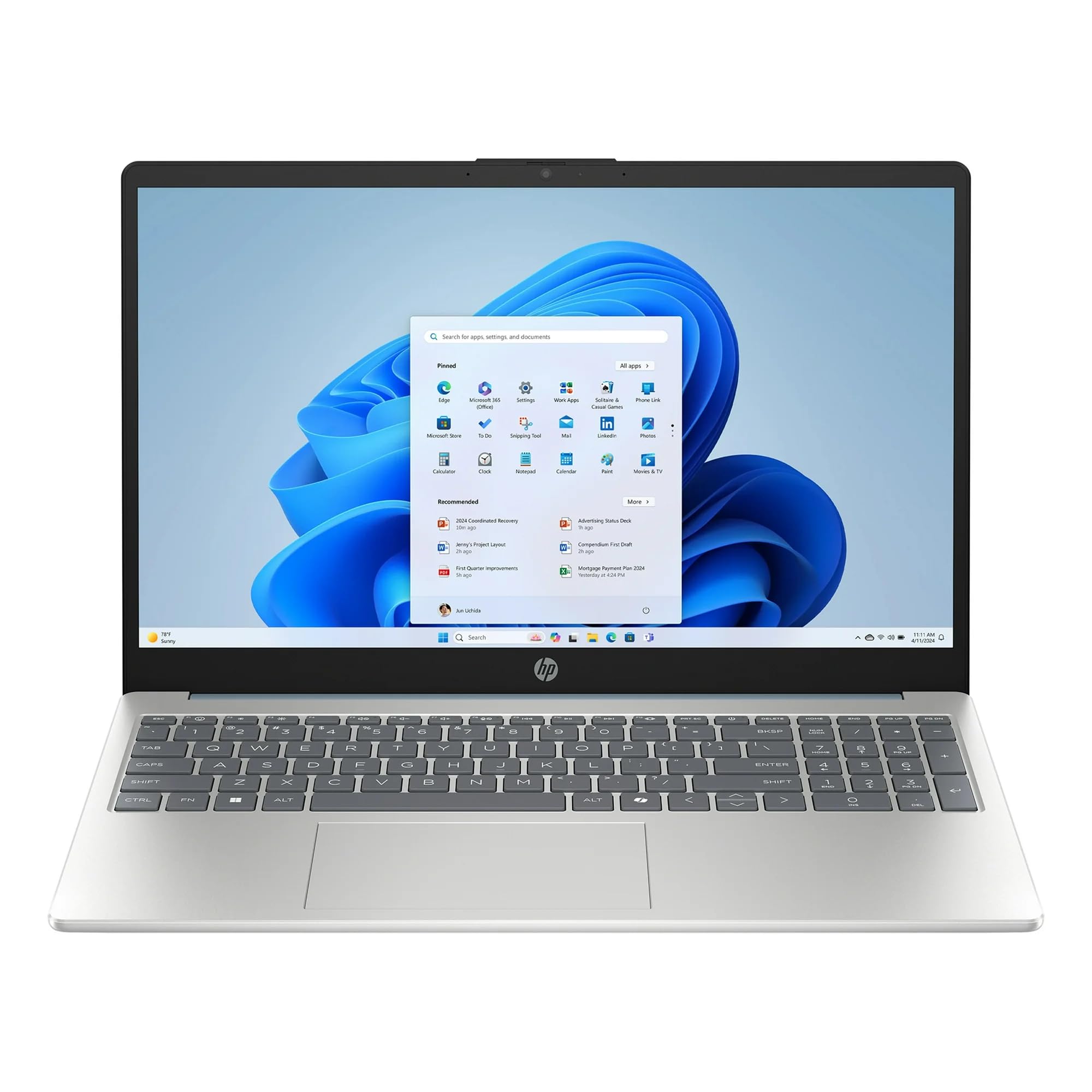
Image: The HP 15.6 inch HD Laptop, showcasing its display and keyboard layout. This is the main unit.
Свързващо захранване
- Свържете променливотоковия адаптер към захранващия конектор отстрани на лаптопа.
- Включете захранващия кабел в стенен контакт.
- Оставете батерията да се зарежда поне 30 минути преди първоначална употреба или докато индикаторът за батерията покаже пълен заряд.
Initial Boot-up and Windows 11 Setup
Press the power button to turn on the laptop. Follow the on-screen instructions to complete the Windows 11 Home setup process. This includes selecting your region, language, connecting to a Wi-Fi network, and creating a user account.
Работа с лаптопа
Клавиатура и тъчпад
The laptop features a full-size keyboard and a multi-touch touchpad. Refer to the Клавишни комбинации section for common key combinations.
Свързване на периферни устройства
Utilize the available ports for connecting external devices:
- USB портове: For mice, keyboards, external storage, etc.
- HDMI порт: For connecting to external monitors or TVs (if available).
- Аудио жак: За слушалки или външни високоговорители.
Безжична връзка
The laptop supports 802.11ac Wi-Fi and Bluetooth for wireless connections. Access network settings via the Windows 11 taskbar to connect to Wi-Fi networks or pair Bluetooth devices.
Поддръжка
Почистване на лаптопа
- Използвайте леко мека кърпа без мъх dampс вода или препарат за почистване на екрани, за да почистите дисплея.
- За клавиатурата и шасито използвайте мека, суха кърпа. Избягвайте агресивни химикали.
Грижа за батерията
To prolong battery life, avoid extreme temperatures and allow the battery to discharge partially before recharging. Do not leave the laptop plugged in constantly for extended periods if not in use.
Софтуерни актуализации
Regularly check for and install Windows updates and HP driver updates to ensure system stability and security. Go to Настройки > Windows Update за управление на актуализации.
Отстраняване на неизправности
| проблем | Възможно решение |
|---|---|
| Лаптопът не се включва. | Уверете се, че променливотоковият адаптер е правилно свързан и контактът работи. Опитайте с друг контакт. |
| Проблеми с Wi-Fi връзката. | Проверете дали Wi-Fi е активиран в настройките на Windows. Рестартирайте рутера и лаптопа. Актуализирайте драйверите за Wi-Fi. |
| Бавно изпълнение. | Close unnecessary applications. Check for background processes. Ensure sufficient free storage space on the 512GB SSD. Run a disk cleanup. |
| Батерията не се зарежда. | Verify the power adapter and cable are not damaged. Ensure the connection port is clean. |
Спецификации
| Характеристика | детайл |
|---|---|
| Име на модела | HP |
| Размер на екрана | 15.6 Inches (HD Display) |
| Процесор | AMD Ryzen 5 (3.6 GHz) |
| RAM | 8GB DDR4 SDRAM |
| Съхранение | 512GB SSD (PCIE x 2) |
| Графика | Интегрирана Intel UHD графика |
| Операционна система | Windows 11 Начало |
| Безжична връзка | 802.11ac Wi-Fi, Bluetooth |
| Размери (ДxШxВ) | 12.76 x 8.86 x 0.71 инча |
| Тегло | 6 паунда |
| Цвят | Willow Green |
Забележка: Спецификациите подлежат на промяна без предизвестие.
Гаранционна информация
This HP laptop typically comes with a standard manufacturer's warranty. Please refer to the warranty card included with your product or visit the official HP support website for detailed terms and conditions, including warranty duration and coverage specifics. Keep your proof of purchase for warranty claims.
поддръжка
За техническа помощ, изтегляне на драйвери или допълнителна поддръжка, моля, посетете официалния сайт за поддръжка на HP. webсайт:
- Поддръжка на HP Webсайт: support.hp.com
- Онлайн документация: Additional manuals and guides may be available online.
When contacting support, have your laptop's serial number and model number ready. These can usually be found on a sticker on the bottom of the laptop or in the system information within Windows.