Въведение
The Linksys 5G AX1800 Mobile Hotspot is a portable device designed to provide high-speed 5G and WiFi 6 connectivity for multiple devices. With its ultra-thin design and long battery capacity, it allows you to stay connected on the go. This manual provides essential information for the proper setup, operation, maintenance, and troubleshooting of your mobile hotspot.
Основните характеристики включват:
- Portable 5G supersonic speed and bandwidth.
- WiFi 6 speeds up to 1.8 Gbps (AX1800).
- Supports connection for 15+ devices simultaneously.
- Ultra-thin and lightweight design for maximum convenience.
- Дълготрайна батерия за продължителна употреба.
- Powered by leading-edge 5G technology by Qualcomm.
Фигура 1: Отпред view of the Linksys 5G AX1800 Mobile Hotspot, showing LED indicators for battery, 5G/LTE, and Wi-Fi status.
Настройка
1. Инсталирайте SIM картата
The Linksys 5G AX1800 Mobile Hotspot requires a Nano-SIM card for 5G/LTE connectivity. Ensure the device is powered off before inserting the SIM card.
- Locate the SIM card slot cover on the side of the device.
- Внимателно отворете капака.
- Insert the Nano-SIM card into the slot with the gold contacts facing down and the notched corner aligned correctly.
- Затворете плътно капака на слота за SIM картата.

Фигура 2: Страна view of the mobile hotspot, highlighting the SIM card slot cover.
2. Заредете устройството
Before first use, fully charge the mobile hotspot. Use the provided charging cable and a compatible USB power adapter.
- Connect one end of the USB cable to the charging port on the device.
- Свържете другия край към USB захранващ адаптер или USB порт на компютър.
- The battery indicator LED will show charging status. Allow several hours for a full charge.

Фигура 3: Отдолу view of the mobile hotspot, showing the USB-C charging port.
3. Включване/изключване
To power on the device, press and hold the power button located on the side until the LED indicators light up. To power off, press and hold the power button again until the indicators turn off.

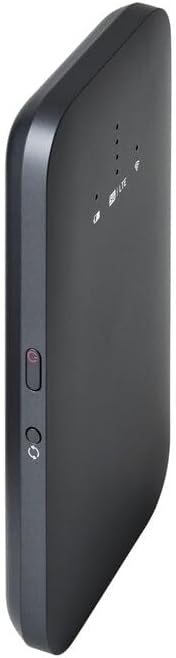
Фигура 4: Страна view of the mobile hotspot, indicating the location of the power button.
Инструкция за работа
1. Свързване на устройства към Wi-Fi
Once powered on, the mobile hotspot will broadcast a Wi-Fi network. You can connect up to 15+ devices simultaneously.
- На вашето устройство (смартфон, лаптоп, таблет) отворете настройките за Wi-Fi.
- Търсене на налични Wi-Fi мрежи.
- Select the network name (SSID) of your Linksys Mobile Hotspot. The default SSID and password are usually found on a sticker inside the device or on its packaging.
- Въведете паролата за Wi-Fi, когато бъдете подканени.
- Your device should now be connected to the internet via the mobile hotspot.
2. Разбиране на LED индикаторите
The LED indicators on the front of the device provide important status information:
- Индикатор за батерията: Показва текущото ниво на батерията и състоянието на зареждане.
- 5G/LTE Indicator: Indicates the mobile network connection status (e.g., solid blue for 5G, solid green for LTE, blinking for searching).
- Wi-Fi индикатор: Shows if the Wi-Fi network is active and broadcasting.
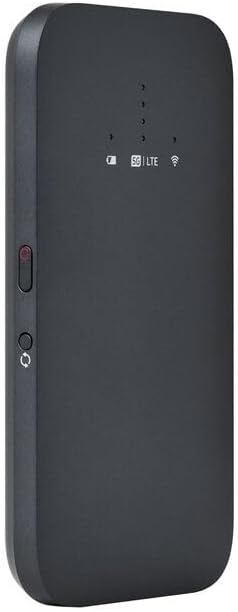
Фигура 5: Ъглова предна част view of the mobile hotspot, clearly showing the LED indicators for battery, 5G/LTE, and Wi-Fi.
3. Достъп до Web Интерфейс за управление
For advanced settings, such as changing the Wi-Fi name or password, managing connected devices, or checking data usage, you can access the device's web интерфейс за управление.
- Ensure your device is connected to the mobile hotspot's Wi-Fi network.
- Отворете a web браузър (напр. Chrome, Firefox, Safari).
- Enter the default IP address for the hotspot (usually
192.168.1.1or192.168.0.1, refer to the device's documentation or sticker for the exact address) into the address bar and press Enter. - Log in using the default username and password (also found on the device sticker or documentation). It is highly recommended to change the default password for security.
Поддръжка
1. Грижа за батерията
- Избягвайте излагането на устройството на екстремни температури.
- Не оставяйте устройството напълно разредено за продължителни периоди.
- Използвайте само оригинални или сертифицирани съвместими аксесоари за зареждане.
2. Почистване
Wipe the device with a soft, dry, lint-free cloth. Do not use liquid cleaners or aerosols directly on the device.
3. Актуализации на фърмуера
Периодично проверявайте за актуализации на фърмуера чрез web management interface. Keeping the firmware updated ensures optimal performance and security.
Отстраняване на неизправности
Няма интернет връзка
- Уверете се, че SIM картата е правилно поставена и активирана с план за данни.
- Check the 5G/LTE indicator on the device. If it's blinking or off, the device may be searching for a network or have no signal.
- Restart the mobile hotspot and your connected device.
- Verify that your data plan has not been exhausted.
Бавна скорост на Wi-Fi
- Move closer to the mobile hotspot to improve signal strength.
- Reduce the number of connected devices or data-intensive activities.
- Проверете за претоварване на мрежата във вашия район.
Device Not Connecting to Hotspot
- Ensure the Wi-Fi indicator on the hotspot is active.
- Проверете отново паролата за Wi-Fi.
- Restart both the hotspot and the device you are trying to connect.
Фабрично нулиране
If issues persist, you may perform a factory reset. This will revert all settings to their default values, including Wi-Fi name and password. Refer to the device's specific instructions for the reset procedure, usually involving a small reset button.
Спецификации
| Характеристика | детайл |
|---|---|
| Марка | Linksys |
| Име на модела | FGHSAX1800 |
| Номер на модела на артикул | FGHSAX1800-AH |
| Технология за свързване | 5G |
| Wi-Fi стандарт | WiFi 6 (AX1800) |
| Скорост на трансфер на данни | До 1.8 гигабита в секунда |
| Клас на честотната лента | Двулентов |
| Тип антена | Вътрешен |
| Специални функции | Режим на точка за достъп |
| Включени компоненти | СЛОТ ЗА SIM КАРТА |
| Voltage | 12 волта |
| Размери на опаковката | 14 х 7.5 х 1.55 см |
| Тегло на артикула | 185 гр |
Гаранция и поддръжка
For warranty information and technical support, please refer to the warranty card included with your product or visit the official Linksys support webсайт. Там обикновено можете да намерите често задавани въпроси, файлове за изтегляне на драйвери и информация за контакт с отдела за обслужване на клиенти.
Linksys Official Support: https://www.linksys.com/support