Въведение
This manual provides instructions for the setup, operation, maintenance, and troubleshooting of your Microsoft Wireless Optical Mouse Blue, Model K80-00004. Please read this manual thoroughly before using your device.
Какво има в кутията
Проверете дали всички елементи са налични в пакета:
- Microsoft Wireless Optical Mouse
- Безжичен приемник
- 2 AA батерии (предварително инсталирани или включени отделно)
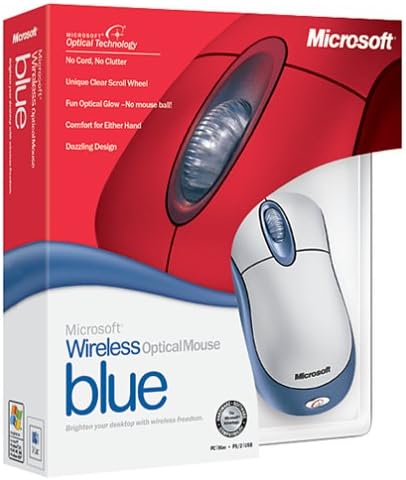
Image: Retail packaging of the Microsoft Wireless Optical Mouse Blue, showing the mouse and receiver.
Настройка
1. Инсталирайте батерии
- Намерете отделението за батерии от долната страна на мишката.
- Отворете капака на отделението за батерията.
- Поставете двете батерии тип AA, като внимавате за правилната полярност (+/-).
- Затворете капака на отделението за батерията.

Изображение: Отпред view of the Microsoft Wireless Optical Mouse Blue, showing the top buttons and scroll wheel. The battery compartment is on the underside.
2. Connect the Wireless Receiver
- Plug the USB wireless receiver into an available USB port on your computer.
- Allow your operating system to detect and install the necessary drivers. This process is usually automatic.
- For optimal performance, ensure the receiver is placed at least 12 inches away from other wireless devices or large metal objects.
3. Optional Software Installation (IntelliPoint)
- While not required for basic functionality, installing Microsoft IntelliPoint software provides advanced customization options for your mouse buttons and scroll wheel.
- Refer to the Microsoft support website for the latest IntelliPoint software compatible with your operating system.
4. Set Orientation (Calibration)
- After initial setup, it is recommended to perform an "Orientation Set" or calibration if available through the IntelliPoint software or your operating system's mouse settings. This helps optimize tracking performance.
Инструкция за работа
The Microsoft Wireless Optical Mouse Blue is designed for comfortable and precise navigation.
Основни функции
- Ляв клик: Основен бутон за избор на елементи, отваряне fileи взаимодействие със софтуер.
- Кликнете с десния бутон: Вторичен бутон за достъп до контекстни менюта и допълнителни опции.
- Колело за превъртане: Завъртете колелцето нагоре или надолу, за да превъртате през документите и web pages. The scroll wheel may also function as a clickable button for additional commands, depending on software configuration.
Безжична работа
- The mouse operates wirelessly up to 6 feet (approximately 1.8 meters) from its receiver.
- Optical technology scans the desktop surface for precise cursor movement without the need for a mouse pad on most surfaces.
- The mouse is designed for comfortable use with either the right or left hand.

Изображение: Ъглово view of the Microsoft Wireless Optical Mouse Blue, highlighting its ergonomic shape and blue/silver design.
Поддръжка
Смяна на батерията
- The mouse requires two AA batteries.
- When battery power is low, your computer may display a notification (if IntelliPoint software is installed) or mouse performance may degrade.
- Replace batteries as described in the "Install Batteries" section under Setup.
- Винаги използвайте нови, висококачествени батерии за оптимална производителност.
Почистване
- To clean the mouse, gently wipe the surface with a soft, damp плат.
- Избягвайте използването на агресивни химикали или абразивни почистващи препарати, тъй като те могат да повредят покритието.
- Уверете се, че не попада течност във вътрешните компоненти на мишката.
Travel Considerations
- The Microsoft Wireless Optical Mouse is a transmitting device. When traveling by air, it is recommended to remove the batteries from the mouse before boarding to comply with airline regulations regarding electronic devices.
Отстраняване на неизправности
Mouse Not Responding or Lagging
- Проверете батериите: Уверете се, че батериите са правилно поставени и са достатъчно заредени. Сменете ги, ако е необходимо.
- Check Receiver Connection: Ensure the wireless receiver is securely plugged into a functioning USB port. Try a different USB port.
- близост: Ensure the mouse is within 6 feet of the receiver. Reduce obstacles between the mouse and receiver.
- смущения: Other wireless devices (e.g., Wi-Fi routers, cordless phones) can cause interference. Move the receiver away from such devices.
- Повърхност: Ensure the mouse is used on a suitable surface. Highly reflective or transparent surfaces may affect optical tracking.
- Повторно синхронизиране: Some wireless mice have a re-sync button on both the mouse and receiver. Consult the full product manual or Microsoft support for specific re-sync procedures for this model if issues persist.
Clicking Issues
- If clicks are not registering or require multiple presses, check for physical obstructions or debris around the buttons.
- Уверете се, че мишката е включена и свързана.
Софтуерна съвместимост
- The IntelliPoint software may have specific operating system requirements. For example, older versions may not be compatible with newer operating systems like Windows Vista or later.
- Always download the latest software from the official Microsoft support webсайт за вашата конкретна операционна система.
Спецификации
| Характеристика | детайл |
|---|---|
| Номер на модела | К80-00004 |
| Марка | Microsoft |
| Технология за свързване | Безжичен |
| Откриване на движение | Оптичен |
| Цвят | Blue / Silver |
| Батерии | 2 AA батерии (включени) |
| Тегло на артикула | 13.6 унции (приблизително 385.5 грама) |
| Размери на продукта | 9.3 x 8.9 x 2.1 инча (приблизително 23.6 x 22.6 x 5.3 см) |
| Първа налична дата | 1 август 2002 г |
Гаранционна информация
According to the legal disclaimer, this product is sold without a warranty. Please refer to your point of purchase for any return or exchange policies.
поддръжка
For further assistance, driver downloads, or updated information regarding your Microsoft Wireless Optical Mouse Blue, please visit the official Microsoft support webсайт.
You can typically find support resources by searching for "Microsoft support" and your product model number (K80-00004).


