

behringer Wing Rack

Specifications
- Product Name: WING RACK
- Type: Rackmount Digital Mixing Engine
- Channels: 48
- Bus: 28 Full Stereo
- Preamps: 24 Midas PRO
- Outputs: 8 Midas PRO
- Screen: 10″ Touch Screen
Product Usage Instructions
Safety Instructions:
It is crucial to follow the safety instructions provided in the manual to ensure safe operation of the WING RACK:
- Do not remove the top cover or rear section.
- Avoid exposure to rain and moisture.
- Use only recommended accessories and attachments.
- Unplug during storms or long periods of inactivity.
- Avoid placing in confined spaces or near naked flame sources.
Installation:
When installing the WING RACK, make sure to:
- Refer to the information on the exterior for electrical and safety details.
- Ensure the grounding-type plug is used correctly.
- Connect to a MAINS socket outlet with protective earthing.
Maintenance:
For maintenance and servicing:
- Only qualified personnel should perform servicing, especially after damage.
- Refer to the operation instructions for any servicing needs.
FAQ
- Q: Can I use any type of plug with the WING RACK?
- A: No, it is important to use the correct grounding-type plug as specified in the safety instructions.
- Q: What should I do if the provided plug does not fit my outlet?
- A: Consult an electrician for the replacement of the obsolete outlet to ensure safety.
Important Safety Instructions

Terminals marked with this symbol carry electrical current of sufficient magnitude to constitute risk of electric shock. Use only high-quality professional speaker cables with ¼” TS or twist-locking plugs pre-installed. All other installation or modification should be performed only by qualified personnel.
 This symbol, wherever it appears, alerts you to the presence of uninsulated dangerous voltage inside the enclosure – voltage that may be sufficient to constitute a risk of shock.
 This symbol, wherever it appears, alerts you to important operating and maintenance instructions in the accompanying literature. Please read the manual.
Caution
- To reduce the risk of electric shock, do not remove the top cover (or the rear section).
- No user serviceable parts inside. Refer servicing to qualified personnel.
- To reduce the risk of fire or electric shock, do not expose this appliance to rain and moisture. The apparatus shall not be exposed to dripping or splashing liquids and no objects filled with liquids, such as vases, shall be placed on the apparatus.
- These service instructions are for use by qualified service personnel only.
- To reduce the risk of electric shock do not perform any servicing other than that contained in the operation instructions. Repairs have to be performed by qualified service personnel.
Warning
Please refer to the information on the exterior of bottom enclosure for electrical and safety information before installing or operating the device.
- Please read and follow all instructions and warnings.
- Keep the apparatus away from water (except for outdoor products).
- Clean only with dry cloth.
- Do not block ventilation openings. Do not install in a confined space. Install only according to manufacturer’s instructions.
- Protect the power cord from damage, particularly at plugs and appliance socket.
- Do not install near any heat sources such as radiators, heat registers, stoves or other apparatus (including amplifiers) that produce heat.
- Do not defeat the safety purpose of the polarized or grounding-type plug. A polarized plug has two blades with one wider than the other (only for USA and Canada). A grounding-type plug has two blades and a third grounding prong. The wide blade or the third prong are provided for your safety. If the provided plug does not fit into your outlet, consult an electrician for replacement of the obsolete outlet.
- Use only attachments and accessories recommended by the manufacturer.
 Use only specified carts, stands, tripods, brackets, or tables. Use caution to prevent tip-over when moving the cart/ apparatus combination.
- Unplug during storms, or if not in use for a long period.
- Only use qualified personnel for servicing, especially after damage.
- The apparatus with protective earthing terminal shall be connected to a MAINS socket outlet with a protective earthing connection.
- Where the MAINS plug or an appliance coupler is used as the disconnect device, the disconnect device shall remain readily operable.
- Avoid installing in confined spaces like bookcases.
- Do not place naked flame sources, such as lighted candles, on the apparatus.
- Operating temperature range 5° to 45°C (41° to 113°F).
LEGAL DISCLAIMER
Music Tribe accepts no liability for any loss which may be suffered by any person who relies either wholly or in part upon any description, photograph, or statement contained herein. Technical specifications, appearances and other information are subject to change without notice. All trademarks are the property of their respective owners. Midas, Klark Teknik, Lab Gruppen, Lake, Tannoy, Turbosound, TC Electronic, TC Helicon, Behringer, Bugera, Aston Microphones and Coolaudio are trademarks or registered trademarks of Music Tribe Global Brands Ltd. © Music Tribe Global Brands Ltd. 2024 All rights reserved.
LIMITED WARRANTY
- For the applicable warranty terms and conditions and additional information regarding Music Tribe’s Limited Warranty, please see complete details online at community.musictribe.com/support.
Introduction
Congratulations on purchasing the ground-breaking WING RACK console. Read through this Quick Start Guide (QSG) to get an overview of WING’s functionality and visit behringer.com for tutorial videos and guides.
Before you start
- It is recommended to check behringer.com for firmware updates, as new features and bug fixes will be released regularly. Please refer to Chapter 7 in this QSG for details about the update process.
- Our development team is eager to read your feedback on ideas.behringer.com and surprise you with new improvements and features.
Source and Channel – a new routing approach
WING has introduced a new way of labeling signal sources with names, icons and color together with their physical parameters. WING Sources can be fed into one or several channels for signal processing or routing to buses or main buses. They can also be patched directly to any physical output when no processing is desired, such as in recording setups, or when sharing audio with another console for independent mixes.
Sources, channels, buses and outputs
External Sources
Any audio input into the console is called a Source. An input can be an analog signal via the XLR or 6.35 mm (¼”) TRS connectors on the rear panel, or digital signals via StageConnect, USB, AES50, installed expansion cards, etc.
WING Sources include the following information:
- Identifying characteristics like name, color, icon, and tags.
- Physical characteristics such as gain, mute, phase inversion and phantom power
- Mono/stereo/mid-side configuration. All 40 channels on the console can process either mono or stereo signals. Analog and digital stereo signals can be fed into a single channel in the console. See Chapter 5 – ROUTING for more information.
Internal Sources
- WING also features User Signals, User Patches and the Oscillator that can be used just as any external Source, but they are in fact signals taken from other places in the console’s audio engine.
2 Oscillators
- There are two independent mono test tone generators that can be configured for sinewave, pink noise or white noise output. They can be routed to any channel or output.
24 User Signals
- These are signals derived from any of the 40 input channels, 8 aux input channels, 16 buses, 8 matrices or 4 main buses. They can be tapped from the respective channel’s pre- or post-fader tap points, and carry either the left or right channel, or a sum of both.
24 User Patches
These are also signals taken directly from any of the external source signals. User Patches allow you to create stereo combinations of raw input signals that don’t belong to the same Source Group. Possible applications are:
- Combining two signals from different Source Group interfaces into a stereo or mid-side configuration.
- Combining non-adjacent signals into a stereo or mid-side configuration.
- Apply different gain to each channel of a stereo or mid-side configuration.
- Apply phantom power to only one channel of a stereo or mid-side configuration.
48 Mono/Stereo Input Channels
- The channels on WING RACK allow for extremely powerful and flexible processing of the Source audio, before mixing them into buses or mains. Each Input Channel can accommodate a Main or an Alternative Source. They can adopt the Source’s customization properties and automatically use the Source’s mono or stereo configuration.
- Unlike with other consoles, there is no need for linking two mono channels into a stereo pair — all channels can process mono or stereo signals.
- Channel audio can then be sent to buses or mains for mixing, or it can be tapped individually and routed to the outputs directly.
16 Stereo Buses and 4 Stereo Main Buses
- The 16 buses are typically used for effects processing through sends, monitor mixes and applying group processing to sub mixes. Buses can be fed into the 4 main buses, to the first 8 buses or to the 8 matrices. The 4 main buses can only be sent to Matrices or Output destinations.
8 Matrix Buses
- Matrix buses have full processing and can be sent to any Output destination. They are often used for sub- or zone mixes that need processing or time alignment. Matrix buses can be driven by aux or main buses. They also feature two additional Direct Inputs that can be taken from any of the Input Channels, tapped pre- or post-fader.
- Matrix buses can be used for creating so-called Mix-Minus buses, by phase inverting i.e. subtracting the Direct Inputs from the mix. This is often applied in broadcast situations when a moderator should hear everything but his own voice in the mix. They can also be fed back into input channels.
Hardware Descriptions
Control Section
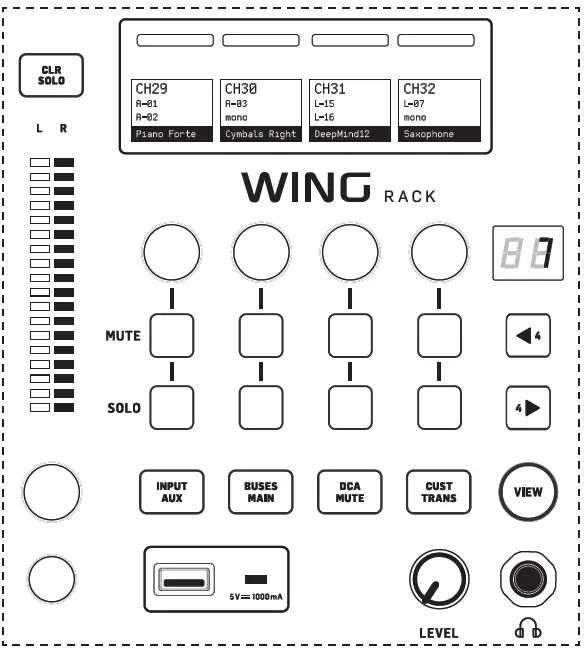
WING RACK has a specially optimized section for quick access to the mute, solo and fader level controls of all channels. Mute groups, custom controls and transport controls of the USB and WING-LIVE player are also accessible here.
INPUT/AUX
Press the button to toggle between the following layers:
- Input channels 1-40.
- Aux channels 1-8.
The channels are organized in groups of four with their respective level, mute, and solo controls.
Navigate the channels with the  buttons. Holding down these buttons immediately goes to the first and last page, respectively. The current page number is indicated by the LED screen above the buttons.
Pressing the VIEW button toggles between the OVERVIEW and FADERS screen for the active layer. Holding it down opens its CONFIG screen.
BUSES/MAINS
Press the button to toggle between the following layers:
- Buses 1-16.
- Main buses 1-4 and matrices 1-8.
Both layers are organized in groups of four channels. Each bus/matrix has its respective level, mute, and solo controls.
Navigate the buses/matrices with the buttons. Holding these buttons down immediately goes to the first and last page, respectively. The current page number is indicated by the LED screen above and buttons.
DCA/MUTE
Press the button to toggle between the following layers:
- DCA groups 1-16.
- Mute groups.
The DCA groups are shown in groups of four on the scribble strips with a dedicated fader (assigned to the respective knob), mute and solo controls.
Navigate the DCA groups with the buttons . Holding these buttons down immediately goes to the first and last page, respectively. The current page number is indicated by the LED screen above the buttons.
When the mute groups layer is active, groups 1 to 8 are assigned to the 8 buttons otherwise used for mute and solo control.
CUST/TRANS
Press the button to toggle between the following layers:
- Custom controls.
- USB player transport controls (when USB flash drive is inserted).
- WING-LIVE transport controls (when SD card is inserted).
When the CUSTOM CONTROLS button is active, pressing the VIEW button opens the page to edit the CUSTOM CONTROLS. You can assign a wide range of parameters to the 4 knobs and 8 buttons in the Control Section.
USB connector
- A USB type-A connector allows a flash drive to be plugged directly into the console for saving or loading data. This allows you to back up your show files or load your usual setup on a rented WING console.
- This USB connection allows recording and playback of two- or four-channel-WAV audio files. The port can also charge a portable device such as a phone or tablet. Flash drives connected to the USB port can be disconnected whenever the ACCESS light has turned off.
Monitoring
A dedicated knob controls the headphone output level of the bus MONITOR B (headphone output) found in the source group “Monitor” in the ROUTING screen. Further monitoring section settings are found on the SETUP>MONITORS page.
 To use the headphone connectors on the console the monitor signals must be routed to the corresponding outputs 1/2, 3/4, 5/6 and 7/8. These outputs are labeled with a headphone symbol on the output routing page.
If near-field monitors are being used, a physical volume control can be achieved in two ways:
- Routing the MONITOR B (headphone) bus to the physical outputs to which the speakers are connected.
- Assigning the MONITORING>SPEAKERS parameter to a knob in the CUSTOM CONTROLS screen.
Talkback
 The talkback mic level, Dim attenuation and other monitor settings can be adjusted on the SETUP>MONITORS page. By clicking on the TALKBACK>SETUP button, the talkback signals can be sent to different destinations.
- Either Channel 40 or Aux 8 can be used as the processing channel for the talkback signal. Processing can be applied as needed. Any input can be assigned to the selected talkback channel.
Main Display

- The seven buttons to the left of the display and the VIEW buttons located in each major section of the top panel allow access to different settings screens. An overview of each screen is presented in Chapter 5.
- The large stereo meter will either display the main bus or solo bus levels. The CLR SOLO button will release all channels and buses that are active in the solo bus.
Rear Panel
Analog I/O, MIDI and GPIO

- The rear panel analog connections include 24 Midas PRO series microphone preamps with combo jack connectors and 8 XLR outputs.
- Four stereo headphones can be used for monitoring. To assign buses to these outputs, go to ROUTING>OUTPUTS>LOCAL OUT.
- 5-pin MIDI IN and OUT jacks allow external MIDI control, and a pair of ¼” TRS jacks for up to four GPIOs allow basic input and output commands.
ETHERNET/AES50/Control/StageConnect

A pair of Ethernet ports allow a network to be set up via router for wired or wireless control using one of the control apps on a computer or mobile device.
The console also can be connected to a computer via the USB type B connector for the following uses:
- 48 input/48 output audio interface. The corresponding ASIO driver can be downloaded from behringer.com.
- Firmware updates.
- Data exchange.
3 AES50 ports each provide up to 48 input and output channels to and from digital stage boxes, ensuring a high channel count and allowing patching to and from multiple locations. The WING is fully compatible with all X32 series mixers and stage boxes.
All AES50 connections between WING and stage boxes should have:
- Shielded CAT-5e cables.
- Ethercon-terminated cable ends.
- Maximum cable length of 80 meters.
StageConnect transmits up to 32 digital audio input or output channels using a standard balanced XLR cable (110 Ω impedance DMX-cable recommended).
The interface supports different bus configurations of input and output channels and uses digital, uncompressed PCM audio at 44.1/48 kHz and 24-bit resolution.
StageConnect was developed for flexible connections on stage or to a side rack, supporting a wide range of applications at sub-millisecond latency.
Stereo AES3 (AES/EBU) input and output connections can be made via XLR cables.
Expansion Slot

- The WING console ships with the WING-LIVE card installed, which allows up to 64 channels of 48 kHz / 32-bit audio to be recorded onto a pair of SD or SDHC cards.
- Cards with other protocols such as Dante, MADI and SoundGrid can be installed in this slot.
Power

- Connect the included IEC cable.
Main Screens
Most of the advanced editing and control is done on the Main Display. Screens can be navigated via the seven buttons to the left of the screen, or via VIEW buttons in each section of the top panel.
There are six screens accessible via the buttons next to the Main Display:
- HOME
- EFFECTS
- METERS
- ROUTING
- SETUP
- LIBRARY
Note that the UTILITY button does not have a specific screen related to it.
A status bar is displayed at the top of the screen to provide a quick reference for channel name, clock, and alerts. This also allows constant access to the SD card controls, setup menu, library functions and other tools.
HOME

- The screen defaults to an overview of the selected channel. This screen allows adjustment of basic parameters like pan and level, but mostly provides a starting point to access important processing blocks like EQ and dynamics.
- The processing sequence of the gate, dynamics, EQ, and insert sections, as well as the tap point for the signal sent to the 16 buses can be adjusted by clicking on the wrench icon on the bottom-left corner of the HOME screen and dragging the blocks.
 INPUT
INPUT
The INPUT screen appears second in the left-hand column. The primary and alternate Source that is assigned to the current channel is selected here. Signals can be configured as mono, stereo or mid side with the corresponding M, ST and M/S buttons.

The FILTER screen is also a part of this section, allowing low cut, high cut and advanced filtering options like tilt filter and all-pass filter for phase alignment.
Finally, the DELAY (POST) controls the delay applied to the channel output signal. This delay is necessary for the signals driving loudspeakers further away from the main PA, for instance.
GATE
- The GATE screen appears third in the left-hand column. The block defaults to a simple noise gate with common parameters like threshold and ratio, though other processors can be loaded on the Gate Model menu. This block’s name will change to reflect the chosen model.
EQ
- Block defaults to a 6-band fully parametric equalizer for input channels, and an 8-band fully parametric equalizer for buses. A variety of digital and emulations of analog EQ models can be selected from the EQ Model menu.
DYNAMICS
- Block offers a large selection of digital and emulations of analog compressors, expanders and limiters.
PRE FADER INSERT
- Here internal or external effects from one of the 16 FX slots can be inserted into the channel. It can be positioned before or after the Gate, EQ and/or Dynamics blocks.
POST FADER INSERT
- The second insert is fixed post-fader and post-processing. It can be used to add FX processing, or to control the channel level by one of 2 auto mixing groups that apply automatic gain-sharing across the assigned channels.
MAIN
- The screen allows the send level to each of the four main buses to be adjusted along with the stereo width, pan and channel fader level.
BUS SENDS
- The last screen in the left-hand column allows adjustment of send levels to all 16 buses. The tap point for each send can be set up using the dropdown menu on the top left-hand corner, or by clicking on the wrench icon on the HOME screen and moving the Tap. A three-band EQ is available for the signal sent from the tap point to the 16 buses.

- The HOME screens have a similar appearance when a bus, main or matrix channel is selected, except no GATE block is available and only trim can be adjusted. On the INPUT screen, the bus send can be set to pre fader (according to the tap point setting) or post-fader if they will be used for monitoring or effects sends, or to subgroup if channels will be routed to the bus for common processing, prior to the main mix.
EFFECTS

- The EFFECTS screen controls all aspects of the effect processors. Users can select from a large collection of virtual emulation of analog processors, configure routing, adjust parameters and monitor levels.
- The eight PREMIUM FX slots can accommodate every device (FX1-8, STD and CH categories). The STANDARD FX slots can accommodate STD and CH effect categories.
- Note that the CH category contains four channel devices which integrate three effect devices in a single slot, and a mastering device that integrates four.
- Up to 16 devices can be loaded onto the slots on the EFFECTS screen. These devices can then be loaded as insert points. The analog emulations and digital effects available on the GATE, COMP and INS sections of each channel strip are loaded directly on each channel and not on the 16 slots of the EFFECTS screen.
- Effects are usually applied to channels in one of two ways: through bus sends or via insert points. Time-based effects like reverb and delay are usually set up via bus sends, whereas dynamic processing is usually set up via insert points.
Effects on bus sends
- To set up an effect via a bus send, select the channel to which the effect will be added. In the BUS SEND section of the HOME screen, activate the desired send by unmuting the desired channel and adjusting the respective fader in the main display.
- The insert point on the channel accommodating the bus is used to load the desired effect. Make sure this channel is routed to the main bus. By varying the amount of signal sent to the bus, the desired amount of “wet” effect signal for each input channel can be achieved.
Effects as insert points
- To set up an effect via an insert point, tap one of the INS blocks on the left-hand column of the desired input channel and assign an effect processor that was previously loaded on one of the 16 slots on the EFFECTS screen.
- When on the HOME screen of an input channel, clicking on the wrench icon will allow the position of the first insert point as well as the GATE, COMP and EQ sections to be rearranged by dragging the yellow blocks.
METERS

The METERS screen displays level meters and mute status for all the signal paths on the console. The level meters are grouped accordingly: 40 input channels, 8 aux channels, 16 (auxiliary) buses, 16 DCAs, 4 main buses and 8 matrix buses. This screen also offers a fast shortcut to zooming into any of the above groups of channels for control or editing, by just touching it.
ROUTING

- WING allows for flexible routing options: every source can be routed to every channel or physical output. The patching of sources and outputs is configured on the ROUTING screen.
- The same edits can alternatively be made on each channel’s INPUT section within the HOME screen.
Channels

- Three buttons on the top right-hand corner of the screen select the channels, physical inputs, or outputs for editing. The first button controls the channel configuration.

- The “CHANNEL INPUT” menu controls whether the channel’s main or alternate input will be configured. This follows the concept of an inline console, where a single channel can have two inputs permanently patched and switched according to the user’s needs.

- Before editing, the unlock icon must be clicked on. When lit green, editing is available. When lit red, editing is blocked.
The left half of the screen will display the 40 input channels and 8 aux buses. The right half of the screen will display the available sources that can be routed to the channels on the left.
After clicking on the desired channel, the source that drives that channel may be chosen on the right half of the screen. By clicking on the dropdown menu “SOURCE GROUP”, you may choose between the following physical sources on the console’s rear panel or buses:
- LOCAL IN: 24 physical microphone or line inputs.
- AES/EBU IN: two digital AES/EBU inputs.
- AES50A/AES50B/AES50C: three AES50 ports.
- USB AUDIO: the console can be used as an USB interface with 48 input and output channels.
- EXP CARD: up to 64 inputs depending on the expansion cards installed.
- MODULE: up to 64 inputs via DANTE and SoundGrid cards are available.
- BUS: each of the 16 buses (stereo).
- MAIN: each of the 4 main buses (stereo).
- MATRIX: each of the 8 matrix buses (stereo).
- OSCILLATOR: two white noise, pink noise, or sine wave oscillators.
- STAGE CONNECT: 32 digital audio channels at 48kHz and 24 bits via the XLR connector.
- USB PLAYER: 4 channels from the USB player (Type A port) on the front panel. Files must be uncompressed .wav audio.
- USER SIGNAL: signals that can be derived from different points in the signal flow of input channels, buses, main buses or matrix buses, or repatched sources through any of the 24 user patches.
 When patching multiple adjacent channels, clicking on the “+1 AUTO” button automatically selects the following console channel for a quicker input assignment.
 To clear a channel’s input, click on “NONE”.
 The mono, stereo or mid-side configuration of each channel can be configured via the M, ST and M/S buttons.
Sources
- When clicking on the Sources button, specific customization options for the sources will show up. All the source groups are accessible via the dropdown menu at the top of the screen.
- It is possible to rename the source, configure it as a mono, stereo or mid-side source, activate phantom power (by holding down the 48V button), invert the polarity, add an icon, change the source color, and add mute group tags so that the source is muted when the corresponding mute group is active. Signals grouped into stereo or mid-side configurations can be fed into a single channel on the console.
- If the signals are not adjacent (for example, LOCAL IN 1 and 3) or belong to different source groups (for example, Local IN 1 and AUX 1), they can be grouped using
USER PATCHES
- The USER PATCHES are found in the USER SIGNAL source group and labeled USR 25 through 48. After clicking on a user patch, the signal fed into it is assigned on the right of the screen. User patches can be configured as mono, stereo or mid-side and used as Sources for channels on the console.
Outputs
- When clicking on the Outputs button, routing options for the outputs will show up. Any source can be routed to any output.
 The left side of the screen will show the available digital and analog outputs. All output groups are accessible via the dropdown menu at the top of the screen.
- The signal that will be fed into the selected output can be chosen on the right side of the screen. All the source groups are accessible via the dropdown menu at the top of the screen.
- The output groups WLIVE REC and RECORDER control the routing for recording on two SD cards or on a USB flash drive connected to the front panel. Up to 64 channels can be recorded on the SD cards (32 on each card) or 4 channels on a USB flash drive. Up to 48 channels can be recorded on a computer connected via USB to the rear panel.
SETUP

General
- The left side of the screen shows the console name which can be edited, its serial number, firmware version and the installed expansion card.
- USB MSD ACCESS controls the content that will show up when connected to a computer via USB. Select WING OS to load software updates on the console. Select WING DATA to manage saved console show data (shows, snips, snaps, presets, clips). To disconnect the console from the computer or to return to audio playback via USB from the computer, eject the console as regularly done with a normal USB flash drive.
- The time and date can be set on the CLOCK menu.
- INIT CONSOLE is used to reset the console’s channels, aux, buses, main buses, matrix buses, sources, outputs, DCAs, mute groups and effects settings. All items can be selected by clicking on ALL. Specific items can be selected by clicking on them. To clear the selection, click on NONE. The selected items’ settings will be reset upon clicking INIT.
- Alternatively, the console can be reset by pressing and holding the CLR SOLO button on the Main Display while powering the console up.
Audio
- The AUDIO CLOCK section controls the console’s sample rate (CLOCK RATE) and word clock source (SYNC SOURCE) settings.
- By clicking on the channel and aux bus grid below INPUT SELECT, it is possible to easily toggle between the MAIN and ALT input for all 40 channels and 8 aux buses.
- PREFERENCES contains multiple muting and solo options.
- Different solos can be set up as pre (PFL) or post fader (AFL).
- USB AUDIO selects the number of channels available via the type-B USB connection on the rear panel from 2 to 48 channels.
- AUTOMIX automatically regulates the level of multiple sources so that the output level stays uniform. This is useful in situations where different speakers will be talking on stage at the same time, for example. Up to 16 channels can use automix (in the post-insert slot) in two groups (A/B).
Surface
- This screen contains multiple options regarding the console surface’s lights, metering and scribbles.
Remote
- Multiple console settings can be controlled via MIDI, either via a DIN-5 or a USB connection. The MIDI REMOTE CONTROL section determines which parameter will be controlled via which connection.
- The HA REMOTE section controls the console’s remote control via the AES50 A, B and C ports.
- The IP mode and address can be set up on the NETWORK section.
DAW
- The WING console can be used as a DAW controller. The respective setup is available on the DAW screen. Presets for different DAWs can be loaded automatically via the dropdown menu.
- For the console to function as a DAW controller, the REMOTE CONTROL button to the left of the custom controls must be pressed.
LIBRARY

- The LIBRARY screen is the file manager for different types of media including .wav audio files, snapshots, snippets, and effect and channel presets saved on the console’s internal storage or on a USB flash drive connected to the front panel.
SNAP
- The SNAP tab is used to manage snapshots that save the console’s channels, aux, buses, main buses, matrix buses, sources, outputs, DCAs, mute groups and effects settings.
- The content that can be saved includes channel customization, tags, patching, filters, time delay, channel strip settings, EQ, panning, sends, fader, mute and order of the processing in the channel.
- The SAVE button saves all the console’s settings. SAVE+SCOPE allows the user to select specific content to be saved for specific channels. The NONE and ALL buttons allow a quicker selection of the desired content.
- The snapshot will be saved either on the console’s internal storage or on the USB flash drive connected to the front panel, depending on which location is selected on the top left corner of the screen.

- After changes have been made to the console’s settings, these can be saved to a preexisting snapshot by clicking on the desired snapshot and then clicking on UPDATE.
- If only specific channels or contents should be updated, click on PARTIAL UPDATE and select the desired settings.
- To load a snapshot with or without a defined scope, click on LOAD. A snapshot will always store all the parameters but only recall the specified ones when SAVE+SCOPE is used. To edit the SCOPE of an existing snapshot, click on EDIT SCOPE. Specific settings can also be loaded from a complete snapshot with the PARTIAL LOAD button.
SNIP
- Snippets can be used to recall more precise settings adjustments like specific processor changes in the channel strip. To select which settings will be stored in a snippet, click on the REC button and manually adjust the desired settings. The number of modified parameters will be displayed on screen. Make sure to click on STOP after all the changes have been made.

- It is possible to add or remove parameters from a snippet using the ADD ITEMS and REMOVE ITEMS buttons.
GLOBAL
Any channel, bus, source, output, DCA, mute group or effect and its associated contents can be protected against being overridden when loading snapshots or snippets. To do so, click on the GLOBAL button on the top right-hand corner of the screen and specify what needs to be protected. Whenever a setting is protected, the lock icon will turn red.

CLIP
- The WING console can play .wav files from previously copied from a computer to the internal storage via the WING DATA USB connection, a USB flash drive connected to the front panel or .wav recordings made by the console and stored on a USB flash drive or on up to two SD cards in the rear panel.
- Clips can be selected on the left panel and played using the right panel.
FX
- The effects loaded on the 16 slots of the EFFECTS screen will show up on the FX screen. The set up of the 16 slots can be stored and recalled.
CHAN
- Individual channels can also be stored and recalled. All the channel settings will be saved when using this feature. Upon loading, only the selected configurations will be loaded.
SHOW
- Snapshots, snippets, clips, FX setups and channel setups can be grouped and saved as Shows. To do so, go to the SHOW tab and click on CREATE. Navigate to the desired item on the internal storage or flash drive, make sure the SHOW tab is open and then click on the ADD ITEM TO SHOW button.

- Click on the SAVE button in the SHOW tab.
- Items in a Show can be arranged in a specific order. The item order will be shown when the film icon is selected.

- The items can be navigated using the SHOW CNTRL button on the center section of the console. PREV and NEXT select the items. GO triggers each item. GO+PREV and
- GO+NEXT select and trigger the items automatically.
UTILITY

- This button does not have its own screen, but rather works in conjunction with other screens. The function is context relative, so pressing the UTILITY button may bring up additional options or settings for configuration, depending on which screen is currently active.
Standalone recorders/players

- The USB and SD recorders and their corresponding players can be accessed via the icons at the top of the main display.
USB Recorder

- Up to 4 channels can be recorded on a flash drive connected to the front panel. The signals that feed these four channels are assigned via the output group RECORDER found in the OUTPUTS section of the of the ROUTING screen.
WING-LIVE SD Recorder

- Up to 64 channels can be recorded on two SD cards in the WING-LIVE expansion card. 32 channels will be recorded on each card. The signals feeding each channel are assigned via the output group WLIVE REC on the OUTPUTS section of the ROUTING screen.
Firmware updates
The WING console firmware can be easily updated via USB. Download the firmware file from the product page on behringer.com and follow these steps:
- Open the SETUP/GENERAL page and enable OS ACCESS.
- Connect a USB cable to the rear panel port and to your computer.
- A virtual drive will appear on your computer, similar to connecting a flash drive or external hard drive. Double click the drive to open.
- Drag the new firmware file into the drive. Note, although WING will always boot using the most recent firmware in that drive, it is recommended to delete older firmware files or move them to a subfolder.
If the console does not boot up normally, you can still update the firmware using this procedure:
- With console powered off, connect a USB cable to the rear panel port and to your computer.
- Press and hold SETUP, then power the console on
- An OS and DATA drive will appear on your computer, similar to connecting a flash drive or external hard drive. Double click a drive to open.
- Drag the new firmware file into the OS drive.
- NOTE: WING will always boot using the most recent firmware in that drive.
- After the file has transferred, eject the virtual drive. The console should reboot automatically with the new firmware installed. If it doesn’t, power cycle the console manually.
Shortcuts
| PURPOSE | ENTER MODE | EFFECT | EXIT |
| Disable the Main Display touch control | Hold CLR SOLO, SETUP, UTILITY | A small X is shown and touch operation of the main screen is disabled. A USB mouse can be used for GUI control. The display will be calibrated upon leaving the mode. | Hold UTILITY and CLR SOLO until the X disappears |
| Hold SETUP and CLR SOLO for > 1.5s | Resets the touch panel (might help to temporarily fix ghost touch issues for some time) | ||
| Touch UI > Ghost Click Test | Hold METERS and HOME for 5s while powering the console up | ||
| Enable OS DRIVE and surface test mode | Hold SETUP while powering on | The console appears as two drives on the computer it is connected to, i.e. WING OS for mixer operating firmware, and WING DATA for snapshot and clip files, etc. The correct operation of all surface controls can be tested. |
Reboot console |
| Shutdown and Restart | Hold EFFECT and press HOME after initiating Shutdown from Setup screen | Console will shut down safely and restart automatically | |
| Surface Lock | Hold the HOME button down for ~1.5s | Locks the console surface, while audio and remote control keep working unaffected.
Any combination of buttons (only those around the touch screen) that was held down while engaging the lock will be stored as “pass code” for unlocking. You will need to press the same combination of buttons when disengaging the Lock. |
Hold HOME button for ~1.5s again together with the “pass code” of buttons that were pressed while locking, OR power-cycle the console |
| Initialize console (only temp storage, no snapshots etc. will be erased) | Hold CLR SOLO while powering the console up | Same as using INITIALIZE (from the SETUP page) but before the console loads any saved state (in case the last loaded snapshot somehow crashes the console leading to a boot loop) | |
| Take screenshot | Hold CLR SOLO then press UTILITY | Stores a bmp of the current screen on your USB drive. A folder called ‘screens’ needs to be created in the root of the USB drive first. | |
| Bypass automatic load of startup files | Hold LIBRARY while powering the console up | Does not load STARTUP*.snap, STARTUP*.snip and STARTUP*.show files in the STARTUP directory during boot | |
| Configuring optional hardware, i.e. internal AoIP modules for Dante or WSG | Hold UTILITY for 5s while powering on | Configuration dialog allows to specify the hardware options |
Specifications
| Processing | |
| Input processing channels | 40 stereo input channels, 8 stereo aux channels |
| Output processing channels | 16 stereo aux buses, 8 stereo matrices, 4 stereo mains |
| Internal effects engines (all true stereo) | 8 premium FX slots, 8 standard FX slots |
| Point-to-point routing matrix | 500 x 502 signals |
| Signal processing | 40-bit floating point, 48 kHz |
| A/D converters (8-channel, 48 kHz, 24 bits) | 114 dB dynamic range* |
| D/A converters (stereo, 48 kHz, 24 bits) | 120 dB dyanmic range* |
| I/O latency (console input to output) | 1.0 ms |
| Network latency (stage box in > console > stage box out) | 1.2 ms |
| Connectors | |
| Midas PRO series microphone preamplifier (XLR) | 24 |
| XLR balanced outputs | 8 |
| Aux inputs/outputs (¼” TRS balanced, mono) | N/A |
| Phones output (¼” TRS, stereo) | 5 |
| Digital AES/EBU input/output (XLR) | 1 / 1 |
| AES50 ports (Klark Teknik SuperMAC, 100 Mbit/s) | 3 |
| Expansion card interface | 64 x 64 channel audio input / output |
| StageConnect HOST(Master) I/O (12 V / 18 W power supplied, XLR, 32 channels) | 1 |
| MIDI inputs/outputs | 1 / 1 |
| GPIO on TRS, configurable | 2 x 2 |
| USB 2.0 type B device (48 x 48 ch 24-bit audio and MIDI I/O) | 1 |
| USB 2.0 type A host (audio and data, 5 VDC, 1 A) | 1 |
| Ethernet LAN ports, RJ45, 1 Gbit/s | 2, internally switched |
| Audio over IP (AoIP) internal module socket (Dante, AES67 or SoundGrid modules optional) | Up to 64 x 64 channels @ 48 kHz |
| IEC mains socket with power switch | 1 |
| Mic Input Characteristics (Mic Input to Analog Output) | |
| Design | Midas PRO series |
| THD+N (0 dB gain, 0 dBu output) | <0.004%* |
| THD+N (+40 dB gain, 0 dBu to +20 dBu output) | <0.006%* |
| Input impedance (unbalanced / balanced | 1 kΩ / 2 kΩ |
| Non-clip maximum input level | +21 dBu |
| Phantom power (switchable per input) | +48 V |
| Equivalent input noise @ +45 dB gain (150 Ω source) | -128 dBu* |
| CMRR @ unity gain (typical) | >50 dB |
| CMRR @ 40 dB gain (typical) | >70 dB |
| Input/Output Characteristics | |
| Frequency response @ 48 kHz sample rate, 0 to -1 dB (any gain setting) | 10 Hz – 20 kHz |
| Dynamic range, analog in to analog out (typical), XLR / aux | 111 dB* / 108 dB* |
| A/D dynamic range, preamplifier and converter (typical), XLR / aux | 112 dB* / 110 dB* |
| D/A dynamic range, converter and output (typical), XLR / aux | 118 dB* / 112 dB* |
| Crosstalk rejection @ 1 kHz, adjacent channels | 100 dB |
| Output level, XLR connectors (nominal / maximum) | +4 dBu / +21 dBu |
| Output impedance, XLR connectors (unbalanced / balanced) | 75 Ω / 75 Ω |
| Input impedance , TRS connectors (unbalanced / balanced) | N/A |
| Non-clip maximum input level, TRS connectors | N/A |
| Aux output level, TRS (nominal / maximum) | N/A |
| Aux output impedance, TRS (unbalanced / balanced) | N/A |
| Headphone output impedance / maximum output level | 500 mW @ 75 Ω / +18 dBu |
| Residual noise level, XLR out 1-16 connectors, unity gain | -97 dBu* |
| Residual noise level, aux and monitor TRS out connectors | N/A |
| Processing | |
| Input processing channels | 40 stereo input channels, 8 stereo aux channels |
| Output processing channels | 16 stereo aux buses, 8 stereo matrices, 4 stereo mains |
| Internal effects engines (all true stereo) | 8 premium FX slots, 8 standard FX slots |
| Point-to-point routing matrix | 500 x 502 signals |
| Signal processing | 40-bit floating point, 48 kHz |
| A/D converters (8-channel, 48 kHz, 24 bits) | 114 dB dynamic range* |
| D/A converters (stereo, 48 kHz, 24 bits) | 120 dB dyanmic range* |
| I/O latency (console input to output) | 1.0 ms |
| Network latency (stage box in > console > stage box out) | 1.2 ms |
| Connectors | |
| Midas PRO series microphone preamplifier (XLR) | 24 |
| XLR balanced outputs | 8 |
| Aux inputs/outputs (¼” TRS balanced, mono) | N/A |
| Phones output (¼” TRS, stereo) | 5 |
| Digital AES/EBU input/output (XLR) | 1 / 1 |
| AES50 ports (Klark Teknik SuperMAC, 100 Mbit/s) | 3 |
| Expansion card interface | 64 x 64 channel audio input / output |
| StageConnect HOST(Master) I/O (12 V / 18 W power supplied, XLR, 32 channels) | 1 |
| MIDI inputs/outputs | 1 / 1 |
| GPIO on TRS, configurable | 2 x 2 |
| USB 2.0 type B device (48 x 48 ch 24-bit audio and MIDI I/O) | 1 |
| USB 2.0 type A host (audio and data, 5 VDC, 1 A) | 1 |
| Ethernet LAN ports, RJ45, 1 Gbit/s | 2, internally switched |
| Audio over IP (AoIP) internal module socket (Dante, AES67 or SoundGrid modules optional) | Up to 64 x 64 channels @ 48 kHz |
| IEC mains socket with power switch | 1 |
| Mic Input Characteristics (Mic Input to Analog Output) | |
| Design | Midas PRO series |
| THD+N (0 dB gain, 0 dBu output) | <0.004%* |
| THD+N (+40 dB gain, 0 dBu to +20 dBu output) | <0.006%* |
| Input impedance (unbalanced / balanced | 1 kΩ / 2 kΩ |
| Non-clip maximum input level | +21 dBu |
| Phantom power (switchable per input) | +48 V |
| Equivalent input noise @ +45 dB gain (150 Ω source) | -128 dBu* |
| CMRR @ unity gain (typical) | >50 dB |
| CMRR @ 40 dB gain (typical) | >70 dB |
| Input/Output Characteristics | |
| Frequency response @ 48 kHz sample rate, 0 to -1 dB (any gain setting) | 10 Hz – 20 kHz |
| Dynamic range, analog in to analog out (typical), XLR / aux | 111 dB* / 108 dB* |
| A/D dynamic range, preamplifier and converter (typical), XLR / aux | 112 dB* / 110 dB* |
| D/A dynamic range, converter and output (typical), XLR / aux | 118 dB* / 112 dB* |
| Crosstalk rejection @ 1 kHz, adjacent channels | 100 dB |
| Output level, XLR connectors (nominal / maximum) | +4 dBu / +21 dBu |
| Output impedance, XLR connectors (unbalanced / balanced) | 75 Ω / 75 Ω |
| Input impedance , TRS connectors (unbalanced / balanced) | N/A |
| Non-clip maximum input level, TRS connectors | N/A |
| Aux output level, TRS (nominal / maximum) | N/A |
| Aux output impedance, TRS (unbalanced / balanced) | N/A |
| Headphone output impedance / maximum output level | 500 mW @ 75 Ω / +18 dBu |
| Residual noise level, XLR out 1-16 connectors, unity gain | -97 dBu* |
| Residual noise level, aux and monitor TRS out connectors | N/A |
*A-weighted noise and dynamic range figures
Other Information
Other Important Information
Important information
- Register online. Please register your new Music Tribe equipment right after you purchase it by visiting musictribe.com. Registering your purchase using our simple online form helps us to process your repair claims more quickly and efficiently. Also, read the terms and conditions of our warranty, if applicable.
- Malfunction. Should your Music Tribe Authorized Reseller not be located in your vicinity, you may contact the Music Tribe Authorized Fulfiller for your country listed under “Support” at musictribe.com. Should your country not be listed, please check if your problem can be dealt with by our “Online Support” which may also be found under “Support” at musictribe.com. Alternatively, please submit an online warranty claim at musictribe.com BEFORE returning the product.
- Power Connections. Before plugging the unit into a power socket, please make sure you are using the correct mains voltage for your particular model. Faulty fuses must be replaced with fuses of the same type and rating without exception.
FCC STATEMENT
FEDERAL COMMUNICATIONS COMMISSION COMPLIANCE INFORMATION
Behringer
WING RACK
- Responsible Party Name: Music Tribe Commercial NV Inc.
- Address: 122 E. 42nd St.1, 8th Floor NY, NY 10168, United States
- Email Address: legal@musictribe.com
WING RACK
This equipment has been tested and found to comply with the limits for a Class A digital device, pursuant to part 15 of the FCC Rules. These limits are designed to provide reasonable protection against harmful interference when the equipment is operated in a commercial environment. This equipment generates, uses, and can radiate radio frequency energy and, if not installed and used in accordance with the instruction manual, may cause harmful interference to radio communications. Operation of this equipment in a residential area is likely to cause harmful interference in which case the user will be required to correct the interference at his own expense.
This equipment complies with Part 15 of the FCC rules. Operation is subject to the following two conditions:
- this device may not cause harmful interference.
- this device must accept any interference received, including interference that may cause undesired operation.
Warning
- Operation of this equipment in a residential environment could cause radio interference.
Important information:
- Changes or modifications to the equipment not expressly approved by Music Tribe can void the user’s authority to use the equipment.
 Hereby, Music Tribe declares that this product is in compliance with Directive 2014/35/EU,Directive 2014/30/EU, Directive 2011/65/EU and Amendment 2015/863/EU, Directive 2012/19/EU, Regulation 519/2012 REACH SVHC and Directive 1907/2006/EC.
Full text of EU DoC is available at https://community.musictribe.com/
- EU Representative: Music Tribe Brands DK A/S
- Address: Gammel Strand 44, DK-1202 København K, Denmark
- UK Representative: Music Tribe Brands UK Ltd.
- Address: 8th Floor, 20 Farringdon Street London EC4A 4AB, United Kingdom
 Correct disposal of this product: This symbol indicates that this product must not be disposed of with household waste, according to the WEEE Directive (2012/19/EU) and your national law. This product should be taken to a collection center licensed for the recycling of waste electrical and electronic equipment (EEE). The mishandling of this type of waste could have a possible negative impact on the environment and human health due to potentially hazardous substances that are generally associated with EEE. At the same time, your cooperation in the correct disposal of this product will contribute to the efficient use of natural resources. For more information about where you can take your waste equipment for recycling, please contact your local city office, or your household waste collection service.
Documents / Resources
 | Wing Rack |
References
- Behringer | Homebehringer.com
- community.musictribe.com/supportcommunity.musictribe.com
- community.musictribe.com/community.musictribe.com
- Behringerideas.behringer.com
- Music Tribemusictribe.com
- User Manualmanual.tools