1. Уводзіны
Thank you for choosing the Teamgee 14-inch FHD IPS Triple Portable Monitor. This device is designed to significantly enhance your productivity by providing a multi-display solution for your laptop. It supports various display modes, including expansion and mirroring, allowing you to manage multiple tasks simultaneously. Its portable design makes it ideal for office presentations, remote work, and business travel.

Image: The Teamgee 14-inch Triple Portable Monitor in use, demonstrating its multi-screen capability.
2. Інфармацыя па бяспецы
- Не падвяргайце прыладу ўздзеянню экстрэмальных тэмператур або вільготнасці.
- Не кідайце прыладу і не падвяргайце яе моцным ударам.
- Выкарыстоўвайце толькі прадастаўленыя кабелі і аксэсуары, каб пазбегнуць пашкоджанняў.
- Трымайце прыладу далей ад вады і іншых вадкасцей.
- Не спрабуйце самастойна разабраць або адрамантаваць прыладу. Звярніцеся ў службу падтрымкі па дапамогу.
- Забяспечце належную вентыляцыю падчас выкарыстання, каб пазбегнуць перагрэву.
3. Змесціва ўпакоўкі
Калі ласка, праверце змесціва пакета пасля распакавання, каб пераканацца ў наяўнасці ўсіх прадметаў:
- Triple Screen Monitor (x1)
- Сумка для захоўвання (x1)
- Кіраўніцтва карыстальніка (x1)
- Кароткае кіраўніцтва (x1)
- USB-C to USB-C Cable (x2)
- USB-A to USB-C Cable (x2)
- HDMI to Type-C Cable (x2)

Выява: Падрабязная view of the package contents, including the triple screen monitor, cables, and accessories.
4. Прадукт скончыўсяview
The Teamgee Triple Portable Monitor features a thoughtful design for portability and ease of use. Key components include:
- Падвойныя дынамікі: Integrated speakers on each screen for audio output.
- Рэгуляваны кранштэйн: Built-in stand for stable positioning.
- Stretchable Frame: Allows adjustment to fit various laptop sizes (13.3 to 17.3 inches).
- Top Bracket: Secures the monitor to the top of your laptop screen.
- Шматфункцыянальная кнопка: Controls various display settings.
- Паварот на 180°: Each screen can rotate up to 180 degrees for flexible viewing angles and easy folding.
- Protective Padding: Anti-pinch rubber mats for laptop protection.

Выява: Разабраная view of the monitor's components and their functions.
5. Кіраўніцтва па наладцы
5.1 Пачатковая налада
- Carefully unpack the triple screen monitor and all accessories.
- Place your laptop on a stable, flat surface.
- Extend the stretchable frame of the Teamgee monitor to fit your laptop screen size (13.3 to 17.3 inches).
- Gently attach the monitor to the top of your laptop screen using the top bracket and ensure the anti-pinch rubber mats are in place to protect your laptop.
- Adjust the integrated adjustable bracket for stability.
5.2 Метады падключэння
The Teamgee monitor offers versatile connectivity options. No drivers are required for most operating systems.

Выява: Зверхуview of compatible devices and connection types.
- Full-featured Type-C Connection (Recommended):
If your laptop has two full-featured Type-C ports, connect each monitor directly to your laptop using the provided USB-C to USB-C cables. This method typically provides both video and power.

Image: Connection using two USB-C to USB-C cables.
- Mixed Connection (Type-C, USB-A, HDMI):
If your laptop has one full-featured Type-C port, one USB-A port, and one HDMI port:
- First, connect one monitor using a USB-C to USB-C cable to the full-featured Type-C port.
- Then, connect the other monitor using a USB-A to USB-C cable for power and an HDMI to Type-C cable for video.

Image: Connection using a combination of USB-C, USB-A, and HDMI cables.
5.3 Сумяшчальнасць
The Teamgee monitor is compatible with a wide range of devices and operating systems, including:
- вокны
- Mac (M1 Max and M1 Pro only)
- Chrome OS
- Android
- Linux
- Samsung Dex
- Nintendo Switch
It is designed to fit laptops ranging from 13.3 to 17.3 inches.
6. Інструкцыя па эксплуатацыі
6.1 Рэжымы адлюстравання
The monitor supports two primary display modes:
- Рэжым пашырэння: Extends your desktop across all three screens, allowing for increased workspace and multitasking.
- Люстэркавы рэжым: Duplicates your main laptop screen onto the external monitors, useful for presentations or sharing content.
You can switch between these modes and adjust display settings through your operating system's display settings (e.g., Display Settings on Windows, System Preferences > Displays on Mac).

Image: The triple monitor setup enabling efficient multitasking.
6.2 Налада параметраў дысплея
Each screen is equipped with a multifunction button for quick adjustments. Refer to the Quick Start Guide for specific button functions, which typically include:
- Рэгуляванне яркасці
- Рэгуляванне кантраснасці
- Налады каляровай тэмпературы
- Выбар крыніцы ўводу
6.3 Portability and Rotation
The monitor's design allows for easy portability and flexible viewING:
- The screens can be rotated up to 180 degrees, allowing for various viewing angles or folding for compact storage and transport.
- The integrated adjustable bracket provides stability on different surfaces.
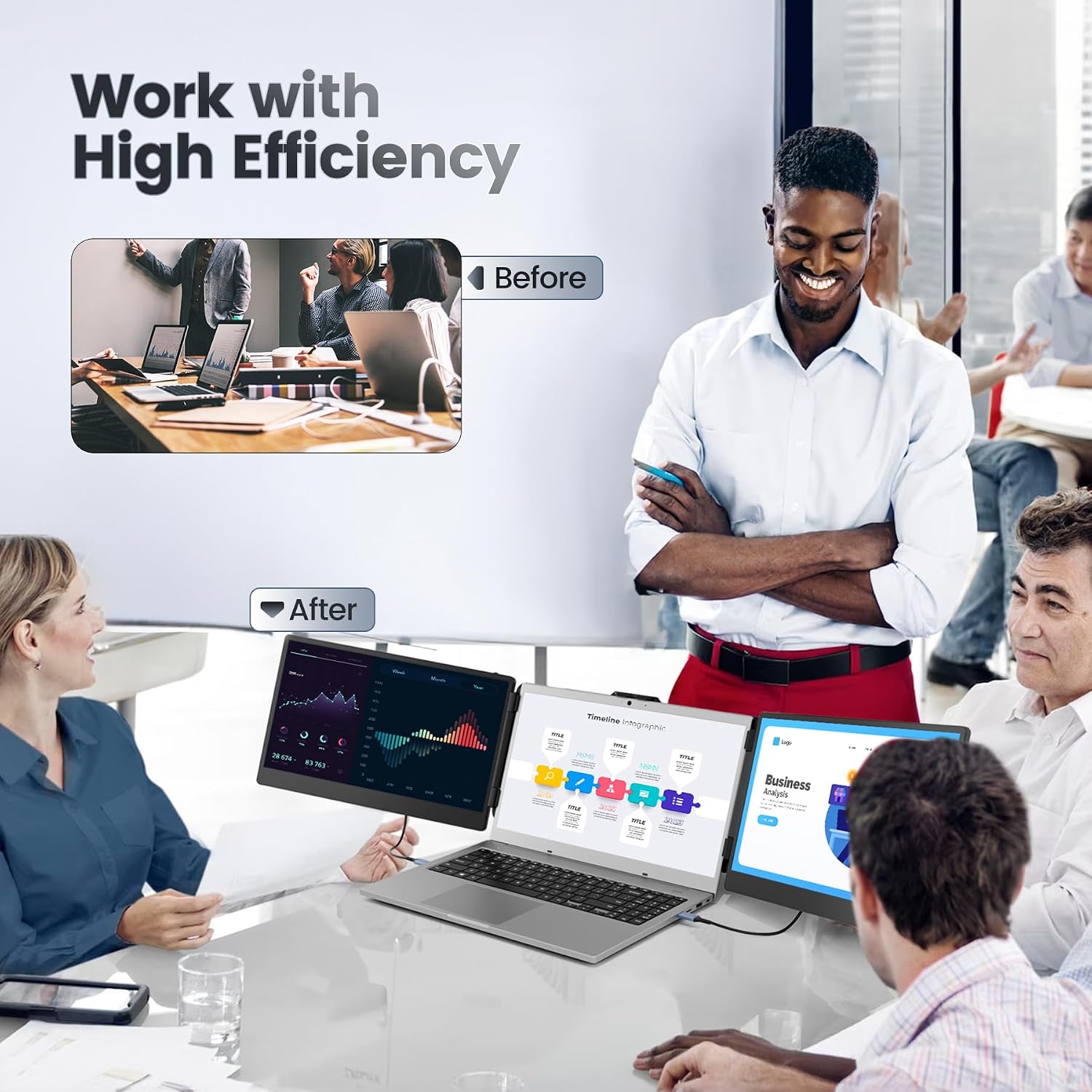
Image: The monitor in a professional setting, highlighting its contribution to high efficiency.
7. Тэхнічнае абслугоўванне
- Уборка: Use a soft, lint-free cloth to gently wipe the screens and exterior. For stubborn smudges, slightly dampПрацярыце тканіну вадой або бяспечным для экрана ачышчальным растворам. Пазбягайце агрэсіўных хімічных рэчываў або абразіўных матэрыялаў.
- захоўванне: When not in use, fold the monitor compactly and store it in the provided storage bag to protect it from dust and scratches.
- Апрацоўка: Always handle the monitor by its frame, avoiding direct pressure on the screens.
8. Выпраўленне непаладак
| праблема | Магчымая прычына | Рашэнне |
|---|---|---|
| No display on one or both screens. |
|
|
| Мігценне або нестабільнасць дысплея. |
|
|
| Аўдыё не працуе. |
|
|
| Laptop feels unstable or heavy. |
|
|
If you encounter issues not listed here or if the solutions do not resolve your problem, please contact Teamgee customer support.
9. Тэхнічныя характарыстыкі
| Асаблівасць | Дэталь |
|---|---|
| Марка | Teamgee |
| Нумар мадэлі | B0CD7HS1KM |
| Памер экрана | 14 Inches (each) |
| дазвол | FHD 1080p (1920 x 1080) |
| Тэхналогія адлюстравання | IPS |
| Суадносіны бакоў | 16:9 |
| Каэфіцыент кантраснасці | 1000:1 |
| Яркасць | 300 ніт |
| Колеравая гама | 72% NTSC |
| Час водгуку | 1 мілісекунд |
| Сувязь | HDMI, USB-A, Type-C |
| Асаблівасці | Anti-glare screen, Integrated Dual Speakers, Adjustable Bracket, Stretchable Frame, 180° Rotation |
| Compatible Laptop Sizes | 13.3 - 17.3 цалі |
| Сумяшчальныя прылады | Windows, Mac (M1 Max/Pro), Chrome, Android, Linux, Dex, Switch |

Image: Visual representation of the display's key specifications.
10. Гарантыя і падтрымка
Teamgee is dedicated to providing comprehensive customer service.
- Гарантыя: All Teamgee products come with a one-year warranty from the date of purchase.
- Падтрымка кліентаў: If you find any missing accessories, or have questions regarding compatibility or connectivity, please do not hesitate to contact us. We aim to provide a solution within 24 hours.
- Кантактная інфармацыя: Please refer to the contact details provided on the product packaging or in the Quick Start Guide for the most up-to-date support information.


