Уводзіны
This manual provides detailed instructions for the Taiahiro 201 Gaming Keyboard. This 87-key mechanical keyboard is designed for an enhanced typing and gaming experience, featuring non-conflicting keys for simultaneous presses without lag. Its compact and ergonomic design ensures comfortable use across various devices.
Змест пакета
- Taiahiro 201 Mechanical Keyboard
- Кабель USB-C да USB-A
- Кіраўніцтва карыстальніка
Прадукт скончаныview
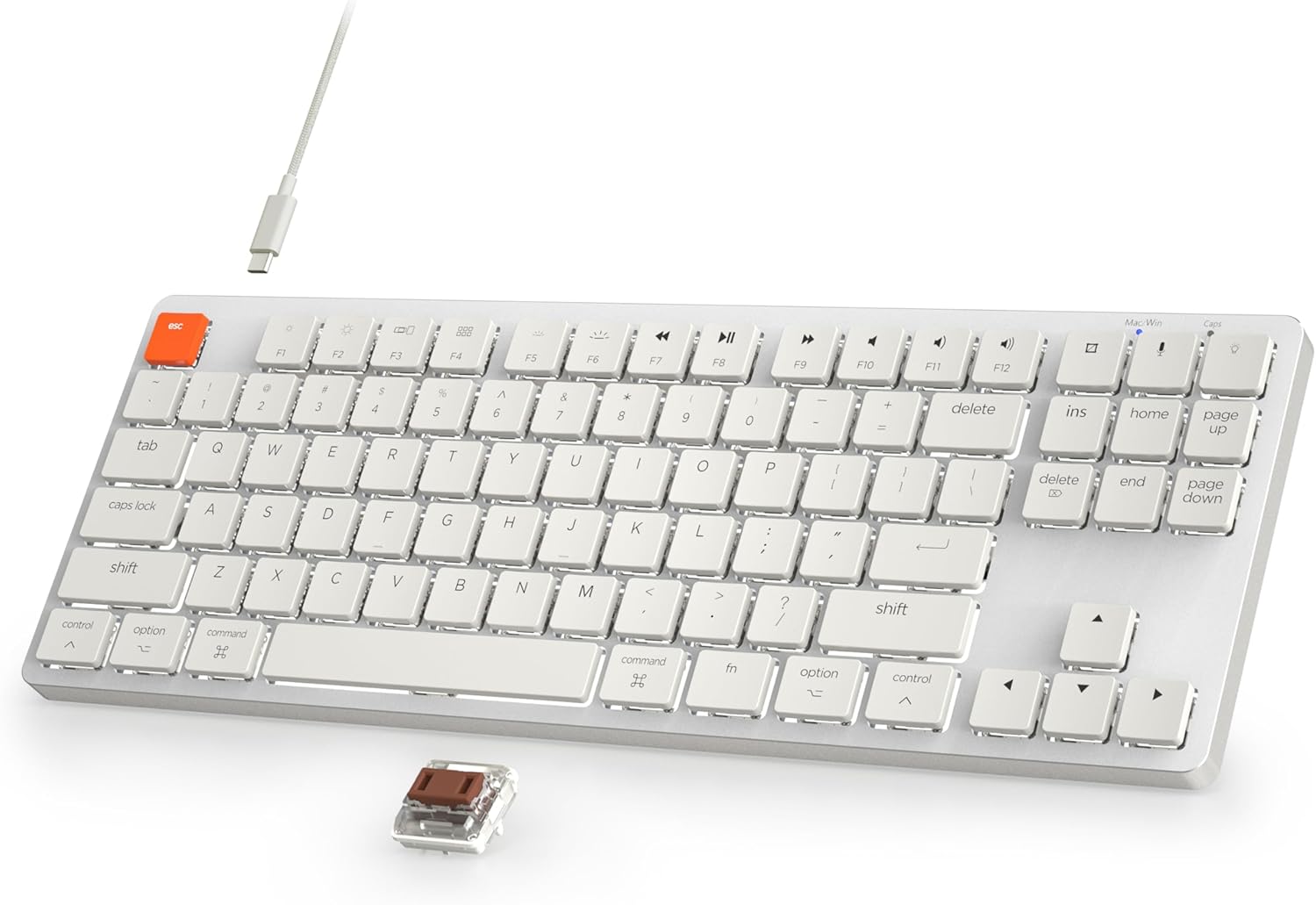
Figure 1: Taiahiro 201 Mechanical Keyboard. This image shows the full keyboard with its white keys and silver frame, connected via a white USB-C cable.
The Taiahiro 201 keyboard features an 87-key layout, providing a compact form factor without sacrificing essential functionality. It includes dedicated function keys and multimedia controls.
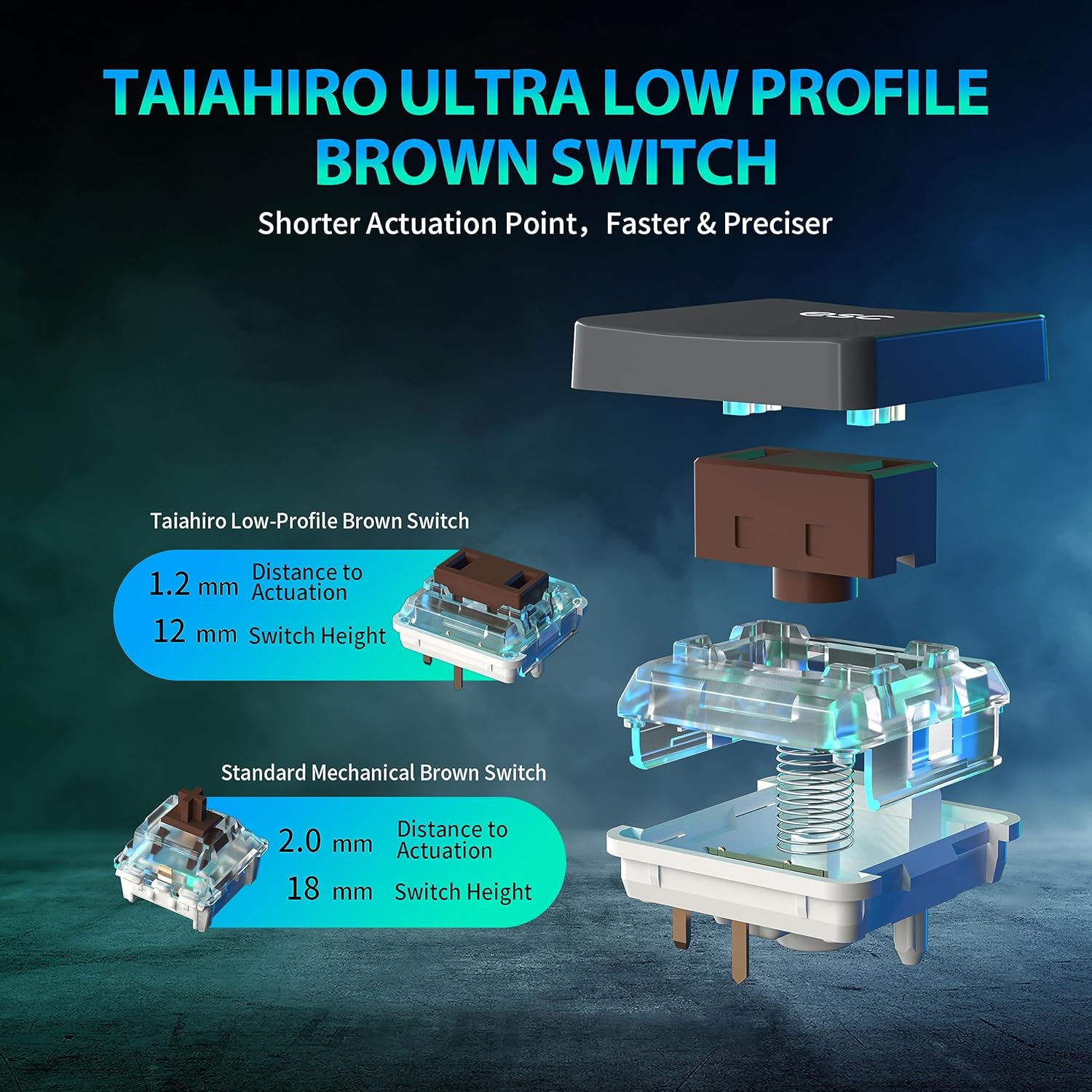
Figure 2: Taiahiro Low-Profile Brown Switch. This diagram illustrates the internal components and dimensions of the low-profile brown switch compared to a standard mechanical brown switch, highlighting its shorter actuation point and overall height.
The keyboard utilizes Taiahiro Low-Profile Brown Switches, designed for a shorter actuation point, resulting in faster and more precise keystrokes. The switch height is 12mm with a 1.2mm actuation distance.
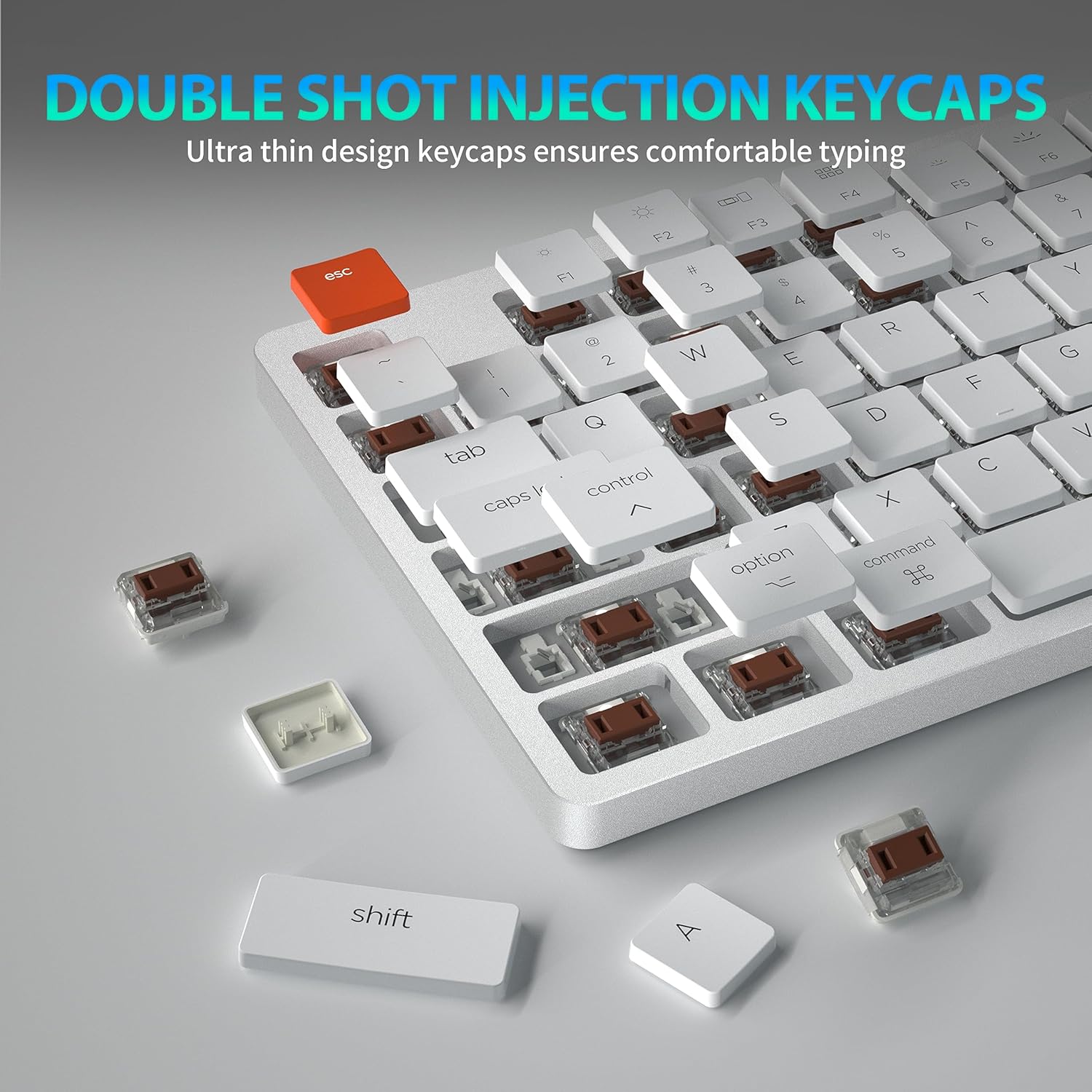
Figure 3: Double Shot Injection Keycaps. A close-up view of the keyboard showing several keycaps removed, revealing the double-shot injection molding process which ensures durability and clear legends.
Keycaps are manufactured using double shot injection, ensuring durability and preventing legends from fading over time. The ultra-thin design contributes to a comfortable typing experience.
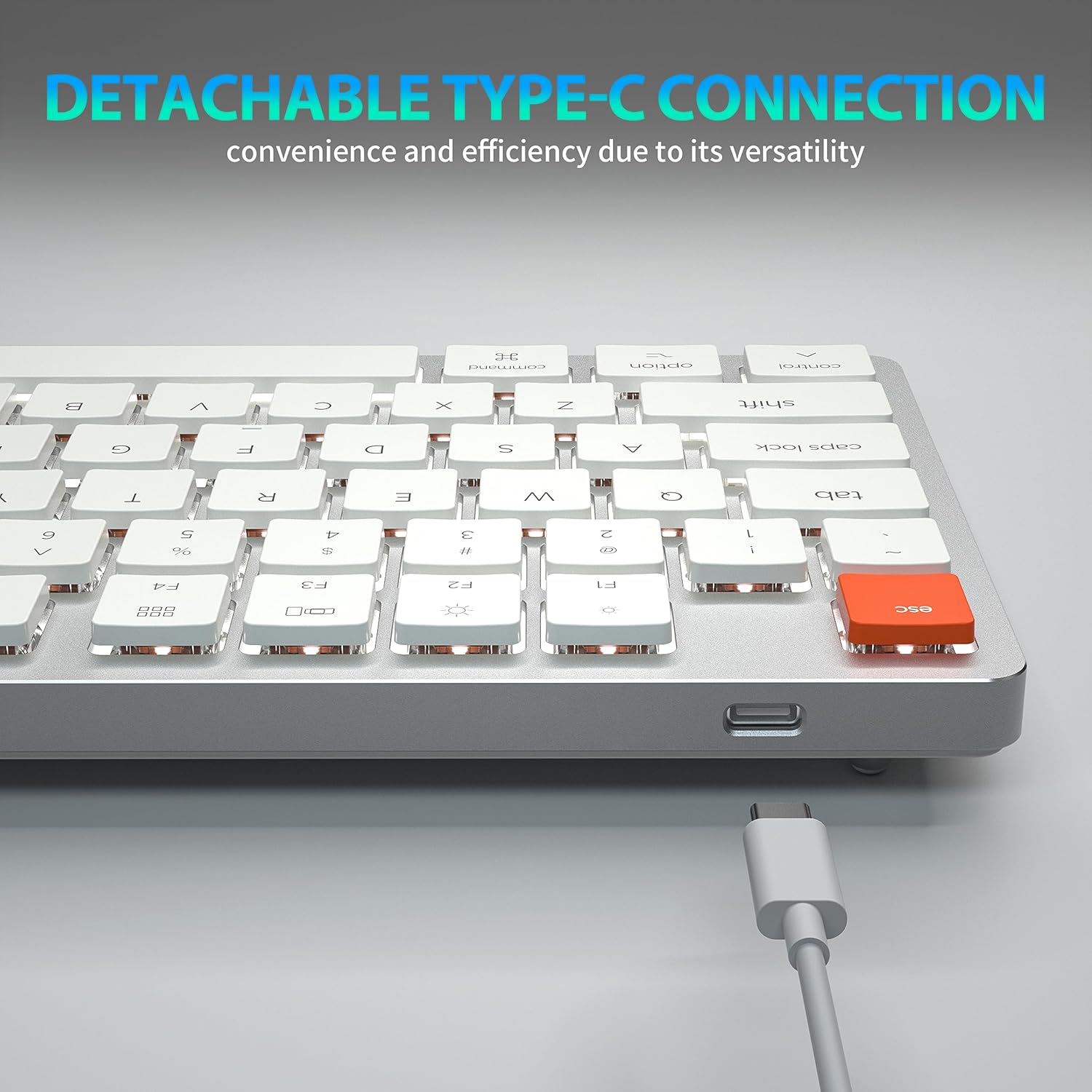
Figure 4: Detachable Type-C Connection. This image highlights the USB-C port on the keyboard and the detachable cable, emphasizing its versatility and ease of transport.
The keyboard features a detachable USB Type-C connection, offering convenience and efficiency due to its versatile and widely compatible interface.
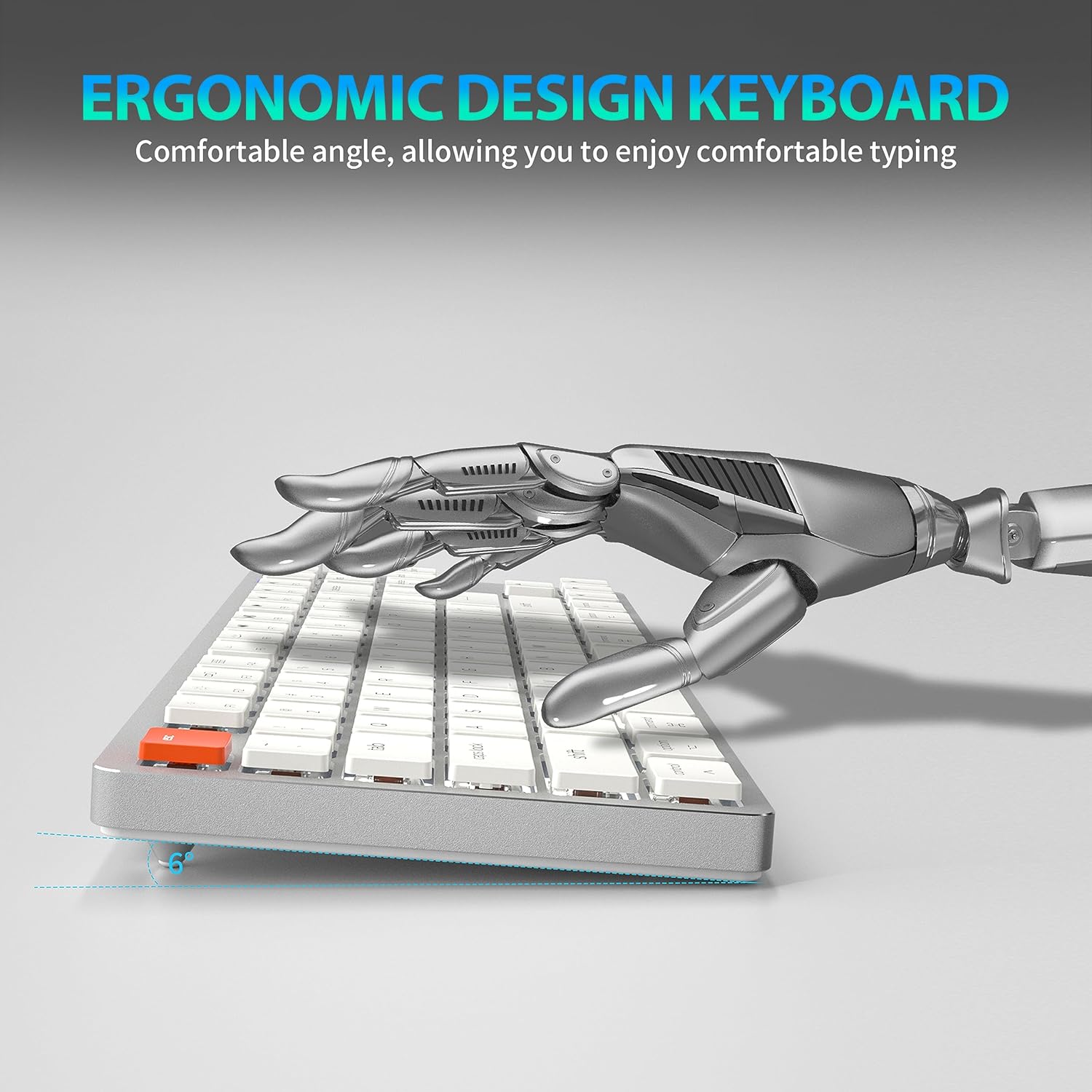
Figure 5: Ergonomic Design. A side view of the keyboard illustrating its comfortable typing angle, designed to reduce strain during extended use.
The ergonomic design provides a comfortable angle for typing, reducing wrist strain during prolonged use.
Настройка
Правадное падключэнне (USB-C)
- Падключыце канец USB-C кабеля, які пастаўляецца з камплекта, да порта USB-C клавіятуры.
- Падключыце канец кабеля USB-A да даступнага порта USB на вашым кампутары або прыладзе.
- Клавіятура будзе аўтаматычна распазнана і гатовая да выкарыстання.
Wireless Connection (Bluetooth 5.1)
The keyboard supports stable Bluetooth 5.1 connectivity, allowing effortless switching between up to 3 devices.
- Пераканайцеся, што клавіятура зараджана або падключана праз USB-C.
- Turn on the keyboard's power switch (usually located on the back or side).
- Каб увайсці ў рэжым спалучэння, націсніце і ўтрымлівайце Fn + Q, Fn + W, або Fn + E for 3-5 seconds. The indicator light for the selected channel (Q, W, or E) will flash rapidly, indicating it's ready for pairing.
- On your device (PC, laptop, tablet, phone), enable Bluetooth and search for new devices.
- Select "Taiahiro 201 Keyboard" (or similar name) from the list of available devices.
- Once connected, the indicator light will stop flashing and remain solid for a few seconds, then turn off.
- Каб пераключыцца паміж спалучанымі прыладамі, проста націсніце Fn + Q, Fn + W, або Fn + E.
Інструкцыя па эксплуатацыі
Кіраванне падсветкай
The Taiahiro 201 keyboard features adjustable backlighting. Use the following key combinations to control the backlight:
- Fn + \ |: Пераключэнне рэжымаў падсветкі.
- Fn + ↑: Павялічыць яркасць падсветкі.
- Fn + ↓: Зменшыць яркасць падсветкі.
- Fn + ←: Decrease backlight speed (for dynamic modes).
- Fn + →: Increase backlight speed (for dynamic modes).
Multimedia Keys and Function Keys
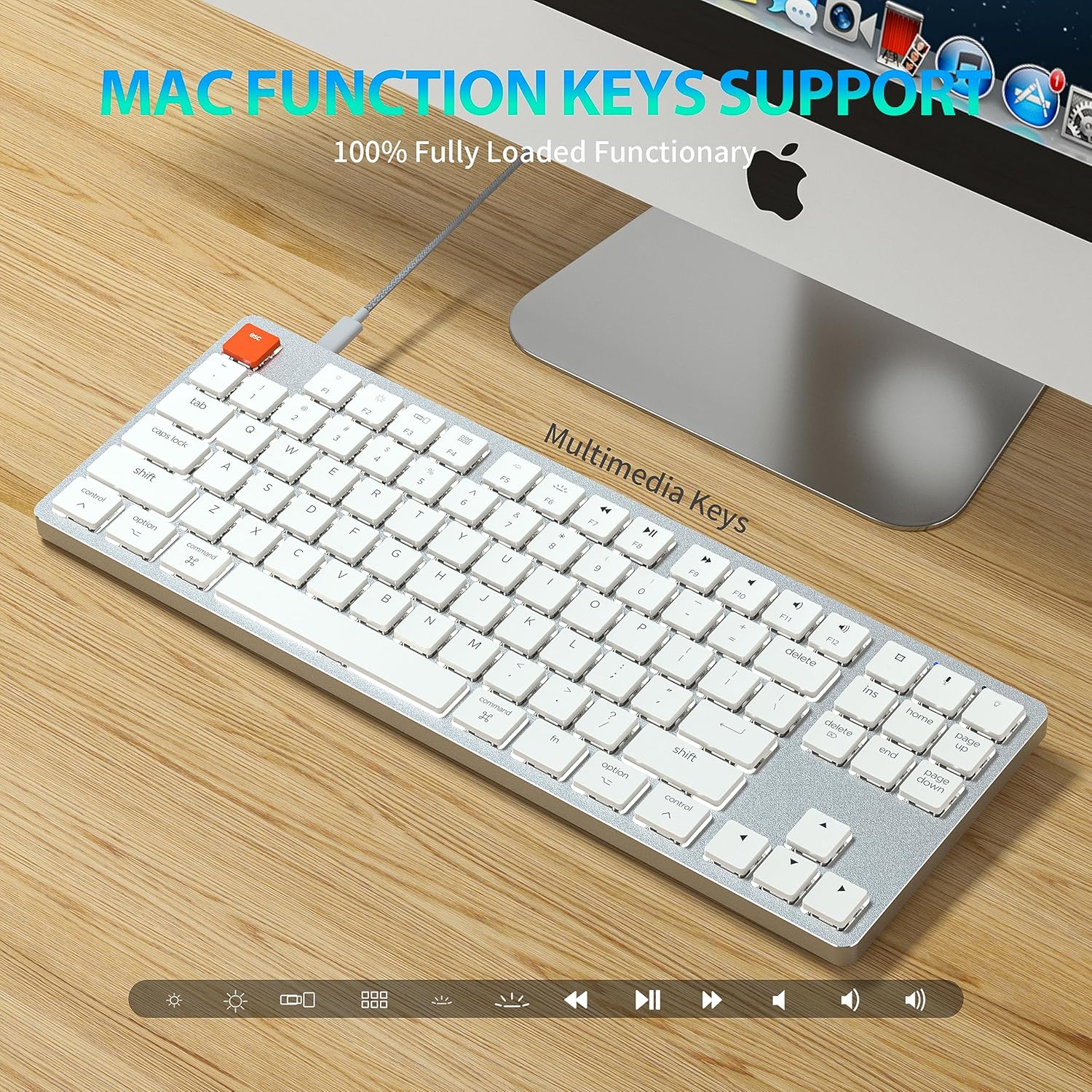
Figure 6: Mac Function Keys Support. This image shows the keyboard in a Mac setup, highlighting the multimedia and function keys (F1-F12) and their compatibility with macOS.
The keyboard supports full functionality for both Windows and Mac operating systems. Use the Fn key in combination with the F-keys for multimedia and system functions:
- Fn + F1Зменшыць яркасць экрана
- Fn + F2Павялічыць яркасць экрана
- Fn + F3: Mission Control (Mac) / Task View (Windows)
- Fn + F4: Launchpad (Mac) / Search (Windows)
- Fn + F5: Backlight mode cycle
- Fn + F6: Backlight color cycle
- Fn + F7: Папярэдні трэк
- Fn + F8: Прайграванне/Паўза
- Fn + F9: наступны трэк
- Fn + F10: Прыглушыць
- Fn + F11: Памяншэнне гучнасці
- Fn + F12: Павялічыць гучнасць
- fn + A: Switch to Mac layout (Command/Option keys)
- Fn + S: Switch to Windows layout (Ctrl/Alt keys)
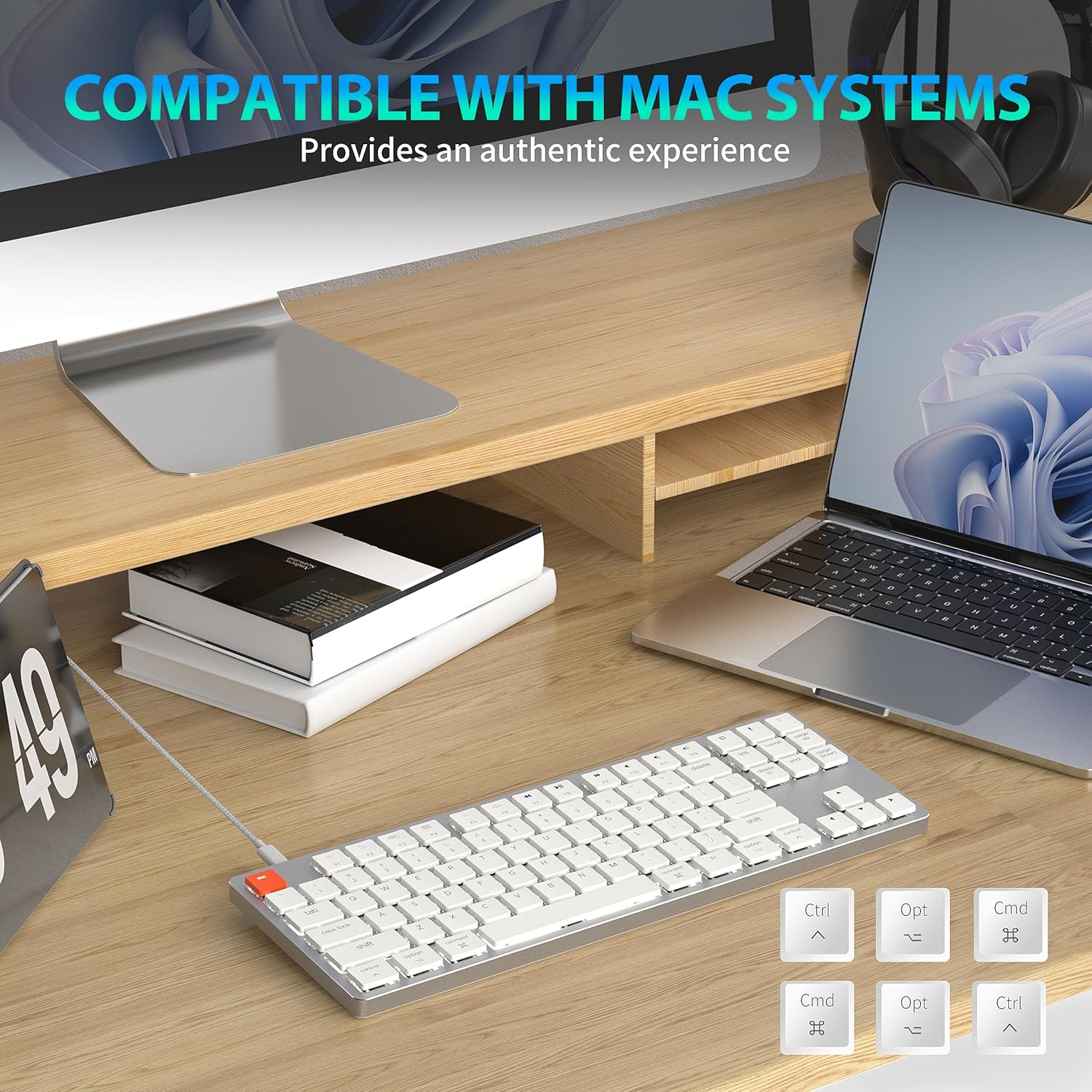
Figure 7: Compatibility with Mac Systems. This image shows the keyboard connected to a Mac setup, with an inset displaying alternative keycaps for Command, Option, and Control, indicating full compatibility and an authentic experience for Mac users.
The keyboard is fully compatible with Mac systems, providing an authentic experience with dedicated Mac function keys and layout options.
Тэхнічнае абслугоўванне
- Уборка: Use a soft, dry cloth to wipe the keyboard surface. For deeper cleaning, gently remove keycaps and use compressed air to clear debris.
- захоўванне: Захоўвайце клавіятуру ў прахалодным, сухім месцы, удалечыні ад прамых сонечных прамянёў і экстрэмальных тэмператур.
- Ўздзеянне вадкасці: Avoid exposing the keyboard to liquids. In case of spills, immediately disconnect the keyboard and allow it to dry completely before re-connecting.
Ліквідацыю непаладак
Клавіятура не адказвае
- Правадной рэжым: Пераканайцеся, што кабель USB-C надзейна падключаны як да клавіятуры, так і да кампутара. Паспрабуйце іншы порт USB або кабель.
- Бесправадны рэжым:
- Праверце, ці ўключана клавіятура.
- Пераканайцеся, што клавіятура зараджана.
- Праверце, ці ўключаны Bluetooth на вашай прыладзе.
- Re-pair the keyboard with your device (see Wireless Connection section).
- Ensure you are on the correct Bluetooth channel (Fn+Q/W/E).
Backlight Not Working/Dim
- Павялічце яркасць з дапамогай Fn + ↑.
- Пераключайцеся паміж рэжымамі падсветкі з дапамогай Fn + \ |.
- Ensure the keyboard is not in a low-power state. Charge the keyboard if using wireless mode.
Праблемы з адключэннем Bluetooth
- Пераканайцеся, што клавіятура знаходзіцца ў зоне дзеяння прылады.
- Мінімізуйце перашкоды ад іншых бесправадных прылад.
- Re-pair the keyboard.
- Update Bluetooth drivers on your device if applicable.
Тэхнічныя характарыстыкі
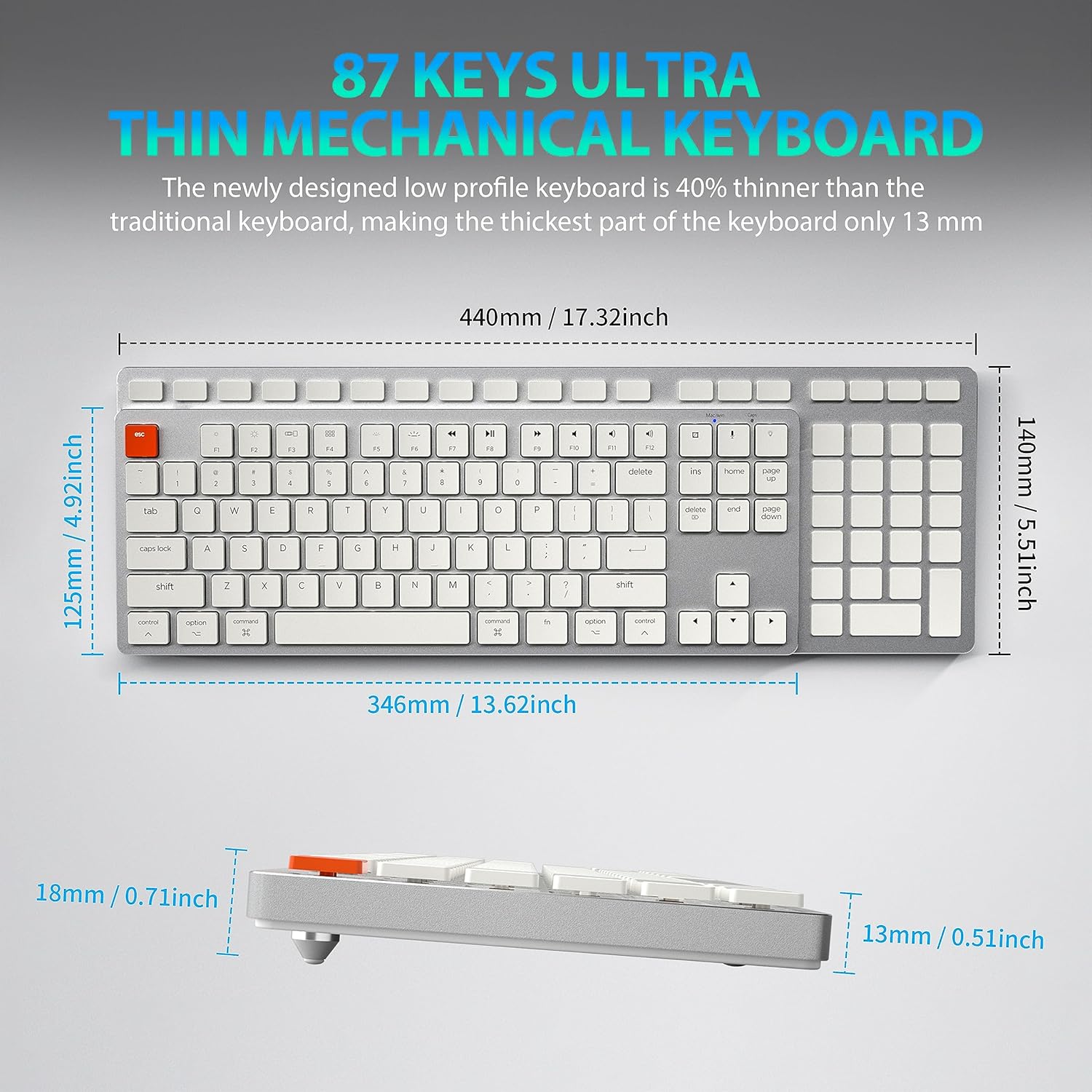
Figure 8: Keyboard Dimensions. This diagram provides precise measurements of the keyboard's length, width, and thickness, illustrating its ultra-thin profile.
| Марка | Тайахіра |
| Назва мадэлі | 201 |
| Тэхналогія падлучэння | Bluetooth, USB-C (Wired) |
| Апісанне клавіятуры | Механічны |
| Колькасць ключоў | 87 |
| Асаблівасць | Ergonomic, N-Key Rollover, Backlit |
| Сумяшчальныя прылады | PC, Laptop, Pad, Phone (Mac/Windows compatible) |
| Вага прадмета | 2.18 фунта |
| Памеры ўпакоўкі | 16.93 х 6.69 х 1.54 цалі |
| Вытворца | Тэхналагічная школа Тайахіра |
Гарантыя і падтрымка
For warranty information and technical support, please refer to the contact details provided with your product packaging or visit the official Taiahiro webсайт. Захоўвайце чэк аб пакупцы на выпадак прэтэнзій па гарантыі.


