Уводзіны
The Logitech K400 Plus Wireless Touch Keyboard is designed for comfortable control of your entertainment from a distance. Featuring a full-size keyboard layout and a large, integrated touchpad, it offers seamless navigation for your PC-connected TV, media center, or other compatible devices. This manual provides essential information for setting up, operating, and maintaining your keyboard.
Настройка
1. Устаноўка батарэі
The Logitech K400 Plus requires two AAA batteries (included). To install them:
- Знайдзіце вечка батарэйнага адсека на ніжняй частцы клавіятуры.
- Адкрыйце крышку.
- Устаўце дзве батарэйкі тыпу ААА, сачыце за правільнай палярнасцю (+/-).
- Надзейна зачыніце крышку батарэйнага адсека.
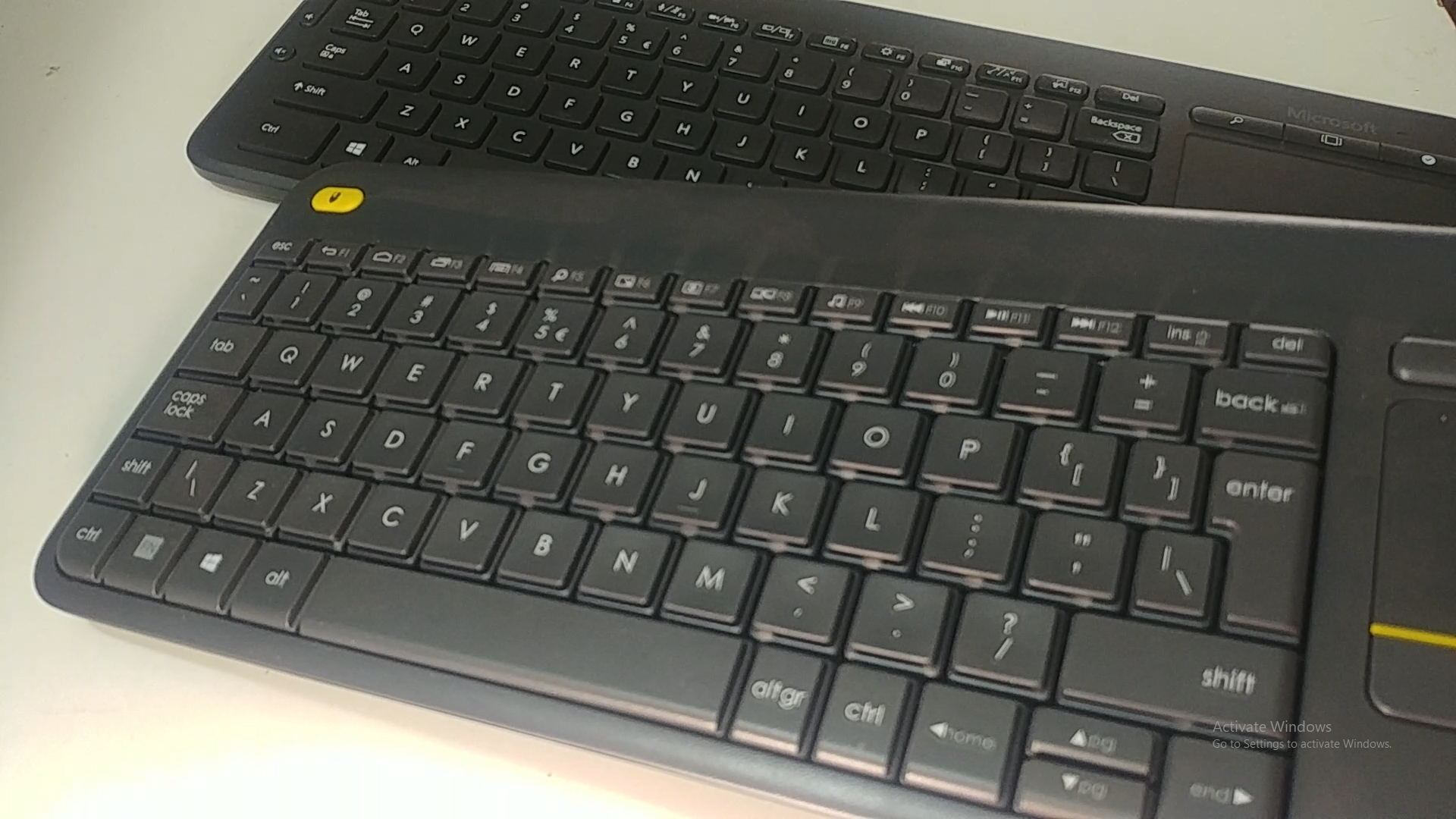
Image: Underside of the Logitech K400 Plus keyboard with the battery compartment open, showing two AAA batteries.
2. Connecting the Keyboard (USB Unifying Receiver)
The K400 Plus connects wirelessly via a small USB Unifying receiver. This receiver is typically stored inside the battery compartment for safekeeping.
- Open the battery compartment cover and remove the USB Unifying receiver.
- Plug the USB Unifying receiver into an available USB port on your PC, smart TV, or other compatible device.
- Turn on the keyboard using the On/Off switch located on the top right edge of the keyboard. A green indicator light will appear.
- Your keyboard should automatically connect. If not, refer to the troubleshooting section or visit the Logitech support website for the Unifying software.

Image: The Logitech K400 Plus Wireless Touch Keyboard, showing its compact design with integrated touchpad.
Інструкцыя па эксплуатацыі
Раскладка клавіятуры
The K400 Plus features a standard QWERTY layout with additional function keys and an integrated touchpad.
Выява: Падрабязны view of the Logitech K400 Plus keyboard keys, highlighting the QWERTY layout.
Выкарыстанне сэнсарнай панэлі
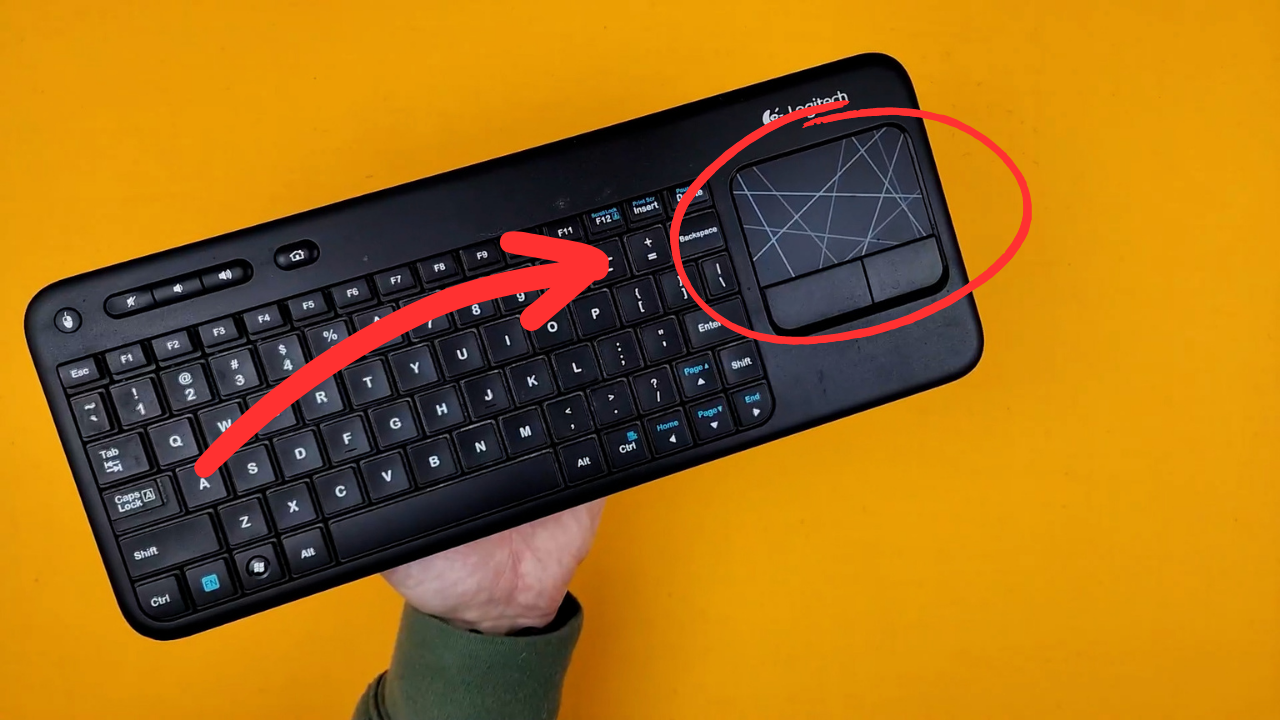
The large 3.5-inch touchpad allows for intuitive navigation. It supports multi-touch gestures for enhanced control.
- Націск адным пальцам: Пстрыкніце левай кнопкай мышы.
- Націсканне двума пальцамі: Пстрыкніце правай кнопкай мышы.
- Пракрутка двума пальцамі: Scroll vertically or horizontally.
- Змяненне маштабуецца сцісканнем пальцаў: Zoom in or out (if supported by the application).
- Dedicated left and right-click buttons are located below the touchpad for traditional mouse button functionality.
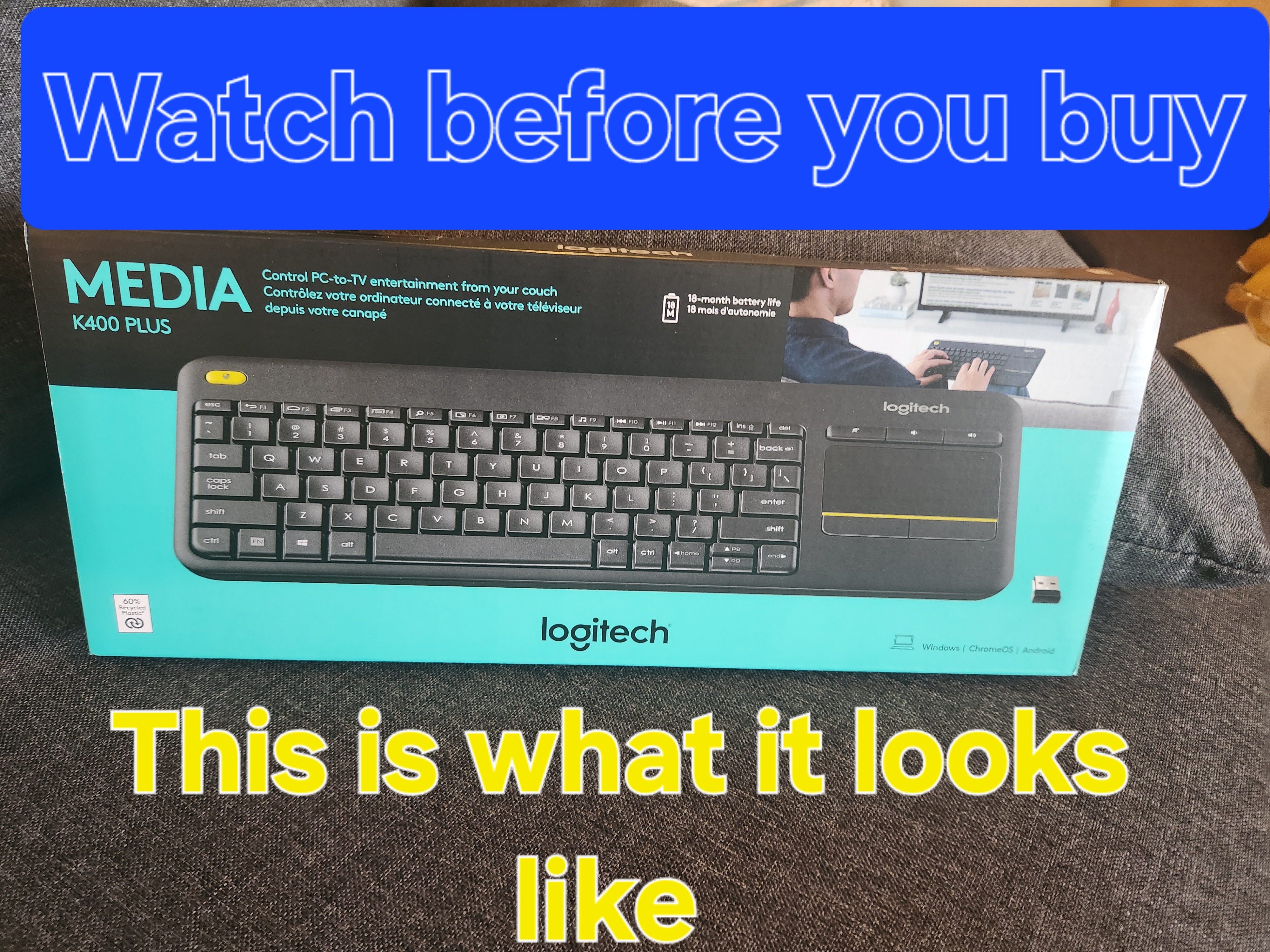
Image: A hand demonstrating the use of the integrated touchpad on the Logitech K400 Plus.
Мультымедыйныя і функцыянальныя клавішы
The top row of keys includes dedicated multimedia controls and function keys (F1-F12) with secondary actions. To activate the secondary actions (indicated by blue icons), press and hold the Fn key (located near the left Ctrl key) while pressing the desired function key.
- Рэгулятары гучнасці: Dedicated buttons for mute, volume down, and volume up are located above the touchpad.
- Кнопка дадому: Access your device's home screen or browser home page.
- Page Up/Down, End: Перамяшчацца па дакументах і web старонкі.
- Left Mouse Button (top left): An additional left-click button is located on the top left corner of the keyboard for convenient two-hand operation.
Тэхнічнае абслугоўванне
Уборка
Каб ачысціць клавіятуру:
- Выключыце клавіятуру з дапамогай перамыкача ўключэння/выключэння.
- Выкарыстоўвайце мяккую безворсовую тканіну, злёгку dampзмыць вадой або мяккім мыйным растворам.
- Avoid excessive moisture and do not immerse the keyboard in liquid.
- For stubborn dirt between keys, use compressed air.
Замена батарэі
When the battery indicator light (usually located near the On/Off switch) turns red or the keyboard becomes unresponsive, it's time to replace the batteries. Follow the "Battery Installation" steps in the Setup section to replace the two AAA batteries.
Ліквідацыю непаладак
Клавіятура не адказвае
- Праверце магутнасць: Ensure the keyboard is turned on and the battery indicator light is green. Replace batteries if necessary.
- Праверце атрымальніка: Make sure the USB Unifying receiver is securely plugged into a working USB port on your device. Try a different USB port.
- Адлегласць: Ensure the keyboard is within the operating range (up to 10 meters or 33 feet) of the USB receiver.
- Перашкоды: Перамясціце клавіятуру і прыёмнік далей ад іншых бесправадных прылад або буйных металічных прадметаў, якія могуць выклікаць перашкоды.
- Паўторная пара: If issues persist, you may need to re-pair the keyboard with the Unifying receiver using the Logitech Unifying software, available for download from the official Logitech support webсайт.
Touchpad Not Working Correctly
- Чыстая паверхня: Ensure the touchpad surface is clean and free of debris.
- Абнаўленне драйвера: Check your device's operating system for updated drivers for the Logitech Unifying receiver or touchpad.
- Налады: Verify touchpad settings in your device's control panel or system preferences.
Тэхнічныя характарыстыкі
| Марка | Logitech |
| Нумар мадэлі | 920-009280 |
| Тэхналогія падлучэння | Wireless (2.4 GHz via USB Unifying Receiver) |
| Далёкасць бесправадной сувязі | Да 10 метраў (33 футаў) |
| Батарэі | 2 х ААА батарэек (у камплекце) |
| Тэрмін службы батарэі | Да 18 месяцаў (можа адрознівацца ў залежнасці ад выкарыстання) |
| Убудаваная сэнсарная панэль | 3.5-inch multi-touch touchpad |
| Сумяшчальныя прылады | PC (Windows 7, 8, 10 or later), Android TV, Chrome OS |
| Памеры (Д х Ш х У) | Прыкладна 13.9 х 5.5 х 0.9 цалі (354 х 139.9 х 23.5 мм) |
| Вага | Approximately 13.76 oz (390 g) with batteries |
Гарантыя і падтрымка
Logitech provides a limited hardware warranty for this product. For detailed warranty information, technical support, and driver downloads, please visit the official Logitech support webсайт:
Вы таксама можаце знайсці часта задаваныя пытанні і форумы супольнасці для атрымання дадатковай дапамогі.


