1. Уводзіны
Welcome to your new OMEGA OWLR151U 150 Mbps Wi-Fi Router. This device is designed to provide a reliable and efficient wireless network for your home or small office. It integrates the functions of a router, wireless access point, 4-port switch, and firewall into a single unit. This manual will guide you through the installation, configuration, and maintenance of your router to ensure optimal performance.
2. Прадукт скончыўсяview
The OMEGA OWLR151U router supports the IEEE 802.11n wireless standard, offering wireless speeds of up to 150 Mbps on the 2.4 GHz frequency band. It features one WAN port for internet connection and four LAN ports for wired devices, along with a fixed 5 dBi antenna for enhanced signal coverage. The integrated firewall provides basic network security.

Малюнак 2.1: Фронт view of the OMEGA OWLR151U Wi-Fi Router, showing its compact design and single antenna.
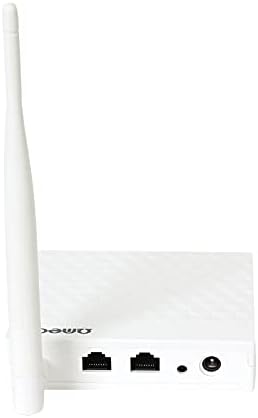
Малюнак 2.2: Тыл view of the OMEGA OWLR151U Wi-Fi Router, highlighting the WAN port, LAN ports, and power input.
3. Настройка
3.1 Змест пакета
- OMEGA OWLR151U Wi-Fi Router
- Адаптар сілкавання
- Кабель Ethernet
- Кіраўніцтва па хуткай усталёўцы (калі ў камплекце)
3.2 Падлучэнне абсталявання
- Падключэнне сілкавання: Connect the provided power adapter to the router's power port and then plug it into an electrical outlet. Ensure the power LED on the router illuminates.
- Падключэнне да глабальнай сеткі: Connect an Ethernet cable from your modem (or internet service provider's wall jack) to the WAN порт на маршрутызатары.
- Падключэнне да лакальнай сеткі (неабавязкова): To connect a computer or other wired device, use an Ethernet cable to connect it to one of the лакальная сетка ports on the router.
3.3 Пачатковая канфігурацыя
- Інтэрфейс маршрутызатара доступу: Адкрыйце a web browser (e.g., Chrome, Firefox) on a computer or device connected to the router (either via Wi-Fi or Ethernet).
- Увядзіце IP-адрас: In the browser's address bar, type the router's default IP address (commonly
192.168.1.1or192.168.0.1). Refer to the label on the bottom of your router for the exact IP address and login credentials. - Лагін: Увядзіце імя карыстальніка і пароль па змаўчанні (напрыклад,
admin/adminoradmin/password). - Выканайце дзеянні майстра налады: Once logged in, you will typically be guided through a Quick Setup Wizard. Follow the on-screen instructions to configure your internet connection and Wi-Fi settings (SSID and password).
- Захаваць налады: Пасля налады захавайце налады і перазапусціце маршрутызатар, калі будзе прапанавана.
4. Аперацыйная
4.1 Падключэнне прылад
- Падключэнне Wi-Fi: On your wireless device (smartphone, tablet, laptop), search for available Wi-Fi networks. Select the SSID (network name) you configured during setup and enter the Wi-Fi password.
- Падключэнне Ethernet: For wired devices, simply connect an Ethernet cable from the device to any of the router's available LAN ports.
4.2 Доступ да налад маршрутызатара
To modify advanced settings, such as port forwarding, parental controls, or security options, access the router's web interface using the IP address and login credentials as described in Section 3.3.
5. Тэхнічнае абслугоўванне
5.1 Абнаўленне прашыўкі
Periodically check the manufacturer's official website for available firmware updates. Firmware updates can improve performance, add new features, and enhance security. Follow the instructions provided by the manufacturer for the update process.
5.2 Скід да заводскіх налад
If you encounter persistent issues or forget your login credentials, you can perform a factory reset. With the router powered on, use a paperclip or a thin object to press and hold the reset button (usually a small pinhole on the back or bottom) for approximately 5-10 seconds. The router will restart with its factory default settings.
5.3 Ачыстка
Use a soft, dry cloth to clean the exterior of the router. Do not use liquid cleaners, aerosols, or solvents, as these can damage the device.
6. Выпраўленне непаладак
6.1 Няма доступу да Інтэрнэту
- Праверце злучэнні: Ensure all cables (power, WAN, LAN) are securely connected.
- Перазапуск прылад: Выключыце мадэм і маршрутызатар, пачакайце 30 секунд, а затым спачатку ўключыце мадэм. Пасля таго, як мадэм цалкам падключыцца да інтэрнэту, уключыце маршрутызатар.
- Праверце налады WAN: Увайдзіце ў маршрутызатар web interface and check the WAN settings to ensure your internet connection type (e.g., DHCP, PPPoE) is correctly configured.
6.2 Wi-Fi Not Visible or Cannot Connect
- Wi-Fi уключаны: Confirm that the wireless function is enabled in the router's web інтэрфейс.
- Правільны пароль: Double-check that you are entering the correct Wi-Fi password (case-sensitive).
- Перашкоды канала: In the router settings, try changing the Wi-Fi channel to a less congested one (e.g., 1, 6, or 11).
6.3 Павольная хуткасць злучэння
- Размяшчэнне маршрутызатара: Position the router in a central location, away from obstructions and other electronic devices that may cause interference.
- Прашыўка: Пераканайцеся, што прашыўка вашага маршрутызатара абноўлена.
- Падлучаныя прылады: Too many devices connected simultaneously can reduce speed. Consider limiting usage or upgrading your internet plan.
7. Тэхнічныя характарыстыкі
- мадэль: OWLR151U
- Стандарт бесправадной сувязі: IEEE 802.11n, compatible with 802.11 b/g
- Хуткасць бесправадной сувязі: Да 150 Мбіт/с
- Дыяпазон частот: 2.4 ГГц
- WAN порт: 1 х 10/100 Мбіт/с
- Парты LAN: 4 х 10/100 Мбіт/с
- Антэна: 1 x 5 dBi fixed antenna
- Пратаколы бяспекі: WEP (Note: WEP is an older security protocol. For enhanced network security, consider using WPA2 or WPA3 if supported by your devices and network.)
- Асаблівасці: Integrated Router, Wireless Access Point, 4-Port Switch, Firewall
- Сумяшчальныя прылады: Personal Computer, Tablet, Smart Television
- Аперацыйная сістэма: RouterOS (as specified by manufacturer)
8. Інфармацыя аб гарантыі
Information regarding the product warranty for the OMEGA OWLR151U Wi-Fi Router is not available in the provided details. Please refer to your purchase documentation, the product packaging, or contact the retailer where you purchased the device for specific warranty terms and conditions.
9. Падтрымка
For technical assistance, troubleshooting beyond the scope of this manual, or further inquiries, please refer to the contact information provided with your purchase. Specific support contact details for Omega products are not available in the provided information. You may also visit the official Omega product support webсайт, калі ёсць.


