1. Giriş
Welcome to the user manual for your Logitech M705 Marathon Wireless Mouse. This document provides essential information for setting up, operating, and maintaining your device, ensuring optimal performance and longevity. The M705 mouse is designed for comfort and efficiency, featuring a long battery life and customizable controls for enhanced productivity.
2. Məhsul bitdiview
Əsas Xüsusiyyətlər
- Uzadılmış Batareya Ömrü: Enjoy up to 3 years of battery life, reducing the need for frequent replacements.
- Erqonomik Dizayn: Sculpted to fit the natural curve of your right hand, providing comfort during prolonged use.
- Hiper-Sürətli Sürüşdürmə: Navigate through long documents and web pages with a single spin of the scroll wheel, or switch to click-to-click scrolling for precision.
- Proqramlaşdırıla bilən düymələr: Five customizable buttons, including forward/back thumb buttons, allow for personalized shortcuts and enhanced control.
- Unifying Receiver: A small USB Unifying receiver connects up to six compatible Logitech devices, freeing up USB ports.
- Geniş Uyğunluq: Compatible with Windows, macOS, Chrome OS, and Linux operating systems.
Paketin məzmunu
The Logitech M705 Marathon Wireless Mouse package typically includes:
- Logitech M705 Simsiz Siçan
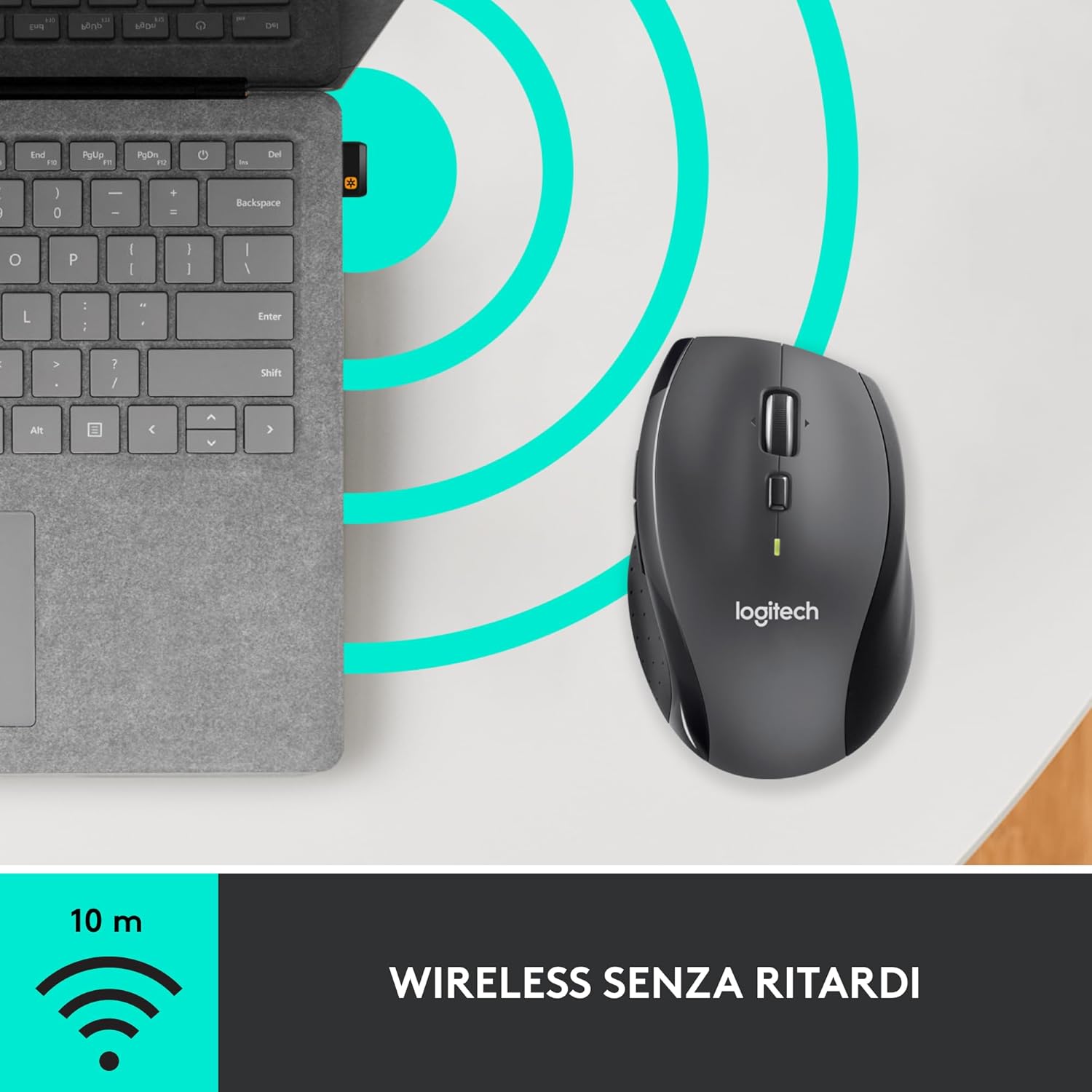
- Logitech Unifying USB Receiver
- 2 AA Alkaline Batteries (may vary by region/packaging)

3. Quraşdırma Təlimatları
3.1. Batareyaların quraşdırılması
- Turn the mouse over and locate the battery compartment cover on the underside.
- Press the release button or slide the cover to open the compartment.
- Düzgün polariteyi (+/-) təmin edərək iki AA batareyasını daxil edin.
- Batareya bölməsinin qapağını dəyişdirin.

3.2. Connecting the USB Unifying Receiver
- Locate the small USB Unifying receiver. It may be stored inside the battery compartment of the mouse.
- USB qəbuledicisini kompüterinizdə mövcud olan USB portuna qoşun.
- Siçanı alt tərəfdə yerləşən On/Söndür düyməsindən istifadə edərək yandırın.
- Your computer should automatically detect the mouse. If not, visit the Logitech support website for driver installation.
4. Əməliyyat Təlimatları
4.1. Əsas Siçan Funksiyaları
The M705 mouse features standard left and right-click buttons, a scroll wheel, and additional programmable buttons.

4.2. Hyper-Fast Scrolling
The scroll wheel offers two modes:
- Hyper-Fast Mode: Press the button directly below the scroll wheel to unlock it for smooth, rapid scrolling through long documents or web səhifələr.
- Click-to-Click Mode: Press the button again to engage precise, stepped scrolling, ideal for navigating lists or image galleries.

4.3. Proqramlaşdırıla bilən düymələr
The M705 features five programmable buttons, including two thumb buttons and tilt-scroll functionality. These can be customized using the Logitech Options software.

5. Fərdiləşdirmə
To unlock the full potential of your M705 mouse, download and install the Logitech Options software from the official Logitech websayt. Bu proqram sizə imkan verir:
- Assign custom functions to the five programmable buttons.
- Adjust tracking speed (DPI).
- Configure application-specific settings.
- Batareya vəziyyətini yoxlayın.

6. Baxım
6.1. Təmizləmə
To clean your mouse, use a soft, lint-free cloth. For stubborn dirt, slightly dampen the cloth with water. Avoid using harsh chemicals or abrasive materials, as these can damage the mouse surface or internal components.
6.2. Batareyanın dəyişdirilməsi
When the battery indicator light on your mouse begins to flash or if performance degrades, it's time to replace the batteries. Follow the steps in Section 3.1 to replace the two AA batteries. Dispose of old batteries responsibly according to local regulations.
7. Giderme
7.1. Siçan cavab vermir
- Siçanın işə salındığından əmin olun.
- Check the battery level and replace batteries if necessary.
- Verify the USB Unifying receiver is securely plugged into a working USB port.
- Try plugging the receiver into a different USB port or a different computer to isolate the issue.
- USB hub istifadə edirsinizsə, birbaşa kompüterə qoşulmağa cəhd edin.
7.2. Kursorun qeyri-sabit hərəkəti
- Siçanın altındakı optik sensoru təmizləyin.
- Ensure you are using the mouse on a suitable surface. Highly reflective or transparent surfaces may cause tracking issues. A mouse pad is recommended.
- Check for interference from other wireless devices. Move the mouse closer to the USB receiver.
7.3. Unifying Receiver Issues
If the mouse loses connection or you need to pair it with a new receiver, download the Logitech Unifying Software from the Logitech support website. This software guides you through the pairing process.
8. Spesifikasiyalar
| Xüsusiyyət | Detal |
|---|---|
| Brend | Logitech |
| Model Adı | M705 |
| Model nömrəsi | 910-001949 |
| Bağlantı texnologiyası | Wireless (2.4 GHz USB Unifying Receiver) |
| Hərəkətin aşkarlanması texnologiyası | Lazer |
| Hərəkət qətnaməsi | 1000 DPI (up to 3200 DPI maximum resolution) |
| Düymələrin sayı | 5 proqramlaşdırıla bilən düymələr |
| Güc mənbəyi | Battery (2 x AA Alkaline) |
| Orta Batareya Ömrü | 3 ilə qədər |
| Wireless Range | 10 metrə qədər |
| Forma faktoru | Sağ əlli erqonomik |
| Ölçülər (U x G x Y) | 20 x 13 x 12 cm (Product packaging dimensions) |
| Çəki | 136 qram |
| Uyğun Əməliyyat Sistemləri | Windows 7, 8, 10; macOS 10.11 or later; Chrome OS; Linux |
9. Zəmanət və Dəstək
Zəmanət və texniki dəstək haqqında ətraflı məlumat üçün rəsmi Logitech şirkətinə müraciət edin website or contact Logitech customer service. Keep your proof of purchase for warranty claims.


