
Introduction
This manual provides comprehensive instructions for the setup, operation, and maintenance of your MechLands Aula SC620 Gaming Mouse. Please read this manual thoroughly before using the device to ensure optimal performance and longevity. The SC620 is a lightweight gaming mouse featuring a honeycomb design, multi-mode connectivity (2.4GHz, Bluetooth, USB-C), a high-precision PAW3311 sensor, adjustable DPI, and customizable RGB lighting.

Image: MechLands Aula SC620 Gaming Mouse with its 2.4G USB receiver. The mouse features a black honeycomb shell and visible RGB lighting.
Package Contents
Verify that all items are present in your package:
- MechLands Aula SC620 Gaming Mouse
- 2.4GHz USB Receiver
- USB-C Charging Cable
- User Manual

Image: The package contents laid out, showing the black SC620 mouse, a USB-C cable, and the user manual.
Product Overview

Image: A visual summary of the SC620's key features, such as multi-mode connectivity, adjustable DPI, PAW3311 sensor, and RGB lighting.
Mouse Components
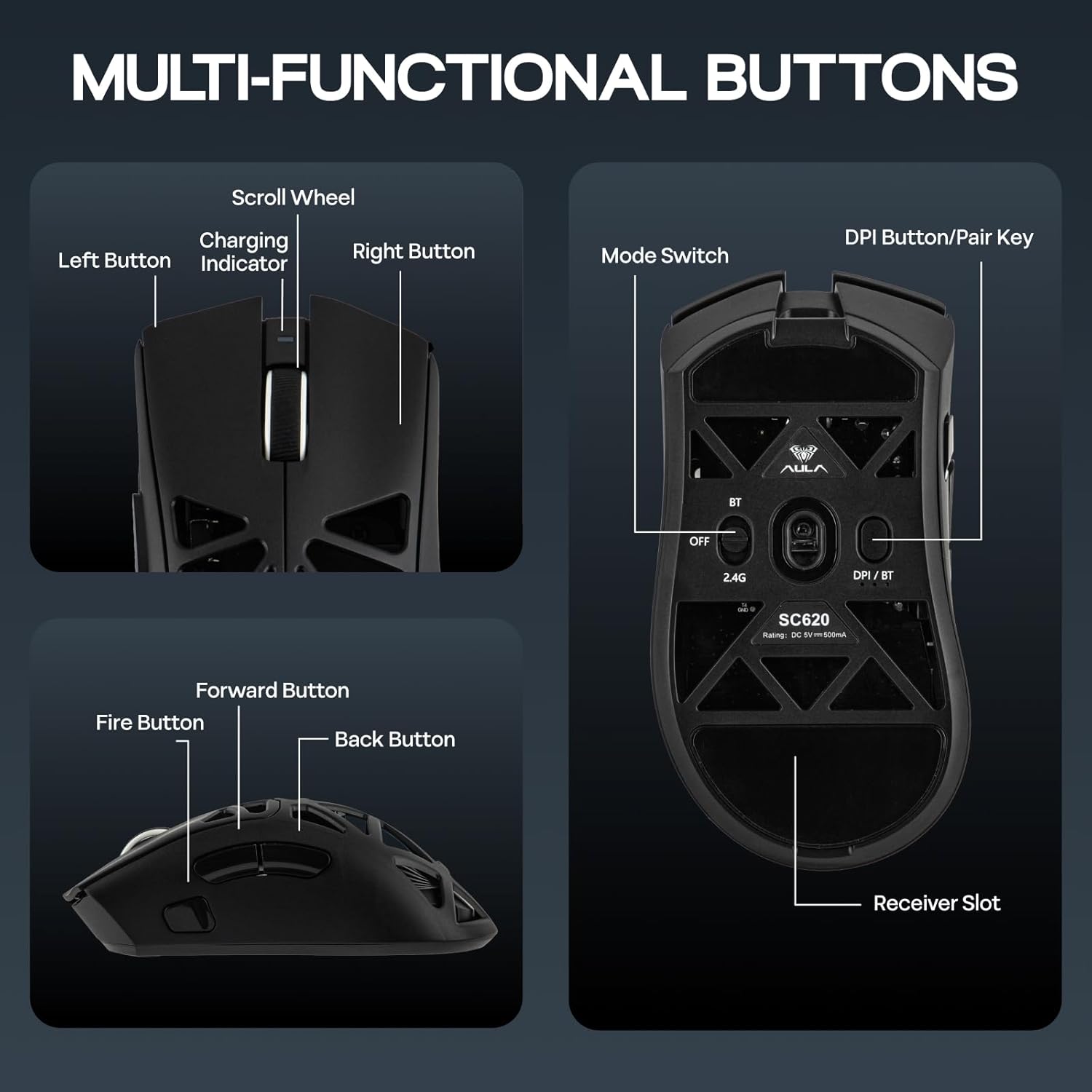
Image: Detailed diagram illustrating the various buttons and components of the SC620 mouse, including the scroll wheel, side buttons, and the mode switch on the underside.
- Left Button: Standard left-click function.
- Right Button: Standard right-click function.
- Scroll Wheel: For scrolling and middle-click function. Also serves as a charging indicator.
- Forward Button: Navigates forward in web browsers or applications.
- Back Button: Navigates backward in web browsers or applications.
- Fire Button: Dedicated programmable button for rapid actions.
- Mode Switch (Bottom): Toggles between OFF, 2.4G wireless, and Bluetooth modes.
- DPI / BT Button (Bottom): Adjusts DPI settings or initiates Bluetooth pairing.
- Receiver Slot (Bottom): Storage for the 2.4GHz USB receiver.
Setup
Charging the Mouse
Before first use, it is recommended to fully charge the mouse. Connect the supplied USB-C cable to the mouse's Type-C port and the other end to a USB power source (e.g., computer USB port, USB wall adapter). The scroll wheel will indicate charging status.

Image: The USB-C port located at the front of the mouse for charging and wired connection.

Image: Visual representation highlighting the 400mAh rechargeable battery capacity of the mouse.
Connectivity Modes
The SC620 mouse supports three connection modes: 2.4GHz Wireless, Bluetooth, and USB-C Wired.

Image: The SC620 mouse highlighting its 3-mode wireless capabilities: 2.4GHz, Bluetooth 5.0, and USB-C wired connection.
2.4GHz Wireless Connection
- Locate the 2.4GHz USB receiver stored in the slot on the bottom of the mouse.
- Plug the USB receiver into an available USB port on your computer.
- Slide the mode switch on the bottom of the mouse to the '2.4G' position.
- The mouse should connect automatically.

Image: The underside of the mouse showing the dedicated slot for storing the 2.4G USB receiver.
Bluetooth Connection
- Slide the mode switch on the bottom of the mouse to the 'BT' position.
- Press and hold the 'DPI / BT' button on the bottom of the mouse for 3 seconds until the RGB lighting flashes, indicating pairing mode.
- On your computer or device, open Bluetooth settings and search for 'SC620'.
- Select 'SC620' to pair the mouse.
USB-C Wired Connection
- Connect the supplied USB-C cable to the mouse's Type-C port.
- Connect the other end of the USB-C cable to an available USB port on your computer.
- The mouse will function as a wired mouse and charge simultaneously.
Operating Instructions
DPI Adjustment
The mouse features an adjustable DPI (Dots Per Inch) with six preset levels, up to 12,000 DPI, for precise cursor control. The polling rate is 1000Hz for responsive movement.

Image: A visual guide to the 6 adjustable DPI levels, showing how sensitivity can be changed for different tasks.
- To cycle through preset DPI levels, press the 'DPI / BT' button located on the bottom of the mouse.
- Each press will change the DPI, indicated by a temporary change in the mouse's RGB lighting color.
- For fine-tuning and custom DPI settings, use the programmable software.
RGB Lighting Control
The mouse features dynamic RGB lighting with customizable effects.

Image: Diagram showing how to control the RGB lighting effects by pressing the Forward and Middle buttons.
- Short Press (Forward Button + Middle Button): Cycles through different RGB lighting effects.
- Long Press (Forward Button + Middle Button for 3 seconds): Turns the RGB lighting ON or OFF.
Programmable Buttons and Software
The SC620 mouse includes 7 programmable buttons, including a dedicated Fire Button, which can be customized using the official software.

Image: Screenshot of the customization software, illustrating options for button remapping, macro creation, DPI adjustment, and polling rate settings.
- Download the official MechLands software from the manufacturer's website (refer to product packaging or official website for download link).
- Install the software on your computer.
- Use the software to:
- Remap button functions.
- Create and assign macros.
- Adjust DPI levels and polling rate.
- Customize RGB lighting effects.
Maintenance
- Cleaning: Use a soft, dry cloth to clean the mouse. For stubborn dirt, a slightly damp cloth can be used, ensuring no liquid enters the mouse. Avoid harsh chemicals or abrasive materials.
- Storage: When not in use for extended periods, store the mouse in a cool, dry place.
- Battery Care: To prolong battery life, avoid fully discharging the mouse frequently. Charge it when the battery indicator suggests low power.
Troubleshooting
Mouse Not Responding
- Check Battery: Ensure the mouse is charged. Connect it via USB-C cable to check if it works in wired mode.
- Check Connection Mode: Verify the mode switch on the bottom of the mouse is set correctly (2.4G, BT, or OFF).
- 2.4GHz Wireless: Ensure the USB receiver is securely plugged into a working USB port. Try a different USB port.
- Bluetooth: Re-initiate pairing mode (hold DPI/BT button) and re-pair with your device. Ensure Bluetooth is enabled on your device.
- Wired: Ensure the USB-C cable is securely connected to both the mouse and the computer.
Intermittent Connection / Lag
- Interference: Move the mouse closer to the receiver (for 2.4GHz) or your device (for Bluetooth). Avoid using near other wireless devices that may cause interference.
- Battery Level: Low battery can affect wireless performance. Charge the mouse.
- Surface: Ensure you are using the mouse on a suitable surface.
RGB Lighting Not Working
- Turn On: Ensure the lighting is not turned off (long press Forward + Middle buttons).
- Software: Check lighting settings in the programmable software.
Specifications
| Feature | Detail |
|---|---|
| Model | SC620 |
| Brand | MechLands |
| Connectivity | 2.4GHz Wireless, Bluetooth, USB-C Wired |
| Sensor | PAW3311 Optical Sensor |
| DPI Range | Up to 12,000 DPI (Adjustable) |
| Polling Rate | 1000Hz |
| Battery Capacity | 400mAh Rechargeable |
| Weight | Approximately 67g |
| Dimensions (L x W x H) | 122 x 64 x 40 mm |
| Programmable Buttons | 7 (including Fire Button) |
| RGB Lighting | Dynamic, Customizable Effects |
Safety Information
- Do not expose the mouse to extreme temperatures or humidity.
- Avoid dropping or subjecting the mouse to strong impacts.
- Keep out of reach of children.
- Do not attempt to disassemble or repair the mouse yourself. This will void the warranty.
- Dispose of the battery according to local regulations.
Warranty and Support
MechLands products are designed for reliability and performance. For warranty information, technical support, or customer service inquiries, please refer to the official MechLands website or contact their customer support directly. Please retain your proof of purchase for warranty claims.
