
1. Introduction
This manual provides essential information for the safe and efficient use of your Generic 11 Inch Android 16 Tablet. Please read this manual thoroughly before operating the device and retain it for future reference. This tablet features an 11-inch display, runs on Android 16, includes 64GB of internal storage expandable up to 4TB, and is powered by a 7000mAh battery. It also incorporates a dual AI camera system and Google Gemini AI integration for enhanced functionality.
2. What's in the Box
Verify that all items are present in the package:
- Tablet
- USB Charging Cable
- Power Adapter
- User Manual (this document)
3. Product Overview
The Generic 11 Inch Android 16 Tablet is designed for versatile use, from entertainment to productivity. Key features include:
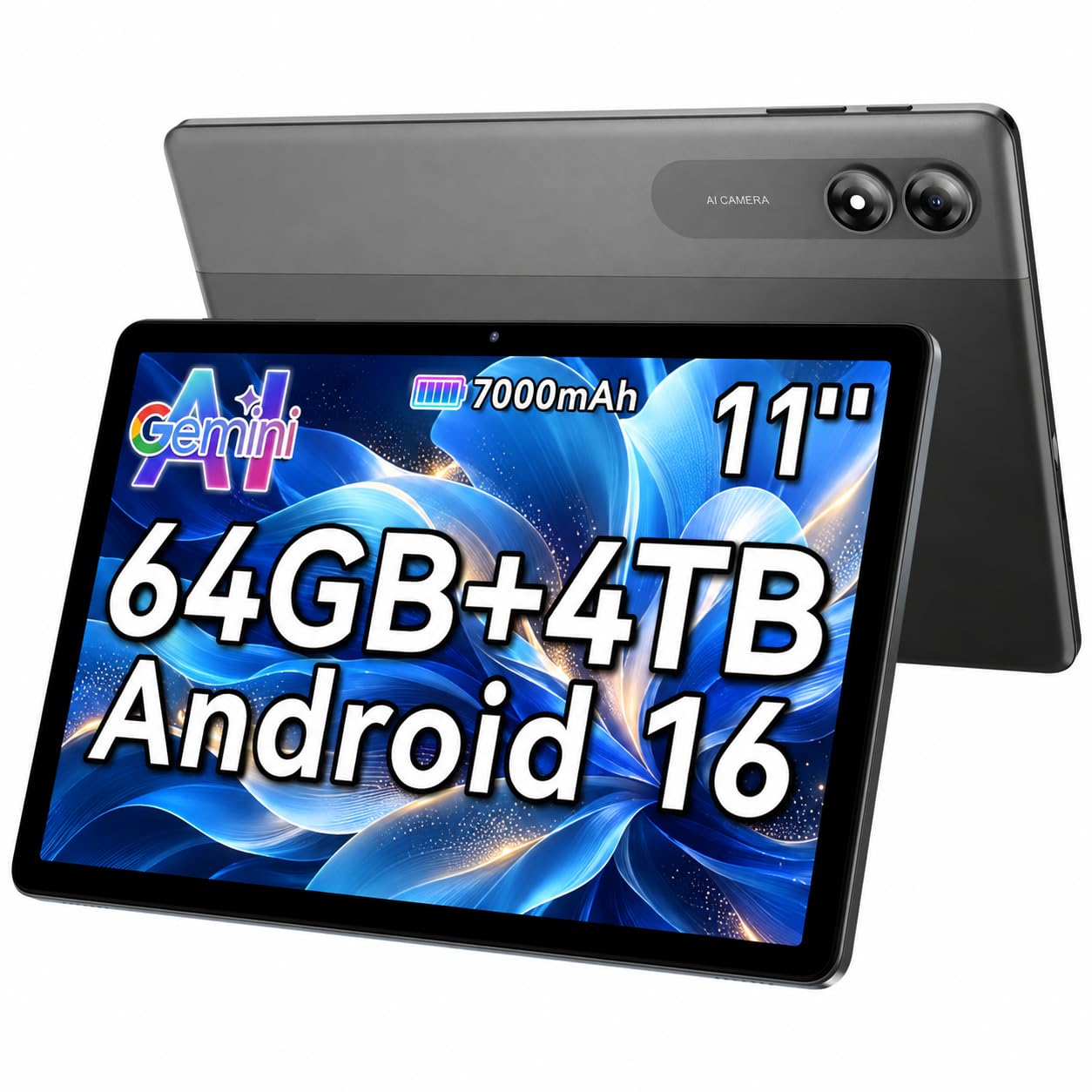
Image: Front view of the Generic 11 Inch Android 16 Tablet, showcasing its large display.
- Android 16 OS: Latest operating system for a smooth user experience and app compatibility.
- Generous Storage: 64GB built-in, expandable up to 4TB with a microSD card.
- Large 11-Inch Display: Immersive viewing for media consumption and tasks.
- Long-Lasting Battery: 7000mAh capacity for extended use.
- AI Dual Camera System: Enhanced rear cameras for quality photos and videos.
- AI Gemini Assistant: Integrated for smart, intuitive assistance.
4. Setup
4.1 Charging the Tablet
- Connect the USB charging cable to the tablet's USB-C port.
- Connect the other end of the cable to the provided power adapter.
- Plug the power adapter into a wall outlet.
- The battery indicator on the screen will show charging status. Allow the tablet to fully charge before first use.
4.2 Powering On/Off
- To Power On: Press and hold the Power button (usually on the side) until the screen lights up.
- To Power Off: Press and hold the Power button until a menu appears, then select 'Power off'.
- To Restart: Press and hold the Power button until a menu appears, then select 'Restart'.
4.3 Initial Setup
Upon first power-on, follow the on-screen prompts to:
- Select your language.
- Connect to a Wi-Fi network.
- Sign in with your Google account or create a new one.
- Set up screen lock (PIN, pattern, password, or face recognition).
- Review and accept terms and conditions.
4.4 Wi-Fi Connection
- Go to Settings > Network & internet > Wi-Fi.
- Toggle Wi-Fi On.
- Select your desired network from the list.
- Enter the network password if prompted, then tap Connect.
5. Operating Instructions
5.1 Basic Navigation
- Touch: Tap an icon or option to select it.
- Swipe: Drag your finger across the screen to scroll or navigate between screens.
- Pinch: Use two fingers to zoom in or out on images and web pages.
- Home Button: Returns to the home screen.
- Back Button: Returns to the previous screen.
- Recent Apps Button: Displays recently used applications.
5.2 Managing Applications
- Install Apps: Download applications from the Google Play Store.
- Uninstall Apps: Go to Settings > Apps > See all apps, select the app, then tap Uninstall.
- Close Apps: Use the Recent Apps button and swipe the app card away to close it.
5.3 Camera Usage
Your tablet features a 13MP rear AI dual camera and a 5MP front camera.
- Open the Camera app.
- Select photo or video mode.
- Tap the screen to focus.
- Tap the shutter button to capture.
- Use the switch icon to toggle between front and rear cameras.
5.4 Storage Management
The tablet has 64GB of internal storage. You can expand this up to 4TB using a microSD card.
- Insert MicroSD Card: Locate the card slot (usually on the side), open the tray, insert the microSD card, and close the tray.
- Check Storage: Go to Settings > Storage to view internal and external storage usage.
6. Maintenance
6.1 Battery Care
- Avoid extreme temperatures, which can degrade battery life.
- Do not leave the tablet fully charged or fully discharged for extended periods.
- Use only the provided charger or a certified compatible charger.
6.2 Cleaning
- Use a soft, lint-free cloth to clean the screen and body.
- Do not use harsh chemicals, abrasive cleaners, or aerosol sprays.
- Avoid getting moisture into openings.
6.3 Software Updates
Regularly check for and install software updates to ensure optimal performance and security.
- Go to Settings > System > System update.
- Follow the on-screen instructions to check for and install available updates.
7. Troubleshooting
This section addresses common issues you might encounter with your tablet.
| Problem | Solution |
|---|---|
| Tablet does not power on. | Ensure the battery is charged. Connect to the charger for at least 30 minutes, then try powering on again. |
| Cannot connect to Wi-Fi. | Check if Wi-Fi is enabled in Settings. Restart your router and the tablet. Verify the Wi-Fi password. |
| Apps are crashing or running slowly. | Close unused apps. Clear app cache (Settings > Apps > [App Name] > Storage & cache > Clear cache). Restart the tablet. |
| Screen is unresponsive. | Perform a forced restart by holding the Power button for about 10-15 seconds until the tablet restarts. |
| Storage space is low. | Delete unnecessary files or apps. Move media to a microSD card. Clear cache for apps. |
8. Specifications
Detailed technical specifications for the Generic 11 Inch Android 16 Tablet:
| Feature | Detail |
|---|---|
| Model Name | Android 16 Tablet 11 Inch |
| Operating System | Android 16 |
| Screen Size | 11 inches |
| Display Resolution | 1920 x 1200 pixels (IPS) |
| Processor | Octa-core Processor, 1.8 GHz (MediaTek) |
| RAM Memory | 64 GB |
| Internal Storage | 64 GB |
| Expandable Storage | Up to 4TB (microSD, microSDHC, microSDXC) |
| Battery Capacity | 7000 mAh (Lithium Polymer) |
| Rear Camera | 13 MP AI Dual Camera with LED Flash |
| Front Camera | 5 MP |
| Connectivity | Wi-Fi (802.11a/b/g/n/ac), Bluetooth, USB-C |
| Audio | Dual Stereo Speakers, 3.5mm Headphone Jack |
| Sensors | CMOS, GPS |
| Biometric Security | Face Recognition |
| Dimensions (L x W x Th) | 10.5" x 6.5" x 0.35" |
| Weight | 1.2 pounds |
9. Warranty and Support
9.1 Product Warranty
This Generic 11 Inch Android 16 Tablet comes with a 1 Year Manufacturer Warranty. Please refer to the warranty card included in your package for specific terms and conditions regarding coverage and claims.
9.2 Customer Support
For technical assistance, troubleshooting beyond this manual, or warranty inquiries, please contact the retailer or manufacturer's customer support. Keep your purchase receipt and product model number (Gemini-ai-tab-11) readily available when contacting support.