
XuanPad RD-811
Contents
XuanPad RD-811 Smart Projector User Manual
Model: RD-811
1. Introduction
Thank you for choosing the XuanPad RD-811 Smart Projector. This manual provides essential information for setting up, operating, and maintaining your device. Please read it thoroughly before use to ensure optimal performance and safety.
2. What's in the Box
Carefully unpack the box and ensure all items are present:
- 1 × XuanPad RD-811 Google TV 4K Smart Projector
- 1 × Remote Control
- 1 × Power Cord
- 1 × User Manual
3. Product Overview
Familiarize yourself with the main components of your XuanPad RD-811 projector.
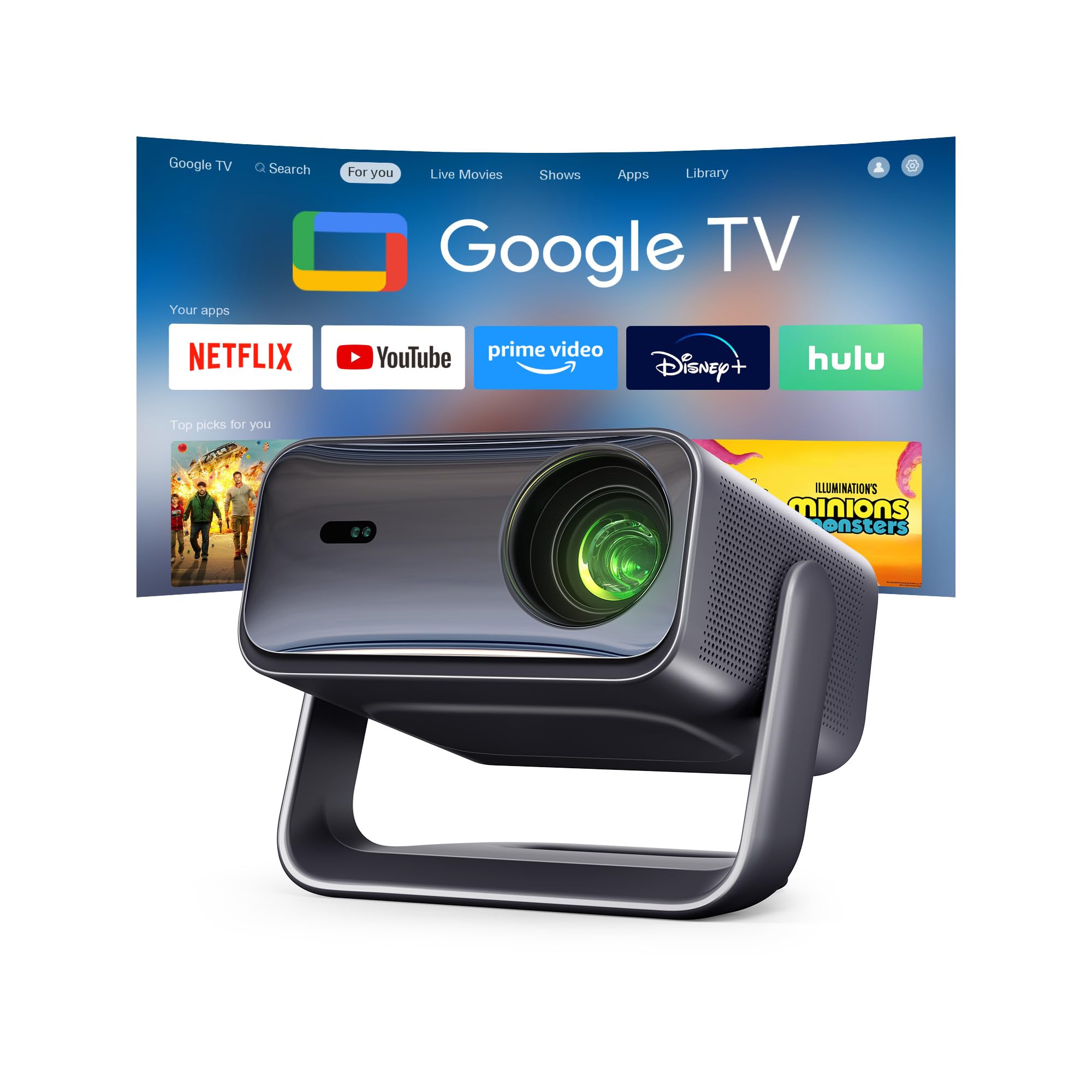
Figure 3.1: Front view of the XuanPad RD-811 Smart Projector, showcasing the lens and sleek design.
3.1 Key Features
- Official Google TV: Access 10,000+ apps and Google Assistant voice control.
- Sealed Optical Engine: Dust-free design for long-lasting clarity.
- 4K Decoding & HDR10+: Supports 4K input with enhanced color and contrast.
- AI Auto Focus & Keystone: Automatic picture correction for instant setup.
- WiFi 6 & Bluetooth 5.3: High-speed wireless connectivity for streaming and audio.
- Dual 68W Dolby Audio: Integrated speakers for immersive sound.
4. Setup
4.1 Placement
Place the projector on a stable, flat surface. For optimal viewing, position it directly in front of your projection screen or wall. The projector features automatic keystone correction, allowing for flexible placement angles.
4.2 Power Connection
- Connect the power cord to the projector's power input port.
- Plug the other end of the power cord into a power outlet.
4.3 Initial Power On & Automatic Adjustments
- Press the power button on the projector or the remote control to turn on the device.
- The projector will automatically perform TOF auto-focus and keystone correction to provide a clear, rectangular image.
- Allow a few seconds for the system to boot up and complete initial adjustments.
4.4 Network & Google TV Setup
- Follow the on-screen prompts to connect to your Wi-Fi network.
- Sign in with your Google account to access Google TV features, download apps, and personalize your experience.
Video 4.1: An unboxing and introduction video for the RD811 projector, demonstrating initial setup steps and features.
5. Operating Instructions
5.1 Google TV Interface
Navigate the Google TV home screen using the remote control. You can browse recommended content, access installed apps, and manage settings.

Figure 5.1: The Google TV interface displayed on the projector, showing various streaming app icons and content suggestions.
5.2 Voice Control (Google Assistant)
Press the Google Assistant button on your remote control and speak into the microphone to search for content, control playback, or get information.
5.3 Connectivity
- HDMI: Connect external devices like gaming consoles, Blu-ray players, or laptops using an HDMI cable. The projector supports HDMI ARC/CEC for enhanced audio control.
- USB: Plug in USB drives to play media files directly.
- Bluetooth 5.3: Pair Bluetooth headphones or external speakers for private listening or amplified audio.
- WiFi 6: Enjoy high-speed wireless streaming and screen mirroring from compatible iOS, Android, and Windows devices.
5.4 Picture Adjustments
- Digital Zoom: Use the remote control to adjust the screen size from 50% to 100% without moving the projector.
- Manual Focus/Keystone: While automatic adjustments are standard, you can fine-tune focus and keystone correction through the projector's settings menu if needed.
5.5 Audio Settings
The projector features dual 68W Dolby Audio speakers. You can adjust volume via the remote. For external audio, connect via Bluetooth or the 3.5mm audio jack.
5.6 Kids Mode
Access Kids Mode through the Google TV interface to provide a family-friendly viewing environment with curated content and parental controls.
Video 5.2: A feature overview video for the RD811, highlighting its smart capabilities, picture quality, and connectivity options.
6. Maintenance
6.1 Cleaning
- Lens: Gently wipe the projector lens with a soft, lint-free cloth specifically designed for optical surfaces. Do not use abrasive cleaners.
- Exterior: Clean the projector's exterior with a soft, dry cloth. Avoid using liquid cleaners directly on the device.
Note: The XuanPad RD-811 features a sealed optical engine, significantly reducing dust accumulation inside the projector and minimizing the need for internal cleaning.
6.2 Storage
When not in use for extended periods, store the projector in a cool, dry place, away from direct sunlight and extreme temperatures. Use the original packaging or a protective case to prevent dust and damage.
6.3 Firmware Updates
The projector may receive periodic firmware updates to improve performance and add new features. Check for updates in the system settings menu under 'About' or 'System Update'.
7. Troubleshooting
If you encounter issues, refer to the following common problems and solutions:
| Problem | Solution |
|---|---|
| No power | Ensure the power cord is securely connected to both the projector and the power outlet. Try a different outlet. |
| No image | Check if the projector is powered on. Verify the input source (HDMI, USB) is correctly selected. Ensure connected devices are powered on. |
| Blurry image | Allow auto-focus to complete. If still blurry, manually adjust focus in the settings. Ensure the lens is clean. |
| No sound | Check the volume level. Ensure external audio devices are properly connected and selected. Verify the audio output settings on connected source devices. |
| Remote control not working | Check and replace batteries. Ensure there are no obstructions between the remote and the projector. |
| Wi-Fi connection issues | Ensure the projector is within range of your Wi-Fi router. Restart your router and the projector. Re-enter Wi-Fi password. |
8. Specifications
Detailed technical specifications for the XuanPad RD-811 Smart Projector:
| Feature | Specification |
|---|---|
| Brand | XuanPad |
| Model Name | RD-811 |
| Native Resolution | 1920 x 1080 (Full HD) |
| Max Display Resolution | 4096 x 2160 pixels (4K Decoding) |
| Brightness | 9500 ANSI Lumens |
| Focus Mode | AI Auto Focus |
| Keystone Correction | AI Auto 4P/6D Keystone |
| Projection Size | 40 - 250 inches |
| Operating System | Google TV 11.0 |
| Wireless Connectivity | WiFi 6, Bluetooth 5.3 |
| Ports | HDMI (ARC/CEC), USB, 3.5mm Audio Jack |
| Noise Level | < 30 dB |
| Controller Type | App Control, Voice Control, Remote Control |
| Dimensions (L x W x H) | 12.17" x 9.7" x 9" (approx.) |
| Weight | 8.8 lb (approx.) |
9. Warranty and Support
The XuanPad RD-811 Smart Projector comes with a 2-Year Protection Plan and Lifetime Customer Care. For any technical assistance, warranty claims, or support inquiries, please contact XuanPad customer service through the official website or your purchase platform.
Documents and downloads
Ask a question about this manual
Ask about setup, troubleshooting, compatibility, parts, safety, or missing instructions. Manuals+ will review the question and use this page’s manual context to help answer it.