
1. Product Overview
The Gamrombo Wireless Controller is designed for an immersive gaming experience across multiple platforms. It features advanced Hall Effect sensors for precise control, customizable RGB lighting, dual motor vibration, and programmable functions like Turbo and Macro. A 3.5mm headphone jack is included for audio connectivity.
This controller is compatible with Xbox One, Xbox Series X/S, PC (Windows 7/8/10/11), Android, and iOS devices.
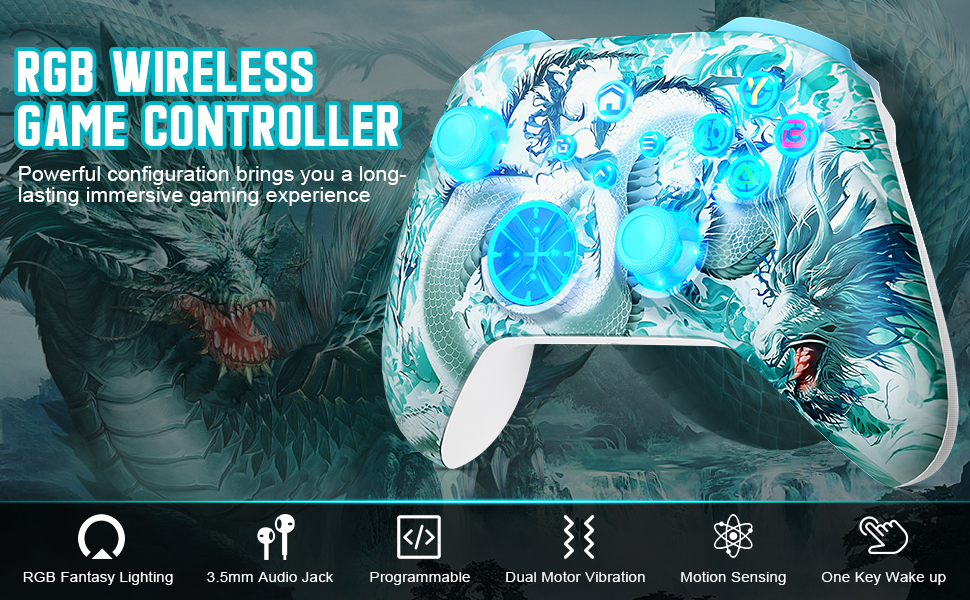
Image: Gamrombo Wireless Controller with Jade Dragon design, highlighting key features such as RGB lighting, 3.5mm audio jack, programmability, dual motor vibration, motion sensing, and one-key wake-up.
2. Package Contents
- Gamrombo Wireless Controller (Jade Dragon design)
- USB Charging Cable
- User Manual
Note: A wireless dongle and 2xAA batteries are not included and must be purchased separately for certain wireless connections.
3. Setup and Connection
3.1 Charging the Controller
Before first use, fully charge the controller. Connect the provided USB charging cable to the controller's charging port and to a USB power source (e.g., console, PC, USB wall adapter). The indicator light will show charging status and turn off when fully charged.
3.2 Wireless Connection (Xbox Consoles)
- Ensure your Xbox console is powered on.
- Press and hold the Xbox button on the controller to turn it on.
- Press the Pair button on your Xbox console (usually on the front or side).
- Press and hold the Pair button on the top of the Gamrombo controller until the Xbox button on the controller flashes rapidly.
- Once the Xbox button on the controller remains solid, the connection is successful.
3.3 Wireless Connection (PC, Android, iOS)
For PC, Android, and iOS devices, the controller connects via Bluetooth. Ensure your device has Bluetooth enabled.
- Turn on the controller by pressing the Xbox button.
- Press and hold the Pair button on the top of the controller until the Xbox button flashes rapidly.
- On your device, go to Bluetooth settings and search for new devices.
- Select "Gamrombo Controller" (or similar name) from the list to pair.
- Once paired, the Xbox button on the controller will remain solid.
Image: The controller highlighting its broad compatibility with various platforms including PC, Mac, Steam, Samsung, iOS, Android, and Windows.
4. Operating Instructions
4.1 Button Layout and Basic Functions
The controller features a standard Xbox button layout, including: A, B, X, Y buttons, D-pad, Left/Right Analog Sticks, LB/RB (Shoulder Buttons), LT/RT (Triggers), View, Menu, and Share buttons, and an Xbox Guide button.

Image: Close-up view of the controller's precision control buttons and 360-degree joysticks, designed for accurate input.
4.2 Hall Effect Joysticks and Triggers
The controller is equipped with Hall Effect sensors for both joysticks and triggers. This technology provides enhanced precision, reduces drift, and extends the lifespan of these components by eliminating physical contact wear.
4.3 Customizable RGB Lighting
The controller features RGB lighting effects that can be customized to your preference. Refer to the specific button combination or software (if applicable) for changing lighting modes and colors. This allows for a personalized gaming atmosphere.
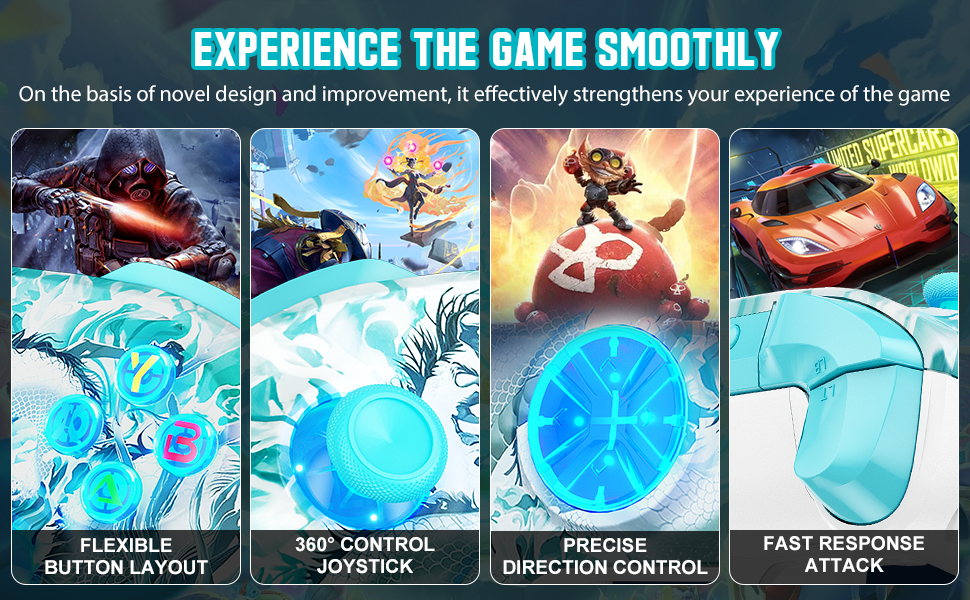
Image: The controller showcasing multiple customizable RGB lighting options, including various color combinations like Five Colors, Orange, Green, Yellow, Blue, and Reddish Violet.
4.4 Dual Motor Vibration
Built-in dual motors provide tactile feedback through vibration effects, enhancing immersion during gameplay. The intensity of the vibration may vary based on game events.

Image: The controller demonstrating its dual motor vibration feature, indicating different levels of shock feedback: weak, moderate, and strong.
4.5 6-Axis Motion Sensor
The integrated 6-axis motion sensor allows for dynamic control in games that support motion input. This enables actions like direction control, visual field angle changes, and responsive actions based on controller movement.

Image: The controller demonstrating its 6-axis motion sensor, illustrating how it enhances dynamic feeling through direction control, visual field angle changes, and action responsiveness.
4.6 Turbo Function
The Turbo function allows for rapid, automatic pressing of a button. To activate Semi-Auto Turbo Mode:
- Press and hold the TURBO key without releasing it.
- While holding TURBO, press any function key (e.g., A, B, X, Y, LB, RB, LT, RT).
- Release both keys. The selected function key will now have Turbo enabled.
To disable Turbo for a specific key, repeat the activation process for that key.

Image: The controller illustrating the Semi Auto Turbo function, showing how to activate it by pressing the TURBO key along with a desired action button (A, B, X, Y, LB, RB, LT, RT).
4.7 Macro Function (Programmable Buttons)
The controller supports an editable Macro function, allowing you to record a sequence of up to 16 key values to a single programmable button.
To set a Macro:
- Press the [Set] Key.
- Press any Function Key (e.g., ABXY, LB/RB, LT/RT, L3/R3, Turbo/Cross Key/Left&Right joysticks).
- Press [PL] or [PR] Key (programmable back buttons, if available).
- The sequence will be recorded.
Refer to the controller's specific programmable button locations for [PL] and [PR] keys.

Image: The controller illustrating the editable Macro function, detailing how to program sequences of up to 16 key values using the [Set] key and various function keys.
4.8 3.5mm Headphone Jack
A 3.5mm audio jack is integrated into the controller, allowing you to connect a compatible headset for in-game audio and chat (functionality may vary by platform and game).
5. Maintenance
- Cleaning: Use a soft, dry cloth to clean the controller. Avoid using harsh chemicals or abrasive materials.
- Storage: Store the controller in a cool, dry place away from direct sunlight and extreme temperatures.
- Battery Care: If the controller will not be used for an extended period, ensure it is fully charged before storage and periodically recharge it to maintain battery health.
6. Troubleshooting
| Problem | Possible Solution |
|---|---|
| Controller does not turn on. | Ensure the controller is charged. Connect it to a power source using the USB cable. |
| Controller does not connect wirelessly. |
|
| Buttons or joysticks are unresponsive. |
|
| Vibration function is not working. |
|
7. Specifications
- Model: B0HFHZWBWF
- Brand: Gamrombo
- Connectivity: Wireless (Bluetooth)
- Compatible Devices: Xbox One, Xbox Series X, Xbox Series S, PC (Windows 7/8/10/11), Android, iOS
- Special Features: Hall Effect Joysticks/Triggers, RGB Lighting, Dual Motor Vibration, 6-Axis Motion Sensor, Turbo Function, Macro Function, 3.5mm Headphone Jack
- Color: Jade Dragon
- Manufacturer: Gamrombo
8. Warranty and Support
This Gamrombo controller comes with a 1-Year Warranty from the date of purchase, covering manufacturing defects.
For technical support, warranty claims, or further assistance, please contact Gamrombo customer service through their official website or the retailer where the product was purchased.
Online Support: Visit the Gamrombo Store on Amazon for more information and support resources.


