
1. Introduction
Thank you for choosing the Acer OHR649 Gaming Headset. This manual provides essential information to help you set up, operate, and maintain your new headset. Please read it carefully before use and keep it for future reference.
Key Features:
- Lightweight Design: Approximately 270g with a soft suspension headband for extended comfort.
- Versatile Connectivity: Supports 2.4GHz wireless, Bluetooth 5.4, and 3.5mm wired connections.
- Multi-Platform Compatibility: Works with PS5, PS4, PC, Mac, Nintendo Switch, smartphones, and more.
- Clear Audio: Equipped with 50mm neodymium drivers for immersive sound quality.
- Detachable Microphone: Unidirectional microphone with ENC (Environmental Noise Cancellation) for clear communication.
- Long Battery Life: Up to 45 hours of continuous use on a single charge.

Figure 1.1: Acer OHR649 Gaming Headset. This image shows the overall design of the headset with its black finish and green Acer logo.

Figure 1.2: Headset Dimensions. The image displays the headset with measurements, indicating a width of 9.8cm and a length of 18.8cm, highlighting its compact and lightweight design.
2. Package Contents
Please check the package for the following items:
- Acer OHR649 Gaming Headset
- Detachable Unidirectional Microphone
- 2.4GHz USB Wireless Dongle
- 3.5mm Audio Cable
- USB-C Charging Cable
- User Manual (this document)

Figure 2.1: Package Contents. This image illustrates the headset, USB dongle, 3.5mm audio cable, USB-C charging cable, and the user manual, as they appear when unboxed.
3. Setup
3.1 Charging the Headset
Before first use, fully charge the headset. Connect the USB-C charging cable to the headset's charging port and the other end to a USB power source (e.g., computer USB port, USB wall adapter). The LED indicator will show charging status.
3.2 Attaching the Microphone
Align the detachable microphone with the microphone port on the left earcup and gently push it in until it clicks into place. Ensure it is securely connected for optimal voice pickup.
3.3 Connection Modes
The Acer OHR649 headset offers three versatile connection options:

Figure 3.1: 3-in-1 Connection Modes. This diagram illustrates the three connection types: 2.4GHz wireless (for Switch, PS5, PC), Bluetooth 5.3 (for tablets, mobile phones, notebooks), and 3.5mm wired (for PS4, Switch, PC).
- 2.4GHz Wireless Mode:
- Plug the 2.4GHz USB wireless dongle into an available USB port on your device (PC, PS5, Nintendo Switch).
- Power on the headset. It will automatically attempt to connect to the dongle.
- The LED indicator on the headset will confirm a successful connection.
- Bluetooth 5.4 Mode:
- Power on the headset.
- Press and hold the Bluetooth/Mode button on the headset until the LED indicator flashes, indicating pairing mode.
- On your device (smartphone, tablet, notebook), go to Bluetooth settings and select "Acer OHR649" from the list of available devices.
- The LED indicator will show a solid light when successfully paired.
- 3.5mm Wired Mode:
- Connect one end of the 3.5mm audio cable to the headset's 3.5mm port.
- Connect the other end to the 3.5mm audio jack on your device (PC, PS4, Xbox controller, Nintendo Switch).
- No power is required for wired mode, but the headset must be powered off for wired audio to function correctly on some devices.
4. Operating Instructions
4.1 Controls Overview
The headset features intuitive controls located on the earcups:
- Power Button: Press and hold to power on/off.
- Volume Wheel: Scroll up or down to adjust audio volume.
- Microphone Mute Button: Press to mute/unmute the microphone.
- Mode/Bluetooth Button: Short press to switch between 2.4GHz and Bluetooth modes. Long press to enter Bluetooth pairing mode.

Figure 4.1: Headset Controls. This image highlights the location of the control buttons on the earcup, including the mode switch button.
4.2 Microphone Usage
The detachable unidirectional microphone is designed to pick up your voice clearly while minimizing background noise. Use the microphone mute button to control your audio input.

Figure 4.2: Detachable Microphone with ENC. The image shows the microphone's design and illustrates its noise-cancelling capabilities, with a waveform before and after noise removal.
4.3 Platform Compatibility
The headset offers broad compatibility across various platforms. Refer to the table below for supported features per connection type:
| Platform | 2.4GHz Wireless | Bluetooth 5.4 | 3.5mm Wired |
|---|---|---|---|
| PC | Audio & Mic | Audio & Mic | Audio & Mic |
| PS5 / PS4 | Audio & Mic | Audio Only | Audio & Mic |
| Nintendo Switch | Audio Only | Audio Only | Audio Only |
| Xbox Series X|S / Controller | Not Supported | Not Supported | Audio & Mic |
| Smartphone / Tablet | Not Supported | Audio & Mic | Audio & Mic |
5. Maintenance
5.1 Cleaning
- Wipe the headset with a soft, dry cloth.
- For earpads, gently wipe with a slightly damp cloth and allow to air dry completely. Do not use harsh chemicals or abrasive cleaners.
- Ensure all ports are free from dust and debris.

Figure 5.1: Premium Earpads. This image highlights the breathable sports mesh material of the earpads, designed for comfort during long sessions.
5.2 Storage
Store the headset in a cool, dry place away from direct sunlight and extreme temperatures. Avoid placing heavy objects on the headset.
5.3 Battery Care
To prolong battery life, avoid fully discharging the headset frequently. Charge the headset regularly, even if not in use for extended periods. The headset supports charging while in use.
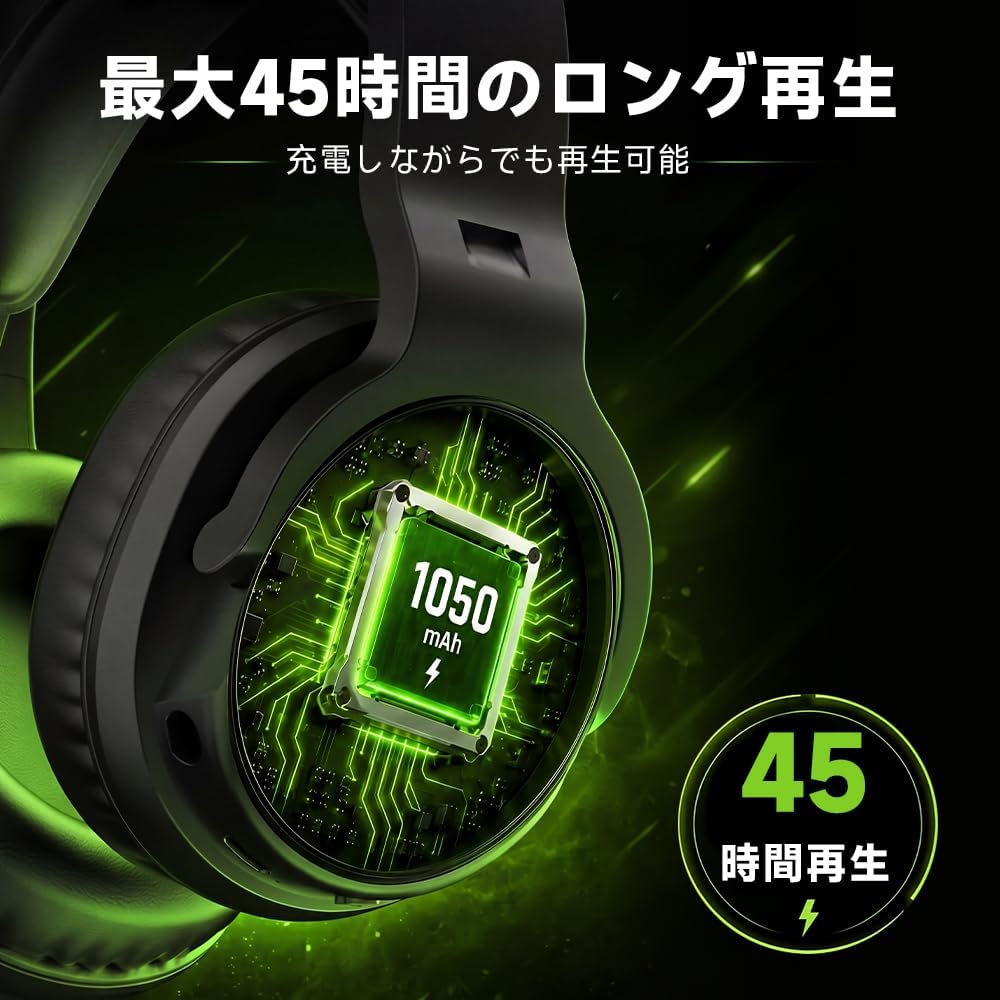
Figure 5.2: 45-Hour Battery Life. This image shows the internal battery component with a 1050mAh capacity, indicating the headset's long-lasting power.
6. Troubleshooting
If you encounter any issues with your headset, please refer to the following common solutions:
- No Sound:
- Check volume levels on both the headset and your device.
- Ensure the headset is properly connected (wired, 2.4GHz dongle, or Bluetooth paired).
- Verify audio output settings on your device are set to the headset.
- Reboot your device and headset.
- Microphone Not Working:
- Ensure the microphone is securely attached and not muted.
- Check microphone input settings on your device.
- Test the microphone on another device if possible.
- Cannot Connect/Pair:
- Ensure the headset is in the correct pairing mode (Bluetooth) or the dongle is properly inserted (2.4GHz).
- Move the headset closer to your device.
- Clear previous Bluetooth pairings on your device and try again.
- Ensure no other devices are interfering with the connection.
- Poor Audio Quality:
- Ensure the headset is fully charged.
- Reduce interference by moving away from other wireless devices.
- For wired connection, ensure the 3.5mm cable is fully inserted.
7. Specifications
| Feature | Specification |
|---|---|
| Brand | Acer |
| Model Name | OHR649 |
| Color | Black |
| Connectivity | 2.4G Wireless, Bluetooth 5.4, 3.5mm Wired |
| Driver Size | 50mm Neodymium |
| Impedance | 32 Ohms |
| Microphone Type | Detachable, Unidirectional, ENC |
| Battery Capacity | 1050mAh |
| Battery Life | Up to 45 hours (lights off, 100% volume) |
| Weight | Approx. 0.28 kg (280g) |
| Ear Placement | Over-Ear |
| Noise Control | Sound Isolation |
| GTIN | 195133381154 |

Figure 7.1: 50mm Dynamic Driver. This image shows an exploded view of the earcup, highlighting the 50mm dynamic driver components responsible for the headset's sound quality.
8. Warranty Information
This Acer OHR649 Gaming Headset comes with a one-year limited warranty from the date of purchase. The warranty covers manufacturing defects in materials and workmanship under normal use. It does not cover damage caused by misuse, accidents, unauthorized modifications, or normal wear and tear. Please retain your proof of purchase for warranty claims.
9. Support
For further assistance, technical support, or warranty inquiries, please visit the official Acer support website or contact your local Acer customer service. You can find detailed support resources, FAQs, and contact information on the Acer website.
Acer Official Website: www.acer.com/support


