
1. Introduction
This manual provides essential information for setting up, operating, maintaining, and troubleshooting your HP ProDesk Small Form Factor (SFF) Business Desktop Computer. Please read this manual thoroughly before using your computer to ensure proper operation and to maximize its lifespan. Keep this manual for future reference.
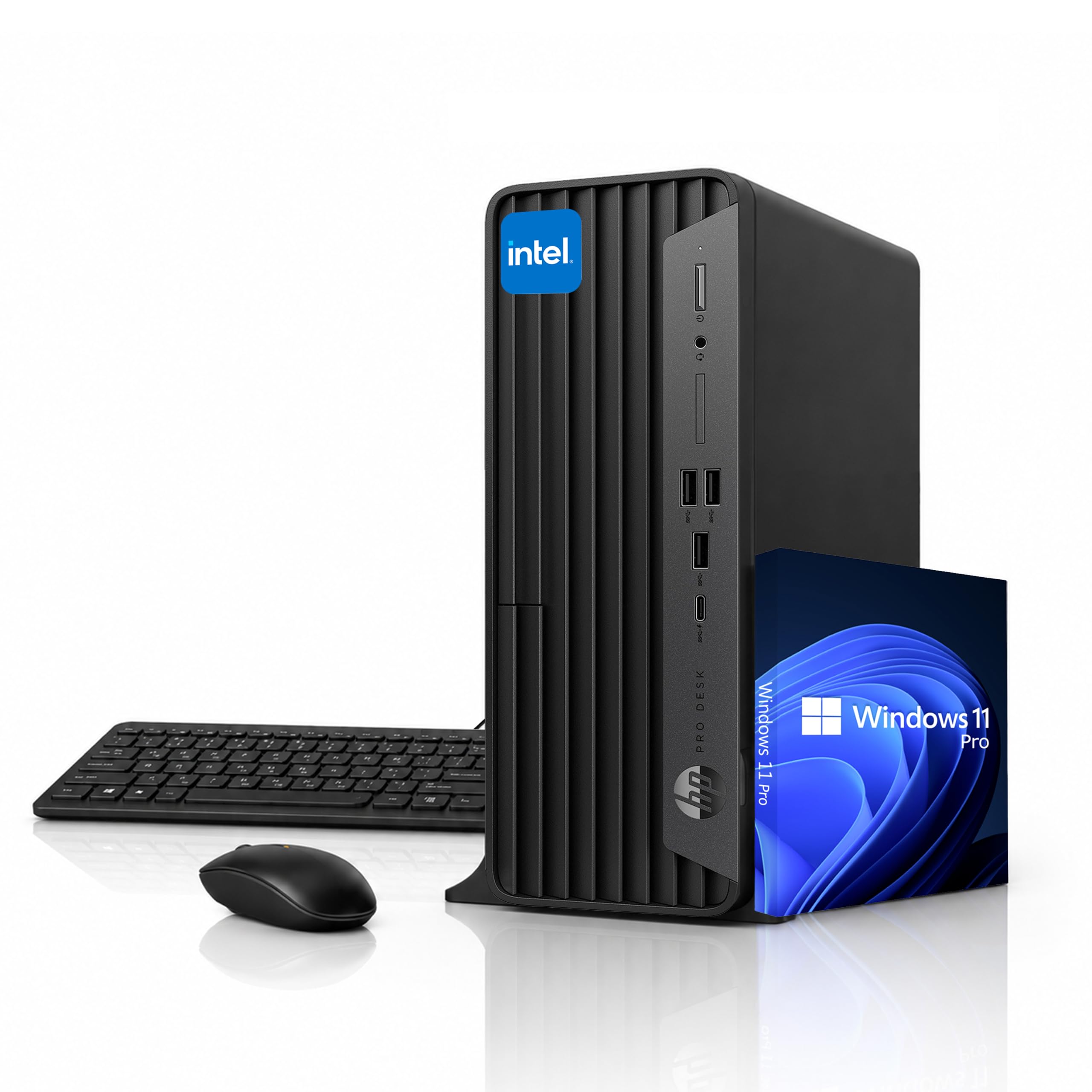
Image 1.1: Front view of the HP ProDesk SFF Business Desktop Computer.
2. Safety Information
- Electrical Safety: Always connect the computer to a grounded power outlet. Do not overload power strips.
- Ventilation: Ensure adequate airflow around the computer. Do not block ventilation openings.
- Liquid Exposure: Keep liquids away from the computer to prevent electrical shock or damage.
- Temperature: Operate the computer within recommended temperature ranges (typically 10°C to 35°C or 50°F to 95°F).
- Servicing: Refer all servicing to qualified service personnel. Do not attempt to open the computer chassis unless instructed by HP support.
3. What's in the Box
Your HP ProDesk SFF Business Desktop Computer package should contain the following items:
- HP ProDesk SFF Business Desktop Computer
- Power Cord
- Wired Keyboard
- Wired Mouse
- Documentation (Quick Start Guide, Warranty Information)
4. Physical Overview
4.1 Front Ports

Image 4.1: Detailed diagram of front and rear ports.
The front panel provides convenient access to frequently used ports:
- USB 3.2 Gen 2 Type-C (10 Gbps): For connecting modern USB-C devices.
- USB 3.2 Gen 1 Type-A (5 Gbps) (x3): For connecting USB devices such as flash drives, external hard drives, or peripherals.
- Headphone / Microphone Combo Jack: For connecting a headset or separate headphones and microphone.
- Power Button: To turn the computer on or off.
4.2 Rear Ports
The rear panel houses ports for essential connections:
- Audio-out Jack: For connecting external speakers or headphones.
- DisplayPort 1.4: For connecting a display monitor.
- HDMI 1.4: For connecting a display monitor or TV.
- USB 3.0 Type-A (x4): For connecting USB devices.
- RJ-45 Gigabit Ethernet: For wired network connection.
- Power Connector: For connecting the power cord.
5. Setup
5.1 Unpacking and Placement
Carefully remove the computer and all accessories from the packaging. Place the computer on a stable, flat surface. Ensure there is adequate space around the computer for ventilation. The compact design allows for vertical or horizontal placement.

Image 5.1: The HP ProDesk SFF can be placed vertically or horizontally to fit various setups.
5.2 Connecting Peripherals
- Monitor: Connect your monitor to either the DisplayPort or HDMI port on the rear of the computer.
- Keyboard and Mouse: Connect the wired keyboard and mouse to any available USB Type-A ports on the front or rear of the computer.
- Network (Optional): For a wired internet connection, connect an Ethernet cable from your router or modem to the RJ-45 port on the rear.
- Power: Connect the power cord to the power connector on the rear of the computer, then plug the other end into a grounded electrical outlet.
5.3 Initial Power On
Press the power button on the front of the computer. The system will boot up, and you will be guided through the initial setup process for Windows 11 Pro. Follow the on-screen instructions to configure your operating system, user accounts, and network settings.
6. Operating Instructions
6.1 Power On/Off and Restart
- Power On: Press the power button.
- Shut Down: Click the Start button in Windows, then select Power > Shut down.
- Restart: Click the Start button in Windows, then select Power > Restart.
6.2 Network Connectivity
- Wired Ethernet: If an Ethernet cable is connected, the computer will automatically attempt to establish a wired network connection.
- Wi-Fi: To connect to a wireless network, click the Wi-Fi icon in the system tray, select your desired network, and enter the password if prompted.
6.3 Dual Display Support
The HP ProDesk SFF supports dual 4K displays via its DisplayPort 1.4 and HDMI 1.4 outputs. To set up multiple monitors:
- Connect both monitors to the available video output ports on the rear of the computer.
- Right-click on the desktop and select 'Display settings'.
- Configure the display arrangement (extend, duplicate, or show only on one display) as needed.
7. Maintenance
7.1 Cleaning
- Exterior: Use a soft, lint-free cloth lightly dampened with water or a mild cleaning solution. Avoid harsh chemicals.
- Ventilation Openings: Periodically use compressed air to clear dust from the ventilation openings to maintain optimal airflow.
7.2 Software Updates
Regularly update your Windows operating system and drivers to ensure system stability, security, and performance. Windows Update can be accessed via 'Settings > Windows Update'.
7.3 Data Backup
It is recommended to regularly back up your important data to an external drive or cloud storage to prevent data loss.
8. Troubleshooting
This section addresses common issues you might encounter.
| Problem | Possible Solution |
|---|---|
| Computer does not power on | Check power cord connections to the computer and the electrical outlet. Ensure the outlet is functional. |
| No display on monitor | Verify monitor power and cable connections. Ensure the correct input source is selected on the monitor. Try connecting to a different video port. |
| No internet connection | For wired: Check Ethernet cable connection. For Wi-Fi: Ensure Wi-Fi is enabled and connected to the correct network. Restart your router/modem. |
| Keyboard or mouse not responding | Ensure USB connections are secure. Try connecting to a different USB port. Restart the computer. |
If you encounter issues not listed here or if the suggested solutions do not resolve the problem, please contact HP support.
9. Specifications
Key technical specifications for the HP ProDesk SFF Business Desktop Computer:
- Processor: Intel Celeron G6900 (up to 3.4GHz)
- Graphics: Intel UHD Integrated Graphics
- Operating System: Windows 11 Pro
- Memory (RAM): 8 GB DDR4 (expandable up to 64 GB)
- Storage: 512 GB PCIe NVMe SSD (expandable up to 2 TB)
- Connectivity: Wi-Fi, Bluetooth, Gigabit Ethernet
- Front Ports: 1x USB 3.2 Gen 2 Type-C, 3x USB 3.2 Gen 1 Type-A, 1x Headphone/Microphone Combo Jack, 1x Power Button
- Rear Ports: 1x DisplayPort 1.4, 1x HDMI 1.4, 4x USB 3.0 Type-A, 1x RJ-45, 1x Audio-out Jack, 1x Power Connector
- Dimensions (H x W x D): Approximately 12.1 x 3.9 x 10.6 inches (30.7 x 9.9 x 26.9 cm)
- Weight: Approximately 9.59 lbs (4.35 kg)
10. Warranty and Support
10.1 Warranty Information
Your HP ProDesk SFF Business Desktop Computer comes with a 1-Year Limited Warranty. This warranty covers defects in materials and workmanship under normal use. For full terms and conditions, please refer to the warranty documentation included with your product or visit the official HP support website.
10.2 Technical Support
For technical assistance, driver downloads, or further information, please visit the official HP support website or contact HP customer service. Have your product model and serial number ready when contacting support.
HP Support Website: www.hp.com/support
11. Environmental Responsibility
HP is committed to environmental sustainability. This product incorporates environmentally conscious design and materials.

Image 11.1: HP's commitment to sustainable practices, including the use of recycled materials.
This PC utilizes a percentage of ocean-bound plastics in components like the speaker enclosure and front bezel I/O strip. The outer box packaging is made from 100% recycled molded pulp. The product is ENERGY STAR® certified and EPEAT® registered, reflecting its energy efficiency and reduced environmental impact.