
1. Introduction
This manual provides essential information for setting up, operating, and maintaining your TuTu 32 Inch F-Series FHD Smart TV. This television features a Full High Definition (1080p) display, Tizen OS powered by SamsungTV, HDR support, and Dolby Audio for an enhanced viewing experience.
Please read this manual thoroughly before using your TV to ensure proper operation and to maximize your enjoyment of its features.

Image 1.1: Overview of the TuTu 32 Inch F-Series Smart TV's key features, including its Tizen OS interface, Full HD resolution, HDR capabilities, and SmartThings integration.
2. What's in the Box
Carefully unpack the box and ensure all the following items are present:
- TuTu 32 Inch F-Series FHD Smart TV
- Power Cable
- Remote Control
- Remote Control Batteries (2 x AAA)
- TV Stand (Base and Screws)
- User Manual (This document)
- Warranty Card

Image 2.1: Visual representation of the TV's dimensions and the accessories included in the product packaging.
3. Setup
3.1 Attaching the Stand
- Place the TV screen-down on a soft, flat surface to prevent damage.
- Align the stand bases with the corresponding slots on the bottom of the TV.
- Secure the stands using the provided screws. Ensure they are tightened firmly.
3.2 Initial Power On and Samsung Account Activation
After connecting the power cable and turning on the TV for the first time, you will be guided through the initial setup process.
Important Note: Activation of the TV requires a Samsung account. You cannot complete the initial setup without one. If you do not have an account, please register on the Samsung official website before starting the setup process.
During the initial setup, you may be prompted to bind a credit card to your Samsung account. If you plan to use only free services (such as Samsung TV Plus), you can skip this credit card binding step. Binding a card is only necessary if you intend to access paid features or content. If you skip card binding initially but later decide to use paid services, you can easily add your credit card details at any time within your Samsung account settings.
3.3 Network Connection
Your TV supports both Wi-Fi and wired (Ethernet) connections for internet access. During the initial setup, you will be prompted to connect to your home network. Follow the on-screen instructions to select your Wi-Fi network and enter the password, or connect an Ethernet cable to the RJ45 port on the TV.
4. Operating the TV
4.1 Remote Control Functions
The included remote control allows you to navigate the TV's interface and control various functions. Insert the two AAA batteries into the remote control, ensuring correct polarity.
- Power Button: Turns the TV on or off.
- Volume Up/Down: Adjusts the audio volume.
- Channel Up/Down: Changes TV channels.
- Navigation Pad (Up/Down/Left/Right): Moves the cursor or selection on screen.
- Enter/OK Button: Confirms a selection.
- Back Button: Returns to the previous screen or menu.
- Home Button: Accesses the Tizen OS Smart Hub.
- App Shortcut Buttons: Direct access to popular streaming services like Netflix.
4.2 Smart TV Features (Tizen OS)
Your TuTu Smart TV is powered by Tizen OS, offering a user-friendly interface and access to a wide range of applications and services.

Image 4.1: The Tizen OS Smart Hub, displaying a selection of streaming applications and recommended content.
- Samsung TV Plus: Access a variety of free live TV channels across different genres without any subscription fees or credit card details required.
- Streaming Services: Enjoy popular platforms like YouTube, Netflix, Hulu, and more. Note that some services may require a separate subscription.
- Gaming Hub: Discover and play games directly on your TV.
- SmartThings: Integrate your TV with other compatible smart home devices for centralized control.
- Bixby: Utilize voice commands for TV control and information retrieval.

Image 4.2: Key features of the Tizen OS, emphasizing its integration with Samsung services and smart home capabilities.
4.3 Audio and Video Settings
Access the TV's settings menu to customize your viewing and listening experience.
- FHD (Full High Definition): The TV displays content at 1080p resolution (1920 x 1080 pixels) for clear and detailed images.
- HDR (High Dynamic Range): This technology enhances contrast and color accuracy, providing brighter highlights and deeper blacks for a more realistic picture.
- Color Enhancement: The TV features a wider color gamut to restore and enhance image colors, offering up to 20% more colors than conventional TVs.
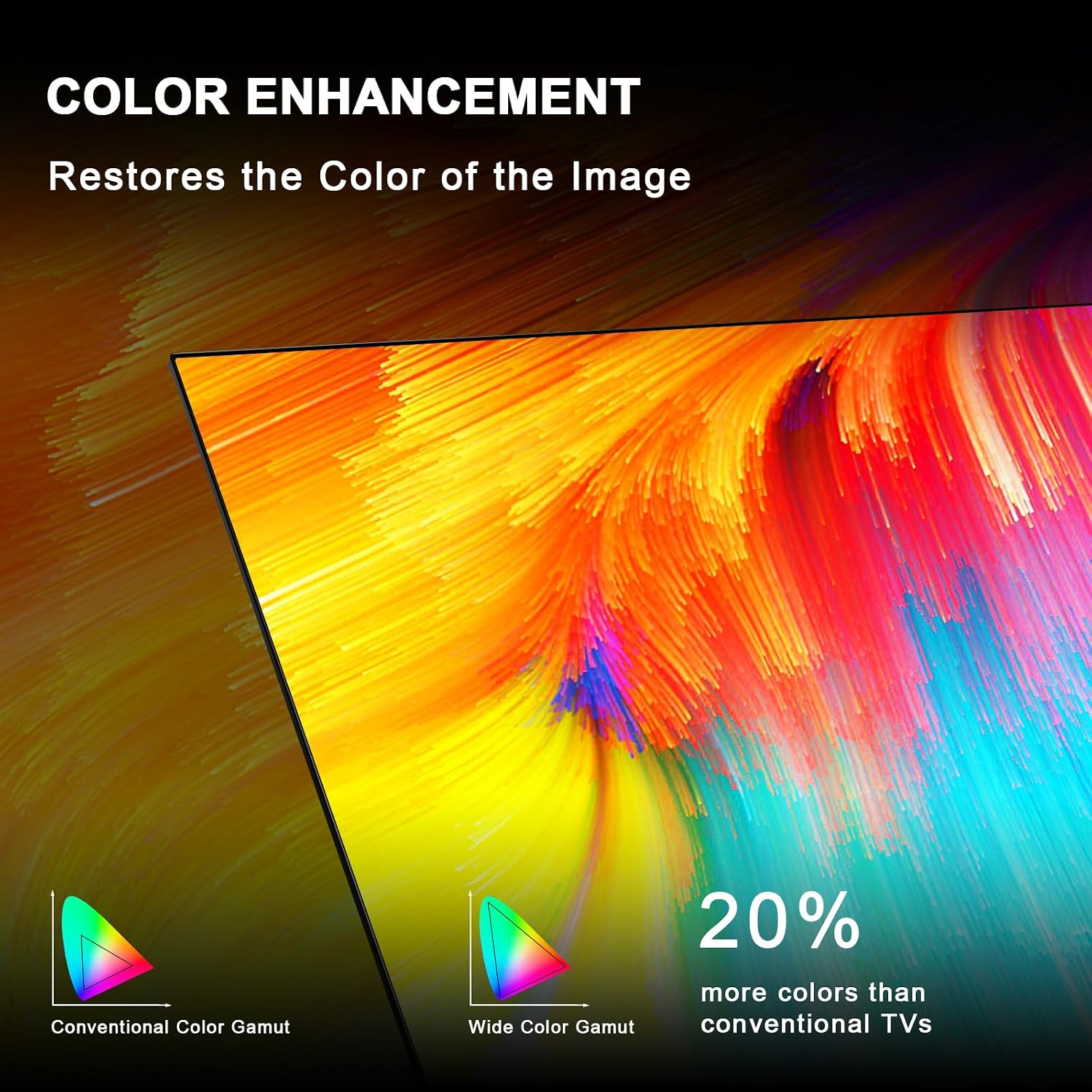
Image 4.3: Explanation of the TV's color enhancement feature, demonstrating the expanded color range.
- Dolby Audio: Experience enhanced sound quality with Dolby Audio, providing clear dialogue, deeper bass, and a more immersive soundstage.

Image 4.4: Visual representation of the Dolby Audio feature, highlighting its immersive sound capabilities.
5. Connectivity
Your TV offers various ports and wireless options for connecting external devices and networks.
5.1 Available Ports

Image 5.1: Location and types of connectivity ports on the side and bottom of the TV.
- HDMI Ports (x3): Connect high-definition devices such as Blu-ray players, gaming consoles, and set-top boxes.
- USB Ports (x2): Connect USB storage devices for media playback.
- RF Input: Connect an antenna or cable for broadcast TV.
- Optical Audio Output: Connect to a soundbar or home theater system for digital audio.
- Video L-IN-R (Component/Composite): Connect older analog devices.
- RJ45 (Ethernet) Port: For a wired internet connection.
5.2 Wireless Connectivity
- Wi-Fi: Connects to your home wireless network for internet access and streaming.
- Bluetooth: Connects wireless headphones, soundbars, or other Bluetooth-enabled devices.
6. Maintenance
To ensure the longevity and optimal performance of your TV, follow these maintenance guidelines:
- Cleaning the Screen: Gently wipe the screen with a soft, dry microfiber cloth. For stubborn marks, lightly dampen the cloth with water or a screen-specific cleaning solution (do not spray directly onto the screen).
- Cleaning the Cabinet: Use a soft, dry cloth to wipe the TV cabinet. Avoid using abrasive cleaners or solvents.
- Ventilation: Ensure the ventilation openings on the back of the TV are not blocked to prevent overheating.
- Power Cord: Regularly check the power cord for any damage. If damaged, replace it immediately.
7. Troubleshooting
If you encounter issues with your TV, refer to the following common troubleshooting tips:
- No Power: Ensure the power cable is securely connected to both the TV and a working power outlet. Check if the power outlet is functional.
- No Picture/Sound: Verify that the correct input source is selected. Check all cable connections (HDMI, antenna, etc.).
- Remote Control Not Working: Check the batteries in the remote control and replace them if necessary. Ensure there are no obstructions between the remote and the TV's sensor.
- Network Connection Issues: Restart your router and modem. Re-enter your Wi-Fi password in the TV's network settings. For wired connections, ensure the Ethernet cable is properly connected.
- Picture Quality Issues: Adjust picture settings (brightness, contrast, color) in the TV's menu. Ensure the content source is of high quality.
For more detailed troubleshooting or persistent issues, please refer to the support section on the TuTu official website or contact customer service.
8. Specifications
| Feature | Specification |
|---|---|
| Model Number | TIZEN32N1F |
| Screen Size | 32 inches (Display Size Class) |
| Resolution | 1080p (Full HD) |
| Display Technology | LED |
| Refresh Rate | 60 Hz |
| Operating System | Tizen OS |
| Audio Technology | Dolby Audio |
| Connectivity | Wi-Fi, Bluetooth, 3x HDMI, 2x USB, Optical, RJ45 |
| VESA Mount Standard | 100 x 100 mm |
| Product Dimensions (D x W x H) | 81.3D x 53.3W x 12.7H cm |
| Weight | 5.17 kg |
| Power Consumption | 45 watts |
| Included Components | Remote Control, Remote Control Battery, Stand, User Manual, Warranty Card |
9. Warranty and Support
Your TuTu 32 Inch F-Series FHD Smart TV comes with a warranty. Please refer to the included Warranty Card for details regarding coverage, terms, and conditions.
For technical support, product registration, or further inquiries, please visit the official TuTu website or contact their customer service department. Contact information can typically be found on the warranty card or the manufacturer's website.