
1. Introduction
This manual provides comprehensive instructions for the Redragon Varro Pro K517RGB-PRO gaming keyboard. It covers essential information regarding its features, setup, operation, maintenance, and troubleshooting. Please read this manual carefully to ensure proper use and to maximize your experience with the product.
The Redragon Varro Pro K517RGB-PRO is a compact 1800-layout membrane keyboard designed for gaming and productivity. It features tri-mode connectivity (2.4GHz wireless, Bluetooth, and wired USB Type-C), dedicated macro keys, and customizable RGB backlighting.
2. Package Contents
- Redragon Varro Pro K517RGB-PRO Gaming Keyboard
- USB Type-C Cable
- USB 2.4GHz Wireless Receiver
- User Manual
3. Setup
3.1. Connectivity Modes
The Redragon Varro Pro K517RGB-PRO keyboard supports three connection modes:
- Wired Mode (USB Type-C): Connect the keyboard directly to your computer using the provided USB Type-C cable. This mode also charges the keyboard battery.
- 2.4GHz Wireless Mode: Insert the USB 2.4GHz wireless receiver into an available USB port on your computer. The keyboard will automatically connect.
- Bluetooth Mode: The keyboard supports Bluetooth connectivity for up to three devices.
3.2. Initial Connection
- Power On: Locate the power switch on the keyboard and slide it to the 'ON' position.
- Select Mode: Use the mode switch (usually located on the side or back of the keyboard) to select your desired connection mode (2.4G for wireless, BT for Bluetooth, or USB for wired).
- Pairing (Bluetooth): If using Bluetooth, press and hold the Fn + BT1 (or BT2/BT3) key combination until the indicator light flashes rapidly, indicating pairing mode. On your device, search for 'Redragon K517RGB-PRO' and connect.
- Software Installation (Optional): For advanced customization of macros and RGB lighting, download and install the official Redragon software from the manufacturer's website. A link is provided in the specifications section.

Image: Side view of the Redragon Varro Pro K517RGB-PRO keyboard, highlighting the USB-C port, mode switch, and power switch for various connectivity options.
4. Operating Instructions
4.1. RGB Backlighting
The keyboard features customizable RGB backlighting. Use the dedicated function keys (often combined with the Fn key) to cycle through various lighting effects, adjust brightness, and change speed. Refer to the keyboard's quick guide or software for specific key combinations.
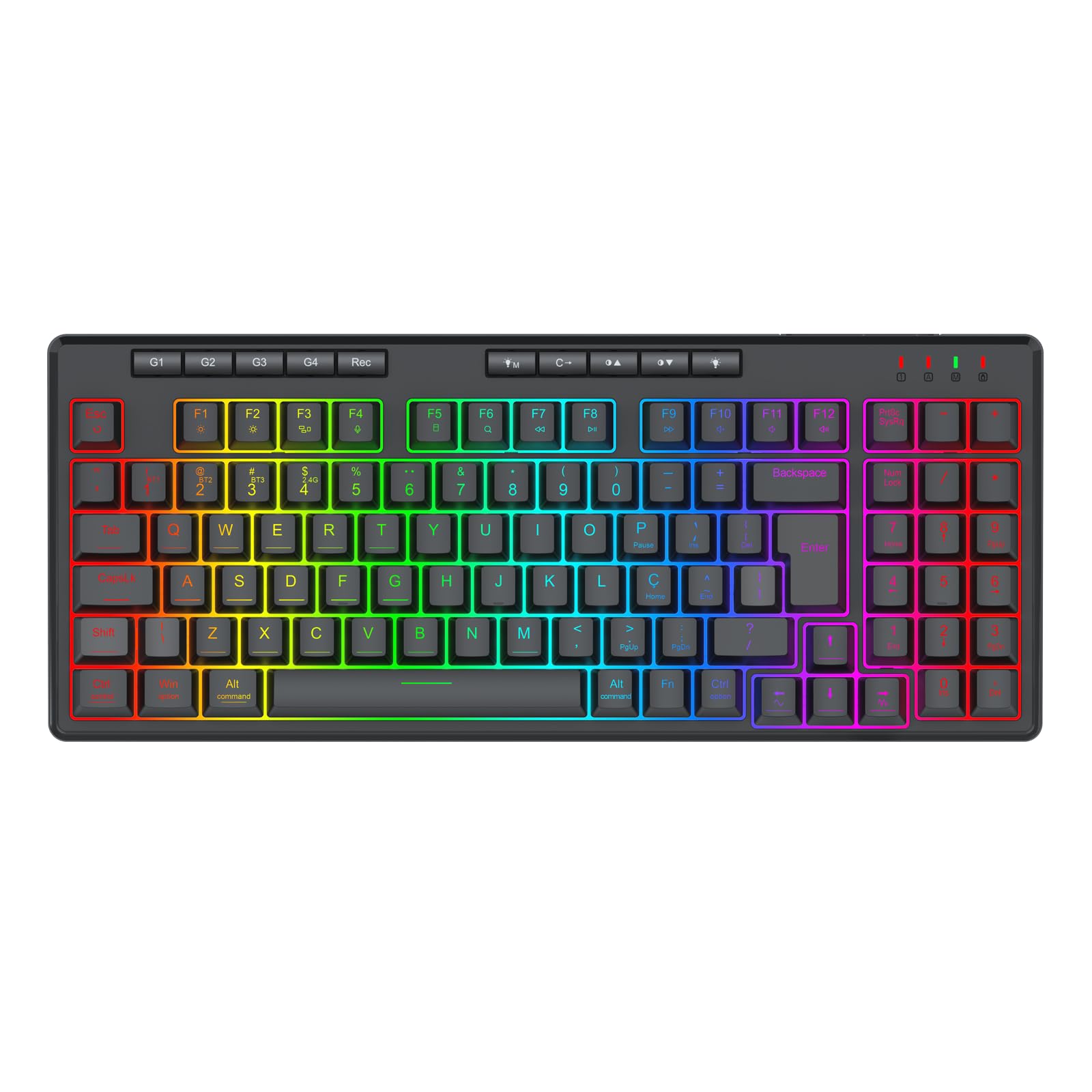
Image: Top-down view of the Redragon Varro Pro K517RGB-PRO keyboard showcasing its dynamic RGB backlighting across all keys.
4.2. Dedicated Macro Keys
The keyboard includes dedicated macro keys (G1-G4) located at the top left. These keys can be programmed using the Redragon software to execute complex commands or sequences with a single press. The 'Rec' key is typically used for on-the-fly macro recording.
4.3. 26-Key Rollover
The keyboard supports 26-key rollover, ensuring that up to 26 simultaneous key presses are registered accurately. This feature is crucial for fast-paced gaming and typing, preventing ghosting or missed inputs.
4.4. Multimedia Keys
Access multimedia functions (play/pause, volume up/down, mute) using the Fn key in combination with the designated F-keys or dedicated multimedia keys.
5. Maintenance
5.1. Cleaning
To clean your keyboard, power it off and disconnect it from your computer. Use a soft, dry cloth to wipe the surface. For deeper cleaning, a can of compressed air can remove debris from between the keys. Avoid using harsh chemicals or abrasive materials.
5.2. Battery Care
The keyboard is equipped with a 3.7V 4000mAh Lithium-Ion battery. To prolong battery life:
- Avoid fully discharging the battery frequently.
- Charge the keyboard when the battery indicator is low.
- Store the keyboard in a cool, dry place if not used for extended periods.
6. Troubleshooting
6.1. Keyboard Not Responding
- Ensure the keyboard is powered on.
- Check the connection mode switch (USB, 2.4G, BT) matches your intended connection.
- For wired mode, ensure the USB Type-C cable is securely connected to both the keyboard and the computer.
- For 2.4GHz wireless, ensure the USB receiver is properly inserted and the keyboard is in 2.4G mode.
- For Bluetooth, ensure the keyboard is paired correctly and selected as the input device on your computer. Try re-pairing if necessary.
- Check the battery level. Charge the keyboard if the battery is low.
6.2. Keys Not Registering / Ghosting
- This keyboard supports 26-key rollover, so ghosting should be minimal. If experiencing issues, ensure no debris is lodged under the keycaps.
- Try connecting the keyboard in wired mode to rule out wireless interference.
- Update keyboard drivers or software if available.
6.3. RGB Lighting Not Working
- Ensure the keyboard is powered on and connected.
- Check if the brightness is set to zero. Adjust using the designated function keys.
- If using the software, ensure lighting effects are enabled and configured correctly.
7. Specifications
| Feature | Detail |
|---|---|
| Model | K517RGB-PRO |
| Brand | Redragon |
| Actuation Type | Membrane |
| Layout | 1800 Compact, ABNT2 |
| Connectivity | USB 2.4GHz Wireless, Bluetooth, USB Type-C Wired |
| Special Features | Dedicated Macro Keys, RGB Illumination, 26-Key Rollover |
| Case Material | ABS Plastic |
| Keycaps | ABS Laser |
| Cable Length | 1.5 m |
| Battery Capacity | 3.7 V 4000mAh Lithium-Ion |
| Dimensions (Approx.) | 366 x 150 x 40 mm |
| Weight (Approx.) | 680 g |
| Software | Available for download at: Redragon K517RGB-PRO Software |
8. Warranty and Support
8.1. Warranty Information
This Redragon product comes with a 12-month warranty against manufacturing defects from the date of purchase. Please retain your proof of purchase for warranty claims. The warranty does not cover damage caused by misuse, accidents, unauthorized modifications, or normal wear and tear.
8.2. Customer Support
For technical support, warranty claims, or further assistance, please visit the official Redragon website or contact their customer service department. You can find contact information on the Redragon brand store page: Redragon Store.