
1. Introduction
The THINKCAR D200 is a powerful and reliable OBD2 diagnostic scanner designed to help you understand and resolve your vehicle's issues with ease. This compact, feature-rich device connects to your vehicle's OBD2 port, providing instant access to real-time data and fault codes. It is suitable for both professional mechanics and car enthusiasts, simplifying the process of reading and clearing diagnostic trouble codes and identifying potential problems early. The D200 supports a wide range of vehicle makes and models, making it a versatile tool for maintaining vehicle health and performance.
2. Product Overview
2.1. Package Contents
Upon opening the package, ensure all the following items are present:
- THINKCAR D200 Diagnostic Scanner
- User Manual (this document)
Note: The product name "Thinkcar Reader 8 Diagnostic Scanner" was mentioned in the 'Whats in the box?' section of the product data, but based on the product title and model, it is understood to refer to the THINKCAR D200.
2.2. Key Features
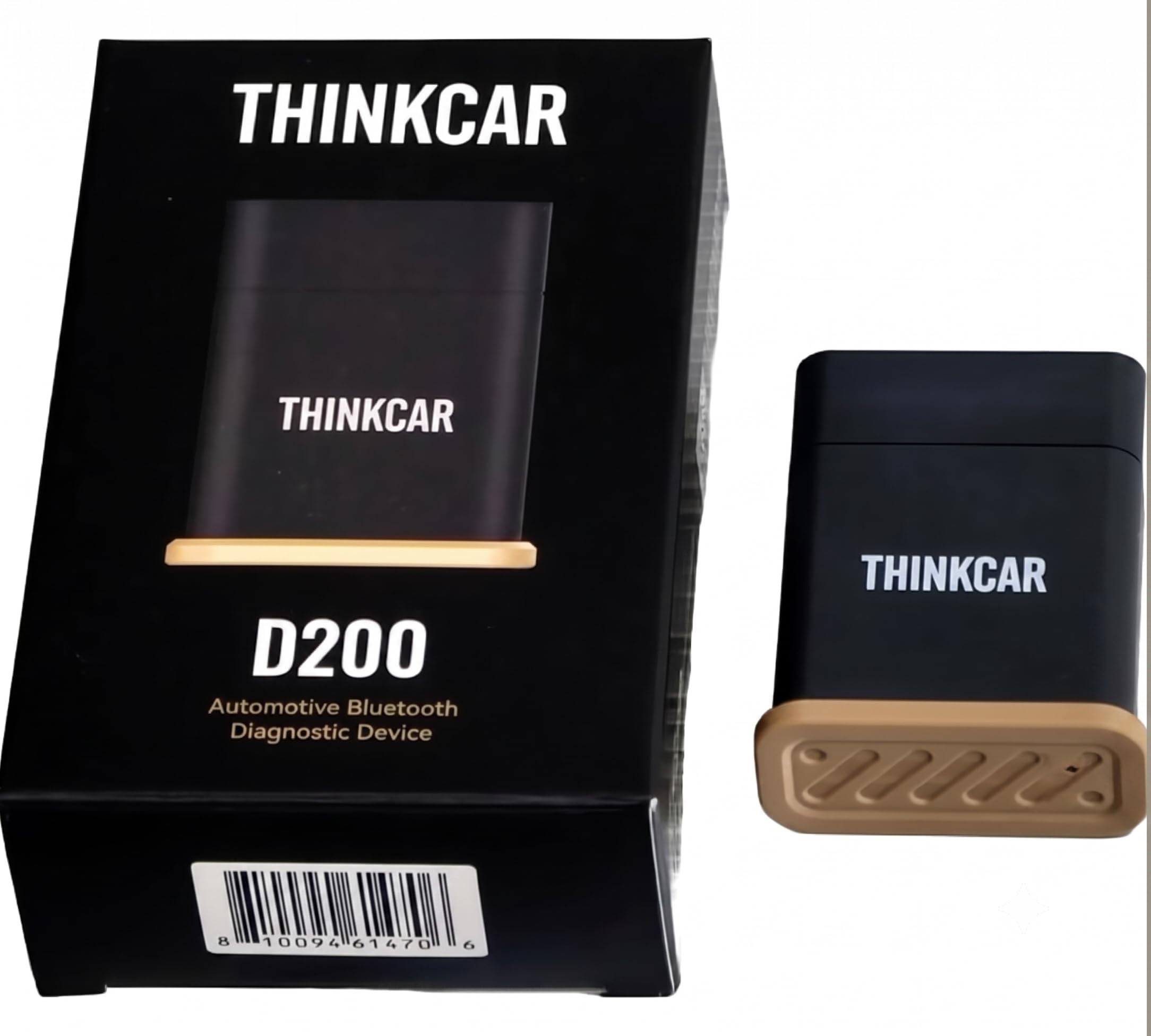
Image 1: THINKCAR D200 Device and Key Features. This image displays the THINKCAR D200 device, its packaging, and highlights its main functionalities. These include Bluetooth V5.3 connectivity for stable iOS/Android connections, real-time live data stream and history recording, ECU system and fault code reading for engine, transmission, ABS, and SRS codes, and multiple reset functions such as Oil Service, EPB, and BMS resets.
- OBD2 Diagnostics: Reads and clears fault codes across multiple vehicle systems for quick troubleshooting.
- Live Data Stream: View real-time sensor data and vehicle parameters to accurately diagnose engine and system issues. Records, graphs, and saves live sensor data.
- Wide Vehicle Compatibility: Supports a broad range of car makes and models, compatible with most OBD2 compliant vehicles.
- User-Friendly Interface: Features an intuitive display and straightforward navigation for both beginners and experienced users (via connected app).
- Compact Design: Lightweight and portable build allows easy storage in a glove box or toolkit for on-the-go diagnostics.
- Bluetooth V5.3 Connectivity: Provides a stable and fast connection to iOS and Android devices.
- Multiple Reset Functions: Includes capabilities for Oil Service, Electronic Parking Brake (EPB), Battery Management System (BMS) resets, and more.
- ECU System & Fault Code Reading: Ability to read and clear codes for Engine, Transmission, Anti-lock Braking System (ABS), and Supplemental Restraint System (SRS).
3. Setup Guide
- Locate the OBD2 Port: The OBD2 port is typically located under the dashboard on the driver's side, though its exact position may vary by vehicle model. Consult your vehicle's owner's manual if you cannot find it.
- Connect the D200: Plug the THINKCAR D200 device firmly into your vehicle's OBD2 port. The device will power on automatically once connected.
- Download the THINKCAR App: Search for the official THINKCAR app on your iOS App Store or Android Google Play Store and install it on your smartphone or tablet.
- Register/Log In: Open the app and follow the on-screen instructions to register a new account or log in if you already have one.
- Pair via Bluetooth:
- Ensure Bluetooth is enabled on your mobile device.
- Within the THINKCAR app, navigate to the device connection section.
- Select the THINKCAR D200 from the list of available Bluetooth devices. The app will guide you through the pairing process.
- Vehicle Identification: Once connected, the app may prompt you to identify your vehicle (e.g., by VIN, make, model, year). Follow the instructions to ensure accurate diagnostics.
4. Operating Instructions
After successful setup, you can begin using the THINKCAR D200's diagnostic functions through the mobile application.
4.1. Reading and Clearing Fault Codes
- From the app's main menu, select "OBDII Diagnostics" or "System Scan."
- The D200 will communicate with your vehicle's Engine Control Unit (ECU) and other systems.
- Any detected Diagnostic Trouble Codes (DTCs) will be displayed with their descriptions.
- To clear codes, select the "Clear Codes" option. Confirm your action when prompted. Note: Clearing codes will turn off the Malfunction Indicator Lamp (MIL) but will not fix the underlying issue. Address the root cause before clearing codes.
4.2. Live Data Stream
- Select "Live Data" from the app's menu.
- You can view various vehicle parameters in real-time, such as engine RPM, vehicle speed, coolant temperature, oxygen sensor readings, etc.
- The app allows you to select specific data points to monitor, graph them for visual analysis, and record them for later review.
4.3. Special Functions (Resets)
The THINKCAR D200 supports several special reset functions. Access these from the "Special Functions" or "Maintenance" section within the app.
- Oil Service Reset: Resets the oil life monitoring system after an oil change.
- EPB (Electronic Parking Brake) Reset: Safely disengages and re-engages the electronic parking brake for brake pad replacement.
- BMS (Battery Management System) Reset: Registers a new battery with the vehicle's ECU to ensure proper charging and monitoring.
- Follow the on-screen instructions carefully for each specific reset function. Incorrect procedures can lead to vehicle damage.
5. Maintenance
- Cleaning: Wipe the device with a soft, dry cloth. Do not use abrasive cleaners or solvents.
- Storage: Store the D200 in a cool, dry place away from direct sunlight and extreme temperatures when not in use.
- Software Updates: Regularly check the THINKCAR app for software and firmware updates to ensure optimal performance and compatibility with new vehicle models.
- Handling: Avoid dropping the device or subjecting it to strong impacts.
6. Troubleshooting
| Problem | Possible Cause | Solution |
|---|---|---|
| Device does not power on. | Not properly connected to OBD2 port; vehicle ignition off. | Ensure the D200 is firmly plugged into the OBD2 port. Turn the vehicle ignition to the ON position (engine off). |
| Cannot connect via Bluetooth. | Bluetooth off on mobile device; D200 not in pairing mode; interference. | Verify Bluetooth is enabled on your phone/tablet. Restart the app and try pairing again. Ensure no other devices are actively connected to the D200. |
| App shows "No Communication." | Incorrect vehicle protocol; faulty OBD2 port; device malfunction. | Ensure your vehicle is OBD2 compliant. Try the device on another OBD2 compliant vehicle. Check the vehicle's OBD2 port for damage. Contact support if the issue persists. |
| Unable to clear fault codes. | Underlying issue still present; vehicle ignition not on. | Fault codes cannot be cleared if the underlying problem still exists. Fix the issue first. Ensure the vehicle ignition is in the ON position. |
7. Specifications
| Specification | Detail |
|---|---|
| Brand | thinkcar |
| Model | D200 |
| Power Source | Vehicle OBD Port |
| Connectivity | Bluetooth V5.3 |
| Operating System (App) | Android, iOS |
| Product Dimensions (L x W x H) | 5L x 2.5W x 6H Centimeters |
| Item Weight | 80 Grams |
| Automotive Fit Type | Universal Fit (OBD2 compliant vehicles) |
| UPC | 810094614706 |
8. Warranty and Support
The THINKCAR D200 comes with a 1-Year Manufacturer Warranty from the date of purchase. This warranty covers defects in materials and workmanship under normal use.
For technical support, warranty claims, or further assistance, please contact THINKCAR customer service through their official website or the contact information provided in the THINKCAR application. Please have your product model (D200) and proof of purchase ready when contacting support.


