
1. Introduction
Thank you for choosing the INNOCN CB32U1 32-inch 4K UHD Monitor. This monitor is designed to provide a wide and accurate visual workspace for creative professionals and general users alike. With its high resolution, extensive color gamut, and versatile connectivity, it enhances productivity and visual experience.
This manual provides detailed instructions for setting up, operating, and maintaining your monitor. Please read it thoroughly before use to ensure optimal performance and longevity of your device.
2. Package Contents
Verify that all items listed below are present in your package. If any items are missing or damaged, please contact customer support.
- INNOCN CB32U1 32-inch 4K UHD Monitor
- Monitor Stand (Base and Neck)
- Power Cable
- HDMI Cable
- DisplayPort Cable
- USB-C Cable
- USB Hub (Expansion Dock)
- User Manual (this document)
3. Setup
3.1 Assembling the Stand
- Carefully remove the monitor and stand components from the packaging.
- Attach the stand neck to the monitor panel. Ensure it clicks securely into place or is fastened with screws if provided.
- Attach the stand base to the stand neck. Tighten the screw at the bottom of the base to secure it.
- Place the assembled monitor on a stable, flat surface.
3.2 Connecting the Monitor
The INNOCN CB32U1 monitor offers multiple connectivity options. Choose the appropriate cable for your device.

Image: Rear view of the INNOCN CB32U1 monitor, illustrating the available input ports including HDMI, DisplayPort, DC power input, and USB-C.
- Power Connection: Connect the power cable to the monitor's DC input port and then to a power outlet.
- HDMI Connection: Use the provided HDMI cable to connect your computer's HDMI output to one of the monitor's HDMI 2.1 ports.
- DisplayPort Connection: Use the provided DisplayPort cable to connect your computer's DisplayPort output to the monitor's DisplayPort 1.4 port.
- USB-C Connection: For compatible devices (e.g., laptops with USB-C video output and power delivery), use the provided USB-C cable to connect to the monitor's USB-C port. This single cable can transmit video, audio, and provide up to 90W power delivery to your device.
- USB Hub Connection: Connect the included USB hub to one of the monitor's USB ports to expand connectivity for peripherals like a mouse, keyboard, or external storage.

Image: The monitor connected to a laptop via USB-C, demonstrating simplified connectivity and power delivery. A diagram below shows HDMI 2.1*2, DP 1.4, USB 90W (Type-C), DC Power In, and USB (Audio Terminal) ports.
4. Operating Instructions
4.1 Power On/Off
Press the power button located on the monitor to turn it on or off. The power indicator light will illuminate when the monitor is on.
4.2 Input Source Selection
Use the monitor's OSD (On-Screen Display) menu to select the desired input source (HDMI 1, HDMI 2, DisplayPort, USB-C).
4.3 Display Adjustments
The monitor offers ergonomic adjustments for comfortable viewing.

Image: Visual representation of the monitor's adjustable stand, showing height adjustment (130±5mm), swivel (±22.5°), and tilt (-5° to 20°).
- Height Adjustment: Adjust the monitor height by moving the panel up or down within a range of 130±5mm.
- Swivel: Rotate the monitor horizontally up to ±22.5 degrees.
- Tilt: Adjust the vertical viewing angle from -5 degrees to 20 degrees.
4.4 Color Modes and Professional Features
The CB32U1 monitor is equipped with advanced color management features for various creative and professional applications.

Image: The monitor showcasing its color accuracy with icons indicating support for MacView, 99% Adobe RGB for design, 99% DCI-P3 for photo editing, Rec.709 for animation, and a 2000:1 contrast ratio for office use.
- 11 Color Modes: Select from 11 preset color modes optimized for different tasks such as design, photo editing, video production, and general office use. These modes ensure accurate color reproduction with a Delta E (ΔE) value of less than 1.
- MacView Mode: This mode optimizes the display's color characteristics to match Mac devices, providing a consistent visual experience when used alongside a MacBook.
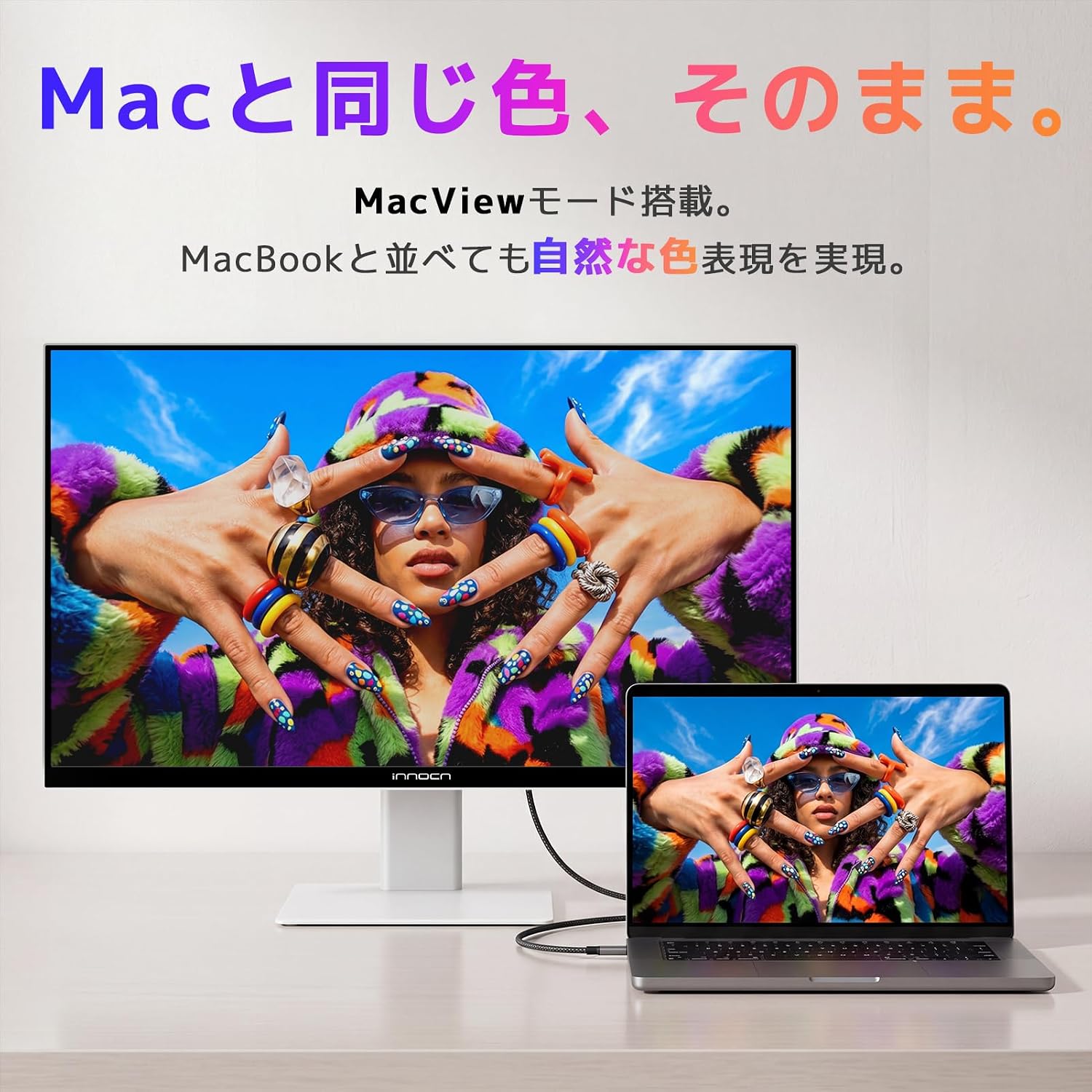
Image: The monitor side-by-side with a MacBook, both displaying the same image, highlighting the natural color reproduction achieved with MacView mode.
- PC TOOL Software: Install the PC TOOL software on your Windows or Mac computer to control monitor settings directly from your desktop, allowing for fine-tuned adjustments to suit your workflow.
- Creative Assist Features: The monitor includes features like grid display, aspect ratio preview (16:9, 21:9, 9:16), size rulers, A4 display, and Picture-in-Picture (PIP)/Picture-by-Picture (PBP) modes to assist in creative workflows and reduce the need for post-production corrections.

Image: The monitor showing a design application with overlay guides for composition, size, and aspect ratio previews (16:9, 21:9, 9:16), along with A4 and B5 size rulers, and PIP/PBP functionality.
4.5 High Performance Display
Experience smooth and detailed visuals with the monitor's high refresh rate and HDR capabilities.

Image: The monitor displaying video editing software, highlighting its ability to render fine details and smooth motion with 4K resolution, 120Hz refresh rate, and HDR400 support.
5. Maintenance
5.1 Cleaning the Screen
- Always turn off the monitor and unplug the power cord before cleaning.
- Use a soft, lint-free cloth lightly dampened with water or a specialized screen cleaner.
- Wipe the screen gently to remove dust and smudges. Avoid applying excessive pressure.
- Do not use alcohol, ammonia, or abrasive cleaners, as these can damage the screen surface.
5.2 Cleaning the Monitor Casing
- Use a soft, dry cloth to wipe the monitor casing.
- For stubborn dirt, lightly dampen the cloth with water and a mild detergent, then wipe dry immediately.
5.3 General Care
- Avoid placing the monitor in direct sunlight or near heat sources.
- Ensure adequate ventilation around the monitor.
- Do not block the ventilation openings.
- Avoid dropping or subjecting the monitor to strong impacts.
6. Troubleshooting
If you encounter problems with your monitor, refer to the following troubleshooting guide. If the issue persists, please contact customer support.
| Problem | Possible Cause | Solution |
|---|---|---|
| No image on screen | Monitor is not powered on. Video cable is not connected properly. Incorrect input source selected. | Press the power button. Check power cable connection. Ensure video cable (HDMI, DisplayPort, USB-C) is securely connected to both monitor and computer. Select the correct input source via the OSD menu. |
| Image is blurry or distorted | Incorrect resolution setting. Faulty video cable. | Set the display resolution to 3840x2160 (4K UHD) in your computer's display settings. Try a different video cable. |
| No sound from monitor (if applicable) | Audio cable not connected (if using separate audio). Volume too low or muted. Incorrect audio output device selected on computer. | Ensure audio is routed through HDMI/DisplayPort/USB-C or connect an external audio device to the monitor's audio output. Adjust monitor volume via OSD or computer volume. Select the monitor as the default audio output device on your computer. |
| USB-C power delivery not working | Device not compatible with USB-C PD. Cable not fully connected or faulty. | Ensure your device supports USB-C Power Delivery. Check USB-C cable connection. Try a different USB-C cable if available. |
7. Specifications
Detailed technical specifications for the INNOCN CB32U1 monitor.
| Feature | Description |
|---|---|
| Brand | INNOCN |
| Model Number | CB32U1 |
| Screen Size | 32 inches |
| Resolution | 4K UHD (3840 x 2160 pixels) |
| Aspect Ratio | 16:9 |
| Screen Surface | Matte |
| Refresh Rate | 120 Hz |
| Response Time | 1 ms |
| Display Type | LCD |
| Viewing Angle | 178 degrees |
| Color Gamut | 99% DCI-P3, 99% Adobe RGB, ΔE<1 |
| HDR Support | HDR400 |
| Connectivity | 2 x HDMI 2.1, 1 x DisplayPort 1.4, 1 x USB Type-C (90W PD), 3 x USB ports (via hub) |
| Dimensions (D x W x H) | 19.5 x 71.4 x 59.5 cm (with stand) |
| Weight | 7.3 kg |
| Color | White |
| Special Features | MacView Mode, PC TOOL Software, 11 Color Modes, Height/Swivel/Tilt Adjustment |
8. Warranty and Support
INNOCN provides a 12-month manufacturer's warranty for the CB32U1 monitor from the date of purchase. This warranty covers manufacturing defects and ensures the product meets its specified performance.
If you encounter any issues or have questions regarding your monitor, please do not hesitate to contact our customer support team via email. Our team is ready to assist you with troubleshooting, technical guidance, and warranty claims.
Please retain your proof of purchase for warranty validation.

