
1. Introduction
The NETUM NT-9260 is a professional direct thermal label printer designed for efficient and high-quality label printing. This comprehensive kit includes the NT-9260 printer and 500 thermal labels, measuring 100 x 150 mm (4 x 6 inches). It is an ideal solution for printing shipping labels, parcel labels, postal labels, barcodes, and storage labels without the need for ink, toner, or ribbons. The high-speed direct thermal printing technology, combined with permanent adhesive labels, ensures clear prints and easy application. This printer is compatible with various e-commerce and shipping platforms, making it suitable for online stores, offices, warehouses, and small businesses.
2. Safety Information
- Always use the provided power adapter. Using an incorrect adapter may damage the printer or pose a safety risk.
- Do not expose the printer to water, moisture, or extreme temperatures.
- Keep the printer away from direct sunlight and heat sources.
- Ensure the printer is placed on a stable, flat surface during operation.
- Do not attempt to disassemble or repair the printer yourself. Contact customer support for assistance.
- Unplug the printer from the power outlet before cleaning or if it will not be used for an extended period.
3. Package Contents
Please check the package contents to ensure all items are present:
- NETUM NT-9260 Thermal Label Printer
- 500 x Thermal Labels (100x150mm, fan-fold)
- Power Adapter
- USB Cable
- User Manual

Image: Stack of 500 fan-fold thermal labels, ready for use with the printer.

Image: The NETUM NT-9260 thermal label printer shown with a roll of labels, illustrating the compact design.
4. Product Overview
The NETUM NT-9260 printer utilizes direct thermal technology, eliminating the need for ink or toner. It features high-speed printing capabilities and is equipped with dual sensors for reliable and accurate label detection, minimizing printing errors and paper jams.

Image: Diagram highlighting the dual sensor technology of the NT-9260, which ensures smooth label feeding, detects label gaps, black marks, and prevents misalignment, unlike single sensor systems.

Image: The NETUM NT-9260 printer in operation, demonstrating a shipping label being printed and exiting the device.
5. Setup
5.1 Unpacking
Carefully remove the printer and all accessories from the packaging. Retain the packaging for future storage or transport.
5.2 Loading Labels
- Ensure the printer is powered off.
- Open the top cover of the printer.
- Adjust the label guides to match the width of your labels. The printer supports label widths from 30mm to 110mm.
- Insert the fan-fold labels into the rear slot, ensuring the printable side faces up. For roll labels, place the roll inside the printer compartment.
- Feed the first label through the printer mechanism until it protrudes slightly from the front output slot.
- Close the top cover securely.

Image: The internal mechanism of the NETUM NT-9260 printer, illustrating the adjustable label guides that accommodate label widths from 30mm to 110mm, allowing for various label types such as 100x150mm, 100x100mm, and smaller custom labels.
5.3 Connecting the Printer
- Connect the power adapter to the printer and then to a power outlet.
- Connect the USB cable from the printer to an available USB port on your computer (Windows or Mac).
- Note: While the image shows a phone/tablet connection, Bluetooth is generally not compatible with Mac systems for this printer model. For mobile printing, ensure your specific device and application support the printer via USB or a compatible wireless method if available.

Image: The NETUM NT-9260 printer connected to a desktop/laptop via USB, demonstrating its stable and reliable wired connection. A phone/tablet is also shown with a wireless printing icon, though Bluetooth compatibility with Mac is noted as not supported.
5.4 Driver Installation
Before printing, you must install the appropriate drivers for your operating system (Windows or Mac). Drivers can typically be downloaded from the official NETUM support website. Follow the on-screen instructions for installation.
5.5 Label Calibration
For accurate and consistent printing, it is crucial to calibrate the printer to your specific label size. Refer to the detailed instructions in the driver software or the printer's quick start guide for the exact calibration procedure. Typically, this involves pressing and holding a button on the printer until it feeds a few blank labels to detect the label gaps.
6. Operating Instructions
6.1 Printing Labels
Once the printer is set up and calibrated, you can begin printing:
- Open the document or application from which you wish to print (e.g., shipping software, word processor).
- Select the NETUM NT-9260 as your printer.
- Ensure the page size in your print settings matches your label size (e.g., 4x6 inches or 100x150mm).
- Initiate the print command. The printer will process and print your labels at high speed.

Image: The NETUM NT-9260 printer operating in a warehouse environment, efficiently printing shipping labels for multiple packages. The image also highlights a print head lifespan of 50KM and the ability to generate unique IDs for up to 500,000 packages.
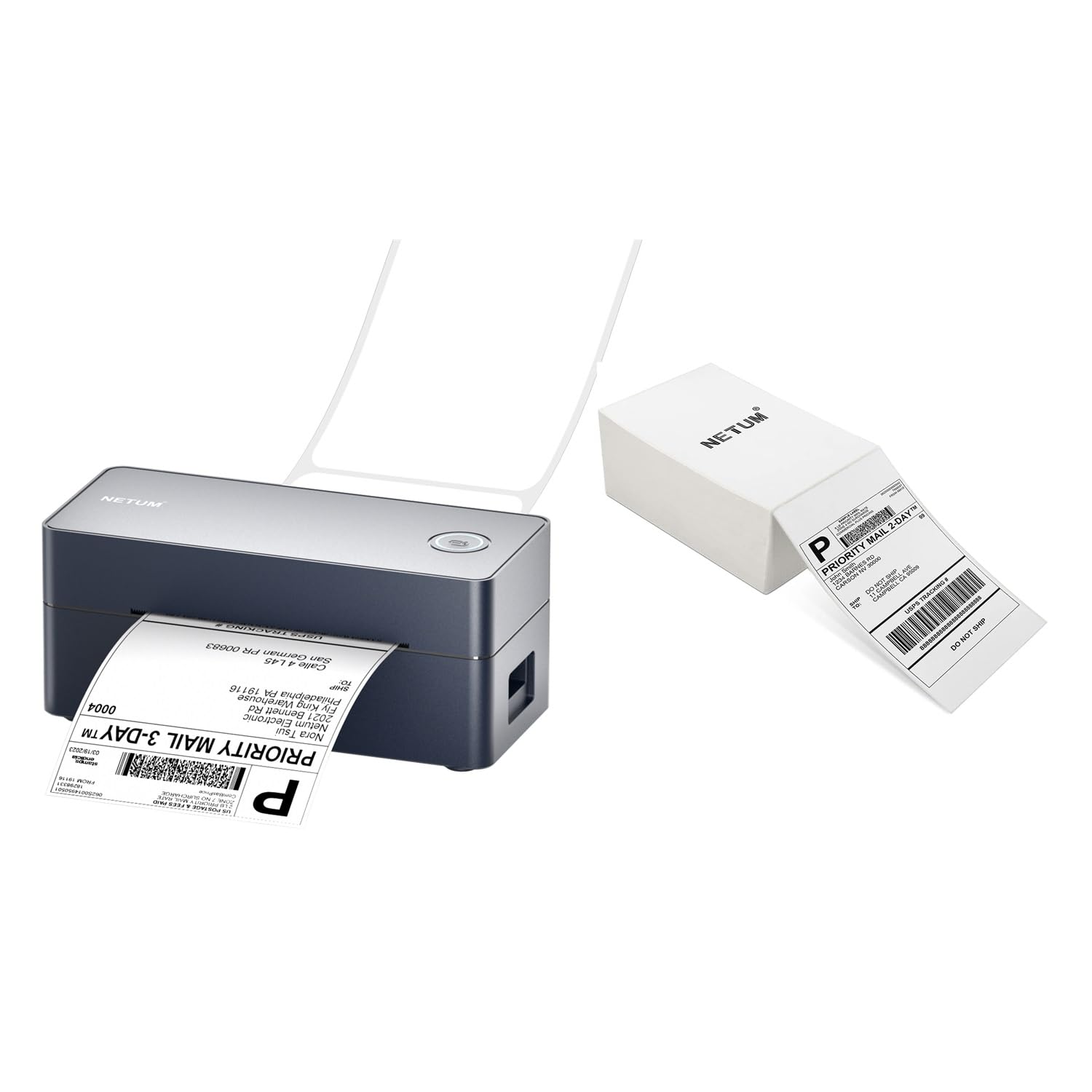
Image: The NETUM NT-9260 printer showcasing its high-speed capabilities, printing at 160 mm/s (approximately 6.3 inches per second) or 64 pieces per minute, significantly improving work efficiency.
6.2 Supported Platforms
The NETUM NT-9260 is compatible with a wide range of e-commerce and shipping platforms, including but not limited to:
- Amazon
- eBay
- Etsy
- Shopify
- DHL
- UPS
- FedEx
- GLS
- Hermes
- Stamps.com
- PayPal
- And many more shipping and e-commerce services.

Image: A visual representation of the NETUM NT-9260 printer's broad compatibility with popular platforms such as Amazon, eBay, Etsy, Shopify, DHL, UPS, FedEx, and many others, making it versatile for various business needs.
7. Maintenance
7.1 Cleaning the Print Head
To maintain optimal print quality and extend the life of your printer, regularly clean the print head:
- Ensure the printer is powered off and unplugged.
- Open the top cover.
- Gently wipe the print head with a lint-free cloth dampened with isopropyl alcohol.
- Allow the print head to dry completely before closing the cover and powering on the printer.
7.2 General Care
Keep the printer free from dust and debris. Use a soft, dry cloth to wipe the exterior. Avoid using abrasive cleaners or solvents.
The print head has an estimated lifespan of 50 kilometers of printed labels, ensuring long-term reliability with proper maintenance.
8. Troubleshooting
If you encounter issues with your NETUM NT-9260 printer, refer to the following common troubleshooting steps:
- No Power: Ensure the power adapter is securely connected to both the printer and a working power outlet.
- Labels Not Feeding Correctly: Check that labels are loaded correctly and the label guides are adjusted to the label width. Perform a label calibration.
- Poor Print Quality: Clean the print head as described in the Maintenance section. Ensure you are using high-quality thermal labels.
- Printer Not Recognized by Computer: Verify the USB cable connection. Reinstall the printer drivers. Try a different USB port or cable.
- Label Misalignment: This can often be resolved by performing a label calibration. Ensure the label guides are snug against the labels.
- Printer Offline: Check the printer status in your computer's control panel or system settings. Ensure it is set to online.
9. Specifications
| Feature | Specification |
|---|---|
| Printing Method | Direct Thermal |
| Print Speed | 160 mm/s (approx. 6.3 inches/sec), 64 pcs/min |
| Label Width | 30 - 110 mm |
| Connectivity | USB |
| Compatibility | Windows, Mac |
| Print Head Lifespan | 50 KM |
| Included Labels | 500 x 100x150mm (4x6 inches) Thermal Labels |
10. Warranty and Support
For warranty information, technical support, or any questions not covered in this manual, please contact NETUM customer service. Refer to the product packaging or the official NETUM website for contact details and specific warranty terms applicable to your region.