
1. Introduction
This manual provides detailed instructions for the installation, operation, and maintenance of your Defender AI 2.5K GO Wireless Security Camera. This camera is designed for both indoor and outdoor use, offering 24/7 continuous recording, advanced AI detection, and color night vision for comprehensive security.

Image 1.1: Defender AI 2.5K GO camera in a home setting, highlighting its key features.
2. What's Included
Verify that all components are present in your package:
- 4 x Defender AI 2.5K GO Wireless Cameras (Model: BGO4MCB4)
- 4 x Type-C USB Charging Cables (3.9ft)
- 4 x Camera Mounting Brackets
- 4 x Camera Mounting Hardware (screws and anchors)
- 1 x Quick Start Guide
- 4 x Window Warning Stickers (5in x 3in)
- 1 x Accessory Insert
- 1 x Warranty Insert
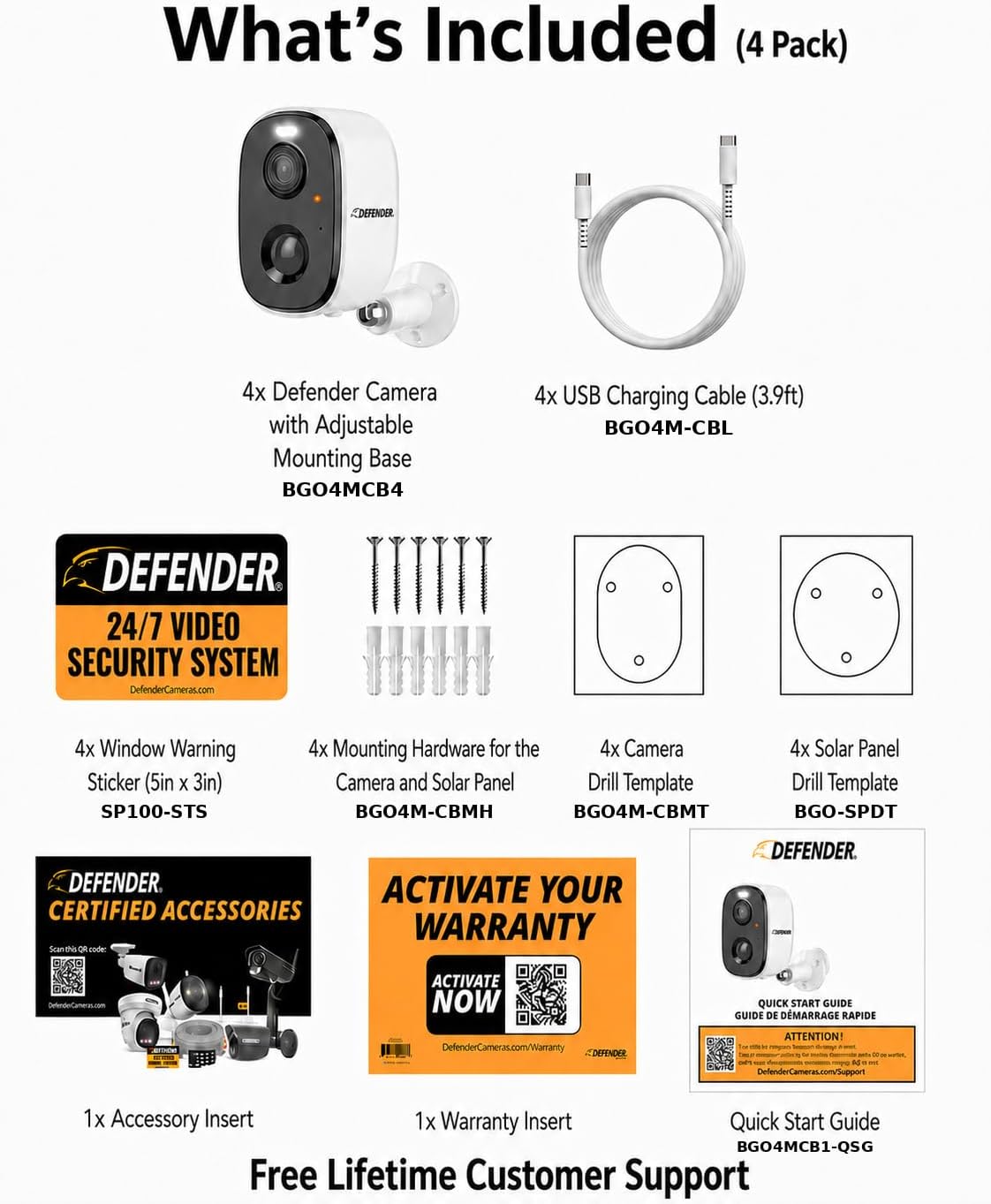
Image 2.1: Package contents for the 4-pack Defender AI 2.5K GO camera system.
3. Setup
3.1. Charging the Camera
Before initial use, fully charge each camera using the provided Type-C USB charging cable and a standard USB power adapter (not included). The LED indicator on the camera will show charging status.
3.2. App Installation and Account Creation
- Download the Defender ClearVu app from the Apple App Store or Google Play Store.
- Open the app and follow the on-screen instructions to create a new account or log in if you already have one.
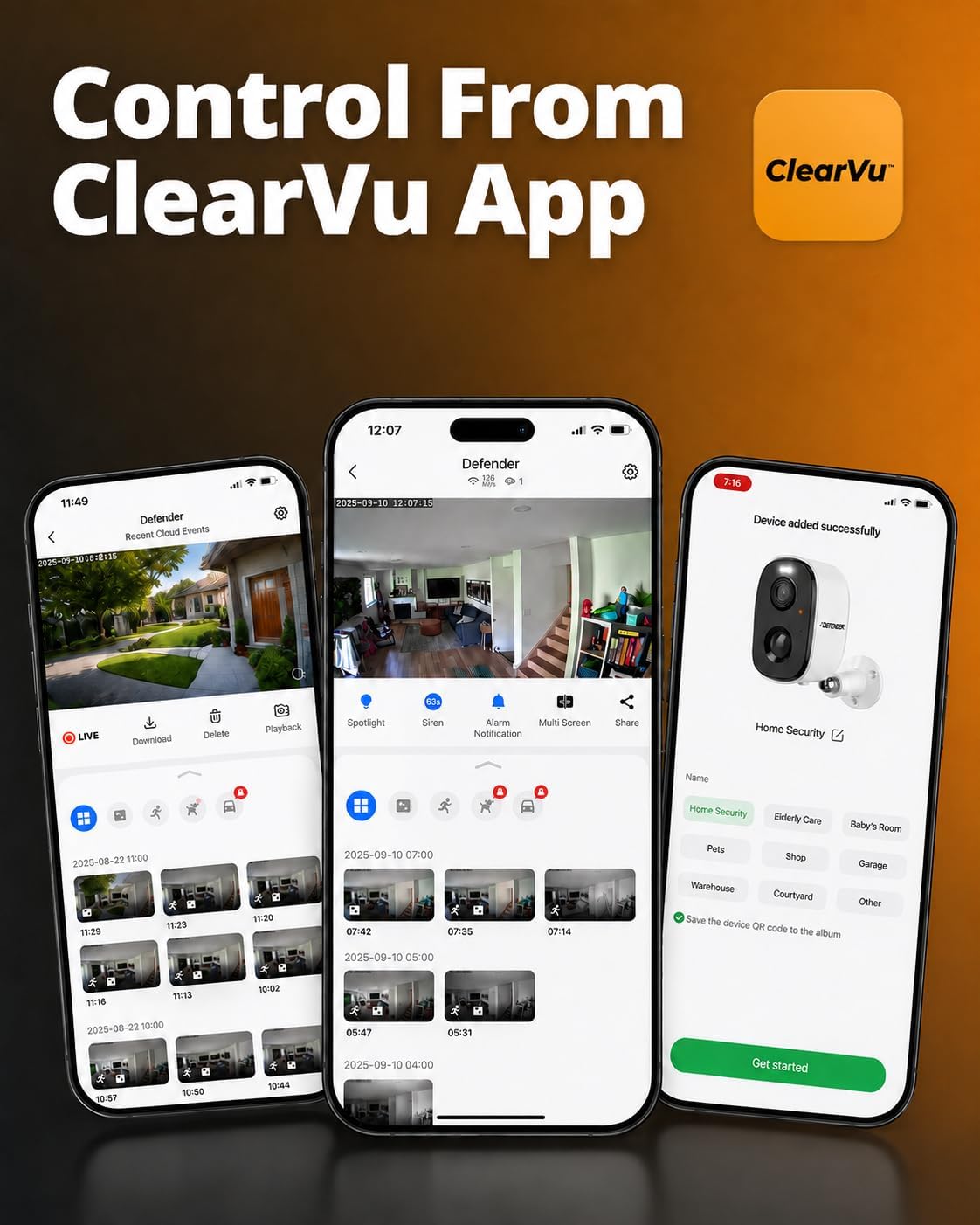
Image 3.1: The Defender ClearVu mobile application interface.
3.3. Camera Pairing
- In the ClearVu app, tap the "+" icon to add a new device.
- Select your camera model from the list.
- Follow the in-app instructions to power on the camera and connect it to your Wi-Fi network (2.4GHz only).
- Scan the QR code displayed on your phone with the camera lens when prompted.
- Once connected, name your camera and assign it to a location.
3.4. Mounting the Camera
The Defender AI 2.5K GO camera can be mounted on a wall, ceiling, or placed on a flat surface. Choose a location that provides the desired viewing angle and is within Wi-Fi range.
- Surface Placement: Simply place the camera on a shelf or flat surface.
- Wall/Ceiling Mount:
- Attach the mounting bracket to the desired surface using the provided screws and anchors.
- Securely attach the camera to the mounting bracket.
- Adjust the camera angle for optimal coverage.

Image 3.2: Example of camera placement on a shelf.
4. Operating the Camera
4.1. Continuous 24/7 Recording
The Defender AI 2.5K GO camera supports continuous recording to a microSD card (up to 256GB, not included). This ensures no gaps in your security footage.
- Insert a formatted microSD card into the camera's designated slot.
- Enable continuous recording in the ClearVu app settings for the specific camera.
- Review recorded footage via the app's playback feature.

Image 4.1: Camera operating in both day and night conditions for continuous recording.
4.2. 2.5K Color Night Vision
The camera provides ultra-sharp 2.5K resolution video with color night vision, enhanced by a built-in spotlight. This allows for clear, full-color footage even in low-light conditions.

Image 4.2: Detail captured by the 2.5K resolution camera.
4.3. Advanced AI Detection
The camera features intelligent AI detection to identify humans, pets, and vehicles, reducing false alarms and providing relevant alerts.
- Configure detection zones and sensitivity settings within the ClearVu app.
- Receive instant notifications on your smartphone when a specific type of motion is detected.

Image 4.3: AI Person Detection in action.
4.4. Two-Way Talk
Utilize the built-in microphone and speaker to communicate with visitors or deter intruders directly through the ClearVu app.
- Access the two-way talk function from the live view screen in the app.
- Press and hold the microphone icon to speak, and release to listen.
4.5. Strobe Light & Siren Deterrence
Activate the integrated strobe light and loud siren remotely from the ClearVu app to deter unwanted individuals.

Image 4.4: Deterrence features in use.
5. Maintenance
5.1. Battery Charging
The camera is battery-powered. When the battery level is low, you will receive a notification via the ClearVu app. Recharge the camera using the provided Type-C USB cable. Battery life varies based on usage and settings.
5.2. Cleaning the Camera
To ensure optimal performance, periodically clean the camera lens and housing. Use a soft, damp cloth to wipe away dust and dirt. Avoid using harsh chemicals or abrasive materials.
6. Troubleshooting
6.1. Camera Not Connecting to Wi-Fi
- Ensure your Wi-Fi network is 2.4GHz. The camera does not support 5GHz networks.
- Check Wi-Fi signal strength at the camera's location. Move the camera closer to the router if necessary.
- Verify that the Wi-Fi password entered in the app is correct.
- Restart your Wi-Fi router and the camera.
6.2. No Recording or Playback Issues
- Ensure a microSD card is properly inserted and formatted (FAT32 recommended).
- Check if continuous recording or motion detection recording is enabled in the app settings.
- Verify that the microSD card is not full. The camera will typically overwrite the oldest footage.
6.3. False Alarms or Missed Detections
- Adjust motion detection sensitivity in the ClearVu app.
- Configure detection zones to exclude areas with frequent irrelevant motion (e.g., busy streets, swaying trees).
- Ensure the camera lens is clean and unobstructed.
6.4. Poor Video Quality
- Check your Wi-Fi signal strength. A weak signal can affect streaming quality.
- Ensure the camera lens is clean.
- Verify that the camera is set to 2.5K resolution in the app settings if available.
7. Specifications
| Feature | Specification |
|---|---|
| Model Name | Defender AI 2.5K GO 24/7 Recording (AOV) Wireless Battery Camera |
| Model Number | BGO4MCB4 |
| Video Capture Resolution | 4MP (2560 x 1440) |
| Connectivity Technology | Wireless (Wi-Fi 802.11 b/g/n/ax - Wi-Fi 6) |
| Indoor/Outdoor Usage | Indoor, Outdoor |
| Waterproof Rating | IP65 |
| Night Vision | Color Night Vision (up to 10 meters) |
| Viewing Angle | 115 degrees |
| Power Source | Battery Powered (5V DC, 5W) |
| Memory Storage Capacity | Up to 256 GB (microSD card, not included) |
| Controller Type | Defender ClearVu App |
| AI Detection | Human, Pet, Vehicle |
| Dimensions | 10.52 x 2.6 x 7.8 inches (approximate, for the unit) |
8. Warranty and Support
Your Defender AI 2.5K GO Wireless Security Camera comes with a 1-Year Manufacturer Warranty. Please refer to the included Warranty Insert for full details and registration instructions.
Defender also offers Lifetime Customer Support. For technical assistance, troubleshooting, or warranty claims, please visit the official Defender website or contact their customer service:
- Website: www.defender-usa.com (or relevant regional site)
- Support: Refer to your Quick Start Guide or Warranty Insert for specific contact information.
Registering your product helps ensure you receive the latest updates and support.