
Fanvace 32
Contents
Fanvace Android MP3 Player with Bluetooth and WiFi User Manual
Model: 32
Introduction
Thank you for choosing the Fanvace Android MP3 Player. This device combines the functionality of a portable music player with the versatility of an Android operating system, offering Bluetooth and Wi-Fi connectivity, a touchscreen interface, and support for various streaming applications. This manual provides essential information for setting up, operating, and maintaining your device to ensure optimal performance.
What's in the Box
Please check the package contents upon unboxing:
- 1 x Fanvace Android MP3 Player
- 1 x USB C Cable
- 1 x Wired Earphones
- 1 x Screen Protector
- 1 x Protective Case
- 1 x User Manual (this document)

Image: Package contents of the Fanvace MP3 Player.
Setup
1. Charging the Device
Before first use, fully charge your MP3 player. Connect the provided USB C cable to the device's charging port and the other end to a 5V-1A or 5V-2A USB power adapter (not included). Avoid using fast chargers to prevent potential damage.
2. Power On/Off
- To Power On: Press and hold the power button located on the side of the device until the screen illuminates.
- To Power Off: Press and hold the power button, then select 'Power Off' from the on-screen options.
3. Initial Setup
Upon first power-on, follow the on-screen prompts to select your language, connect to a Wi-Fi network, and set up your Google account if desired. This will allow access to the Google Play Store and other online services.
Operating Instructions
1. Touchscreen Navigation
The device features a 4-inch full-touch IPS screen. Navigate by tapping icons, swiping between screens, and using pinch-to-zoom gestures where applicable.

Image: The MP3 player's 4-inch full-touch IPS screen.
2. Wi-Fi Connectivity
To connect to a Wi-Fi network:
- Go to Settings > Network & internet > Wi-Fi.
- Toggle Wi-Fi On.
- Select your desired network from the list and enter the password if prompted.
3. Bluetooth Connectivity
The device supports stable and fast two-way Bluetooth connection for headphones, speakers, or other playback devices.
- Go to Settings > Connected devices > Bluetooth.
- Toggle Bluetooth On.
- Ensure your Bluetooth accessory is in pairing mode.
- Select the accessory from the list of available devices to pair.

Image: Bluetooth connectivity with headphones, speakers, and car systems.
4. Music Playback
The player supports various music formats including MP3, WAV, FLAC, APE, OGG, M4A, AAC, WMA. It comes pre-installed with popular streaming apps like Spotify, Pandora, Deezer, and Amazon Music.
- Local Music: Transfer music files to the device's internal storage (16GB) or an expandable Micro SD card (up to 512GB). Use the pre-installed music player app to browse and play your local library.
- Streaming Music: Open your preferred streaming app (e.g., Spotify) and log in to access online music.

Image: HiFi sound quality and supported music formats.
5. Video Playback
The device supports 720p and 1080p HD video playback for formats such as RM, RMVB, FLV, MP4, DAT, MKV, MPG, MOV, TS. Videos can be played directly without conversion.
6. App Management
Customize your device by installing or removing apps from the Google Play Store according to your preferences.
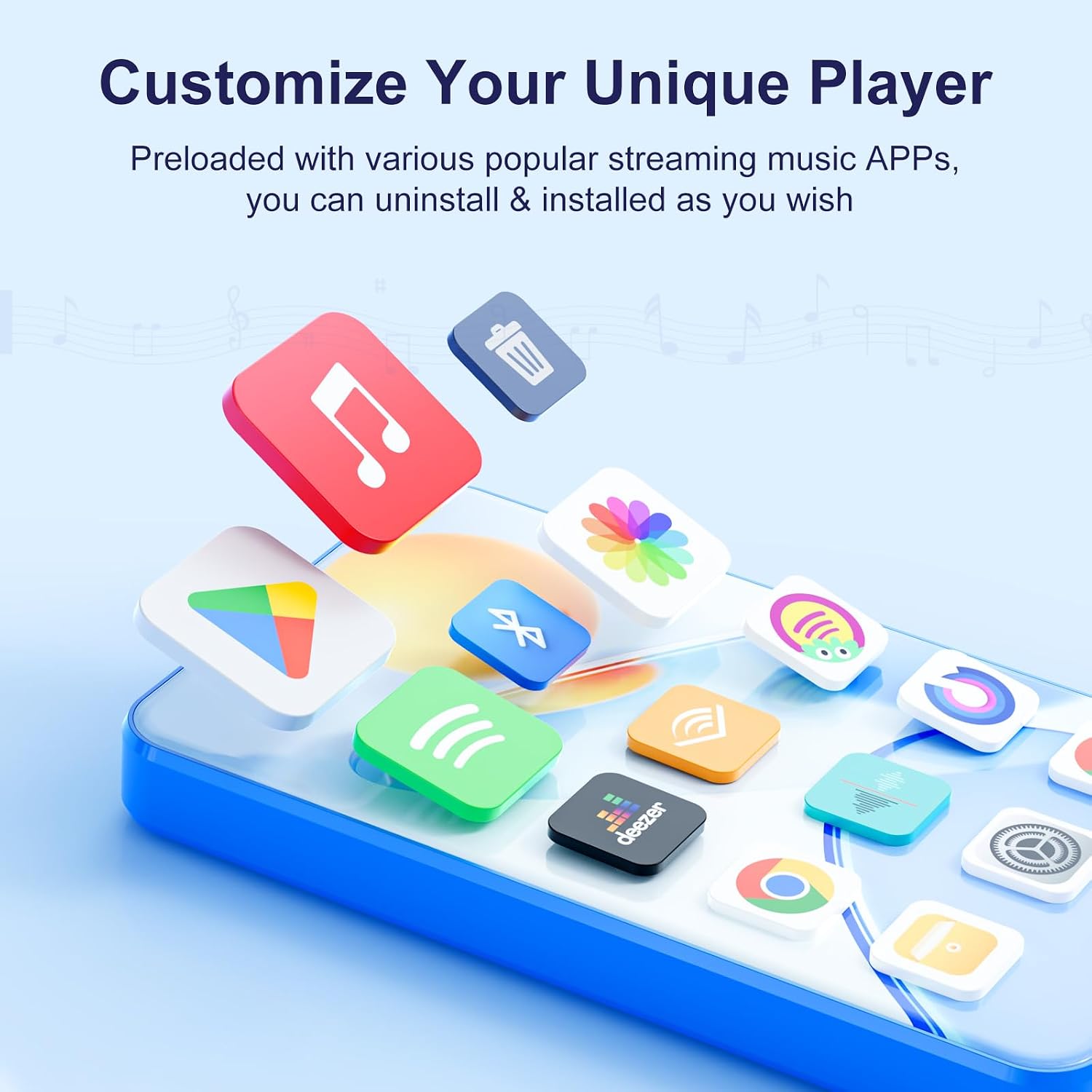
Image: Customizing the player with various applications.
7. Parental Controls
Manage applications, monitor screen time, and set boundaries for usage. Access parental control settings through the device's system settings.

Image: Parental control interface.
8. Other Functions
The device includes additional features such as FM radio, voice recorder, e-book reader, calculator, and web browser.
Maintenance
1. Battery Care
The device has a built-in 2000mAh lithium battery. To prolong battery life:
- Avoid extreme temperatures.
- Do not fully discharge the battery frequently.
- Use the recommended 5V-1A or 5V-2A charger.

Image: 2000mAh battery and usage times.
2. Cleaning
Wipe the device with a soft, dry cloth. Avoid using harsh chemicals or abrasive materials.
Troubleshooting
- Device not turning on: Ensure the battery is charged. Connect to a charger and try again.
- Cannot connect to Wi-Fi: Check if Wi-Fi is enabled in settings. Verify the network password. Restart the device and your router.
- Bluetooth pairing issues: Ensure the accessory is in pairing mode and within range. Restart Bluetooth on both devices.
- Apps crashing or freezing: Close and reopen the app. If the issue persists, clear the app's cache or reinstall it.
- Slow performance: Close unnecessary background apps. Clear cache regularly. Consider a factory reset if performance issues continue (back up data first).
Specifications
| Feature | Specification |
|---|---|
| Brand | Fanvace |
| Model Name | 32 |
| Connectivity Technology | Bluetooth, Wi-Fi |
| Memory Storage Capacity | 16 GB (expandable up to 512GB via Micro SD) |
| Screen Size | 4 inches |
| Display Technology | LCD |
| Battery Capacity | 2000mAh Lithium Battery |
| Supported Audio Formats | MP3, WAV, FLAC, APE, OGG, M4A, AAC, WMA |
| Supported Video Formats | RM, RMVB, FLV, MP4, DAT, MKV, MPG, MOV, TS |
| Special Features | Built-In Speaker, FM Radio, Touch Screen, Video Playback, Voice Recorder, Parental Controls |
| Operating System | Android 9.0 (with 8-core MTK chip) |
Warranty and Support
Warranty Information
This product comes with a 1-year warranty from the date of purchase. Please retain your proof of purchase for warranty claims. The warranty covers manufacturing defects but does not cover damage caused by misuse, accidents, or unauthorized modifications.
Customer Support
For any questions, technical assistance, or warranty inquiries, please contact Fanvace customer service. We provide 12 hours of customer service to assist you with any problems encountered during use.
Please refer to the contact information provided with your purchase or visit the official Fanvace website for support details.
Ask a question about this manual
Ask about setup, troubleshooting, compatibility, parts, safety, or missing instructions. Manuals+ will review the question and use this page’s manual context to help answer it.