
Introduction
Thank you for purchasing the Jimveo J0 Projector. This compact and powerful projector is designed to transform your viewing experience with its integrated Google TV, official Netflix certification, and advanced projection features. This manual provides essential information for setup, operation, maintenance, and troubleshooting to ensure optimal performance and longevity of your device.
Safety Information
Please read all safety instructions before using the projector. Keep this manual for future reference.
- Do not block ventilation openings.
- Use only attachments/accessories specified by the manufacturer.
- Refer all servicing to qualified service personnel.
- Avoid direct eye exposure to the projector lens.
- Do not expose the device to rain or moisture.
Package Contents
Verify that all items are included in your package:
- Jimveo J0 Projector
- Remote Control
- HDMI Cable
- Power Cord
- User Manual (this document)
- Warranty Card
Product Overview
Familiarize yourself with the projector's components and ports.

Image: Front view of the Jimveo J0 Projector, showing the main lens and sensors.

Image: Rear view of the Jimveo J0 Projector, highlighting the various input/output ports.
Ports and Connections:
- HDMI: Connect to gaming consoles (PS5, Switch), Fire Stick, or other HDMI-enabled devices.
- USB 2.0: For connecting USB storage devices.
- 3.5mm Audio Out: For connecting wired speakers or headphones.
- Power Port: For connecting the power adapter.
Setup
1. Placement:
Position the projector on a stable, flat surface. The short-throw lens allows for large images even in small rooms. For example, a 2.5m distance can project a 102-inch screen. The integrated stand supports various projection angles, including ceiling projection.

Image: Various placement options for the projector, including front, upward, ceiling, and wall projection, demonstrating its versatility.
2. Power Connection:
Connect the power cord to the projector's power port and then to a power outlet (100-240V compatible).
3. Initial Power On:
Press the power button on the projector or remote control to turn on the device. Follow the on-screen instructions for initial setup, including language selection and Wi-Fi connection.
Operating Instructions
Google TV and Netflix:
The Jimveo J0 Projector comes with Google TV and official Netflix certification. Once connected to Wi-Fi, you can access a wide range of streaming services and apps directly from the projector. Use the remote control to navigate the Google TV interface.
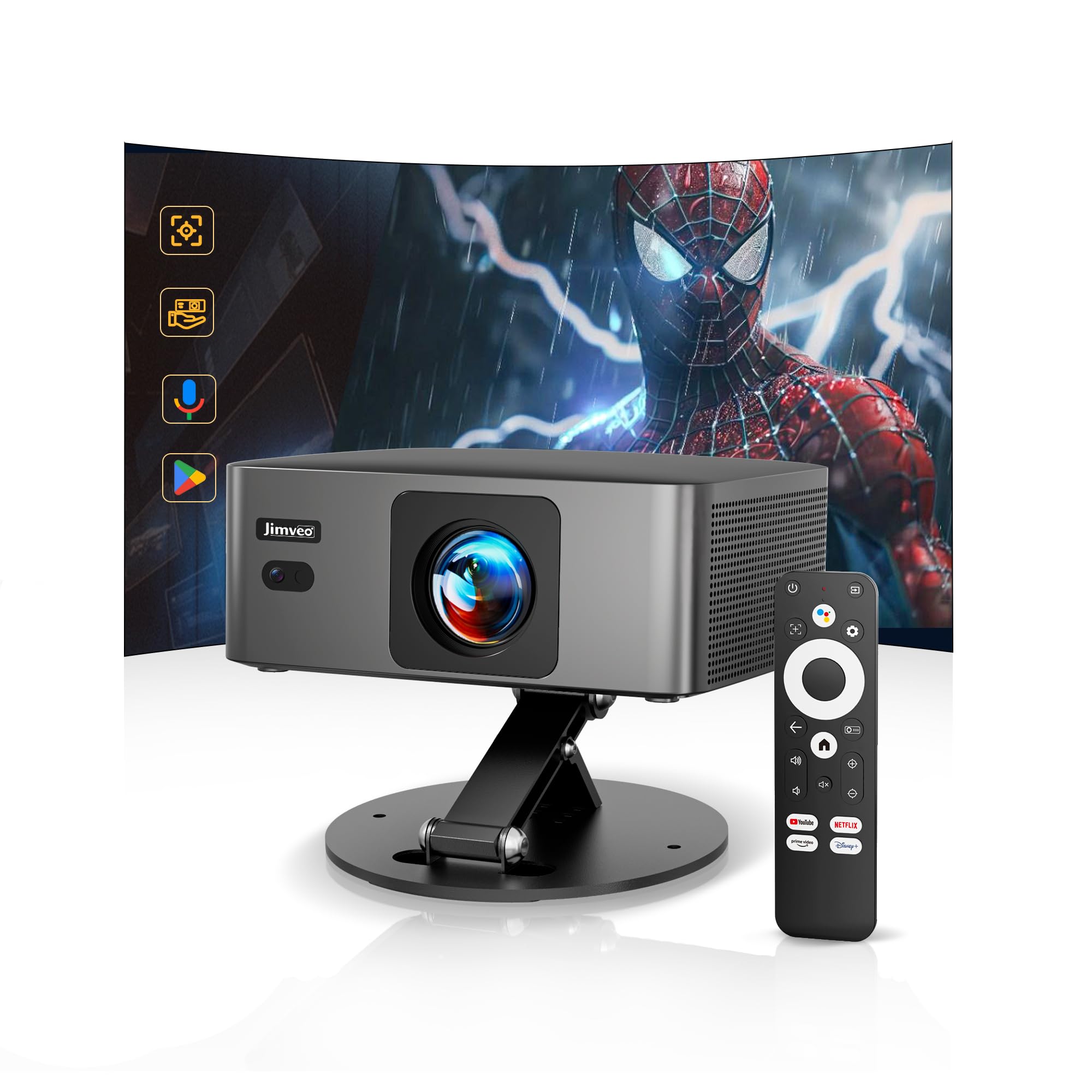
Image: The Google TV interface displayed on the Jimveo J0 Projector, showing various streaming app icons like Netflix, Prime Video, Disney+, and YouTube.
Automatic Focus and Keystone Correction:
The projector features AI-driven automatic keystone correction (±50°) and auto-focus. This means the image will automatically adjust to be rectangular and sharp, even if the projector is placed at an angle or moved.

Image: Visual demonstration of the projector's automatic focus and keystone correction capabilities, showing how it corrects distorted images into perfect rectangles.
Screen Mirroring (Wireless Connection):
- Google Smartphones: Directly mirror your screen using Chromecast built-in.
- Other Android/iPhone: Download the synchronization app from the projector's app store to easily share your screen.
Bluetooth 5.4 and Wi-Fi 6:
Equipped with Bluetooth 5.4 and dual-band Wi-Fi 6 (2.4G/5G), the projector ensures stable and fast streaming. Connect Bluetooth headphones for private listening or external speakers for enhanced audio.

Image: A family enjoying content projected onto a wall, illustrating the seamless connectivity provided by Wi-Fi 6 and Bluetooth 5.4 for external speakers.
Voice Control:
Utilize the Google Assistant via the remote control for voice commands. Simply press the voice button and speak your command, such as "Open Netflix" or "Adjust volume."

Image: A user demonstrating voice control with the remote, showing on-screen prompts for Google Assistant commands.
Advanced Features
Short-Throw Projection:
The 1:1 throw ratio allows for a larger image at a shorter distance compared to standard projectors (1.3-1.5 throw ratio). This is ideal for small rooms, enabling immersive viewing without needing extensive space.
Image: Comparison of screen sizes at different projection distances, highlighting the J0 Pro's ability to project a 120-inch screen from a short distance (0.8m).
Ceiling Projection:
The integrated stand allows for easy adjustment to project images onto the ceiling, providing a unique and comfortable viewing experience, especially when lying in bed.

Image: A person watching a movie projected onto the ceiling while lying in bed, demonstrating the ceiling projection feature.
High Brightness and Color Accuracy:
With native 1080P Full HD resolution (4K input supported) and 1300 ANSI lumens, the projector delivers bright and clear images. HDR10+ support and 98% NTSC color gamut ensure vibrant and natural color reproduction, revealing details even in dark scenes.

Image: A vibrant image showcasing the 1080P Full HD resolution and HDR10+ color capabilities of the projector, with a whale swimming in a colorful coral reef.
Maintenance
Cleaning the Lens:
Use a soft, lint-free cloth specifically designed for optical lenses. Do not use abrasive cleaners or solvents. Gently wipe the lens to remove dust or smudges.
Dust Prevention:
The optical engine features a dust-proof sealed design (IP5X equivalent) to prevent black spots caused by dust accumulation, ensuring clear images over time. For general cleaning, use a soft brush or compressed air to remove dust from the projector's exterior and ventilation openings.
Storage:
When not in use for extended periods, store the projector in a cool, dry place, away from direct sunlight and extreme temperatures. Cover it to protect against dust.
Troubleshooting
| Problem | Possible Cause | Solution |
|---|---|---|
| No image displayed | Power not connected; input source incorrect; lens cap on. | Check power connection; select correct input source; remove lens cap. |
| Image is blurry | Out of focus; keystone not adjusted. | Allow auto-focus to adjust or manually adjust focus; allow auto-keystone to correct. |
| No sound | Volume too low; external audio device not connected properly; mute enabled. | Increase volume; check audio cable connections; disable mute. |
| Remote control not working | Batteries low/dead; obstruction between remote and projector. | Replace batteries; ensure clear line of sight to the projector's IR receiver. |
| Wi-Fi connection unstable | Distance from router; interference. | Move projector closer to router; minimize interference from other devices. |
Specifications
| Feature | Detail |
|---|---|
| Brand | Jimveo |
| Model Name | J0 |
| Display Resolution | Native 1920 x 1080 (Full HD), 4K Input Supported |
| Brightness | 1300 ANSI Lumens |
| Contrast Ratio | 20000:1 |
| Connectivity Technology | Wi-Fi 6 (2.4G/5G Dual-band), Bluetooth 5.4 |
| Input/Output Interfaces | HDMI, USB 2.0, 3.5mm Audio Out |
| Keystone Correction | Automatic ±50° (Vertical & Horizontal) |
| Focus | Automatic |
| Projection Distance | 0.5m (min) - 4.5m (max) |
| Image Size | 30 inches (min) - 300 inches (max) |
| Light Source Life | 100,000 hours |
| Operating System | Google TV (Netflix Official Certified) |
| Power Consumption | 60 W |
| Dimensions (L x W x H) | 19 x 15.7 x 7.3 cm |
| Weight | 0.87 kg |
| UPC | 774882564966 |
Warranty and Support
The Jimveo J0 Projector comes with a three-year manufacturer's warranty. It is PSE certified for safety and designed for stable, long-term operation.
For technical support or warranty claims, please contact our dedicated Japanese-speaking support staff. We aim to respond within 24 hours.
- Email Support: support_jp@Jimveo.com
- Return Policy: 24-month return guarantee.
- Repair Warranty: 36-month repair warranty.
- After-Sales Support: Lifetime support available.

Image: Jimveo customer service details, including email and warranty periods.