
HLDIRECT 120315BKUS
HLDIRECT 60 Inch Gaming Desk with Power Outlets and LED Lights Instruction Manual
Model: 120315BKUS
1. Introduction
Thank you for choosing the HLDIRECT 60 Inch Gaming Desk. This desk is designed to enhance your gaming or work setup with its spacious design, integrated power outlets, dynamic LED lighting, and versatile storage solutions. This manual provides essential information for assembly, operation, and maintenance to ensure a long-lasting and satisfying experience.
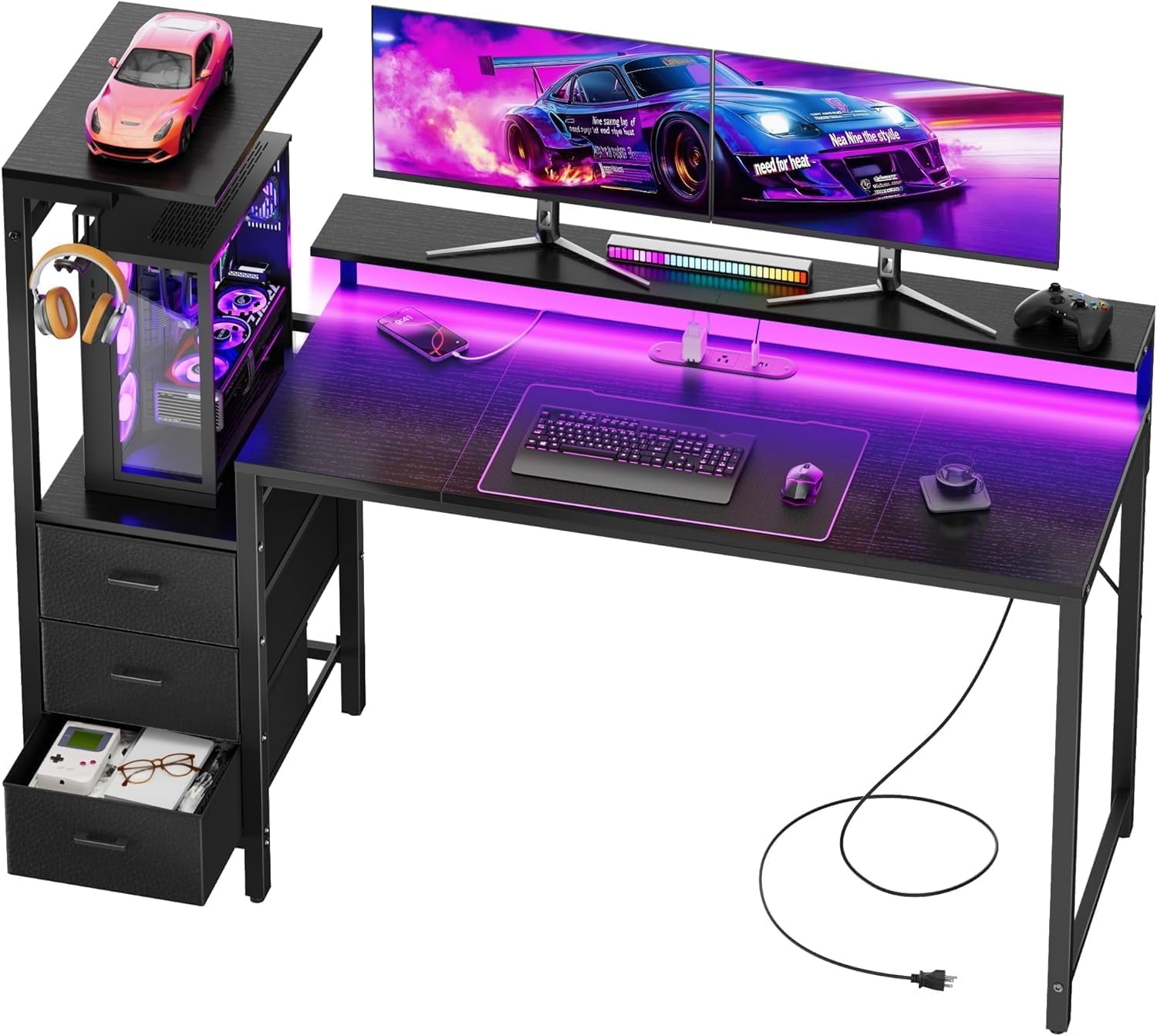
Overall view of the HLDIRECT 60 Inch Gaming Desk, showcasing its design and features.
2. Safety Information
Always assemble according to the provided instructions. Ensure the desk is properly anchored for stability, especially during intense use. Do not place excessive weight on the desk that could cause it to tip over.
- Keep all small parts and packaging materials away from children.
- Do not stand or sit on the desk.
- Ensure all screws and fasteners are tightened securely before use. Periodically check and re-tighten if necessary.
- Avoid exposing the desk to direct sunlight or extreme temperatures to prevent material damage.
- Do not overload the power outlets. Refer to the specifications for maximum load.
- Keep liquids away from electrical components.
3. Package Contents
Before beginning assembly, verify that all components and hardware are present and undamaged. Refer to the included assembly manual for a detailed list of parts. If any parts are missing or damaged, contact customer support immediately.

Diagram showing the product dimensions and various components of the desk.
4. Assembly Instructions
Assembly is designed to be straightforward. All necessary tools and a detailed manual are included in the package. It is recommended to have two people for assembly to ensure stability and ease of handling larger components.
- Unpack Components: Carefully remove all parts from the packaging and lay them out on a clean, soft surface to prevent scratches.
- Identify Parts: Match each part to the corresponding labels in the included assembly manual.
- Assemble Frame: Begin by assembling the main metal frame components. Ensure all connections are secure but do not fully tighten screws until the entire frame is assembled.
- Attach Desktop: Secure the desktop panels to the assembled frame. Note that the desk features a reversible design, allowing you to position the storage and PC tower stand on either the left or right side. Consult the manual for specific steps on reversing the configuration if desired.
- Install Monitor Stand: Attach the raised monitor stand to the desktop.
- Assemble Storage Unit: Construct the fabric drawers and integrate them into the designated storage area.
- Install PC Case Stand and Hooks: Secure the PC case stand and side hooks as per the manual.
- Connect Power Strip: Integrate the built-in power strip into its designated slot on the desktop.
- Final Tightening: Once all components are in place and aligned, fully tighten all screws and fasteners.
- Position Desk: Carefully move the assembled desk to its desired location.
Note on Reversible Design: The desk's side storage and PC tower stand can be configured on either the left or right side during assembly. Refer to the specific instructions in your included manual for details on how to achieve the desired orientation.
5. Features Overview
5.1 Integrated Power Outlets
The desk includes a built-in charging station with 2 AC outlets (120V/12A), 2 USB-A ports (5V/2A), and 1 USB-C port (5V/2A). This allows convenient power access for your devices directly on the desktop, reducing cable clutter.

Detail of the integrated power strip with AC, USB-A, and USB-C ports.
5.2 Dynamic RGB LED Lighting
Enhance your environment with the integrated RGB LED lighting system. It offers a wide range of colors and effects, controllable via an app, to create a personalized ambiance.

The RGB LED light strip in operation, showing app control features.
5.3 Ergonomic Monitor Stand
A raised desktop stand is included to elevate your monitors to an ergonomic viewing height, promoting better posture and reducing neck strain.

Illustration of the ergonomic monitor stand's benefit for posture.
5.4 Fabric Drawers and Side Hooks
The desk features three fabric drawers for organized storage of accessories and documents. Four side hooks provide convenient hanging space for headphones, cables, or other items.

View of the three fabric drawers, demonstrating their storage capacity and ease of use.
5.5 Dedicated PC Case Stand
A dedicated side shelf is designed to accommodate your gaming PC tower, keeping it off the floor and integrated into the desk's design. This also provides space for displaying collectibles or audio equipment.

The PC case stand with a computer tower and headphones hanging from side hooks.
6. Setup
6.1 Power Outlet Connection
- Ensure the desk's main power cord is securely plugged into a wall outlet using the provided power cord.
- Plug your devices (monitors, PC, phone chargers, etc.) into the available AC outlets, USB-A, or USB-C ports.
- Do not exceed the maximum load capacity of the power strip (refer to specifications).
6.2 LED Light Setup
- Connect the LED light strip to the designated power source on the desk, if not pre-installed.
- Download the recommended control application for the RGB LED lighting system on your smartphone or tablet.
- Follow the app's instructions to pair your device with the LED lights via Bluetooth or Wi-Fi.
- Once paired, you can control colors, dynamic modes, brightness, and timing functions through the app.
7. Operating the LED Lights
The LED lights are primarily controlled via a smartphone application.
- Power On/Off: Use the app's switch function to turn the lights on or off.
- Color Selection: Choose from a wide array of colors using the color wheel or preset options in the app.
- Dynamic Modes: Select various dynamic effects such as fading, flashing, or pulsing.
- Brightness Adjustment: Adjust the intensity of the lights to suit your preference.
- Music Sync: Some apps offer a music synchronization feature, allowing the lights to react to audio.
- Timing Function: Set schedules for the lights to turn on or off automatically.
8. Maintenance
- Cleaning: Wipe the desk surfaces with a soft, damp cloth. Avoid abrasive cleaners or harsh chemicals that may damage the finish.
- Dusting: Regularly dust the desk, especially around the power outlets and LED strip, to prevent accumulation.
- Hardware Check: Periodically inspect all screws and fasteners. Re-tighten any loose connections to maintain stability.
- Cable Management: Keep cables organized to prevent tripping hazards and maintain a tidy workspace.
- Fabric Drawers: The fabric drawers can be spot cleaned with a mild detergent and damp cloth. Allow to air dry completely.
9. Troubleshooting
9.1 Power Outlets Not Working
- Check Wall Outlet: Ensure the desk's main power cord is securely plugged into a functioning wall outlet. Test the wall outlet with another device.
- Check Desk Connection: Verify that the integrated power strip is properly connected within the desk.
- Overload: Unplug some devices to check if the power strip was overloaded.
- Reset: If the power strip has a reset button, press it.
9.2 LED Lights Not Functioning
- Power Connection: Ensure the LED strip is correctly connected to its power source.
- App Connection: Verify that your smartphone app is properly paired with the LED lights. Try re-pairing if necessary.
- App Functionality: Close and restart the control app. Check for app updates.
- Power Cycle: Unplug the desk's main power cord from the wall for a few minutes, then plug it back in to reset the system.
9.3 Desk Instability
- Tighten Screws: Re-check and tighten all assembly screws and fasteners.
- Level Surface: Ensure the desk is placed on a flat, level surface.
- Adjustable Feet: If equipped with adjustable feet, use them to level the desk on uneven floors.
10. Specifications
| Brand | HLDIRECT |
| Model Number | 120315BKUS |
| Product Dimensions (D x W x H) | 20"D x 60"W x 45"H |
| Color | Black |
| Material Type | Engineered Wood, Alloy Steel |
| Item Weight | 40 pounds |
| Power Outlets | 2 AC outlets (120V/12A), 2 USB-A ports (5V/2A), 1 USB-C port (5V/2A) |
| Special Features | Monitor Stand, RGB LED Lighting, 3 Fabric Drawers, 4 Side Hooks, PC Tower Stand, Reversible Design |
| Assembly Instructions | Provided |
11. Warranty and Support
This HLDIRECT Gaming Desk comes with a 1-year warranty from the date of purchase. This warranty covers manufacturing defects and material flaws under normal use. It does not cover damage resulting from improper assembly, misuse, accidents, or unauthorized modifications.
For warranty claims, missing parts, or technical support, please contact HLDIRECT customer service. Please have your purchase receipt and model number (120315BKUS) ready when contacting support.
Seller: HLDIRECT (via Amazon)
Ask a question about this manual
Ask about setup, troubleshooting, compatibility, parts, safety, or missing instructions. Manuals+ will review the question and use this page’s manual context to help answer it.