
1. Introduction
This manual provides essential instructions for setting up, operating, and maintaining your Haulvean Curve Smart Watch. Please read this manual thoroughly before using the device to ensure proper function and longevity.
2. What's in the Box
Verify that all items are present in the package:
- Smart Watch (1 unit)
- USB Magnetic Charging Cable (1 unit)
- User Manual (1 unit)

Image: Contents of the Haulvean Curve Smart Watch package, showing the watch, strap, manual, and charging cable.
3. Setup
3.1 Charging the Smart Watch
Before initial use, fully charge the smart watch. Connect the USB magnetic charging cable to the charging points on the back of the watch and to a standard USB power adapter (not included). A full charge typically takes approximately 2 hours.

Image: The smartwatch connected to its magnetic charging cable.
3.2 App Installation and Pairing
To utilize all features of your smart watch, download the 'Glory Fit' application on your smartphone. The app is compatible with iOS 9.0+ and Android 8.0+ devices.
- Scan the QR code provided in the manual or search for 'Glory Fit' in the Apple App Store or Google Play Store.
- Install and open the 'Glory Fit' app.
- Enable Bluetooth on your smartphone.
- In the 'Glory Fit' app, navigate to 'Device' or 'Add Device' and select your smart watch from the list (e.g., 'T1').
- Confirm the pairing request on both your phone and the watch.

Image: Steps for connecting the smartwatch to a smartphone via the Glory Fit app.
3.3 Bluetooth Call Function Setup
After successful pairing, enable the Bluetooth call function for hands-free calling:
- On your smartphone, go to 'Settings' and then 'Bluetooth'.
- Locate your smart watch (e.g., 'T1') in the list of available devices and connect to it.
- Once connected, the watch can be used to make and receive calls directly.
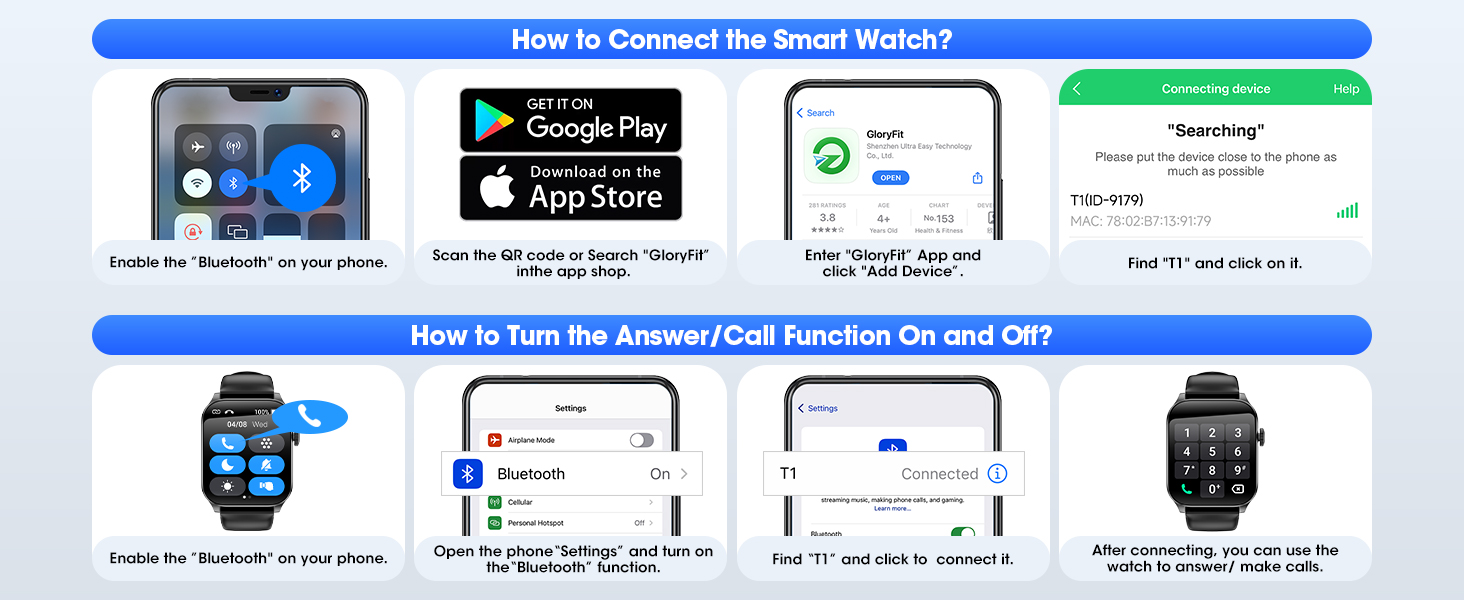
Image: Visual guide for enabling the Bluetooth call feature.
4. Operating Instructions
4.1 Basic Navigation
The smart watch features a 1.91-inch curved touchscreen display. Swipe across the screen to navigate through menus and functions. The side button typically serves as a power button or a return-to-home function.

Image: The 1.91-inch curved display of the smartwatch.
4.2 Message Notifications
Once connected to your smartphone, the watch will display notifications from various apps such as SMS, Facebook, WhatsApp, Instagram, Telegram, TikTok, and Skype. You cannot reply to messages directly from the watch.

Image: Smartwatch displaying call and message notifications.
4.3 Intelligent Voice Assistant
The smart watch features an intelligent voice assistant. Use simple voice commands to make calls, check weather updates, or set alarms. This function requires a stable Bluetooth connection to your smartphone.

Image: Smartwatch interface demonstrating voice assistant capabilities.
4.4 Additional Functions
The smart watch includes various other useful features:
- Music Control: Play, pause, skip tracks on your smartphone.
- Camera Control: Remotely trigger your smartphone's camera shutter.
- Weather Forecast: View current weather conditions and forecasts.
- Alarms, Stopwatch, Timer: Standard timekeeping functions.
- Find Phone: Locate your paired smartphone by making it ring.
- Breathing Exercises: Guided breathing for relaxation.
- Sedentary Reminder: Alerts you to move after periods of inactivity.
- Female Cycle Tracking: Monitor menstrual cycles.

Image: Overview of various functions available on the smartwatch.
5. Fitness and Health Tracking
5.1 Sports Modes
The smart watch supports over 120 sports modes, including walking, running, cycling, yoga, football, cricket, and strength training. It records data such as steps, distance, calories burned, and heart rate during your workouts.
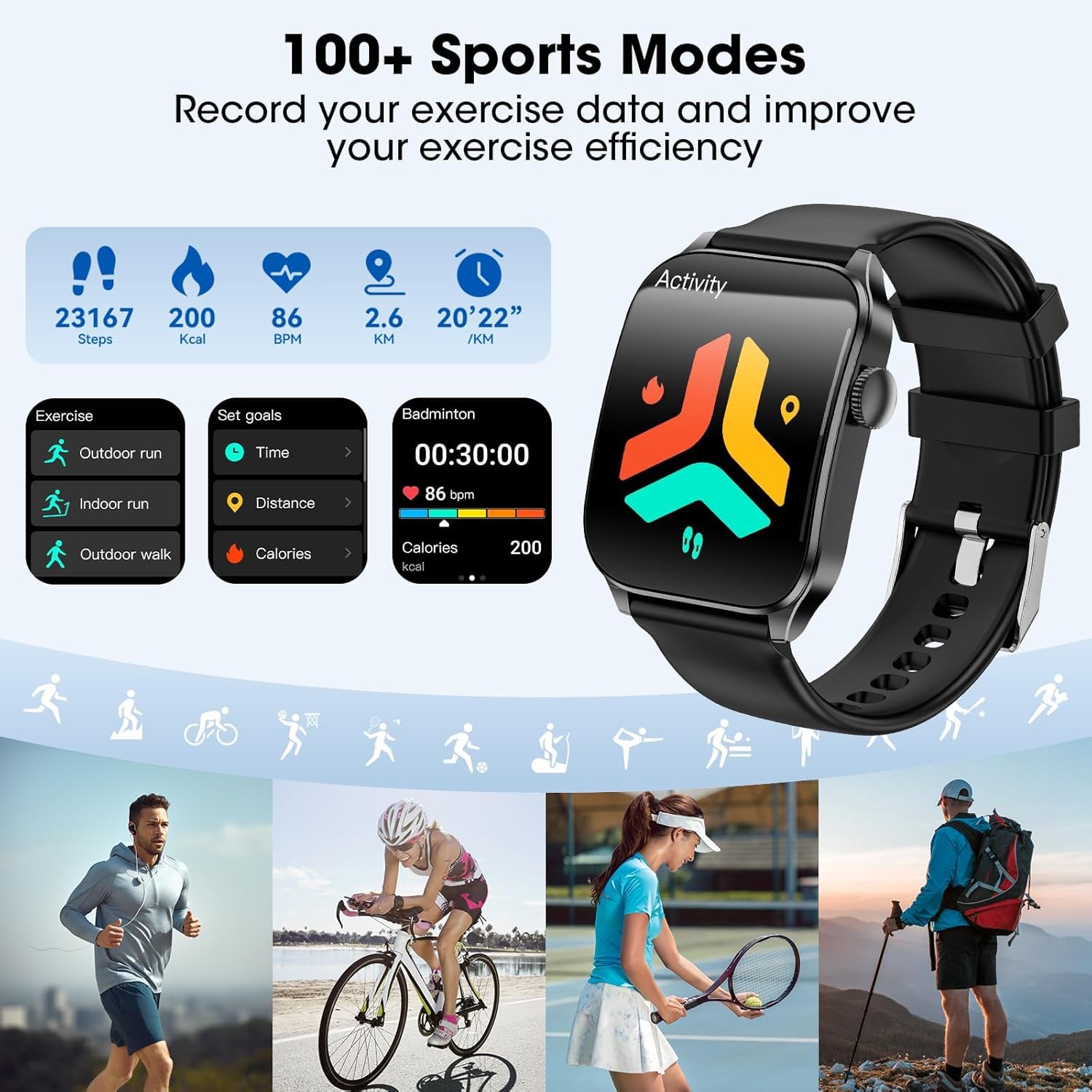
Image: Smartwatch interface showing various sports modes and activity tracking.
5.2 24/7 Health Monitoring
The watch provides continuous health monitoring:
- Heart Rate Monitor: Tracks your heart rate throughout the day.
- Blood Oxygen Monitor: Measures your blood oxygen saturation (SpO2).
- Sleep Tracker: Analyzes your sleep patterns, including deep sleep, light sleep, and wakefulness.
These features provide insights into your overall health and fitness. The data is accessible on the watch and in the 'Glory Fit' app.

Image: Smartwatch displaying real-time health metrics.

Image: Detailed sleep monitoring data on the smartwatch.
6. Customization
6.1 Watch Faces
Personalize your smart watch with over 100 available watch faces. You can select from pre-installed options or download more through the 'Glory Fit' app. The app also allows you to create custom watch faces using your own photos.

Image: Examples of customizable watch faces.
7. Maintenance
7.1 Water Resistance (IP67)
The Haulvean Curve Smart Watch has an IP67 water resistance rating. This means it is resistant to splashes, rain, and brief immersion in shallow water. It is suitable for daily use and can be worn during hand washing or in the shower. However, it is not recommended for swimming, diving, or prolonged immersion in water, especially hot water or steam, as this may compromise the seals.
7.2 Cleaning
To clean your smart watch, wipe it gently with a soft, dry cloth. If necessary, use a slightly damp cloth and then dry thoroughly. Avoid using harsh chemicals or abrasive materials.
7.3 Battery Life
The smart watch offers approximately 5-10 days of battery life with normal use and up to 10 days in standby mode. Actual battery life may vary based on usage patterns, enabled features, and settings. Charge the device regularly to maintain optimal performance.
8. Troubleshooting
If you encounter issues with your Haulvean Curve Smart Watch, consider the following:
- Connectivity Issues: Ensure Bluetooth is enabled on your phone and the watch is within range. Try restarting both your phone and the watch, then re-pair them through the 'Glory Fit' app.
- App Sync Problems: Check if the 'Glory Fit' app is updated to the latest version. Ensure the app has necessary permissions on your phone (e.g., location, notifications).
- Inaccurate Readings: Ensure the watch is worn snugly on your wrist, not too tight or too loose. Clean the sensors on the back of the watch.
- Watch Not Responding: Try pressing and holding the side button to force a restart. If unresponsive, ensure the watch is charged.
For persistent issues, refer to the FAQ section within the 'Glory Fit' app or contact customer support.
9. Specifications
| Feature | Specification |
|---|---|
| Operating System | Android, iOS |
| Screen Size | 1.91 inches |
| Connectivity Technology | Bluetooth |
| Battery Cell Composition | Lithium Polymer |
| GPS | GPS Via Smartphone |
| Water Resistance | IP67 |
| Human Interface Input | Microphone, Touchscreen |
| Supported Application | Social Media (via notifications) |
| Metrics Measured | Heart Rate, Blood Oxygen, Sleep, Steps, Calories, Distance |
| Charging Time | Approx. 2 hours |
| Battery Life (Normal Use) | 5-10 days |
| Battery Life (Standby) | Up to 10 days |
10. Warranty and Support
10.1 Warranty Information
The Haulvean Curve Smart Watch comes with a 1-year warranty from the date of purchase. This warranty covers manufacturing defects under normal use. It does not cover damage caused by misuse, accidents, unauthorized modifications, or failure to follow instructions in this manual.
10.2 Customer Support
For technical assistance, warranty claims, or any questions regarding your smart watch, please refer to the contact information provided with your purchase or visit the official Haulvean support website. Please have your purchase receipt and product model number ready when contacting support.
11. Product Video
Video: An overview of the Haulvean Curve Smart Watch, demonstrating its features and user interface.