
1. Introduction
Thank you for choosing the OTTOCAST ScreenFlow 11.4" Wireless Apple CarPlay & Android Auto Screen. This device is designed to enhance your driving experience by providing seamless integration of your smartphone's features, navigation, entertainment, and a reliable backup camera system. This manual provides detailed instructions for installation, operation, maintenance, and troubleshooting to ensure optimal performance and safety.
2. Safety Information
- Driving Safety: Always prioritize safe driving. Do not operate the device in a manner that distracts you from the road.
- Installation: Ensure the device is securely mounted and all cables are properly routed to avoid obstructing your view or vehicle controls. If unsure, seek professional installation.
- Power Supply: Use only the provided car charger and cables. Incorrect power sources can damage the device or vehicle.
- Temperature: Avoid exposing the device to extreme temperatures, direct sunlight for prolonged periods, or high humidity.
- Cleaning: Use a soft, dry cloth for cleaning. Do not use abrasive cleaners or solvents.
- Disassembly: Do not attempt to disassemble or repair the device yourself. This will void the warranty and may cause damage.
3. Package Contents
Please check the package for the following items:
- OTTOCAST ScreenFlow 11.4" Carplay Screen
- 3M Adhesive Mounting Bracket
- Car Charger
- AUX Cable
- Backup Camera with 19.69 ft (6m) Cable
4. Product Overview
The OTTOCAST ScreenFlow is an advanced automotive smart display designed for universal compatibility and ease of use. It features a high-definition touchscreen and robust connectivity options.
4.1 Key Features
- Display: 11.4" 1920x720 HD IPS Touchscreen with 60fps ultra-smooth refresh rate.
- Connectivity: Wireless Apple CarPlay & Android Auto, Dual-Band WiFi (2.4G+5G), Dual Bluetooth (BT4.2+BT5.0).
- Operating System: Curated Android OS with pre-installed apps like Netflix, YouTube, Disney+, Prime Video. (Note: Additional apps available via built-in app store only.)
- Multitasking: Split-Screen Mode for running two applications simultaneously.
- Backup Camera: Bundled 1080P Night-Vision Backup Camera (IP67 waterproof) with dynamic parking guidelines.
- Convenience: 2-Second Instant Wake, Voice Control, Lifetime Free OTA Updates.
- Hardware: 4-Core Processor, 2GB RAM, 32GB ROM.
4.2 Device Components

Figure 4.1: Front view of the OTTOCAST ScreenFlow display, illustrating its Android OS capabilities with pre-installed video applications such as Prime Video, YouTube, Disney+, Spotify, and Netflix. The image also highlights internal specifications including a 4-Core processor, 2GB RAM, 32GB ROM, and OTA upgrade support.

Figure 4.2: The 11.4-inch massive screen of the OTTOCAST ScreenFlow, demonstrating its large display size and instant boot feature. Key display specifications such as 11.4 inches, 60fps refresh rate, 2-second instant boot, 550 cd/m² brightness, and 1920x720 HD resolution are highlighted.
5. Setup and Installation
The OTTOCAST ScreenFlow is designed for quick and tool-free installation, typically taking only 3 minutes.
5.1 Mounting the Screen
- Choose Location: Select a suitable flat surface on your dashboard or windshield that does not obstruct your view or interfere with airbags.
- Clean Surface: Ensure the chosen surface is clean and dry for optimal adhesion of the 3M adhesive bracket.
- Attach Bracket: Peel the protective film from the 3M adhesive bracket and firmly press it onto the desired location. Hold for 30 seconds to ensure a strong bond.
- Mount Screen: Securely attach the ScreenFlow display unit to the mounted bracket. The design allows for easy detachment for security when parked.
5.2 Power Connection
- Insert the provided car charger into your vehicle's 12V power outlet (cigarette lighter socket).
- Connect the other end of the car charger cable to the power input port on the ScreenFlow unit.
- The screen will automatically power on when the vehicle ignition is started, thanks to its 2-second instant wake technology.
5.3 Backup Camera Installation
The included 1080P backup camera provides enhanced safety when reversing.
- Mount Camera: Install the backup camera at the rear of your vehicle, typically above the license plate. Ensure it has a clear view. The IP67 rating ensures water resistance.
- Route Cable: Carefully route the 19.69 ft (6m) camera cable from the rear of the vehicle to the ScreenFlow unit, ensuring it is tucked away and not exposed to damage.
- Connect Camera: Plug the camera cable into the designated camera input port on the ScreenFlow unit.
- Power Camera: Connect the camera's power wire to your vehicle's reverse light circuit. This will automatically activate the camera display on the ScreenFlow when you shift into reverse.
6. Operating Instructions
6.1 Wireless Apple CarPlay & Android Auto
Connect your smartphone wirelessly for navigation, music, calls, and more.
- Initial Pairing: On the ScreenFlow, navigate to the CarPlay or Android Auto icon. Follow the on-screen instructions to pair your iPhone or Android phone via Bluetooth.
- Automatic Reconnection: After the initial pairing, your phone will automatically reconnect to the ScreenFlow every time you start your car.
- Functionality: Once connected, you can access compatible apps, make hands-free calls, send messages, and use voice assistants directly from the ScreenFlow display.
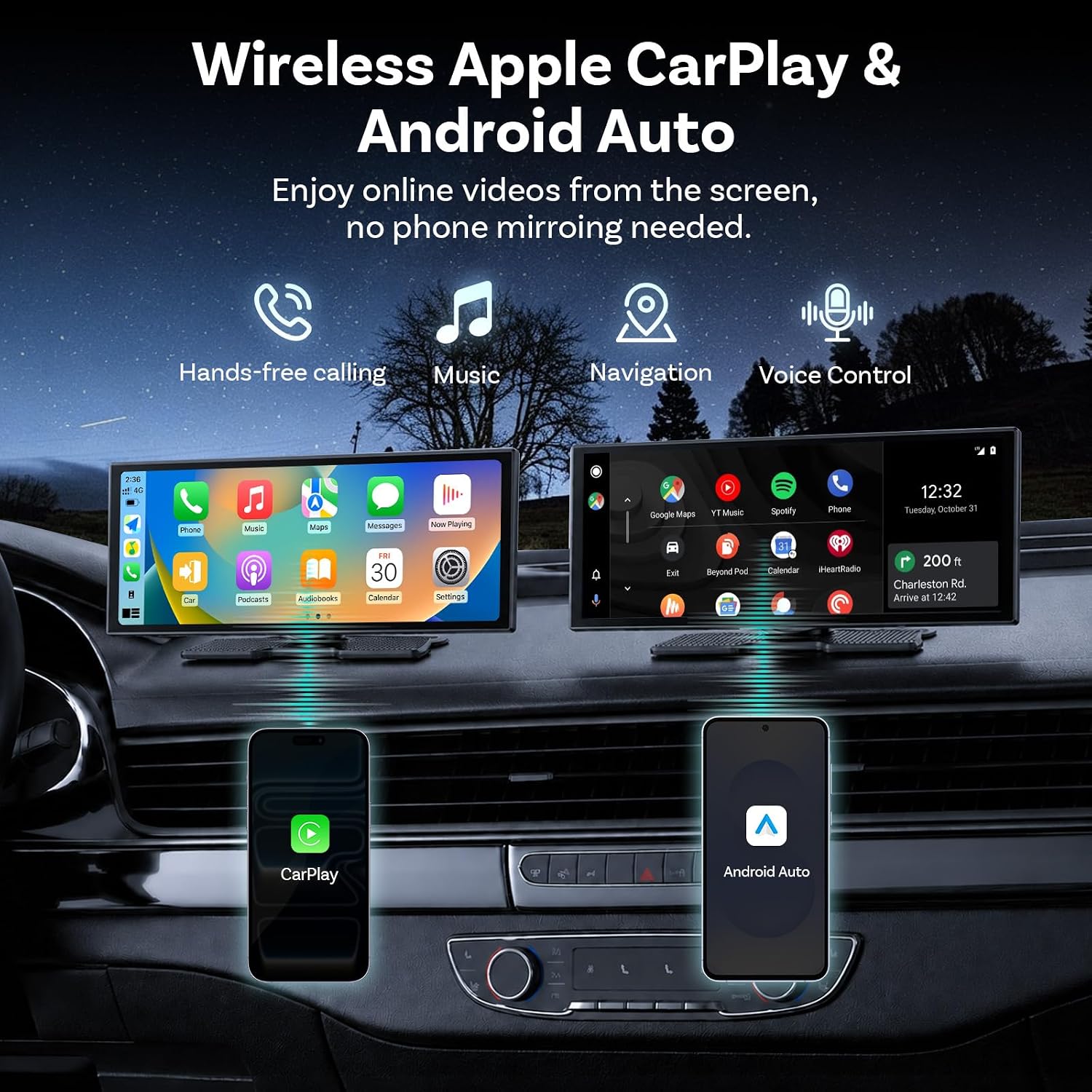
Figure 6.1: The OTTOCAST ScreenFlow demonstrating wireless Apple CarPlay and Android Auto functionality, with icons for hands-free calling, music, navigation, and voice control. Both interfaces are shown on the screen, connected to respective smartphones.
6.2 Split-Screen Multitasking
The Split-Screen Mode allows you to run two applications simultaneously on the 11.4-inch display.
- Activate Split-Screen: While an app is open, look for a split-screen icon (often two rectangles side-by-side) or long-press the recent apps button.
- Select Second App: Choose another compatible app from the list to occupy the second half of the screen.
- Usage: For example, the driver can use Google Maps for navigation on one side, while a passenger streams YouTube or Spotify on the other.

Figure 6.2: The OTTOCAST ScreenFlow in flexible split-screen mode, perfectly adapted for multitasking. The image shows a navigation map on the left side of the screen and a video playing on the right, illustrating how the driver can navigate while a passenger enjoys videos simultaneously.
6.3 Streaming Pre-installed Apps
The ScreenFlow comes with pre-installed streaming applications.
- Connect to Hotspot: To use streaming apps like Netflix, YouTube, Disney+, or Prime Video, connect the ScreenFlow to your phone's mobile hotspot via Wi-Fi.
- Launch App: Select the desired streaming app from the main menu.
- Enjoy Content: Stream videos directly on the big screen without needing phone mirroring.
6.4 Dual-Band WiFi & Dual Bluetooth
The device features advanced connectivity for seamless operation.
- Dual Bluetooth: Allows wireless CarPlay/Android Auto to run while your car's original sound system remains connected, ensuring full audio through your factory speakers without compromise.
- Dual-Band WiFi: Provides stable and fast internet connectivity for HD video streaming without buffering, especially when connected to a mobile hotspot.

Figure 6.3: Illustration of Dual WiFi & Dual Bluetooth capabilities. The ScreenFlow displays navigation and video content, while accompanying phone screens show active Bluetooth connections (e.g., to OTTOCAST and headphones) and Wi-Fi network lists, emphasizing simultaneous streaming and navigation without audio conflict.
6.5 Voice Control
Utilize voice commands for safe and convenient operation while driving.
- Activate Voice Assistant: Depending on your connected phone, say "Hey Siri" or "Hi Google" to activate the voice assistant.
- Issue Commands: You can use voice commands for tasks such as making calls ("Call Mom"), playing music ("Play Music"), or navigating ("Navigate home").

Figure 6.4: The OTTOCAST ScreenFlow demonstrating voice control for safe driving. The screen shows a calling interface and a backup camera view, with examples of voice commands such as "Hey Siri, Call Mom," "Hi Google, Message to Linda," "Hey Siri, Play Music," and "Hi Google, Navigate home."
7. Backup Camera Operation
The included 1080P HD backup camera activates automatically when you shift your vehicle into reverse.
- Automatic Display: When reverse gear is engaged, the ScreenFlow will automatically switch to the camera view, providing a clear, wide-angle image of the area behind your vehicle.
- Dynamic Parking Guidelines: The display features dynamic parking guidelines that adjust with your steering wheel, assisting you in parking maneuvers.
- Night Vision: The camera is equipped with night vision capabilities, ensuring clear visibility even in low-light conditions.
- Image Flip: The camera supports vertical and horizontal image flip options, allowing for correct orientation regardless of mounting position.

Figure 7.1: The 1080P HD Backup Camera in action, allowing confident parking day or night. The image shows the reverse camera view on the ScreenFlow with dynamic reference lines, highlighting features such as high definition, waterproof design, and image flipping capabilities.
8. Maintenance
- Screen Cleaning: Gently wipe the screen with a soft, lint-free cloth. For stubborn smudges, slightly dampen the cloth with water or a screen-safe cleaner. Avoid harsh chemicals.
- General Cleaning: Keep the device free from dust and debris. Use a soft brush or compressed air to clean vents and ports.
- Cable Management: Periodically check all cables for wear or damage. Ensure they are securely connected and not pinched.
- Software Updates: The device supports Lifetime Free OTA (Over-The-Air) updates. Ensure your device is connected to Wi-Fi periodically to receive the latest firmware, which improves performance and adds features.
9. Troubleshooting
If you encounter issues with your OTTOCAST ScreenFlow, please refer to the following common solutions:
| Problem | Possible Cause | Solution |
|---|---|---|
| Device does not power on. | No power from car charger; faulty cable; vehicle's 12V outlet is off. | Check car charger connection. Ensure vehicle ignition is on. Test 12V outlet with another device. Try a different car charger if available. |
| Wireless CarPlay/Android Auto not connecting. | Bluetooth not enabled on phone; incorrect pairing; Wi-Fi interference. | Ensure Bluetooth is on and visible on your phone. Forget the device in your phone's Bluetooth settings and re-pair. Disable other Wi-Fi networks temporarily. |
| No audio or poor audio quality. | Incorrect audio output setting; loose AUX cable; car's audio input not selected. | Check audio settings on ScreenFlow and your car's stereo. Ensure AUX cable is fully inserted. Select correct AUX input on your car's stereo. |
| Backup camera not displaying. | Camera cable loose; camera power not connected to reverse light; faulty camera. | Check camera cable connection to ScreenFlow. Verify camera power connection to reverse light. Ensure vehicle is in reverse gear. |
| Screen is unresponsive or frozen. | Software glitch. | Perform a soft reset by disconnecting and reconnecting the power cable. If issue persists, contact support. |
If these solutions do not resolve your issue, please contact OTTOCAST customer support for further assistance.
10. Specifications
| Feature | Detail |
|---|---|
| Brand | OTTOCAST |
| Model Name | ScreenFlow |
| Screen Size | 11.4 inches |
| Resolution | 1920x720 HD IPS |
| Refresh Rate | 60fps |
| Operating System | Curated Android OS |
| Processor | 4-Core |
| Memory (RAM) | 2 GB |
| Storage (ROM) | 32 GB |
| Connectivity | Wireless CarPlay, Android Auto, Dual-Band Wi-Fi (2.4G+5G), Dual Bluetooth (BT4.2+BT5.0) |
| Backup Camera | 1080P Night-Vision, IP67 Waterproof |
| Mounting Type | Dashboard Mount or Windshield Mount (3M Adhesive) |
| Product Dimensions | 10.43"L x 4.13"W x 0.94"H |
| Vehicle Service Type | Cars, SUVs, Pickups, RVs, Trucks |
11. Warranty and Support
- Warranty: The OTTOCAST ScreenFlow comes with a 1-year manufacturer's warranty from the date of purchase, covering defects in materials and workmanship.
- Software Updates: Enjoy lifetime free Over-The-Air (OTA) updates, ensuring your device continuously receives performance improvements, bug fixes, and new features.
- Customer Support: For any setup guidance, troubleshooting, or other inquiries, professional tech support is available and responds within 24 hours. Please refer to the contact information provided with your product or visit the official OTTOCAST website for support details.

