
1. Introduction
This manual provides essential instructions for the safe and efficient operation, maintenance, and troubleshooting of your DREO Smart Air Purifier DR-HAP009S. Please read this manual thoroughly before using the appliance and retain it for future reference.
2. Product Overview
The DREO Smart Air Purifier DR-HAP009S is designed to improve indoor air quality by filtering various airborne particles and odors. It features smart controls and real-time air quality monitoring.
Key Features:
- AHAM Verified Performance: Independently tested with a Clean Air Delivery Rate (CADR) of 158 CFM, refreshing air in rooms up to 245 sq. ft. (4.8 ACH) or 1,176 sq. ft. (1 ACH).
- Fast Air Refreshment: DREO TurboPure technology with large air intake and 360° spiral airflow for efficient air circulation.
- 3-in-1 Filtration System: Includes a pre-filter, high-efficiency HEPA filter, and activated carbon layer to capture PM2.5, pollen, dust, smoke, and reduce odors.
- Effortless Air Control: Remote control via Alexa, Google Assistant, and the DREO App. The app provides 30-day air quality reports and filter replacement reminders.
- Real-Time Air Monitoring: High-precision PM2.5 sensor displays AQI levels (1–999) on an LED screen, with a 4-color RGB indicator for quick air quality recognition.
- Quiet & Energy Efficient: Powered by an efficient BLDC motor, operating quietly (as low as 18dB in sleep mode). ENERGY STAR certified for low energy consumption.
Product Components:
- DREO Air Purifier Unit (DR-HAP009S)
- 3-in-1 Filter (Pre-installed)
- Bottom Cover
- User Guide
- Important Safety Instructions
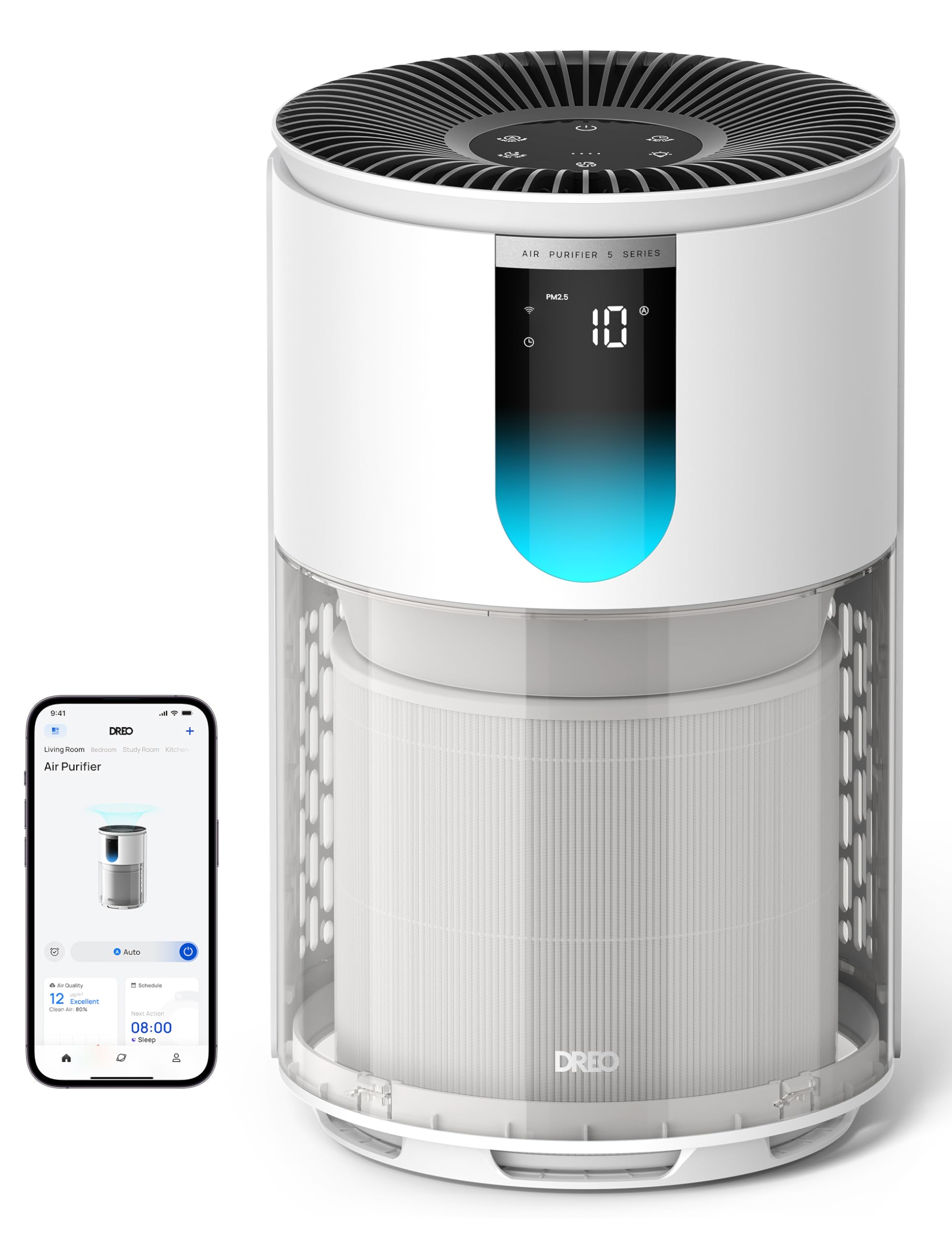
Image: DREO Smart Air Purifier DR-HAP009S, showing its compact design.

Image: The air purifier alongside its AHAM Verified performance certificate, highlighting its effectiveness.
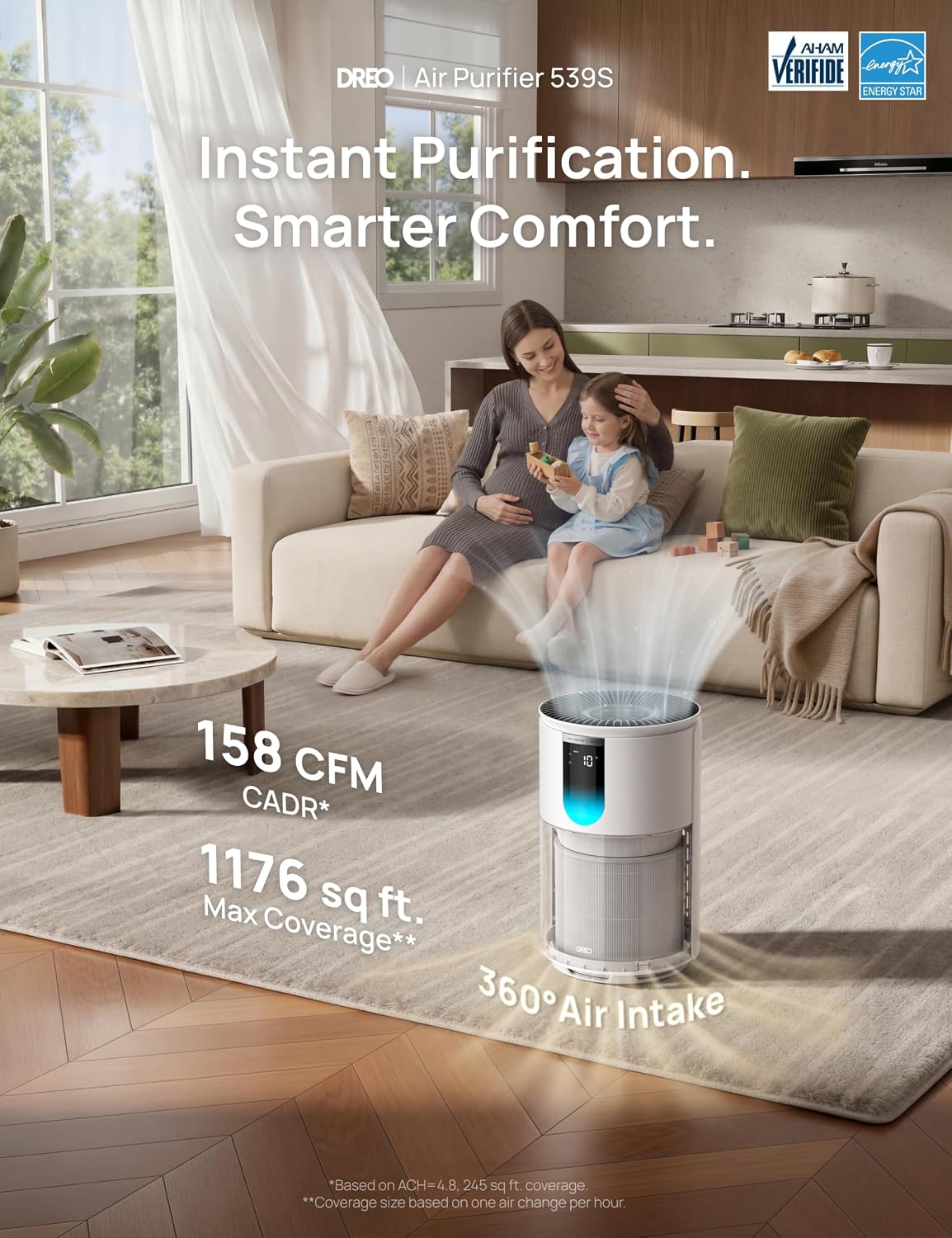
Image: The air purifier operating in a living room, illustrating its coverage area and CADR rating.
3. Setup
- Unpack the Air Purifier: Carefully remove the air purifier from its packaging. Ensure all components listed in the Product Components section are present.
- Remove Filter Packaging: Before first use, open the bottom cover and remove the plastic packaging from the 3-in-1 filter. Reinsert the filter and secure the bottom cover.
- Placement: Place the air purifier on a firm, level surface. Ensure there is at least 15 inches (38 cm) of clearance on all sides for optimal airflow. Avoid placing it directly against walls or furniture.
- Power Connection: Plug the power cord into a standard electrical outlet. The unit will enter standby mode.

Image: Diagram showing how to access and install the filter at the base of the air purifier.
4. Operating Instructions
Your DREO Smart Air Purifier offers multiple ways to control and monitor your air quality.
Control Panel:
The intuitive touch control panel on top of the unit allows for direct operation.

Image: Close-up view of the air purifier's top control panel with various touch buttons.
- Power Button: Press to turn the unit ON or OFF.
- Mode Button: Cycle through available modes: Auto, Sleep, Normal, Turbo.
- Fan Speed Button: Adjust fan speed manually (if not in Auto mode).
- Timer Button: Set a timer for automatic shutdown.
Smart Control (Wi-Fi / App / Voice):
Connect your air purifier to the DREO App for advanced control and monitoring, or integrate with voice assistants like Alexa and Google Assistant.
- Download the DREO App: Search for "DREO" in your smartphone's app store.
- Pair Device: Follow the in-app instructions to connect your air purifier to your home Wi-Fi network.
- Voice Control: Enable the DREO skill/action in your Alexa or Google Home app to control the purifier with voice commands.

Image: Screenshot of the DREO mobile application, demonstrating remote control and monitoring features for the air purifier.
Air Quality Monitoring:
The integrated PM2.5 sensor provides real-time air quality readings.
- LED Display: Shows the current PM2.5 level (1-999).
- RGB Indicator Light: Changes color to indicate air quality: Blue (Excellent), Green (Good), Orange (Moderate), Red (Poor).

Image: The air purifier's front panel displaying the PM2.5 level and the color-coded air quality indicator light.
Operating Modes:
- Auto Mode: Automatically adjusts fan speed based on detected air quality.
- Sleep Mode: Operates at the lowest fan speed with minimal noise (18dB) and dimmed lights for undisturbed rest.
- Normal Mode: Standard operation for continuous air purification.
- Turbo Mode: Runs at maximum fan speed for rapid air cleaning.

Image: The air purifier in a bedroom setting, emphasizing its quiet operation in sleep mode and providing product dimensions.
5. Maintenance
Regular maintenance ensures optimal performance and extends the lifespan of your air purifier.
Filter Replacement:
The DREO 3-in-1 filter has a limited lifespan and needs to be replaced periodically. The DREO App and the unit's indicator light will remind you when replacement is due.
- Power Off: Unplug the air purifier from the power outlet.
- Remove Bottom Cover: Turn the unit upside down and twist the bottom cover counter-clockwise to unlock and remove it.
- Remove Old Filter: Pull out the used 3-in-1 filter.
- Install New Filter: Insert a new DREO DR-HAP009S replacement filter (ensure plastic packaging is removed).
- Secure Cover: Replace the bottom cover and twist clockwise to lock it into place.
- Reset Filter Life: After replacing the filter, press and hold the Filter Reset button on the control panel for 3 seconds until the indicator turns off.

Image: Exploded view diagram illustrating the three layers of the filtration system: Pre-Filter, HEPA Filter, and Activated Carbon.

Image: A DREO replacement filter for the DR-HAP009S model, shown separately for purchase.
Cleaning the Unit:
- Wipe the exterior of the air purifier with a soft, dry cloth.
- Do not use abrasive cleaners or solvents.
- Clean the air intake and outlet grilles with a soft brush or vacuum cleaner to remove dust buildup.
6. Troubleshooting
Refer to this section for common issues and their solutions.
| Problem | Possible Cause | Solution |
|---|---|---|
| Unit does not turn on. | Not plugged in; Power outage; Filter not installed correctly. | Ensure power cord is securely plugged in; Check power supply; Verify filter is installed and bottom cover is locked. |
| Poor air purification performance. | Filter is dirty or expired; Unit placed in an obstructed area; Room size exceeds capacity. | Replace the filter; Ensure proper clearance around the unit; Use in recommended room sizes. |
| Unusual noise during operation. | Foreign object inside; Filter not seated correctly; Unit on an uneven surface. | Unplug and check for obstructions; Reinstall filter; Place on a stable, level surface. |
| Wi-Fi connection issues. | Incorrect Wi-Fi password; Router too far; App not updated. | Re-enter Wi-Fi password; Move unit closer to router; Update DREO App to the latest version. |
7. Specifications
Detailed technical specifications for the DREO Smart Air Purifier DR-HAP009S.
| Specification | Value |
|---|---|
| Model Number | DR-HAP009S |
| Product Dimensions | 9.37 x 9.37 x 15.35 inches |
| Item Weight | 6.86 pounds |
| Power Source | Corded Electric |
| Control Method | App, Touch, Voice (Alexa, Google Assistant) |
| Filter Type | 3-in-1 Pleated HEPA |
| Floor Area Coverage | Up to 1176 sq. ft. (1 ACH) / 245 sq. ft. (4.8 ACH) |
| Noise Level | 24 dB (as low as 18dB in Sleep Mode) |
| Particle Retention Size | 0.3 micrometer |
| Contaminant Filtration | Cigarette Smoke, Dust, Pet Hair, Pollen, Wildfire Smoke, Odors |
| Certifications | AHAM Certified, CARB Certified, EPA Certified, Energy Star Certified, FCC Certified |
| UPC | 850084149610 |

Image: Table detailing AHAM Certified performance, including space size, time to clean air, and ACH ratings.
8. Warranty and Support
DREO products are designed with quality and reliability in mind. For warranty information, please refer to the Important Safety Instructions document included with your product or visit the official DREO website.
For technical support, troubleshooting assistance, or to inquire about replacement parts, please contact DREO customer service. Contact details can typically be found on the DREO website or within the DREO App.
A digital copy of the user manual is available for download: User Manual (PDF)


