
Introduction
Thank you for choosing the Prechen 32-inch 4K UHD 144Hz Touchscreen Gaming Monitor. This manual provides essential information for setting up, operating, and maintaining your monitor. Please read it thoroughly before use to ensure optimal performance and safety.
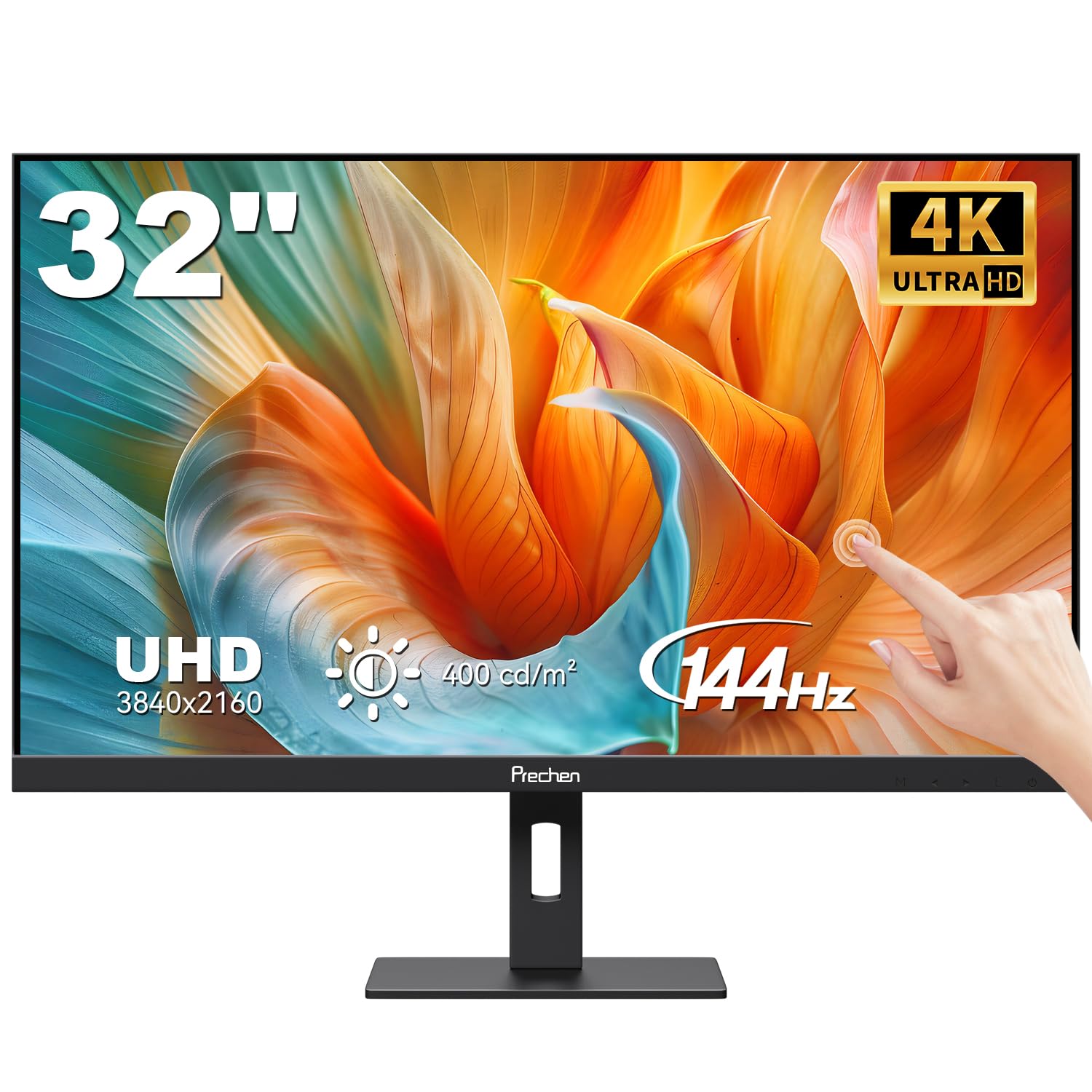
Image: Prechen 32-inch 4K UHD 144Hz Touchscreen Gaming Monitor on a desk.
Product Features
- 4K UHD Image Quality and Accurate Color Reproduction: Experience stunning details on a 32-inch 4K UHD (3840 x 2160) display. With 100% sRGB color space coverage and 400 cd/m² brightness, this monitor delivers vivid, color-accurate images, perfect for graphic design, video editing, and daily productivity.
- 10-Point Multi-Touch Operation: Enhance your workflow with responsive multi-touch support. Interact with content naturally and efficiently by tapping, swiping, zooming, and dragging directly on the screen. Ideal for creative projects, collaborative presentations, or everyday navigation. Note: The touch functionality of this 32-inch touchscreen monitor is not available when connected to devices such as Apple devices, PS3/4/5, Switch, X-Box, Steam Deck, Fire TV Stick/Cube, etc.
- Smooth 144 Hz Refresh Rate: Eliminate choppy visuals and lag. The 144 Hz refresh rate ensures extremely fluid motion, whether gaming, scrolling complex spreadsheets, or editing high-frame-rate footage. Every image is displayed smoothly, allowing you to fully immerse yourself in your work or game.
- Flexible Stand and VESA Mounting: The adjustable stand allows for height, swivel, and tilt adjustments, ensuring you always find the perfect viewing position. The ergonomic design provides maximum comfort and reduces fatigue during long work sessions or intense gaming. Supports VESA wall mounting (100 x 100 mm) for space-saving setups.
- Wide Compatibility: Stay connected with USB-C, USB-B, USB-A, DisplayPort (DP), and HDMI ports, allowing seamless connection to a wide range of devices including laptops, desktops, and gaming consoles.
- Dual Connection Methods:
- Full-featured USB-C (USB-C 3.1): First, use the power adapter to power the monitor. Then, connect your device to the monitor's USB-C port via a USB-C to USB-C cable to enable video output and touch functionality.
- HDMI/DP and USB-A Ports: First, use the power adapter to power the monitor. Then, connect your device to the monitor via an HDMI/DP cable and a USB-A to USB-B cable to enable signal transmission and touch functionality.
Package Contents
Please check the package contents upon unboxing to ensure all items are present:
- 32-inch Monitor
- USB-C to USB-C Cable
- USB-A to USB-B Cable
- HDMI to HDMI Cable
- DP Cable
- Power Adapter
- User Manual

Image: Diagram showing the monitor dimensions and a list of included accessories in the package.
Setup Instructions
General Connection Overview
The monitor offers versatile connectivity options. Ensure the monitor is powered before connecting any devices.

Image: Diagram illustrating various display interfaces (Power, HDMI, DP, USB-C, USB-B, USB-A, Audio) and compatible devices like laptops, game consoles (PS4/5, X-Box, Switch), and desktop PCs.
Connecting the Touchscreen Monitor
There are two primary methods to connect your device and enable touchscreen functionality:
-
Method 1: Using a Full-featured USB-C (USB-C 3.1) Port
This method provides both video and touch signal output through a single cable.
- Connect the power adapter to the monitor's DC input.
- Connect one end of the USB-C to USB-C cable to your device's full-featured USB-C port.
- Connect the other end of the USB-C to USB-C cable to the monitor's USB-C port.

Image: Diagram showing monitor connected to a laptop via USB-C cable, with power adapter connected to the monitor.
-
Method 2: Using HDMI/DP and USB-A Ports
This method requires separate cables for video and touch signals.
- Connect the power adapter to the monitor's DC input.
- Connect one end of the HDMI or DisplayPort (DP) cable to your device's video output port.
- Connect the other end of the HDMI or DP cable to the corresponding port on the monitor.
- Connect one end of the USB-A to USB-B cable to your device's USB-A port.
- Connect the other end of the USB-A to USB-B cable to the monitor's USB-B port.

Image: Diagram showing monitor connected to a laptop via HDMI/DP and USB-A to USB-B cables, with power adapter connected to the monitor.
Connecting to a Smartphone
You can connect the monitor to a smartphone via a USB-C to USB-C cable for video and touch signal output. Ensure your smartphone has a full-featured USB-C (USB-C 3.1) port. Touch signal is not supported on iPhone devices.

Image: Monitor displaying content from a smartphone connected via a USB-C cable.
Operating Instructions
Touchscreen Functionality
The monitor supports 10-point multi-touch, allowing for intuitive interaction. Use gestures like tapping, swiping, pinching to zoom, and dragging. Refer to the compatibility section for devices that support touch functionality.

Image: Diagram showing different touch capabilities (Click Touch, Multi-Touch, No Support Touch) across various devices like Macbooks, laptops, smartphones, iPhones, iPads, Switches, Xbox, and PS5.
High Refresh Rate (144Hz)
The 144Hz refresh rate provides a significantly smoother visual experience compared to standard 60Hz monitors, reducing motion blur and ghosting, especially beneficial for gaming and fast-paced content.

Image: Visual comparison demonstrating the difference between 60Hz and 144Hz refresh rates in a gaming scenario, highlighting smoother motion at 144Hz.
4K UHD Resolution
Enjoy incredibly sharp and detailed images with the 3840x2160 UHD resolution. This high pixel density ensures clarity for both work and entertainment.

Image: Visual comparison showing the superior detail of 4K UHD (3840x2160) resolution compared to 1080p.
Vivid Color Display
The monitor features 100% sRGB coverage, a 1000:1 contrast ratio, and 400 cd/m² brightness, capable of displaying 16.7 million colors for a rich and accurate visual experience.

Image: Monitor displaying a vibrant floral image, highlighting 100% sRGB, 1000:1 contrast ratio, 400 cd/m² brightness, and 16.7 million colors.
Wide Viewing Angle
The 178° ultra-wide viewing angle ensures consistent image quality and color accuracy from almost any perspective.

Image: Two monitors viewed from different angles, demonstrating the consistent image quality across a 178° ultra-wide viewing angle.
VESA Mount Compatibility
The monitor supports VESA 100x100mm mounting, allowing you to attach it to a wall mount or monitor arm for flexible positioning and desk space optimization.

Image: Monitor mounted on a VESA-compatible arm on a desk, indicating VESA 100x100mm support.
Low Blue Light Feature
The monitor includes a Low Blue Light mode to reduce eye strain during prolonged use, promoting a more comfortable viewing experience.

Image: A person working at a desk with the monitor, illustrating the benefit of the Low Blue Light feature for eye comfort.
Dual Surround Speakers
Built-in dual speakers provide enhanced sound quality, offering an immersive audio experience for games, movies, and other multimedia content.

Image: Rear view of the monitor highlighting the dual surround speakers with sound wave graphics.
Specifications
| Feature | Specification |
|---|---|
| Brand | Prechen |
| Screen Size | 32 Inches |
| Resolution | 3840 x 2160 (4K UHD) |
| Aspect Ratio | 16:9 |
| Response Time | 3 Milliseconds |
| Connectivity Technology | HDMI, DisplayPort, USB-C |
| Brightness | 400 cd/m² |
| Total USB Ports | 3 (USB-C, USB-B, USB-A) |
| Hardware Interface | DisplayPort, HDMI, USB-C |
| Color Screen | Yes |
| Model Number | HD-320 |
| Country of Origin | China |
Troubleshooting
If you encounter any issues with your Prechen monitor, please refer to the following general troubleshooting steps:
- No Power: Ensure the power adapter is securely connected to both the monitor and a working power outlet. Check the power indicator light on the monitor.
- No Signal: Verify that the video cable (HDMI, DisplayPort, or USB-C) is correctly connected to both the monitor and your source device. Ensure the correct input source is selected on the monitor (usually via the OSD menu).
- Touch Functionality Not Working: Confirm that the USB-A to USB-B cable (for HDMI/DP connections) or the full-featured USB-C cable is properly connected. Remember that touch functionality is not supported on certain devices (e.g., Apple devices, gaming consoles).
- Flickering or Distorted Image: Check the video cable for damage. Try a different cable or port. Ensure your graphics card drivers are up to date.
- Image Too Dark/Bright/Incorrect Colors: Adjust the brightness, contrast, and color settings through the monitor's On-Screen Display (OSD) menu.
For more specific issues, please consult the Prechen support website or contact customer service.
Maintenance
To ensure the longevity and optimal performance of your monitor, follow these maintenance guidelines:
- Cleaning the Screen: Gently wipe the screen with a soft, lint-free cloth. For stubborn smudges, use a screen-specific cleaning solution applied to the cloth, not directly to the screen. Avoid harsh chemicals or abrasive materials.
- Cleaning the Casing: Use a soft, dry cloth to clean the monitor casing.
- Ventilation: Ensure the monitor's ventilation openings are not blocked to prevent overheating.
- Storage: When not in use for extended periods, store the monitor in a cool, dry place, away from direct sunlight and extreme temperatures.
- Power Off: Always power off the monitor when not in use to save energy and extend its lifespan.
Warranty and Support
Your Prechen monitor is covered by a manufacturer's warranty. Please refer to the warranty card included in your package for specific terms and conditions. Keep your proof of purchase for warranty claims.
For technical support, product inquiries, or warranty service, please visit the official Prechen website or contact their customer service department.
Additional product information, including the EU Energy Label, can be found at the following link: