
Introduction
Welcome to your new Linkdaze 15.6 inch Digital Calendar. This interactive touchscreen device is designed to streamline family organization, offering features such as synchronized calendars, chore management, meal planning, and a digital photo frame. This manual provides essential information for setup, operation, maintenance, and troubleshooting to ensure optimal use of your device.
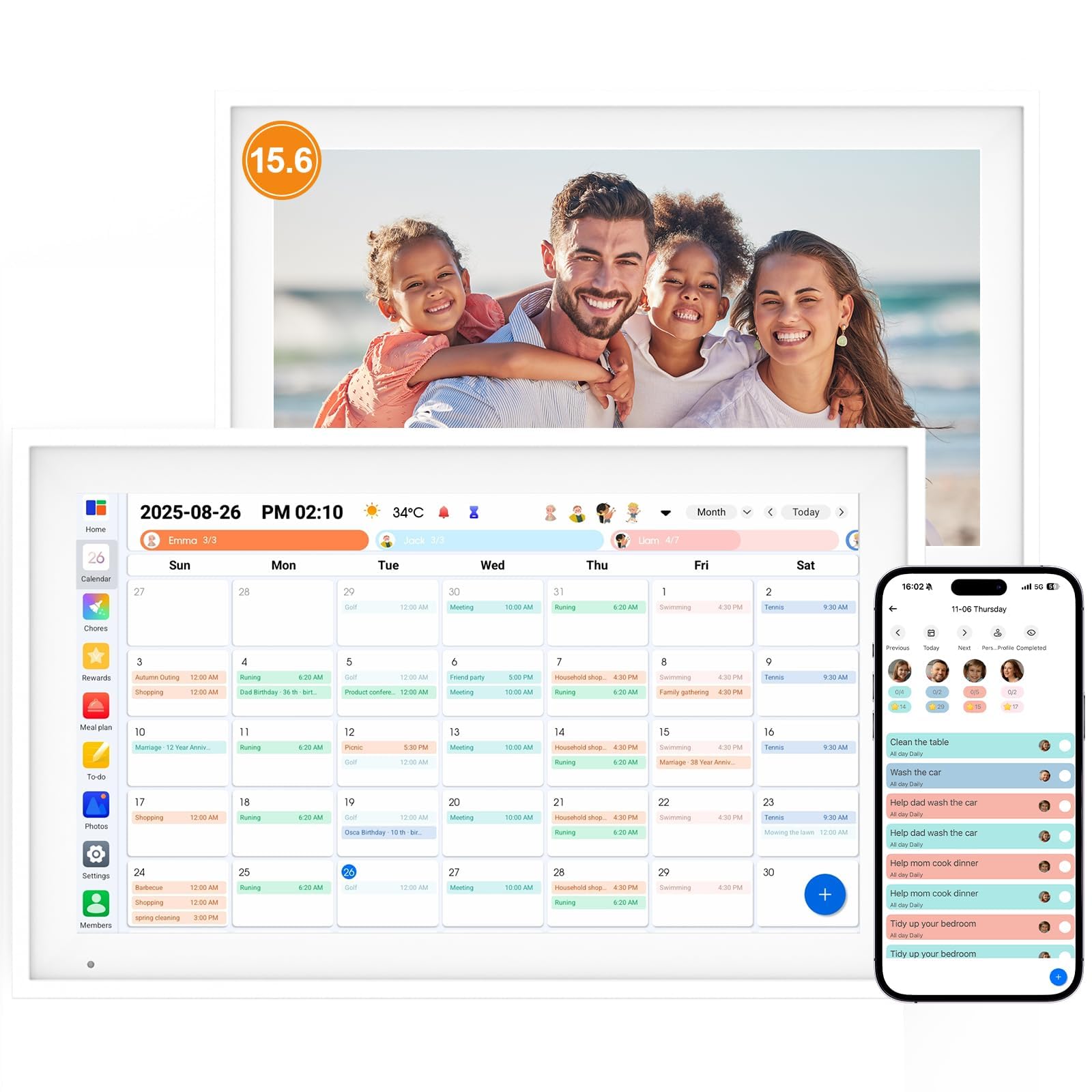
Image: Front view of the Linkdaze 15.6 inch Digital Calendar.
Key Features
- Vibrant 15.6" Touchscreen Display: A central visual hub for your home, displaying schedules and memories in high definition.
- Seamless Calendar Synchronization: Connects to Wi-Fi to sync with Google, iCloud, Outlook, and other calendars, ensuring all family members stay updated.
- Interactive Chore Management: Assign tasks, track completion, and reward family members, fostering responsibility.
- Integrated Meal Planner: Plan weekly menus, browse recipes, and generate shopping lists directly on the device.
- Digital Photo Frame Functionality: Transforms into a photo frame, displaying cherished family memories from your phone with 64GB built-in memory.
- User-Friendly Android System: Intuitive interface designed for ease of use by all ages.
Setup Guide
- Unboxing and Placement: Carefully remove the digital calendar from its packaging. Choose a suitable location, such as a kitchen wall or countertop, ensuring it is near a power outlet.
- Power Connection: Connect the power adapter to the device and plug it into a wall outlet. The device will automatically power on.
- Initial Setup: Follow the on-screen prompts to select your language, time zone, and connect to your home Wi-Fi network.
- App Download and Synchronization: Download the dedicated Linkdaze app on your smartphone. Use the app to link your existing digital calendars (Google, iCloud, Outlook, etc.) with the device. This will automatically sync your family's schedules.
- Personalized Profiles: Create individual profiles for each family member within the app or directly on the device. Assign unique colors to each profile for easy identification of schedules.

Image: Seamless synchronization with popular calendar services.
Operating Instructions
Calendar Management
The main screen displays your family's synchronized calendar. Events are color-coded by family member.
- Adding Events: Tap on a date or the '+' icon to add a new event. Enter details such as title, time, and assign it to a family member.
- Viewing Modes: Switch between Month, Week, Day, and Schedule views using the icons at the top of the screen.
Chore Management
Access the 'Chores' section to assign and track household tasks.
- Assigning Chores: Create new chores, set due dates, and assign them to specific family members.
- Marking Completion: Family members can tap on a chore to mark it as complete. The system can be configured to award stars or points for completed tasks.

Image: Chore management interface.
Meal Planning
Utilize the 'Meal Plan' feature to organize your family's meals.
- Creating Menus: Plan your breakfast, lunch, and dinner for the week.
- Shopping Lists: Generate a shopping list based on your meal plan, which can be accessed on the device or through the mobile app.

Image: Meal planning feature in use.
Digital Photo Frame
When not actively used as a calendar, the device can display a slideshow of your photos.
- Uploading Photos: Use the Linkdaze app to upload photos directly from your phone to the device's 64GB internal memory.
- Slideshow Settings: Customize slideshow speed, transitions, and display order in the settings menu.

Image: Digital photo frame feature.
TO-DO & Shopping Lists
Manage your daily tasks and shopping needs efficiently.
- Creating Lists: Easily add items to your to-do lists or shopping lists.
- Checking Off Items: Mark items as complete or purchased with a simple tap.

Image: TO-DO and Shopping Lists feature.
Personalization
Customize the calendar to fit your family's unique needs.
- Member Management: Add, edit, or remove family members and their associated profiles.
- Reward System: Set up custom rewards for chore completion to motivate family members.

Image: Personalized family profiles and reward settings.
Maintenance
- Cleaning the Screen: Use a soft, lint-free cloth to gently wipe the touchscreen. For stubborn smudges, slightly dampen the cloth with water or a screen-safe cleaner. Avoid harsh chemicals or abrasive materials.
- Software Updates: The device may periodically receive software updates. Ensure your device is connected to Wi-Fi to receive these updates, which improve performance and add new features. Follow on-screen prompts for installation.
- Power Management: For optimal longevity, avoid frequently unplugging the device. If you need to power it off, use the software shutdown option in the settings menu before disconnecting power.
- Environmental Conditions: Keep the device in a dry environment, away from direct sunlight, extreme temperatures, and high humidity.
Troubleshooting
| Problem | Possible Solution |
|---|---|
| Device does not power on. | Ensure the power adapter is securely connected to both the device and a working power outlet. Try a different outlet. |
| Wi-Fi connection issues. | Check if your Wi-Fi router is working correctly. Restart the device and try reconnecting to the network. Ensure the Wi-Fi password is entered correctly. |
| Calendar not syncing. | Verify that the device is connected to Wi-Fi. Check the Linkdaze app on your phone to ensure your external calendars are properly linked and authorized. Restart the app and the device. |
| Touchscreen unresponsive. | Restart the device. If the issue persists, ensure the screen is clean and free of debris. |
| Photos not uploading. | Confirm the device has sufficient storage space. Check your phone's internet connection and the Linkdaze app's permissions for photo access. |
If you encounter issues not listed here or if solutions do not resolve the problem, please contact customer support.
Specifications
| Brand | Linkdaze |
| Model Number | LinkA1 |
| Screen Size | 15.6 inch |
| Display Resolution | 1920*1080 (Full HD) |
| Storage | Built-in 64GB Memory |
| Product Dimensions | 11"W x 18"H |
| Item Weight | 1.8 pounds |
| UPC | 768807680244 |
Warranty and Support
Your Linkdaze Digital Calendar is covered by a standard manufacturer's warranty. Please refer to the warranty card included in your product packaging for specific terms and conditions.
For technical support, product inquiries, or warranty claims, please contact Linkdaze customer service through their official website or the contact information provided in your product documentation.
Online Resources: For additional guides, FAQs, and software updates, visit the official Linkdaze support page.