
Introduction
Thank you for choosing the Hodozzy 7-Inch Double Din Car Stereo. This unit features a vibrant 7-inch touchscreen, Wireless CarPlay, Android Auto, Bluetooth connectivity, FM radio, EQ sound customization, online video playback, Mirror Link, and support for USB, AUX, Type-C, and Steering Wheel Controls (SWC). It also includes a dedicated input for a backup camera. This manual provides detailed instructions for installation, operation, and troubleshooting to ensure optimal performance and user experience.
What's in the Box
Please check the contents of your package. If any items are missing or damaged, contact your retailer.
- Hodozzy 7-Inch Double Din Car Stereo Unit
- Power Cable
- Horn Cable
- Mounting Bracket
- User Manual (this document)
- Backup Camera
- Accessories (e.g., screws, trim frame)

Figure 1: Package Contents Diagram
Setup and Installation
Professional installation is recommended. Ensure the vehicle's power is disconnected before beginning installation. Refer to the wiring diagram provided on the unit and in the included user manual for correct connections.
Wiring Connections
Connect the power cable, horn cable, and other necessary inputs (e.g., backup camera, USB, AUX) according to the wiring diagram. Pay close attention to positive, negative, and accessory power lines.

Figure 2: Car Stereo Unit Overview
Mounting
Use the provided mounting brackets to secure the unit into your vehicle's double DIN slot. Ensure the unit is firmly in place to prevent movement during driving.
Operating Instructions
7-Inch Touchscreen and Physical Controls
The unit features a responsive 7-inch touchscreen for primary interaction. Additionally, tactile piano keys provide precise control for essential functions. The user interface is designed for intuitive navigation. You can personalize the backlight settings with multiple color options.

Figure 3: Touchscreen and Physical Buttons
Wireless CarPlay and Android Auto
Connect your smartphone wirelessly or via USB to access CarPlay (for iPhone) or Android Auto (for Android phones). This allows you to use navigation, make calls, send messages, and play music directly from your phone's interface displayed on the car stereo screen.
- Ensure Bluetooth and Wi-Fi are enabled on your smartphone.
- On the car stereo, select the CarPlay or Android Auto icon.
- Follow the on-screen prompts to pair your device.
- Once connected, your phone's compatible apps will appear on the stereo display.
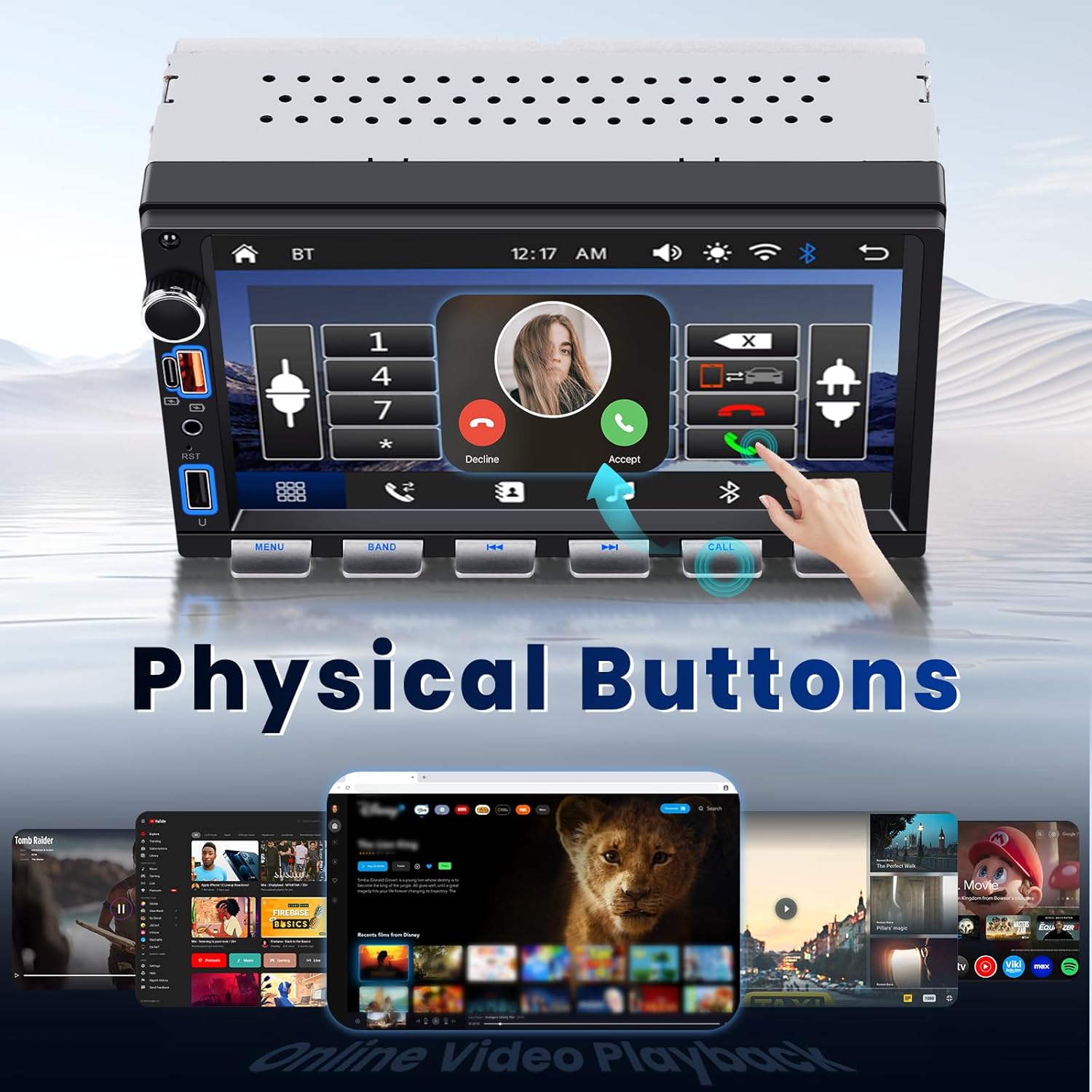
Figure 4: CarPlay and Android Auto Interface
Bluetooth Music and Hands-Free Calling
Pair your phone via Bluetooth for wireless audio streaming and hands-free calls.
- Go to the Bluetooth menu on the car stereo.
- Enable Bluetooth on your phone and search for available devices.
- Select "Hodozzy" (or similar device name) from your phone's list and confirm pairing.
- Once paired, you can stream music or make/receive calls directly through the stereo.
FM Radio
Access traditional FM radio stations within the frequency range of 87.5 - 108 MHz.
- Select the "FM Radio" icon from the main menu.
- Use the scan function to find stations or manually tune to a specific frequency.
- Save your favorite stations as presets for quick access.

Figure 5: Bluetooth, FM Radio, EQ, and Backlight Settings
Online Video Playback
The unit supports online video streaming through its built-in browser, allowing access to platforms like YouTube. Ensure the unit is connected to a Wi-Fi hotspot (e.g., from your smartphone) for internet access.
Mirror Link Function
Use Mirror Link to display your smartphone's screen directly onto the car stereo. This feature is compatible with both Android and iOS devices.
- Select the "Mirror Link" icon from the main menu.
- Follow the specific instructions displayed on the stereo for connecting your Android or iOS device. This typically involves connecting via USB and enabling USB debugging (for Android) or trusting the device (for iOS).
EQ Sound Settings
Fine-tune your audio experience using the built-in Equalizer (EQ). Adjust bass, treble, and other sound profiles to match your preferences.
- Access the EQ settings from the audio menu.
- Choose from preset sound modes or customize individual frequency bands.
USB, AUX, and Type-C Connectivity
The unit provides multiple ports for versatile connectivity:
- USB Port: For media playback from USB drives or connecting smartphones for wired CarPlay/Android Auto.
- Type-C Port: For fast charging compatible devices and data transfer.
- AUX Input: Connect external audio devices using a 3.5mm audio cable.

Figure 6: Interface and Connectivity Ports
Steering Wheel Control (SWC)
If your vehicle supports steering wheel controls, you can configure them to manage the stereo's functions (e.g., volume, track changes, call answering) directly from your steering wheel. Refer to the wiring diagram for SWC connections and the unit's settings menu for programming.
Backup Camera Input
The unit includes a dedicated input for the provided backup camera. When properly installed and connected, the stereo will automatically display the rear view when the vehicle is in reverse gear, enhancing safety and visibility.

Figure 7: Backup Camera and Steering Wheel Controls
Maintenance
To ensure the longevity and optimal performance of your car stereo, follow these maintenance guidelines:
- Cleaning: Use a soft, dry cloth to clean the touchscreen and physical buttons. Avoid abrasive cleaners or solvents that could damage the surface.
- Software Updates: Periodically check the Hodozzy official website or contact support for any available firmware updates. Updates can improve performance and add new features.
- Environmental Conditions: Avoid exposing the unit to extreme temperatures, direct sunlight for prolonged periods, or excessive moisture.
Troubleshooting
If you encounter issues with your Hodozzy car stereo, refer to the following common problems and solutions:
| Problem | Possible Cause | Solution |
|---|---|---|
| No Power | Incorrect wiring, blown fuse, loose connection. | Check power and ground connections. Inspect vehicle's fuse box and the unit's fuse. Ensure accessory wire is connected correctly. |
| No Sound | Speaker wires incorrectly connected, volume too low, mute activated, incorrect audio source. | Verify speaker wiring. Increase volume. Check if mute is active. Select the correct audio source (e.g., FM, Bluetooth, USB). |
| CarPlay/Android Auto Not Connecting | Bluetooth/Wi-Fi off, incorrect pairing, phone software issue, cable issue (for wired). | Ensure phone's Bluetooth and Wi-Fi are on. Forget device on both phone and stereo and re-pair. Restart phone and stereo. Try a different USB cable if using wired connection. |
| Backup Camera Not Displaying | Camera not connected, reverse trigger wire not connected, faulty camera. | Check camera video input and reverse trigger wire connection to the vehicle's reverse light circuit. Ensure camera is powered. |
| Buttons Unresponsive / Screen Frozen | Temporary software glitch. | Perform a soft reset by pressing the reset button (if available) or by turning off the vehicle's ignition and restarting. |
| Poor Radio Reception | Antenna not connected, damaged antenna, weak signal area. | Ensure antenna is securely connected. Check antenna for damage. Try scanning for stations in a different location. |
If the problem persists after trying these solutions, please contact Hodozzy customer support.
Specifications
| Feature | Detail |
|---|---|
| Brand | Hodozzy |
| Model | 7-Inch Double Din Car Stereo |
| Screen Size | 7-Inch |
| Connectivity Technology | Bluetooth, USB |
| Special Features | Wireless/Wired Android Auto, Wireless/Wired Apple CarPlay, Built-In Bluetooth, Hands-Free Calling, Mirror Link, FM Radio, EQ, Online Video Playback, SWC, Backup Camera Input |
| Compatible Devices | Smartphone |
| Connector Type | RCA, USB, Type-C, AUX |
| Audio Output Mode | Stereo |
| Output Power | 45 watts (per channel) |
| Output Wattage | 180 watts (total) |
| Number of Channels | 4 |
| Supported Internet Services | YouTube (via built-in browser) |
| Audio Output Type | Speakers |
| Supported Media Formats | AVI, MP3 Audio, MPEG |
| FM Frequency Range | 87.5 - 108 MHz |
Warranty Information
This Hodozzy car stereo unit comes with a 2-year warranty. Please retain your proof of purchase for warranty claims. For specific terms and conditions, or to initiate a warranty claim, please contact the seller or Hodozzy customer support directly.
Customer Support
For further assistance, technical support, or inquiries regarding your Hodozzy product, please visit the official Hodozzy store or contact their customer service department.
Brand: Hodozzy
Online Store: Hodozzy Store on Amazon