
Cubonic GameOrbit G90
Cubonic GameOrbit G90 Handheld Game Console Instruction Manual
Model: GameOrbit G90
1. Safety Information
Important: Please read all safety instructions before using the device.
- Use this product indoors only. Avoid exposing to rain, moisture, or extreme temperatures.
- Keep the console away from direct heat sources such as heaters or direct sunlight for long periods.
- Do not disassemble, modify, or attempt repair yourself. This may cause electric shock or void the warranty.
- Only use the recommended charging cable and certified adapters (5V USB recommended).
- Do not charge the console while placed under pillows, blankets, or inside any enclosed space.
- Stop using immediately if you notice swelling, overheating, or unusual smell from the battery.
- Do not leave the device charging unattended for extended periods.
- Prolonged screen time may cause eye strain or fatigue. Take a 10–15 minute break after every hour of play. Maintain a safe viewing distance and avoid playing in complete darkness.
- Listening at high volume for long periods may lead to permanent hearing loss. Keep volume at a moderate level, especially when using earphones/headphones. Children should always use volume-limited mode.
- Extended gaming may cause discomfort in hands, wrists, or arms. Stop use if you feel pain, numbness, or tingling and rest adequately.
- Ensure proper posture when gaming — avoid bending neck for long periods.
2. Package Contents
Ensure all items are present in the package:
- Cubonic GameOrbit G90 Handheld Game Console
- Power Cable
- User Manual (this document)
3. Product Overview
The Cubonic GameOrbit G90 is a portable gaming console designed for retro gaming enthusiasts. It features a 7-inch HD screen and supports multiple classic gaming platforms.
3.1. Console Layout

Image 1: Front view of the Cubonic GameOrbit G90, showing the 7-inch screen and all functional buttons including D-pad, joysticks, action buttons (A, B, X, Y), and menu buttons. The screen displays a game selection interface.

Image 2: Close-up view of the left joystick on the Cubonic GameOrbit G90, emphasizing its smooth and responsive control for immersive gameplay.
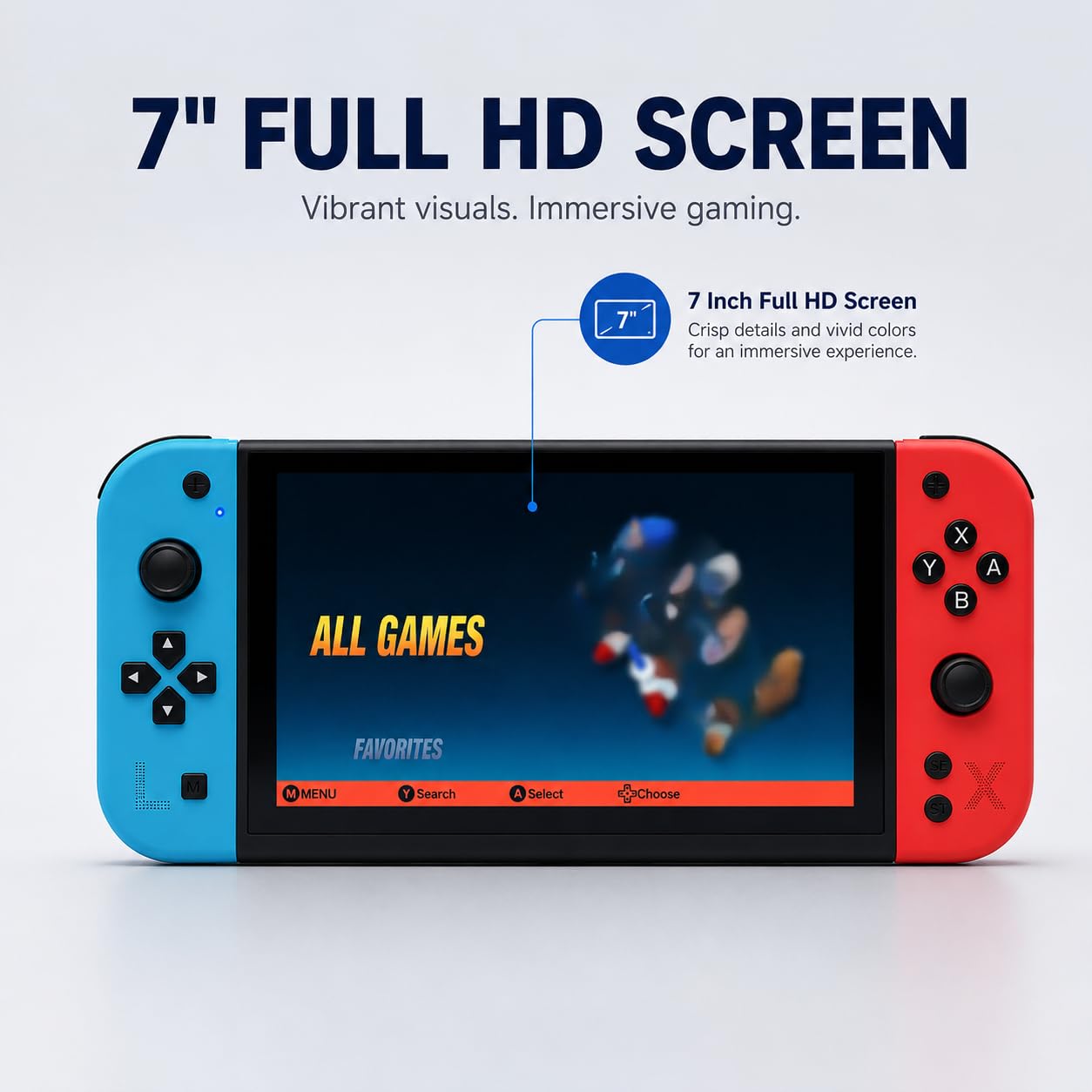
Image 3: Front view of the Cubonic GameOrbit G90, highlighting the 7-inch Full HD screen with vibrant visuals and crisp details.
3.2. Key Features
- Display: 7-inch IPS HD Screen (1024x600 resolution)
- Processor: Quad-core ARM Cortex-A7
- Memory: 1GB DDR3 RAM
- Storage: 4GB eMMC internal, expandable up to 128GB via TF (microSD) card
- Emulation: Supports Arcade (MAME, FBNeo, CPS series), Atari (2600, 5200, 7800, Lynx), NES, SNES, GB, GBA, GBC, MD (Genesis), Game Gear, NGPC, PS1, and more.
- Battery: 4000mAh rechargeable battery
- Operating System: Linux 5.1 RetroArch system
- Connectivity: HD Output, 3.5mm Audio, Type C for external controllers
4. Setup
4.1. Initial Charging
- Connect the provided power cable to the console's charging port.
- Plug the other end of the power cable into a certified 5V USB adapter (not included) and then into a power outlet.
- Allow the console to charge fully before first use. The charging indicator will typically change color or turn off when charging is complete.
Note: A full charge typically takes approximately 2 hours. Do not leave unattended while charging.
4.2. Inserting a TF (microSD) Card (Optional)
To expand your game library, you can insert a TF (microSD) card (up to 128GB).
- Locate the TF card slot on the console.
- Gently insert the TF card into the slot until it clicks into place. Ensure the card is oriented correctly.
- To remove, push the card in slightly until it springs out.
5. Operating Instructions
5.1. Power On/Off
- To Power On: Press and hold the Power button until the screen illuminates.
- To Power Off: Press and hold the Power button until a power-off menu appears, then select "Power Off" or "Shut Down". Alternatively, a long press may force a shutdown.
5.2. Navigation
The console uses a Linux 5.1 RetroArch system for its interface.
- Use the D-pad or left analog joystick to navigate through menus and game lists.
- Press the A button (or equivalent action button) to select an option or launch a game.
- Press the B button (or equivalent action button) to go back to the previous menu.
- Specific menu buttons (e.g., "M Menu", "Y Search") may be available for quick access to functions. Refer to on-screen prompts.
5.3. Playing Games
- From the main menu, navigate to the desired emulator or game category.
- Select a game from the list using the navigation controls.
- Press the A button to launch the game.
- During gameplay, use the console's arcade-style buttons and joysticks for control.
- To exit a game or access in-game menus (e.g., save states), refer to the specific emulator's hotkey combinations, often involving a combination of a menu button and another action button.
5.4. Multiplayer Gaming
The console supports external controllers for two-player gaming.
- Connect a compatible external controller (Type C) to the console.
- Ensure the game you wish to play supports two players.
- The system should automatically detect the external controller. Configuration may be required within the RetroArch settings for specific emulators.
6. Connecting to a TV (HD Output)
You can connect your GameOrbit G90 to a TV for a larger screen gaming experience.
- Ensure both the console and the TV are powered off.
- Connect an HD cable (not included) from the console's HD output port to an available HD input port on your TV.
- Power on your TV and select the correct HD input source using your TV remote.
- Power on the GameOrbit G90 console. The display should now appear on your TV.
Note: The console's screen may turn off or mirror the display depending on the specific HD output mode.
7. Maintenance
7.1. Cleaning
- Use a soft, dry, lint-free cloth to clean the console's screen and body.
- Do not use liquid cleaners, aerosols, or abrasive materials, as these can damage the finish or internal components.
7.2. Storage
- Store the console in a cool, dry place away from direct sunlight and extreme temperatures.
- If storing for an extended period, ensure the battery is partially charged (around 50%) to prolong its lifespan.
8. Troubleshooting
| Problem | Possible Cause | Solution |
|---|---|---|
| Console does not power on. | Battery is depleted. | Charge the console for at least 30 minutes using the provided power cable and a 5V USB adapter. |
| Screen is blank or flickering. | Loose connection or software issue. | Restart the console. If connected to a TV, check the HD cable connection and TV input source. |
| Games are not loading or running slowly. | Corrupted game files, incompatible ROMs, or full storage. | Ensure game files are correct and compatible with the emulator. Check available storage space. Try restarting the console. |
| External controller not working. | Incorrect connection, incompatible controller, or software configuration. | Ensure the controller is properly connected to the Type C port. Check if the controller is compatible. Verify RetroArch settings for controller input. |
| No sound. | Volume too low, muted, or faulty audio output. | Increase volume using the console's volume controls. Check if headphones are connected. If connected to TV, check TV volume. |
9. Specifications
| Feature | Detail |
|---|---|
| Brand | Cubonic |
| Model Number | GameOrbit G90 |
| Display Size | 7 Inches |
| Display Type | IPS HD LCD (1024x600) |
| Processor | Quad-core ARM Cortex-A7 |
| RAM | 1GB DDR3 |
| Internal Storage | 4GB eMMC |
| Expandable Storage | TF (microSD) card up to 128GB |
| Battery | 4000mAh Lithium-Ion |
| Battery Average Life | 2 Hours |
| Operating System | Linux 5.1 RetroArch |
| Connectivity | HD Output, 3.5mm Audio, Type C (for external controllers) |
| Controller Type | Button Control, Joystick |
| Number of Players | 2 (with external controller) |
| Item Dimensions (L x W x H) | 24.5 x 2.5 x 10.5 Centimeters |
| Item Weight | 200 Grams |
| Material | Plastic |
| Included Components | Power Cable |
10. Warranty and Support
10.1. Manufacturer Warranty
The Cubonic GameOrbit G90 comes with a manufacturer warranty. Replacement is limited to manufacturing defects only.
For detailed warranty terms and conditions, please refer to the official Cubonic website or contact customer support.
10.2. Customer Support
For any queries, technical assistance, or support, please contact:
- Email: Cubonicindia@gmail.com
- Seller Contact: Cubonic India Customer Care 7011410155
Ask a question about this manual
Ask about setup, troubleshooting, compatibility, parts, safety, or missing instructions. Manuals+ will review the question and use this page’s manual context to help answer it.