
1. Introduction
Thank you for choosing the Hupoaf GE19 PC Soundbar. This compact and versatile speaker is designed to enhance your desktop audio experience with clear stereo sound, customizable RGB lighting, and flexible mounting options. This manual provides essential information for setup, operation, maintenance, and troubleshooting to ensure optimal performance of your device.

Image 1.1: The Hupoaf GE19 PC Soundbar showcasing its stereo sound capabilities and RGB lighting.
2. Key Features
- Space-Saving Clip-On Monitor Design: Features an upgraded, non-slip spring clamp for secure mounting to the top, bottom, or side edges of your monitor without scratching. Also supports stable freestanding placement.
- Powerful Sound with Rich Bass: Built with dual ultra-magnetic drivers and dual passive radiators for sparkling highs, crisp mids, and deep, resonant bass.
- 6 RGB Dynamic Lighting Modes: Enhance your desktop setup with six vibrant lighting modes. Cycle through options with a single button press or turn lights off.
- Hassle-Free USB Setup: Requires zero drivers, software, or external power adapters. Plug the single USB cable directly into your computer for power and sound.
- Convenient Multifunction Controls: Easily control audio directly from the top of the speaker with dedicated buttons for volume, mute, playback, and RGB lighting.
- Universal USB Plug-and-Play: Designed for audio output only (no built-in microphone). Works seamlessly across Windows, macOS, ChromeOS, and Linux for PCs, laptops, and desktop computers via USB-A or USB-C.
- Important Note: Engineered exclusively for computers; not compatible with TVs, projectors, or Xbox/PlayStation consoles. Maximum monitor thickness for bottom mounting is 1.6 inches.
3. Product Overview
The Hupoaf GE19 PC Soundbar is designed for ease of use and aesthetic integration into your workspace. It features a sleek design with integrated RGB lighting and accessible controls.
3.1 Components
- Speaker Unit: Main soundbar with dual drivers and passive radiators.
- Integrated Clip/Stand: Adjustable mechanism for monitor mounting or freestanding use.
- USB Cable: Attached cable with USB-A and USB-C connectors for power and audio.
3.2 Controls
The top-mounted buttons provide direct control over the speaker's functions:
- Volume Up/Down: Adjusts audio output level.
- Mute: Toggles audio on/off.
- Playback Controls: Play/Pause, Next Track, Previous Track (functionality may vary based on operating system and media player).
- RGB Lighting Button: Cycles through 6 dynamic lighting modes. Press and hold to turn lights off.

Image 3.1: Detailed view of the control buttons and USB-A/USB-C connectivity options.
4. Setup Instructions
The Hupoaf GE19 PC Soundbar is designed for quick and easy setup.
4.1 Connecting to Your Computer
- Identify an available USB-A or USB-C port on your desktop PC or laptop.
- Plug the integrated USB cable from the soundbar into the chosen USB port on your computer.
- The soundbar will automatically power on and be recognized by your operating system as an audio output device. No additional drivers are required.

Image 4.1: The soundbar connected to a laptop, demonstrating its simple USB plug-and-play setup.
4.2 Mounting Options
The soundbar offers flexible placement to suit your workspace:
- Monitor Top: Use the adjustable spring clamp to securely attach the soundbar to the top edge of your monitor. Ensure the monitor thickness is compatible.
- Monitor Bottom/Side: The clamp can also be used to attach the soundbar to the bottom or side edges of your monitor.
- Freestanding: Place the soundbar directly on your desk. The integrated stand provides stability.
Note: For bottom mounting, ensure your monitor's bottom edge thickness does not exceed 1.6 inches (4 cm).
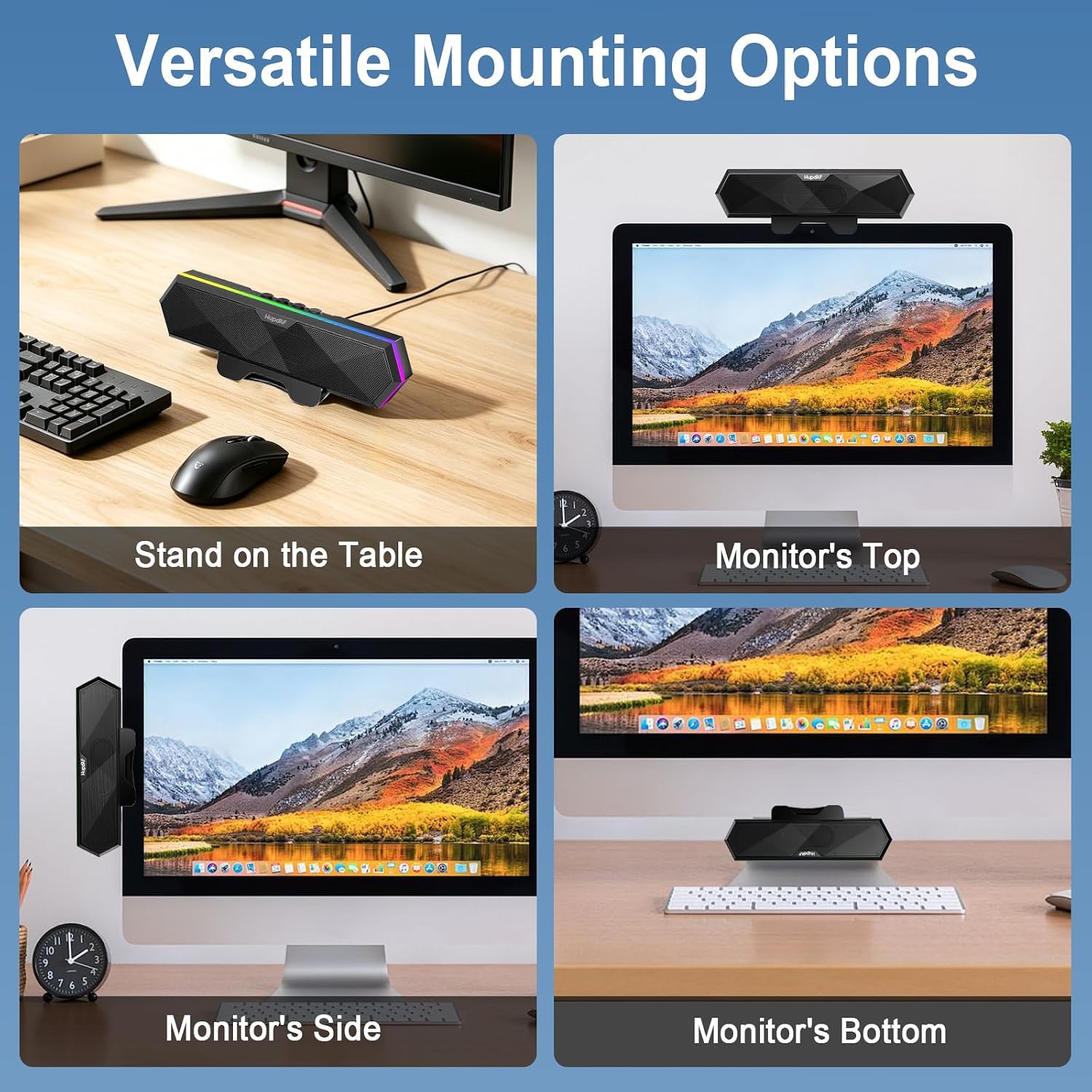
Image 4.2: Various mounting configurations for the soundbar, including on top, bottom, and side of a monitor, and freestanding.
5. Operating Instructions
Once connected, you can control the soundbar using its integrated buttons.
5.1 Audio Control
- Volume Adjustment: Press the Volume Up or Volume Down buttons to increase or decrease the sound level.
- Mute/Unmute: Press the Mute button to instantly silence the audio. Press again to unmute.
- Media Playback: Use the Play/Pause, Next Track, and Previous Track buttons to control media playback.
5.2 RGB Lighting Control
The soundbar features 6 dynamic RGB lighting modes:
- Press the RGB Lighting Button to cycle through the available lighting effects (e.g., Palette, Breathe, Rainbow Breathe).
- Press and hold the RGB Lighting Button for approximately 3 seconds to turn the lights completely off. Press again to reactivate the last selected mode.

Image 5.1: The soundbar showcasing its customizable RGB lighting modes.
6. Maintenance
To ensure the longevity and optimal performance of your Hupoaf GE19 PC Soundbar, follow these simple maintenance guidelines:
- Cleaning: Use a soft, dry cloth to wipe the exterior of the soundbar. Avoid using abrasive cleaners, solvents, or sprays that could damage the finish or internal components.
- Dust Removal: Periodically use a soft brush or compressed air to gently remove dust from the speaker grilles and control buttons.
- Storage: When not in use for extended periods, store the soundbar in a cool, dry place away from direct sunlight and extreme temperatures.
- Avoid Liquids: Do not expose the soundbar to water or other liquids. It is not waterproof.
7. Troubleshooting
If you encounter issues with your Hupoaf GE19 PC Soundbar, refer to the following common problems and solutions:
7.1 No Sound Output
- Check USB Connection: Ensure the USB cable is securely plugged into both the soundbar and your computer. Try a different USB port.
- Verify Computer Audio Settings: Make sure the Hupoaf GE19 Soundbar is selected as the default audio output device in your computer's sound settings.
- Adjust Volume: Increase the volume using the soundbar's control buttons and your computer's system volume. Ensure the soundbar is not muted.
- Test with Another Device: If possible, connect the soundbar to another computer to determine if the issue is with the speaker or your original computer.
7.2 RGB Lights Not Working
- Check Power: Ensure the soundbar is powered on via its USB connection.
- Toggle Lights: Press the RGB Lighting Button to cycle through modes. If lights are off, press and hold the button to reactivate them.
7.3 Sound Distortion or Low Quality
- Check Source Audio: Ensure the audio source (e.g., music file, video stream) is of good quality.
- Adjust Volume Levels: Avoid setting both the computer and speaker volume to maximum, which can cause distortion. Find a balanced level.
- Interference: Move the speaker away from other electronic devices that might cause interference.
8. Specifications
| Feature | Specification |
|---|---|
| Brand | Hupoaf |
| Model Name | GE19 |
| Model Number | Cs-210-pc |
| Speaker Maximum Output Power | 10 watts |
| Connectivity Technology | USB |
| Audio Output Mode | Stereo |
| Color | Classic Black |
| Is Waterproof | false |
| Control Method | Push Button |
| Number of Audio Channels | 2 |
| Signal-to-Noise Ratio | 85 dB |
| Connectivity Protocol | USB |
| Audio Driver Type | Dynamic Driver |
| Compatible Devices | Desktop, Laptop |
| Max Monitor Thickness (Bottom Mount) | 1.6 inches |
9. Warranty and Support
Hupoaf is committed to providing high-quality products. This product comes with a standard manufacturer's warranty. For detailed warranty information, please refer to the warranty card included with your purchase or visit the official Hupoaf website.
For technical support, troubleshooting assistance, or any questions regarding your Hupoaf GE19 PC Soundbar, please contact Hupoaf customer service through the contact information provided on our official website or your purchase platform. Please have your model number (GE19 / Cs-210-pc) and purchase details ready when contacting support.
You can visit the Hupoaf Store for more information: Hupoaf Store on Amazon