
Introduction
Thank you for choosing the Hupoaf GE19 Computer Speakers. This manual provides essential information for setting up, operating, and maintaining your new speakers. Please read it carefully to ensure optimal performance and longevity of your device.
What's in the Box
- Computer Speakers x 1
- Quick Start Guide x 1
Setup
The Hupoaf GE19 speakers offer flexible mounting and a simple plug-and-play setup.
Connecting the Speakers
The speakers utilize a single USB cable for both power and audio transmission. They are compatible with both USB-A and USB-C ports via the included 2-in-1 adapter.
- Locate an available USB-A or USB-C port on your computer or laptop.
- Plug the speaker's USB cable directly into the port. For optimal stability, connect directly to the computer tower or laptop USB port rather than a monitor USB port or USB hub.
- The speakers are plug-and-play and do not require additional drivers or software installation.

Image: The Hupoaf GE19 speakers connected to a laptop, demonstrating the simple USB plug-and-play setup.
Mounting Options
The GE19 speakers can be used in two primary configurations:
- Clip-On Design: The upgraded non-slip spring clamp allows the speakers to securely attach to the top or bottom edges of most computer monitors. It supports screen thicknesses up to 1.6 inches (4.2 cm).
- Freestanding Design: The speakers can also stand steadily on your desk as a mini PC soundbar.
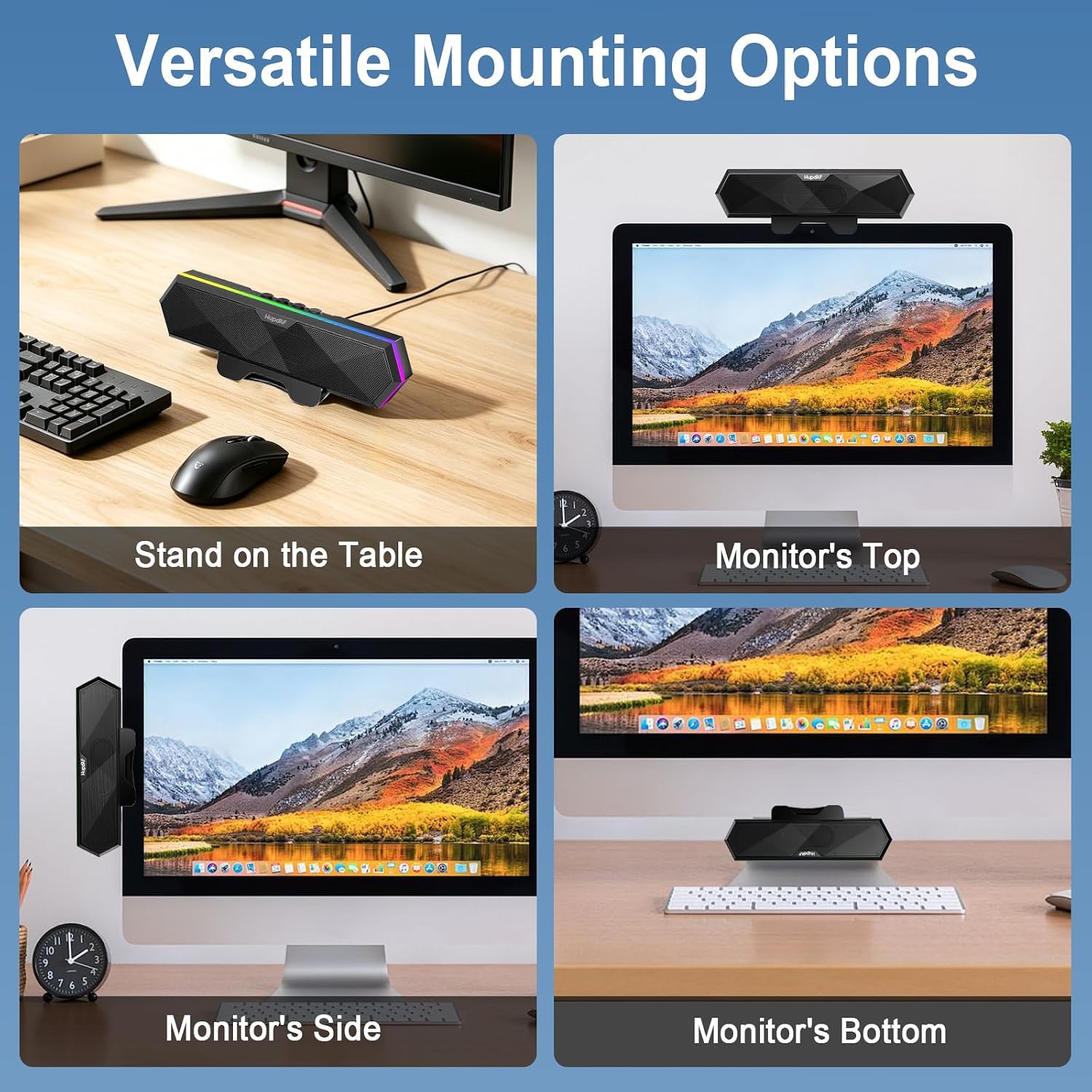
Image: Various mounting options for the Hupoaf GE19 speakers, including freestanding on a desk and clipped to different edges of a monitor.

Image: A visual representation of the speaker's space-saving design and flexible placement options.
Initial Power On
Once connected, the speakers should power on automatically. You may need to select the Hupoaf GE19 as your audio output device in your computer's sound settings.
Video: A demonstration of connecting the Hupoaf GE19 computer speakers to a laptop and initial setup.
Operating Instructions
Audio Playback
The speakers deliver crisp stereo sound with dual magnetic drivers and dual passive radiators. Adjust volume directly from the speaker's top panel or your computer's system volume controls.
Control Buttons
The top panel features dedicated buttons for easy control:
- Lights Control/Off: Single click to cycle through RGB modes. Press and hold to turn lights off.
- Volume Up: Single click to increase volume. Press and hold for next song.
- Mute/Play: Single click to mute/unmute or play/pause audio.
- Volume Down: Single click to decrease volume. Press and hold for previous song.

Image: Detailed view of the speaker's control buttons for easy adjustment of audio and lighting.
RGB Lighting Modes
The speakers feature 6 dynamic RGB lighting modes to enhance your setup. Cycle through these modes using the dedicated light control button on the top panel.

Image: The Hupoaf GE19 speaker showcasing its customizable RGB lighting effects.
System Compatibility
The Hupoaf GE19 speakers are widely compatible with various operating systems:
- Windows
- macOS
- ChromeOS
- Linux
- Android (via C-type supported devices)

Image: A visual guide to the speaker's broad compatibility with various devices and operating systems.
Maintenance
To ensure the longevity and optimal performance of your Hupoaf GE19 speakers, follow these simple maintenance guidelines:
- Cleaning: Use a soft, dry cloth to wipe the speaker's surface. Avoid using liquid cleaners or abrasive materials, as they may damage the finish or internal components.
- Storage: When not in use for extended periods, store the speakers in a cool, dry place away from direct sunlight and extreme temperatures.
- Handling: Avoid dropping the speakers or subjecting them to strong impacts. Do not attempt to disassemble the unit, as this will void the warranty.
- Cable Care: Ensure the USB cable is not bent sharply or tangled, which can lead to internal wire damage.
Troubleshooting
If you encounter any issues with your Hupoaf GE19 speakers, please refer to the following common solutions:
No Sound or Low Volume
- Check Connections: Ensure the USB cable is securely plugged into your computer's USB port. Try a different USB port if available.
- System Volume: Verify that your computer's master volume is not muted or set too low.
- Speaker Volume: Adjust the volume buttons on the speaker's top panel.
- Audio Output Device: Confirm that the Hupoaf GE19 speakers are selected as the default audio output device in your computer's sound settings.
- Compatibility: Remember these speakers are designed for PCs, laptops, and desktop computers with direct USB connection. They are not compatible with TVs, projectors, Xbox, or PlayStation consoles.
RGB Lights Not Working
- Power Connection: Ensure the speakers are properly powered via the USB connection.
- Light Button: Press the dedicated light control button on the top panel to cycle through modes or turn them on. If held down, the lights may turn off.
Connection Issues / Lag
- Direct Connection: For the most stable performance, plug the speakers directly into a USB port on your computer tower or laptop, rather than a monitor USB port, USB docking station, or USB hub.
- Restart Device: Sometimes, simply restarting your computer can resolve minor connectivity issues.

Image: A comparison illustrating the Hupoaf GE19's reliable plug-and-play connection and broad compatibility.
Specifications
| Feature | Detail |
|---|---|
| Brand | Hupoaf |
| Model Name | GE19 |
| Speaker Type | Soundbar |
| Speaker Maximum Output Power | 10 watts |
| Connectivity Technology | Plug-and-Play |
| Connectivity Protocol | USB |
| Mounting Type | Clip-on / Freestanding |
| Color | Classic Black |
| Item Dimensions (D x W x H) | 3"D x 2"W x 3"H |
| Max Monitor Thickness for Clip | 1.6 inches (4.2 cm) |
| Additional Features | RGB Lighting, Stereo Loud Sound, Deep Bass, Easy Controls |
Warranty
The Hupoaf GE19 Computer Speakers come with a standard manufacturer's warranty. Please refer to the warranty information provided with your purchase or contact customer support for details regarding warranty terms and conditions.
Support
For further assistance, technical support, or inquiries regarding your Hupoaf GE19 Computer Speakers, please contact our customer support team. You can typically find contact information on the manufacturer's official website or through your purchase platform.
For more information about Hupoaf products, visit the Hupoaf Store on Amazon.