
1. Introduction
Welcome to the user manual for your BOOX Go 6 (Gen2) ePaper Reader. This device is a 6-inch monochrome e-ink reader powered by Android, designed for comfortable reading and note-taking. It features 3GB of RAM and 32GB of internal storage, providing a smooth and responsive experience for your digital content.
This manual provides essential information on setting up, operating, maintaining, and troubleshooting your device to ensure optimal performance and longevity.
2. Getting Started
2.1. Unboxing and Package Contents
Carefully unpack your BOOX Go 6 (Gen2) ePaper Reader. The standard package includes:
- BOOX Go 6 (Gen2) ePaper Reader
- USB-C Charging Cable
- Quick Start Guide (if included)
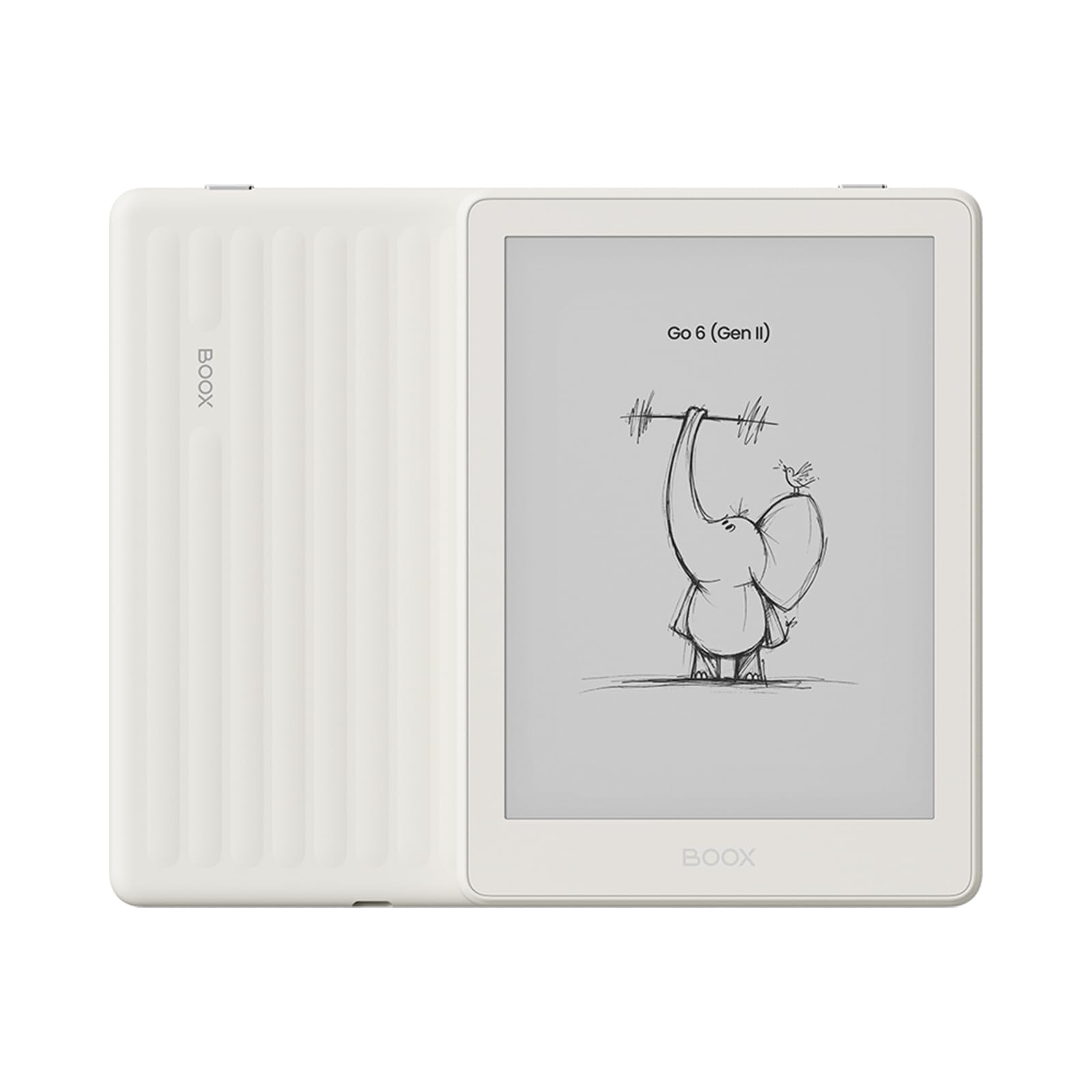
Image: The BOOX Go 6 (Gen2) ePaper Reader, showcasing its back design in Shell color.
2.2. Charging the Device
Before first use, fully charge your device. Connect the included USB-C cable to the charging port on your BOOX Go 6 (Gen2) and plug the other end into a compatible USB power adapter (not included) or a computer USB port. The charging indicator will show the charging status.
2.3. Powering On/Off
- To Power On: Press and hold the power button (usually located on the side or top edge) for a few seconds until the BOOX logo appears.
- To Power Off: Press and hold the power button until a power-off menu appears. Select 'Power Off'.
- To Sleep/Wake: Briefly press the power button to put the device to sleep or wake it up.

Image: A hand holding the BOOX Go 6 (Gen2) ePaper Reader, highlighting its slim and ergonomic design.
2.4. Initial Setup
Upon first power-on, follow the on-screen instructions to complete the initial setup, which typically includes:
- Selecting your preferred language.
- Connecting to a Wi-Fi network for internet access and updates.
- Setting the date and time.
- Logging into your Google account (optional, for Google Play Store access).
3. Operating Your Device
3.1. Basic Navigation
The BOOX Go 6 (Gen2) features a responsive touchscreen for navigation. Swipe to turn pages, tap to select items, and use pinch-to-zoom for adjusting content size. The bottom navigation bar provides quick access to Library, Store, Notes, Storage, Apps, and Settings.

Image: The BOOX Go 6 (Gen2) screen showing a grid of application icons, including popular reading and utility apps.
3.2. Reading Documents and Books
To read, open a document from your Library. Tap the left or right side of the screen to turn pages. You can adjust font size, line spacing, and margins through the reading settings menu, usually accessed by tapping the center of the screen.

Image: The BOOX Go 6 (Gen2) displaying a page of text with a section highlighted, demonstrating reading functionality.

Image: Two BOOX ePaper Readers side-by-side, illustrating various reading modes and text customization options available to the user.
3.3. Adjusting the Front Light
The BOOX Go 6 (Gen2) features a dual-tone front light. Swipe down from the top of the screen to access the quick settings panel, where you can adjust brightness and color temperature (warm or cold light) to suit your environment and preference.

Image: A person reading on the BOOX Go 6 (Gen2) in a dark setting, with an overlay showing the front light adjustment controls for brightness and warmth.
3.4. Installing Android Applications
As an Android-based device, the BOOX Go 6 (Gen2) supports installing various Android applications. Access the Google Play Store (after logging in with your Google account during initial setup) or the BOOX App Store to download and install compatible reading apps, news apps, and more.
3.5. Note-Taking and Annotations
Utilize the note-taking features to annotate documents or create standalone notes. Use your finger or a compatible stylus (if available) to write, draw, and highlight directly on the screen. Access the Notes application from the navigation bar.

Image: The BOOX Go 6 (Gen2) ePaper Reader displaying a document with handwritten annotations and a stylus resting beside it, illustrating its note-taking capability.

Image: A person using the BOOX Go 6 (Gen2) ePaper Reader outdoors at a cafe table, browsing through their digital library.
4. Maintenance
4.1. Cleaning Your Device
To clean the screen, gently wipe it with a soft, lint-free cloth. For stubborn smudges, slightly dampen the cloth with water or a screen cleaner specifically designed for electronics. Avoid using harsh chemicals or abrasive materials. For the device body, use a dry, soft cloth.
4.2. Software Updates
BOOX regularly releases firmware updates to improve performance, add features, and fix bugs. Connect your device to Wi-Fi and navigate to Settings > Firmware Update to check for and install available updates. Ensure your device has sufficient battery life before starting an update.
4.3. Storage Management
The device comes with 32GB of internal storage. To manage your storage, go to Settings > Storage. You can view used space, clear cache, and uninstall applications. Regularly backing up important files to cloud storage or a computer is recommended.
5. Troubleshooting
If you encounter issues with your BOOX Go 6 (Gen2), refer to the following common troubleshooting steps:
- Device Not Turning On: Ensure the device is charged. Connect it to a power source and try powering it on again. If unresponsive, perform a hard reset by holding the power button for 10-15 seconds.
- Screen Unresponsive: Restart the device. If the issue persists, ensure the screen is clean and free of debris.
- Wi-Fi Connection Issues: Check if other devices can connect to your Wi-Fi network. Restart your router and the BOOX device. Verify Wi-Fi settings on your device.
- Applications Crashing: Ensure the app is updated to its latest version. Clear the app's cache (Settings > Apps > [App Name] > Storage > Clear Cache). If the problem continues, try reinstalling the app.
- Slow Performance: Close unused applications running in the background. Clear system cache (Settings > Storage > Cached data). Consider uninstalling rarely used apps to free up RAM and storage.
- Factory Reset: As a last resort, if software issues persist, you can perform a factory reset (Settings > System > Reset options > Erase all data). Warning: This will erase all data on your device. Back up important files before proceeding.
6. Specifications
Key technical specifications for the BOOX Go 6 (Gen2) ePaper Reader:
| Feature | Specification |
|---|---|
| Brand | BOOX |
| Model Name | BOOX Go 6 (Gen2) |
| Display Technology | E-Ink |
| Screen Size | 6 Inches |
| Memory Storage Capacity | 32 GB |
| RAM Installed Size | 3 GB |
| Connectivity Technology | USB, Bluetooth |
| Human Interface Input | Touchscreen |
| Included Components | Charging Cable |
| Color | Shell |
| Product Dimensions | 14.9L x 0.7W x 10.9H cm |
| Item Weight | 160 Grams |
| Country of Origin | China |
7. Warranty Information
The BOOX Go 6 (Gen2) ePaper Reader comes with an official 2-year warranty. This warranty covers manufacturing defects and ensures that your device functions as intended under normal use. Please retain your proof of purchase for warranty claims.
8. Customer Support
For any issues or inquiries regarding your BOOX Go 6 (Gen2) ePaper Reader, please refer to the following support options:
- BOOX Help Center: Visit the official BOOX Help Center online for FAQs, troubleshooting guides, and to submit a support request.
- Firmware Updates: BOOX commits to at least 3 years of firmware updates for each product, ensuring continuous improvement and new features.
- Response Time: Customer service typically responds within 24 hours.
- Official Service: All BOOX tablets come with 2 years of official customer service.
For further assistance, you may visit the BOOX Brand Store on Amazon.


