
BOOX Go 6 Gen II
BOOX Go 6 Gen II E Ink Tablet User Manual
Model: Go 6 Gen II
1. Introduction
This manual provides essential information for the safe and effective use of your BOOX Go 6 Gen II E Ink Tablet. Please read this manual thoroughly before using the device and keep it for future reference.
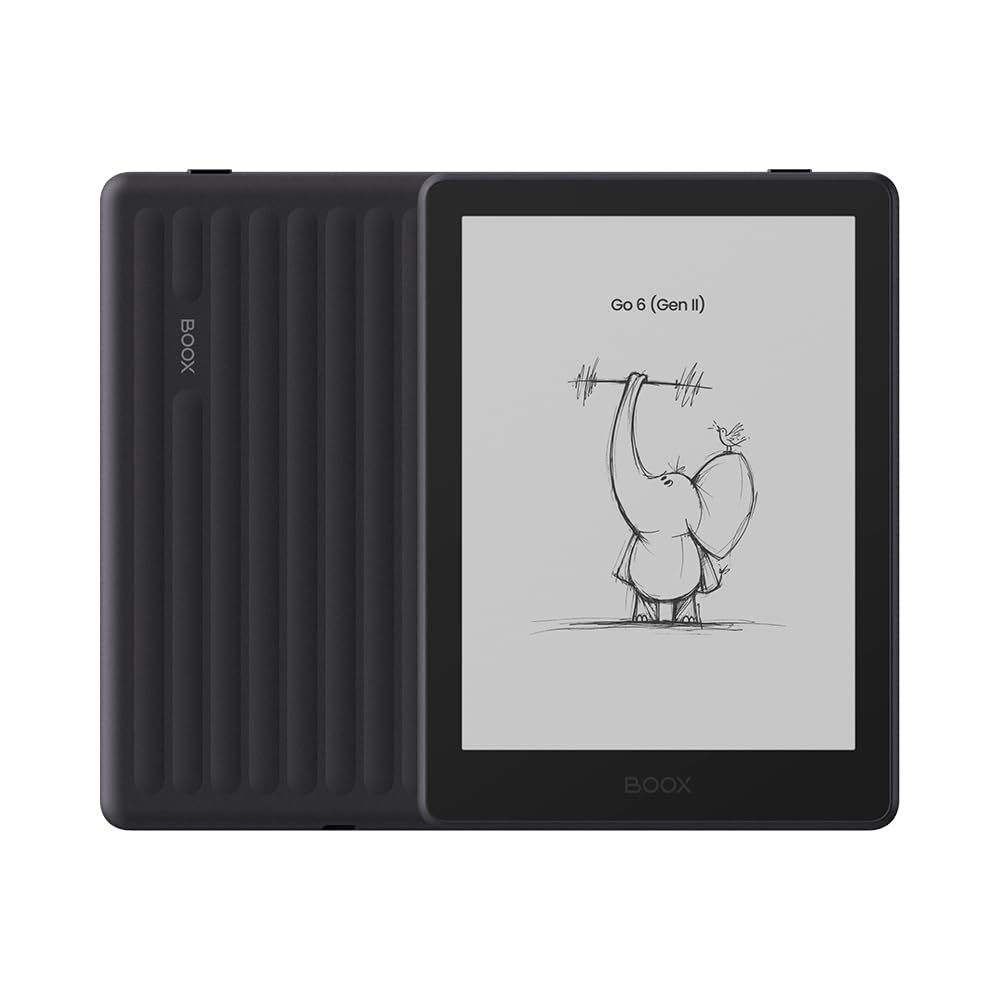
Image 1.1: The BOOX Go 6 Gen II E Ink Tablet, shown in Plum color. This device features a compact design with a textured back panel.
2. What's in the Box
Verify that all items are present upon unboxing:
- BOOX Go 6 Gen II Device
- USB-C Cable (typically included for charging and data transfer)
- Quick Start Guide (may be included, not specified)

Image 2.1: An example of typical package contents, including the device, a stylus, and documentation. Actual contents may vary.
3. Device Overview
Familiarize yourself with the physical components of your BOOX Go 6 Gen II.
3.1 Front View
- E Ink Display: 6-inch screen with 300 PPI resolution, designed for comfortable reading.
- Front Light: Integrated lighting system for reading in various conditions.
3.2 Side and Bottom Views
- Power Button: Located on the side or top edge, used to power on/off and wake/sleep the device.
- USB-C Port: Located on the bottom edge, used for charging and data transfer.
- MicroSD Card Slot: For expandable storage (if present, check specifications).

Image 3.1: Front view of the BOOX Go 6 Gen II, showing the E Ink display with text.

Image 3.2: Side profile of the BOOX Go 6 Gen II, illustrating its slim form factor.
4. Setup
4.1 Charging the Device
- Connect the USB-C cable to the device's USB-C port.
- Connect the other end of the cable to a compatible USB power adapter (not included) or a computer's USB port.
- The device will indicate charging status on the screen. A full charge is recommended before first use.
4.2 Powering On/Off
- To Power On: Press and hold the Power button for a few seconds until the BOOX logo appears.
- To Power Off: Press and hold the Power button until a power-off menu appears, then select "Power Off".
- To Sleep/Wake: Briefly press the Power button to put the device to sleep or wake it up.
4.3 Initial Setup
Upon first power-on, follow the on-screen prompts to configure your device:
- Select your preferred language.
- Connect to a Wi-Fi network to enable internet access for updates and content downloads.
- Log in with your BOOX account or Google account to access services and apps.
- Review and accept the terms of service.
5. Operating the Device
5.1 Navigation
The BOOX Go 6 Gen II uses a touchscreen interface. Tap to select, swipe to scroll, and pinch to zoom (where supported).

Image 5.1: A user navigating the device's library interface, showcasing the touchscreen functionality.
5.2 Reading Books and Documents
- Open the Library or a reading application.
- Tap on a book or document to open it.
- Swipe left or right to turn pages.
- Tap the center of the screen to bring up reading options (font size, line spacing, contrast, etc.).

Image 5.2: The device displaying a text document with highlighted passages, demonstrating reading features.
5.3 Using the Front Light
The device features a dual-tone front light for comfortable reading in various lighting conditions.
- Access front light settings from the quick settings panel (swipe down from the top of the screen) or within reading app options.
- Adjust brightness and color temperature (warm to cool) to suit your preference.

Image 5.3: A user reading the device in a low-light environment, with the front light providing illumination.
5.4 Note-Taking and Stylus Support
The BOOX Go 6 Gen II supports an active stylus (sold separately) for note-taking and annotations.
- Open the Notes app or a compatible document to begin writing.
- Use the stylus to write, draw, and highlight directly on the screen.

Image 5.4: The device displaying a handwritten journal entry, with a stylus resting beside it, illustrating its note-taking capability.
5.5 Installing Android Applications
As an Android-based device, you can install various compatible applications.
- Access the Google Play Store (after logging in with your Google account) or the BOOX App Store.
- Browse and install e-reading apps, news apps, and other productivity tools optimized for E Ink displays.
Image 5.5: The device's home screen showing various application icons, including popular reading and utility apps.
6. Maintenance
6.1 Cleaning the Device
- Use a soft, lint-free cloth to gently wipe the screen and body.
- For stubborn smudges, slightly dampen the cloth with water or a screen cleaner specifically designed for electronics.
- Avoid using harsh chemicals, abrasive materials, or excessive moisture.
6.2 Storage and Handling
- Store the device in a cool, dry place away from direct sunlight and extreme temperatures.
- Avoid dropping the device or subjecting it to strong impacts, as this can damage the E Ink screen.
- Keep the device away from liquids and excessive dust.
7. Troubleshooting
7.1 Device Not Turning On
- Ensure the device is sufficiently charged. Connect it to a power source for at least 30 minutes.
- Perform a forced restart by holding the Power button for 10-15 seconds.
7.2 Screen Not Responding
- Restart the device.
- Ensure the screen is clean and free of debris.
- If the issue persists, contact customer support.
7.3 Wi-Fi Connection Issues
- Ensure Wi-Fi is enabled in the device settings.
- Verify that the Wi-Fi password is correct.
- Restart your Wi-Fi router.
- Try connecting to a different Wi-Fi network if available.
7.4 Apps Crashing or Freezing
- Close and reopen the app.
- Clear the app's cache from device settings (Settings > Apps > [App Name] > Storage > Clear Cache).
- Ensure the device's software is up to date.
8. Specifications
| Brand | BOOX |
| Model Name | Go 6 Gen II |
| Screen Size | 6 inches |
| Display Resolution | 300 PPI |
| Memory Storage Capacity | 32 GB |
| RAM Memory | 3 GB |
| Operating System | Android |
| Connectivity Technology | Wi-Fi, Bluetooth |
| Battery Capacity | 1500 mAh |
| Dimensions (L x W x Thickness) | 5.8" L x 4.3" W x 0.2" Th |
| Human-Interface Input | Touchscreen with Stylus Support |
| Color | Plum (variant shown) |
9. Warranty and Support
9.1 Warranty Information
The BOOX Go 6 Gen II comes with a 1-Year non-hardware warranty. Please refer to the official BOOX website or your purchase documentation for full warranty terms and conditions.
9.2 Customer Support
For further assistance, technical support, or warranty claims, please visit the official BOOX support page or contact their customer service. You can find more information on the BOOX Store on Amazon or the official BOOX website.
Related documentsGo 6 Gen II


Ask a question about this manual
Ask about setup, troubleshooting, compatibility, parts, safety, or missing instructions. Manuals+ will review the question and use this page’s manual context to help answer it.